

Nuestro último plugin es Charitable Automation Connect, que te permite enviar información sobre tus campañas, donaciones y donaciones recurrentes a plataformas de automatización como Zapier.
En esta entrada de blog, te mostraré cómo puedes integrar Charitable, Zapier y Google Calendar para registrar automáticamente a los nuevos donantes como asistentes a tu evento de Google Calendar.
Primeros pasos con Zapier
Zapier es una aplicación que te permite crear flujos de trabajo automatizados que conectan diferentes aplicaciones. Con más de 3000 aplicaciones integradas, existen infinitas posibilidades de cómo puedes usarla.
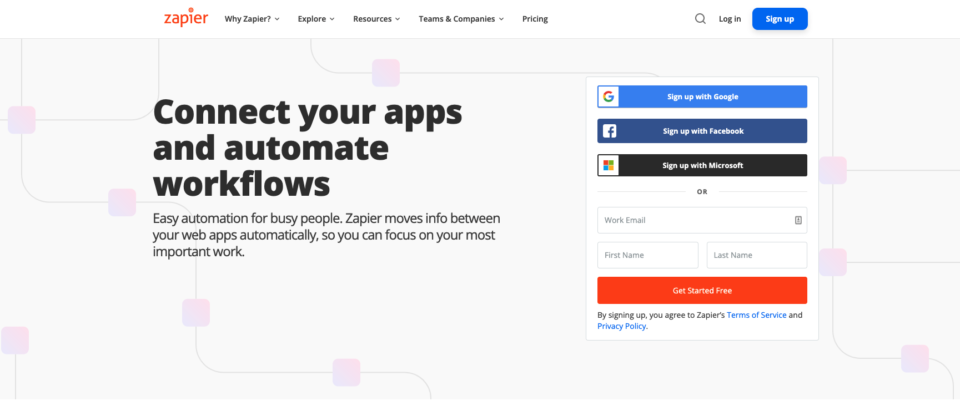
La automatización puede sonar como algo intimidante, pero Zapier lo hace fácil con un proceso intuitivo para construir tus flujos de trabajo (o Zaps, como se conocen en la jerga de Zapier). Puedes crear un Zap sin necesidad de un desarrollador.
¿Qué es un Zap?
Un Zap conecta dos o más aplicaciones diferentes para crear un flujo de trabajo automatizado.
El punto de partida para un Zap es un Desencadenador. Este es el evento que pone en marcha la automatización, y normalmente es un evento que tiene lugar en una aplicación de terceros. Por ejemplo, un evento desencadenador podría ser la llegada de un nuevo correo electrónico a tu bandeja de entrada de Gmail, o el envío de un nuevo formulario de contacto en tu sitio web.
La otra parte de tu Zap es una Acción que tiene lugar después de que ocurra un evento desencadenador. Al igual que con los desencadenadores, las acciones son eventos que tienen lugar en aplicaciones de terceros, y puedes añadir más de una acción en el flujo de trabajo, por lo que un único evento desencadenador puede desencadenar una serie de acciones seguidas.
Aquí es donde ocurre la magia de Zapier. Es como puedes tomar un nuevo correo electrónico y añadirlo a tu lista de tareas del día, o responder a cada nuevo envío de formulario de contacto añadiendo la dirección de correo electrónico del remitente a tu CRM.
También puedes crear flujos de trabajo condicionales. Por ejemplo, ¿quizás en lugar de añadir *cada* nuevo correo electrónico a tu lista de tareas del día, solo quieres añadir los correos electrónicos de tu jefe?
¿Tiene Zapier precios especiales para organizaciones sin ánimo de lucro?
Si bien Zapier tiene un plan gratuito (y funciona con la integración de Zapier de Charitable), descubrimos que para la mayoría de los casos de uso necesitarás las funciones y permisos incluidos en los planes de pago. El plan Starter es el plan más asequible y cuesta 20 USD al mes.
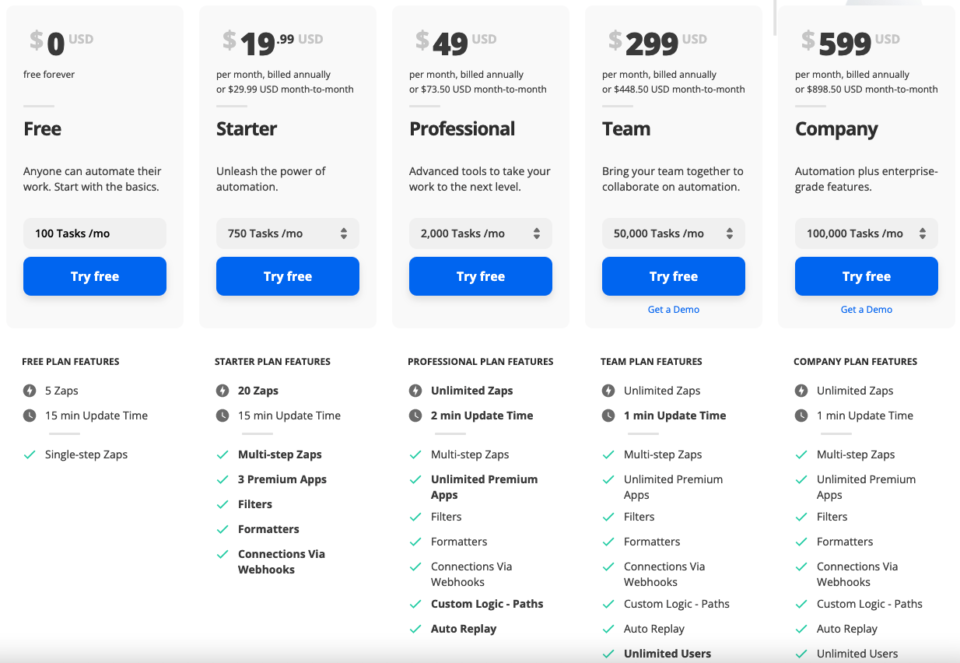
Por supuesto, cada céntimo cuenta para las organizaciones sin ánimo de lucro. Por suerte, Zapier ofrece a las organizaciones sin ánimo de lucro un descuento del 15% en sus planes de pago.
El descuento está disponible previa solicitud y deberá poder proporcionar a Zapier pruebas del estatus de organización sin fines de lucro de su organización.
Una introducción a Google Calendar para organizaciones sin ánimo de lucro
Google Calendar forma parte de la popular colección de aplicaciones en línea que Google ha creado para organizaciones de todas las formas y tamaños. Tu organización puede usarlo para hacer un seguimiento de fechas importantes, reuniones, gestionar eventos o coordinar voluntarios.
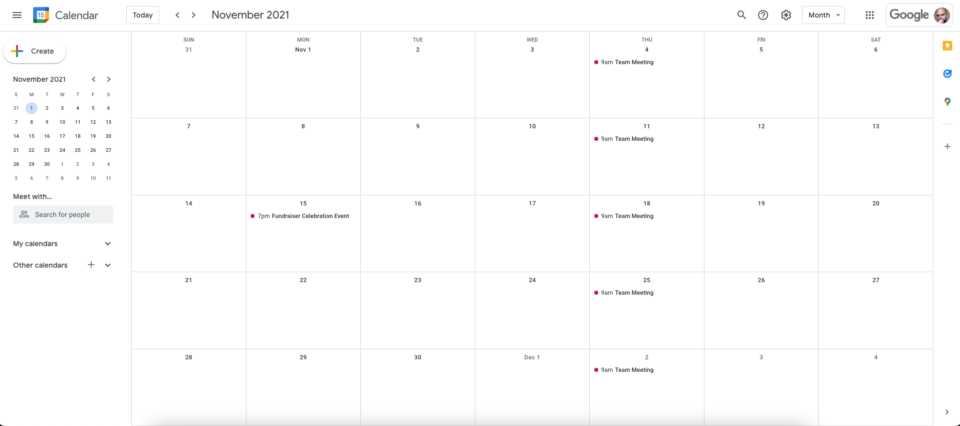
Lo bueno de Google Calendar es que puedes mantener calendarios privados y públicos. Los calendarios privados se pueden limitar fácilmente a que solo sean visibles por otros dentro de la organización, mientras que los calendarios públicos están disponibles para cualquier persona.
También nos gusta la forma en que Google Calendar se integra con otra de las aplicaciones de Google, Meet, la alternativa de Google a Zoom. Hace de Google Calendar una buena forma de organizar reuniones, o incluso configurar un evento virtual de recaudación de fondos entre pares.
Lo mejor de todo es que Google Calendar está incluido en Google Workspace, que es gratuito para organizaciones sin fines de lucro. Además de Calendar, Google Workspace incluye acceso a aplicaciones como Gmail, Meet, Drive, Docs, Sheets y mucho más.
Al igual que con Zapier, deberás solicitar el acceso para organizaciones sin fines de lucro y proporcionar pruebas del estatus de organización sin fines de lucro de tu organización.
Cómo gestionar un evento de recaudación de fondos en Google Calendar
Ahora que hemos cubierto lo básico de Zapier y Google Calendar, veamos cómo podemos usar la integración de Zapier de Charitable para invitar a los donantes a un evento de recaudación de fondos.
Nuestro objetivo final es invitar automáticamente a los donantes a asistir a nuestro evento de recaudación de fondos.
Con Zapier actuando como intermediario entre Charitable y Google, podemos lograrlo fácilmente, sin escribir ningún código.
1. Crea un nuevo evento en Google Calendar
Para empezar, ve a Google Calendar:
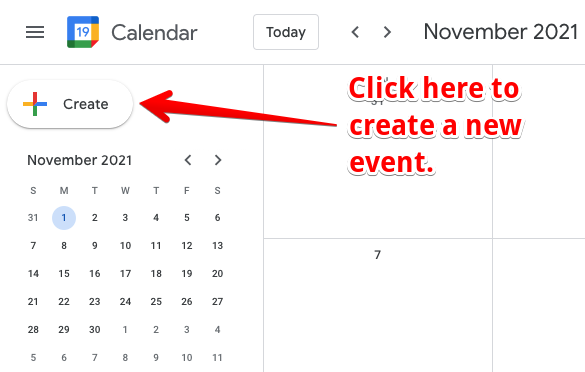
Puedes añadir un nuevo evento haciendo clic en la fecha en la que deseas añadir el evento, o haciendo clic en el gran botón Crear en la esquina superior izquierda:
A continuación, configura tu evento:
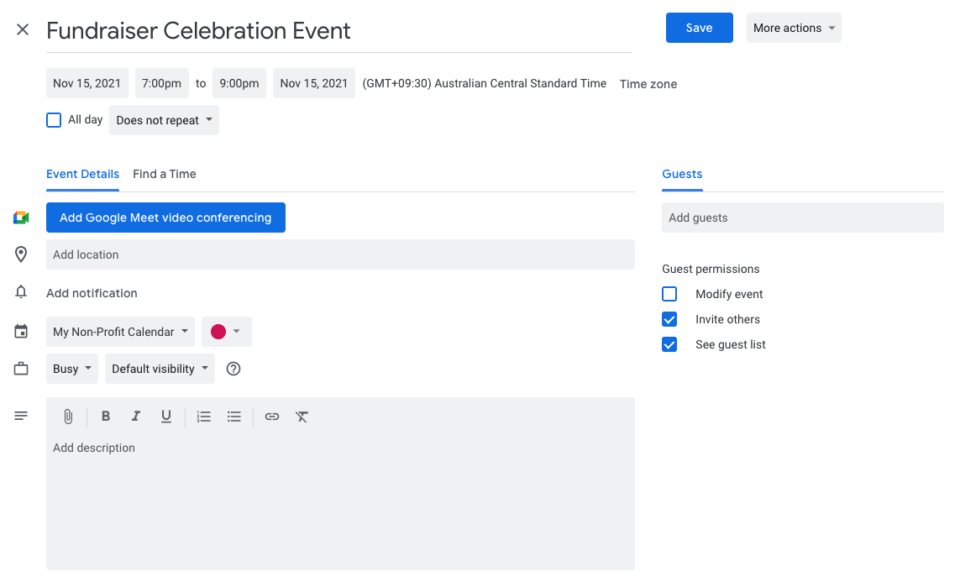
Crear un evento es un proceso relativamente sencillo, con la capacidad de establecer un título, especificar la fecha, hora de inicio y fin del evento, así como proporcionar una ubicación, activar opcionalmente la videoconferencia de Google Meet y configurar una descripción más detallada del evento.
Al configurar tu evento, asegúrate de verificar que se utiliza la zona horaria correcta.
2. Instala y activa Charitable Automation Connect
A continuación, iniciemos sesión en nuestro panel de WordPress y obtengamos el plugin Charitable Automation Connect.
Automation Connect es una extensión para Charitable, que es una forma elegante de decir que es un plugin normal de WordPress diseñado para añadir funcionalidades a Charitable, nuestro plugin gratuito de donaciones para WordPress.
Dado que Automation Connect es una extensión de pago, primero deberás comprar una licencia. Encontrarás la mejor oferta disponible con uno de los paquetes de Charitable, todos los cuales incluyen Automation Connect y una gama de otras extensiones de Charitable que añaden más opciones de pago, soporte para donaciones recurrentes, herramientas de marketing por correo electrónico, recaudación de fondos entre pares y más.
Sube de nivel tu recaudación de fondos en línea
Charitable es el plugin de donaciones de WordPress mejor valorado y más asequible. Mejora tu recaudación de fondos de WordPress hoy mismo.
Instalación de Charitable Automation Connect
Una vez que tengas el plugin Automation Connect, puedes instalarlo a través de tu panel de WordPress:
- Descarga tu extensión a través del enlace en el correo electrónico de tu recibo de compra, o desde tu página de cuenta en wpcharitable.com.
- En tu panel de WordPress, ve a Plugins > Añadir nuevo.
- A continuación, haz clic en el botón Subir plugin en la parte superior de la página.
- Selecciona el archivo zip que descargaste anteriormente y haz clic en Instalar ahora.
- Activa Charitable Automation Connect.
Con eso, has hecho todo lo que necesitabas en el lado de WordPress. Automation Connect está ahora activo y listo para que conectes Charitable con Zapier.
3. Configura la integración de Charitable y Zapier
¿Aún no te has registrado en Zapier? Necesitarás una cuenta para los siguientes pasos. Haz clic aquí para registrarte.
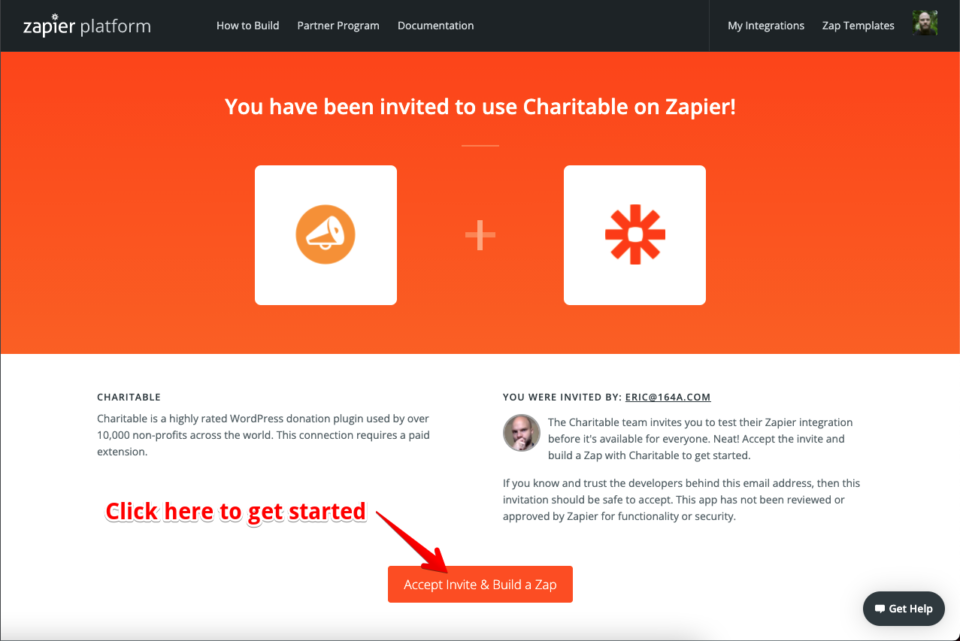
La integración de Charitable con Zapier se encuentra en una etapa de solo invitación. Puedes usarla haciendo clic en el siguiente enlace:
https://zapier.com/developer/public-invite/145749/3951e2d476c62199212c9731642ed145/
En la siguiente página, haz clic en el botón Aceptar invitación y crear un Zap, que añadirá la integración de Charitable a tu cuenta de Zapier:
4. Crea un nuevo Zap para invitar a los donantes a asistir al evento de recaudación de fondos
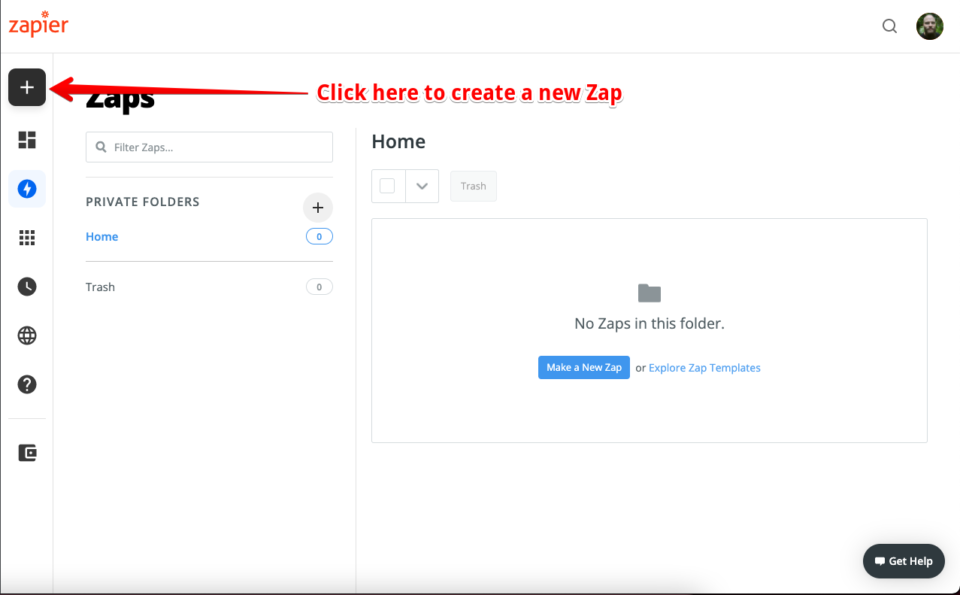
Con eso hecho, es hora de configurar nuestro Zap. En la esquina superior izquierda, haz clic en el botón Crear Zap (en pantallas pequeñas, el botón será reemplazado por un botón + grande, como se muestra a continuación):
Configura el desencadenador del Zap
Como se discutió anteriormente, un Zap comienza con un Disparador. El Disparador de nuestro Zap será un evento en Charitable: una nueva donación.
En el campo de búsqueda, busca "charitable" y luego selecciónalo como la Aplicación:
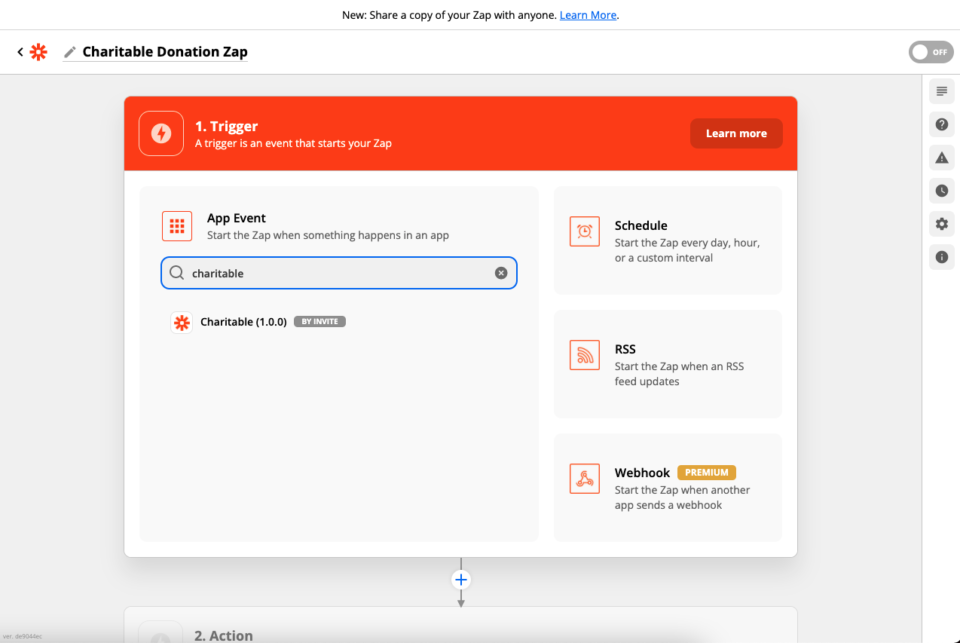
A continuación, elegimos nuestro Evento Disparador. En este punto, estamos eligiendo a qué recurso de Charitable (Donación, Campaña o Donación Recurrente) se aplicará el Evento Disparador. En un momento elegiremos el evento específico (una nueva donación, una campaña eliminada, etc.):
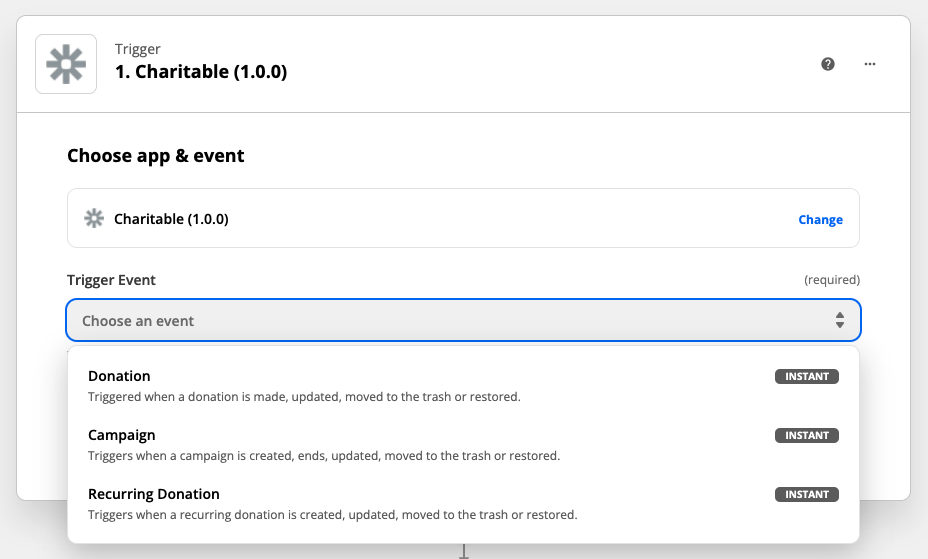
Cuando uses la integración de Charitable Zapier por primera vez, necesitarás conectar tu sitio web a Zapier. Haz clic en Iniciar sesión en Charitable.
En el formulario que se abre, se te pedirá que configures los detalles para permitir que Zapier acceda a tu cuenta de Charitable. Para que quede claro, esta es tu cuenta en tu sitio web de WordPress, no tu cuenta en wpcharitable.com.
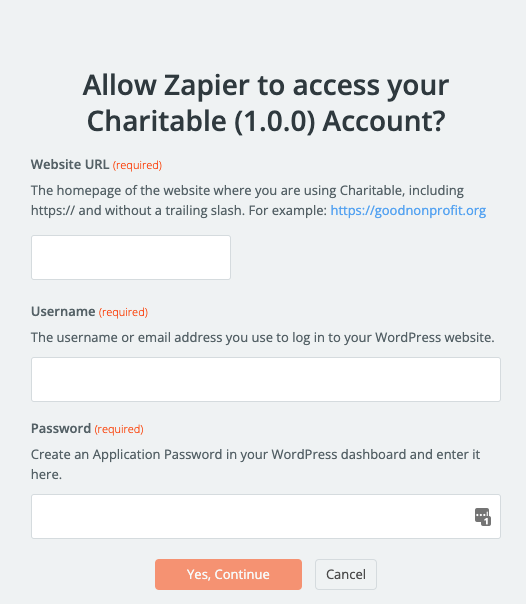
En el campo URL del sitio web, añade la URL de la página de inicio del sitio web donde tienes instalado Charitable. Asegúrate de incluir https:// al principio y omitir la barra invertida al final.
En el campo Nombre de usuario, añade el nombre de usuario o la dirección de correo electrónico que utilizas para iniciar sesión en tu panel de WordPress.
Para el campo Contraseña, podrías usar tu contraseña normal de WordPress, pero por motivos de seguridad recomendamos encarecidamente configurar una Contraseña de aplicación para que la use exclusivamente Zapier.
Configuración de una Contraseña de aplicación
Crear una Contraseña de aplicación es un proceso sencillo de 3 pasos:
1. Ve a Usuarios > Perfil en tu panel de WordPress.
2. Desplázate hacia abajo y haz clic en Añadir nueva Contraseña de aplicación.
3. Copia y pega la contraseña en Zapier.
Con esos detalles completados, haz clic en Sí, Continuar.
En el siguiente paso, puedes elegir el evento específico que iniciará tu flujo de trabajo. Para las donaciones, hay cuatro opciones:
- Cuando se crea una donación.
- Cuando se actualiza una donación.
- Cuando una donación se mueve a la papelera.
- Cuando una donación se restaura desde la papelera.
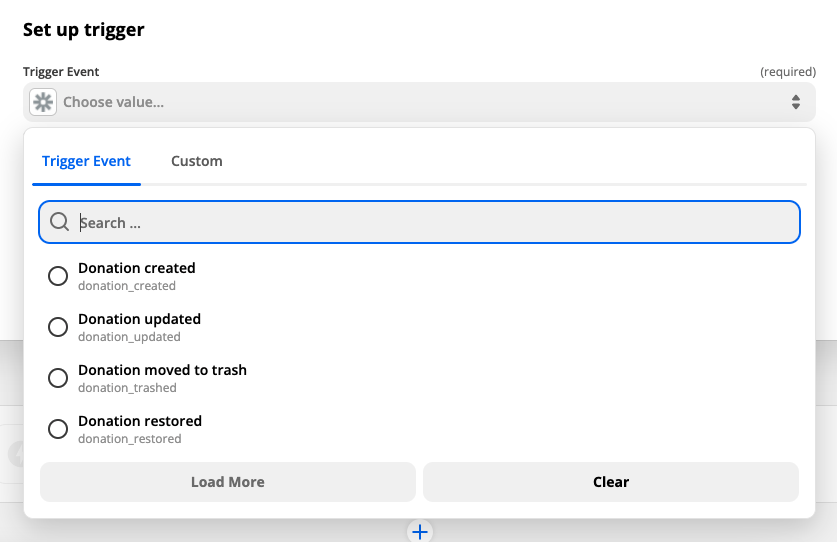
En nuestro caso, elegiremos el evento “Donación actualizada”. Si bien “Donación creada” podría parecer una mejor opción, queremos asegurarnos de que los donantes solo se agreguen como asistentes cuando su donación haya sido pagada. Las donaciones comienzan como Pendientes por defecto, por lo que cuando ocurra el evento “Donación creada”, el pago aún no se habrá confirmado.
Más tarde, usaremos un filtro para asegurarnos de que la donación se pague antes de agregar al donante como asistente.
Con eso hecho, haz clic en Continuar y luego haz clic en Probar activador en el siguiente paso para asegurarte de que todo funcione.
Configura la acción
Como mencionamos anteriormente, solo queremos que los donantes se agreguen como asistentes cuando terminen de pagar su donación. Para lograrlo, podemos usar la herramienta Filtro en Zapier. En la sección Acción, haz clic en Filtro en la columna de la derecha:
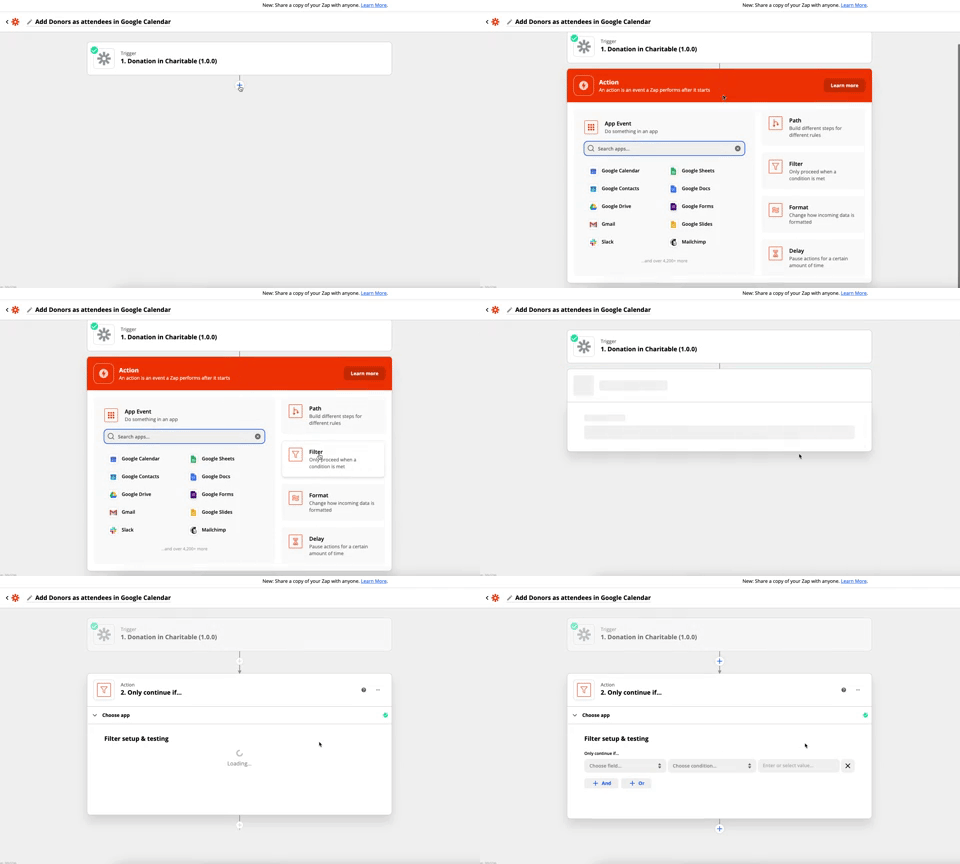
A continuación, configura el filtro eligiendo el campo “Estado de la donación” para el filtro y asegurándote de que coincida exactamente con “charitable-completed”:
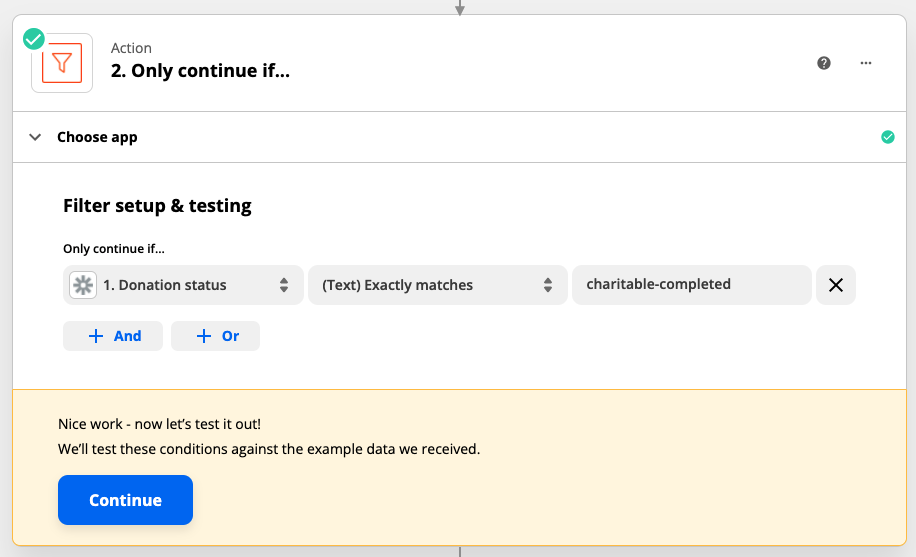
Haz clic en Continuar para probar el filtro. Zapier debería indicarte que el Zap habría continuado, dados los datos de prueba proporcionados por Charitable.
Con eso hecho, podemos pasar a configurar nuestra acción de Google Calendar. Haz clic en el icono + en la parte inferior del proceso de Zap para agregar una nueva acción y luego busca Google Calendar.
Una vez que hayas hecho eso, haz clic en “Elegir un evento” y elige “Agregar asistente(s) al evento” como el Evento de Acción para tu Zap:
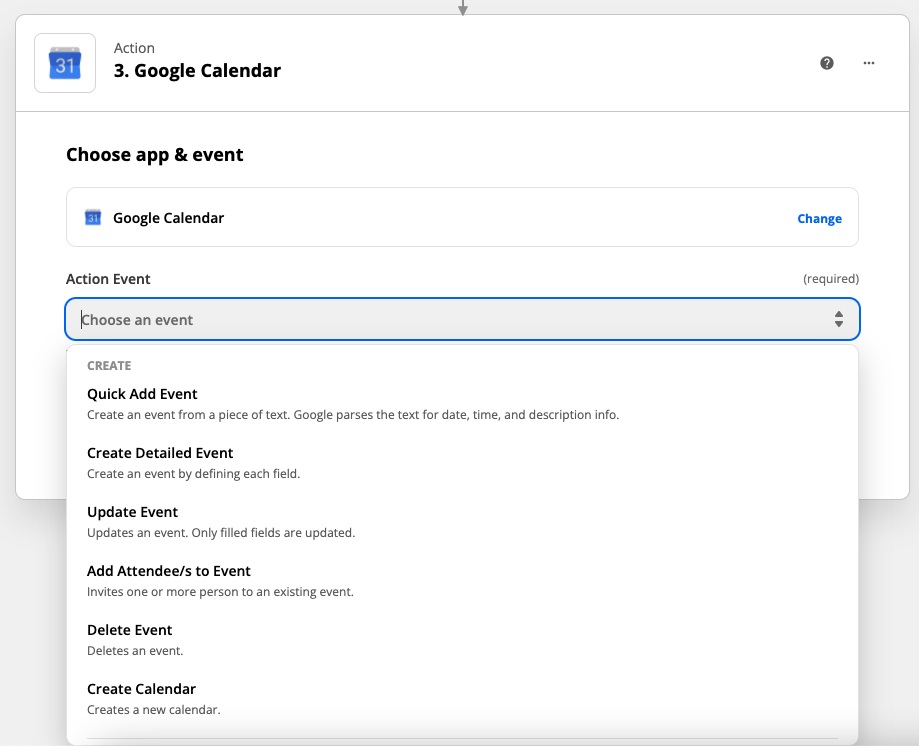
Haz clic en Continuar para guardar el Evento de Acción y pasar al siguiente paso.
Si es la primera vez que usas la integración de Google Calendar en Zapier, necesitarás conectar tu cuenta de Google para permitir que Zapier acceda a tus calendarios y agregue asistentes a eventos.
A continuación, avanza por los últimos pasos de configuración de tu acción eligiendo tu Google Calendar y seleccionando el evento de calendario que creaste anteriormente para tu evento de recaudación de fondos.
Finalmente, para el campo “Asistente(s)”, selecciona el campo de datos de Correo electrónico enviado por Charitable:
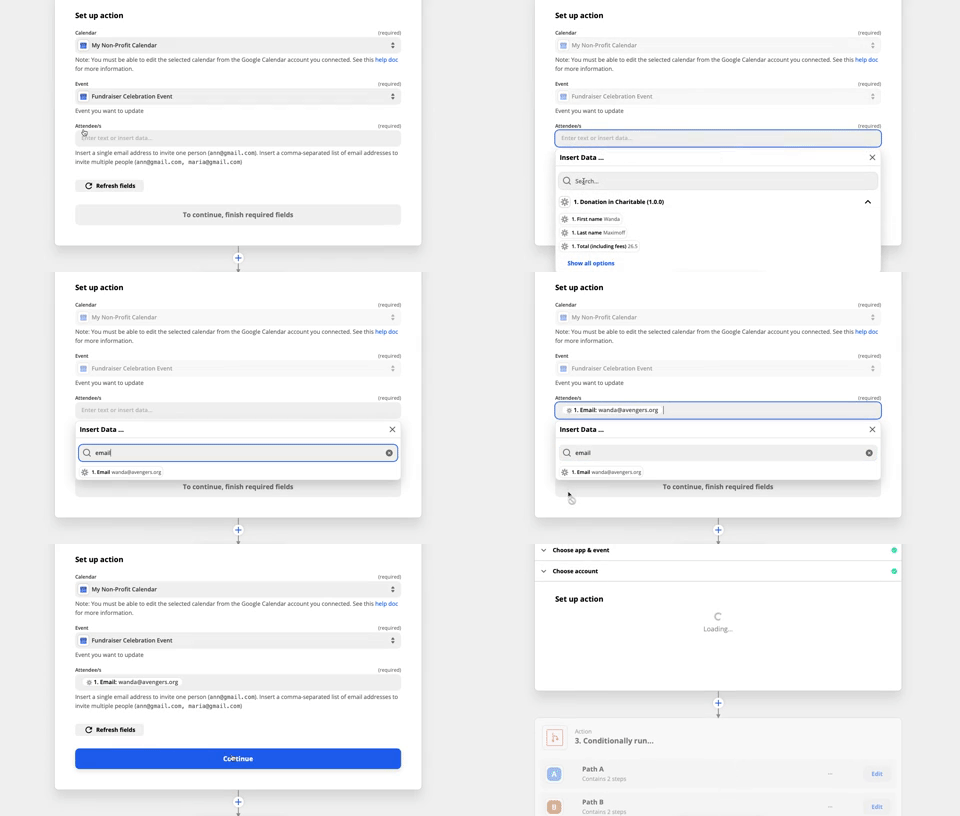
Con eso hecho, haz clic en Continuar para probar el paso de acción utilizando los datos de prueba. Si tiene éxito, deberías ver un nuevo asistente agregado a tu evento en Google Calendar. No olvides eliminarlo antes de finalizar. 🙂
Finalmente, activa tu Zap haciendo clic en Activar Zap. A partir de ahora, cada nuevo donante en tu sitio web se agregará a tu evento de Google Calendar, automáticamente. ¡Magia!
Consejo extra: Haz que el evento sea exclusivo para tus donantes más importantes
Nuestro Zap ahora está configurado para agregar sin esfuerzo asistentes a nuestro evento, pero es posible que queramos ajustarlo para que solo se agreguen nuestros donantes principales como asistentes. Al agregar a la acción de Filtro que usamos anteriormente, podemos hacerlo fácilmente:

En el ejemplo que se muestra, solo invitamos a los donantes que dieron más de 100 $ a asistir al evento.
Empieza a automatizar tu organización sin ánimo de lucro con Charitable hoy mismo
Como has visto, Charitable Automation Connect es una nueva y potente herramienta disponible para organizaciones sin ánimo de lucro. Puedes usarla para crear flujos de trabajo automatizados como el que hemos descrito aquí, pero hay muchas más posibilidades.
Con Charitable gestionando sin problemas la integración con Zapier, puedes conectar fácilmente Charitable a cualquiera de las miles de aplicaciones con las que Zapier se integra, sin escribir código.
Sube de nivel tu recaudación de fondos en línea
Charitable es el plugin de donaciones de WordPress mejor valorado y más asequible. Mejora tu recaudación de fondos de WordPress hoy mismo.





Deja una respuesta