
Las actualizaciones sencillas te permiten compartir fácilmente información importante sobre el progreso de tu campaña, expresar gratitud a tus seguidores, proporcionar transparencia sobre cómo se utilizan los fondos y mantener a todos informados sobre los desarrollos relacionados con tu causa.
Estas actualizaciones aparecen directamente en la página de tu campaña, asegurando que tanto los donantes existentes como los posibles contribuyentes puedan mantenerse informados sobre el impacto de tu misión.
Esta guía te muestra cómo usar las actualizaciones sencillas en tus campañas de Charitable.
Requisitos previos
- Plugin Charitable Pro instalado y activado en tu sitio de WordPress
- Las actualizaciones sencillas están incluidas en todos los planes de Charitable Pro. Necesitas tener el plan Básico o superior.
En esta guía
Paso 1: Añadir el bloque de actualizaciones sencillas
Primero, abre Charitable en tu panel de WordPress y crea una campaña »
Dentro del constructor de campañas, verás una vista previa de tu campaña a la derecha, junto con un menú de bloques a la izquierda.
Elige el bloque de Actualizaciones y arrástralo y suéltalo en tu campaña donde quieras que aparezca.
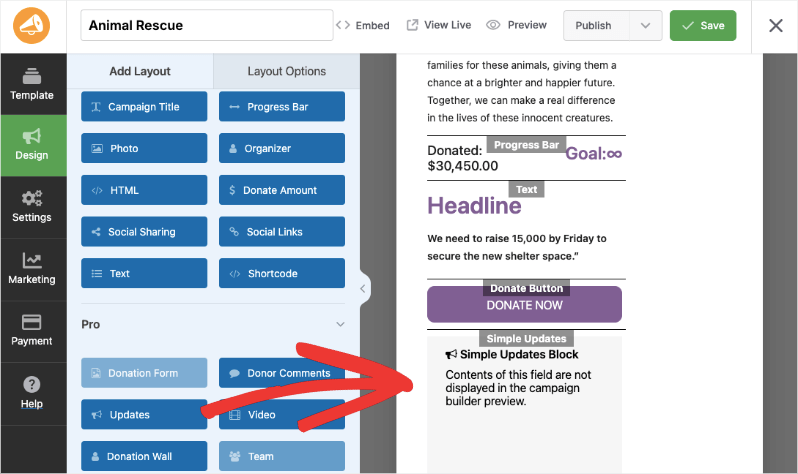
Pulsa el botón Guardar en la esquina superior derecha de la pantalla.
Paso 2: Añadir tu mensaje
Desde el menú de la izquierda, abre la pestaña Configuración. Verás una lista de subpestañas, incluyendo Configuración general, Opciones de donación y Geolocalización.
Abre la pestaña Actualizaciones sencillas. Aquí, hay un cuadro de texto donde puedes introducir tu mensaje.
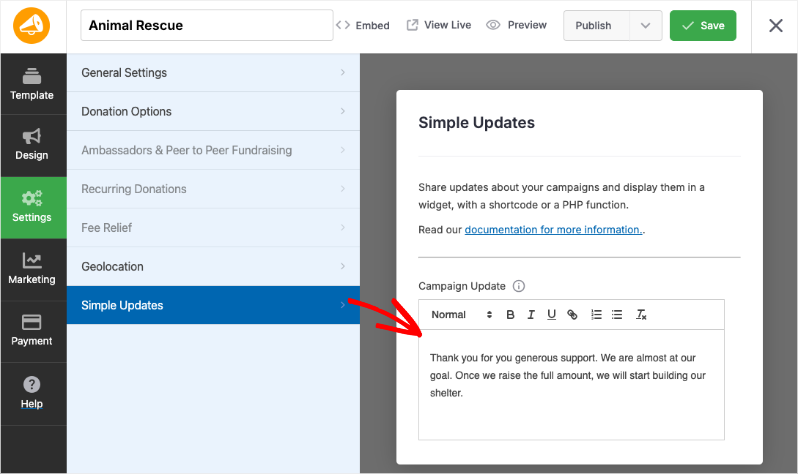
Las actualizaciones sencillas proporcionan un editor de texto enriquecido que te permite formatear tus mensajes con:
- Texto en negrita para énfasis
- Texto en cursiva para énfasis estilístico
- Texto subrayado para resaltar
- Puntos de viñeta para organizar la información
- Enlaces URL para dirigir a los seguidores a recursos relevantes o información adicional
Esta flexibilidad de formato asegura que tus actualizaciones sean visualmente atractivas y fáciles de leer, ayudándote a comunicarte eficazmente con tus donantes y seguidores.
Cuando hayas terminado, pulsa el botón Guardar en la parte superior.
Ahora visita tu campaña en vivo y verás la actualización aparecer allí.
Mostrar actualizaciones con un shortcode
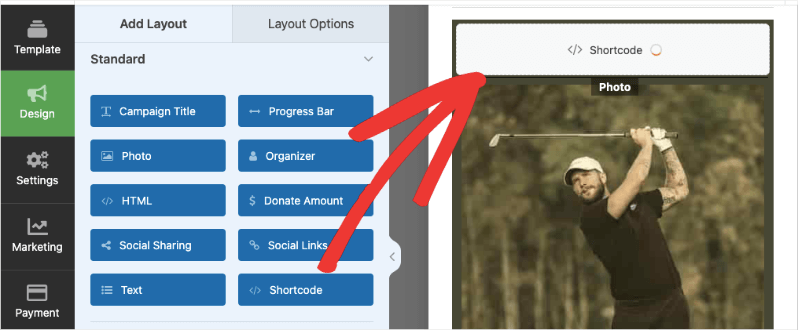
También puedes añadir las Actualizaciones a cualquier área de contenido usando el shortcode [campaign_updates]. En este ejemplo, hemos añadido un bloque de shortcode a la campaña:
Cuando haces clic en el bloque, se abrirá la pestaña Opciones de diseño para el bloque de shortcode. Puedes añadir un encabezado, el shortcode y cualquier Clase CSS si lo deseas.
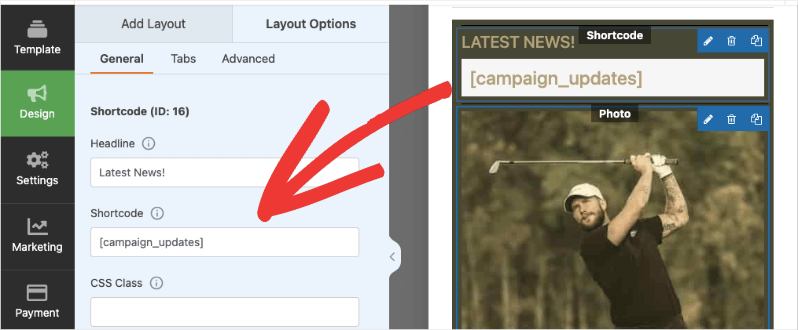
También puedes añadir un ID de campaña al shortcode como parámetro, lo que te permite mostrar las actualizaciones de una campaña específica. Esto es útil cuando se muestran las actualizaciones en una página o entrada separada. Por ejemplo:
También puedes añadir IDs específicos de campaña a tus actualizaciones sencillas si las estás añadiendo en cualquier otro lugar de tu sitio:
[campaign_updates campaign_id=16]
Puedes encontrar el ID de tu campaña mirando la URL de la página donde la editas.
https://demosite.com/wp-admin/?page=charitable-campaign-builder&campaign_id=16.
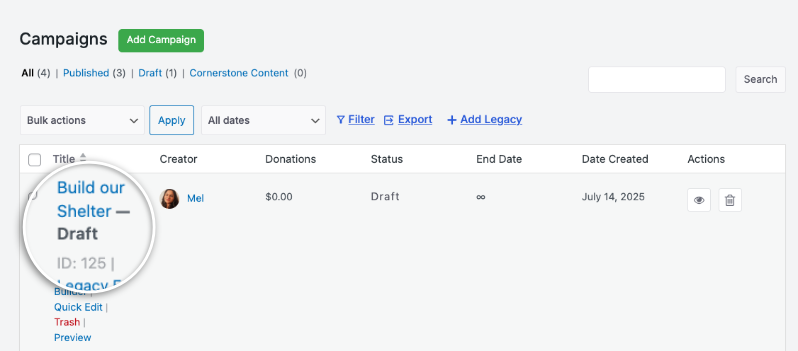
El ID de la campaña también está disponible en la pestaña Charitable » Campañas. Pasa el cursor sobre el nombre de la campaña y aparecerá el ID.
Integrarlo con una función PHP
Si te sientes cómodo escribiendo un poco de PHP, puedes integrar las actualizaciones con una simple función PHP.
$campaign_id = 11;

charitable_simple_updates_template_campaign_updates( 11 );
Esta función mostrará las actualizaciones; no necesitas usar echo o print para renderizarlas.
Preguntas frecuentes sobre las actualizaciones sencillas
¿Necesito instalar algún plugin adicional para aceptar donaciones?
¡No! Las Actualizaciones Sencillas de Charitable funcionan directamente. No se requieren complementos adicionales.
¿Puedo añadir actualizaciones a la campaña después de que se publique?
¡Sí! Puedes editar las actualizaciones de la campaña en cualquier momento. Los cambios se guardan al hacer clic en el botón Guardar.
Hice cambios en la configuración, pero no se muestran. ¿Qué debo hacer?
Haz siempre clic en "Guardar Cambios" despu ilde{n}s de realizar cualquier modificaci ilde{³}n. Si los cambios a ilde{1}n no aparecen, intenta borrar la cach ilde{n} de tu sitio web si est ilde{1}s usando un plugin de cach ilde{n}.
ilde{1}Puedo personalizar la apariencia de mis formularios de donaci ilde{³}n?
Sí. Puedes personalizar los colores, las plantillas de formulario (estándar o mínima) y las opciones de visualización de campos. Para una personalización más avanzada, consulta la documentación sobre CSS personalizado y fragmentos de código.
¿Cuál es la diferencia entre Charitable Lite y Pro?
Charitable Lite es gratuito pero incluye una comisi ilde{³}n de transacci ilde{³}n del 3%. Los planes Pro eliminan esta comisi ilde{³}n e incluyen funciones avanzadas como donaciones recurrentes, gesti ilde{³}n de donantes, recaudaci ilde{³}n de fondos de persona a persona y m ilde{1}s pasarelas de pago.
¿Dónde puedo obtener ayuda si tengo problemas?
- Usuarios gratuitos: Utiliza los foros de soporte de WordPress.org
- Usuarios Pro: Ponte en contacto directamente con el soporte para recibir asistencia prioritaria
- Documentación: Consulta la completa biblioteca de documentación
- Comunidad: Únete al boletín y sigue los canales sociales para obtener consejos y actualizaciones
¿Hay tutoriales en vídeo disponibles?
¡Sí! Suscríbete al canal de YouTube de Charitable para obtener tutoriales paso a paso e historias de éxito.
¿Necesitas soporte? ¿Tienes alguna pregunta? Si eres un usuario lite/gratuito de Charitable, puedes contactar a nuestro equipo en los foros de soporte de WordPress.org y nuestro equipo responderá a tiempo. Si tienes una licencia activa, no dudes en contactarnos directamente para obtener soporte prioritario.


