
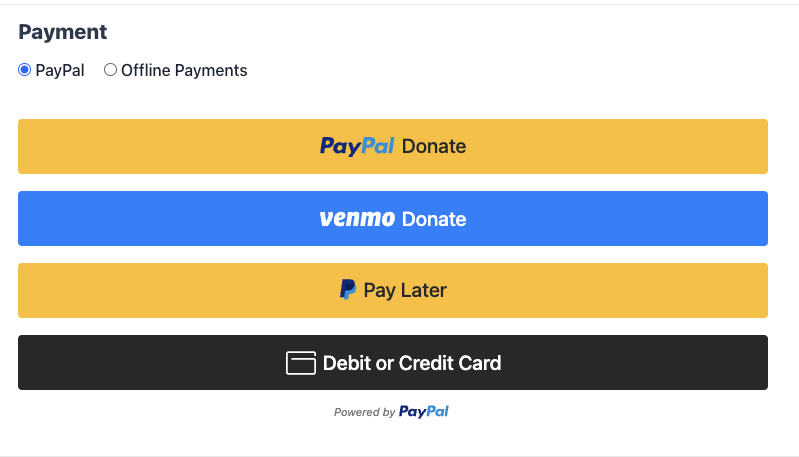
PayPal Commerce ist eine einzige, moderne PayPal-Integration, mit der Ihre Spender über eine Verbindung mit PayPal, Venmo, Pay Later, Kredit- und Debitkarten, Apple Pay und Google Pay bezahlen können. Die Ein-Klick-Verbindung „Mit PayPal verbinden“ übernimmt die Einrichtung, und Spenden sowie Rückerstattungen werden über die Standard-Adminoberfläche von Charitable abgewickelt, ohne dass Sie sich bei PayPal anmelden müssen.
Verfügbar in Charitable Pro 1.8.15+ und Charitable 1.8.11 (das derzeit keine wiederkehrenden Spenden / Speicherung von Zahlungsmethoden unterstützt). Es wurde End-to-End in Sandbox- und Live-Umgebungen getestet, und wir werden die Erfahrung basierend auf Kundenfeedback weiter verfeinern.
Hauptmerkmale
- Spenden über PayPal, Venmo, Pay Later, Kredit- und Debitkarten, Apple Pay und Google Pay über eine einzige Integration akzeptieren.
- Verbinden Sie Ihr PayPal-Geschäftskonto mit einem Klick. Kein Entwickler erforderlich.
- Einmalige und wiederkehrende Spenden über dasselbe Formular anbieten.
- Wählen Sie zwischen zwei wiederkehrenden Modi: PayPal-verwaltete Abonnements oder von Charitable verwaltete Verlängerungen mit gespeicherten Zahlungsmethoden.
- Lassen Sie wiederkehrende Spender ihr PayPal-Konto oder ihre Karte speichern und bei zukünftigen Spenden wiederverwenden.
- Spenden direkt aus dem WordPress-Adminbereich erstatten und stornieren.
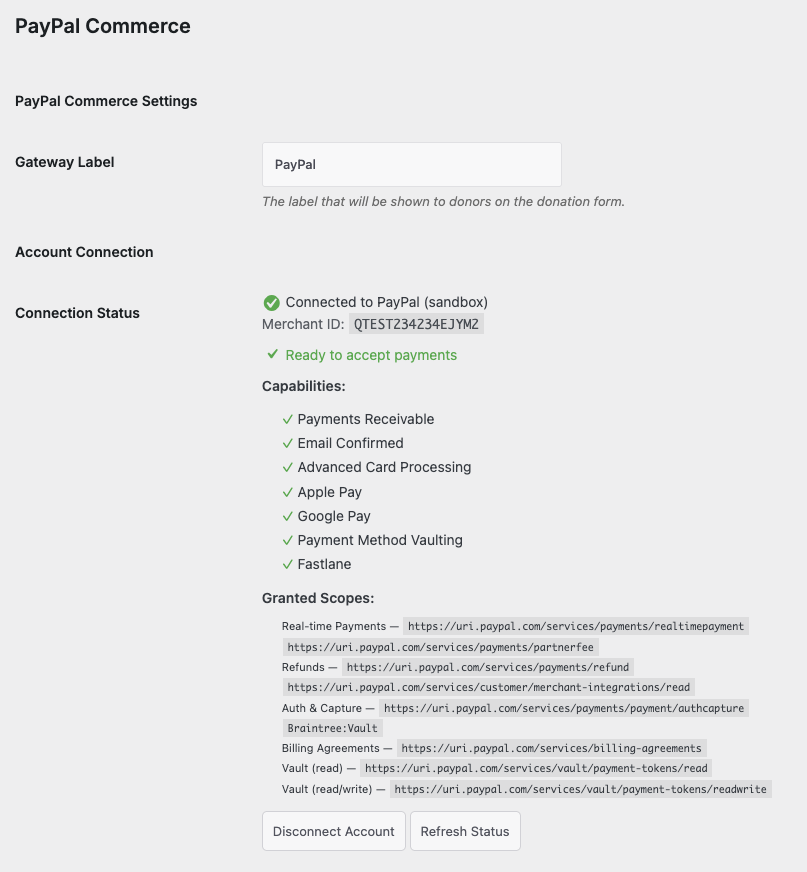
- Sehen Sie den Echtzeit-Status der PayPal-Funktionen (Zahlungen empfangbar, E-Mail bestätigt, Kartenverarbeitung, Apple Pay, Google Pay, Speicherung von Zahlungsmethoden, Fastlane) im Verbindungspanel.
- Spender, die auf einen PayPal-seitigen Fehler stoßen, sehen klare, freundliche Meldungen mit einem Hinweis zur Fehlerbehebung anstelle einer generischen Browser-Warnung.
Warum PayPal Commerce nutzen?
PayPal Commerce bietet Ihren Spendern die maximale Anzahl an Zahlungsmöglichkeiten, ohne dass Ihr Team mehrere Gateways verwalten muss. Eine einzige Verbindung schaltet PayPal, Venmo, Pay Later-Finanzierung, vollständige Kredit- und Debitkartenverarbeitung über die PCI-konformen Kartenfelder von PayPal und die modernen Wallets (Apple Pay, Google Pay) frei, die alle Spender auf einem Spendenformular des Jahres 2026 erwarten. Im Vergleich zur älteren Legacy-PayPal-Integration erhalten Sie umfangreichere Zahlungsoptionen, einen schnelleren Checkout und Admin-Tools für Rückerstattungen und die Verwaltung wiederkehrender Zahlungen, ohne jemals WordPress verlassen zu müssen.
Sehen Sie es in Aktion
Voraussetzungen
- Charitable Lite 1.8.11 oder Charitable Pro 1.8.15 oder neuer
- Ein PayPal-Geschäftskonto (Sie können während des Verbindungsvorgangs eines erstellen)
- WordPress 6.0+ und PHP 7.4+
- Die
gd- oderimagick-PHP-Erweiterung, wenn Sie die Generierung von PDF-Belegen verwenden möchten (bereits vom Charitable-Kern erforderlich)
Erste Schritte
Aktivierung
- Gehen Sie in Ihrem WordPress-Adminbereich zu Charitable → Einstellungen → Zahlungs-Gateways.
- Finden Sie PayPal Commerce in der Gateway-Liste und klicken Sie auf Aktivieren.
- Klicken Sie auf Einstellungen neben PayPal Commerce und dann auf die Schaltfläche Mit PayPal verbinden.
- PayPal öffnet sich in einem neuen Fenster. Melden Sie sich bei Ihrem PayPal-Geschäftskonto an (oder erstellen Sie eines) und genehmigen Sie die Verbindung.
- PayPal leitet Sie zurück zu WordPress. Das Verbindungspanel zeigt Ihre Händler-ID und eine Checkliste der gewährten Funktionen an.
Das ist alles. Sie können sofort mit PayPal Commerce Spenden annehmen.
Testmodus vs. Live-Modus
PayPal Commerce respektiert den standardmäßigen Testmodus -Schalter von Charitable. Wenn der Testmodus aktiviert ist, werden Spenden über die Sandbox von PayPal geleitet, sodass Sie den gesamten Spenderfluss validieren können, ohne echtes Geld zu bewegen. Schalten Sie den Testmodus aus, wenn Sie bereit sind, Live-Spenden anzunehmen.
Gespeicherte Zahlungsmethoden sind pro Händler aufgeteilt: eine Karte, die Sie im Sandbox-Modus gespeichert haben, wird im Live-Modus nicht angezeigt und umgekehrt.
Konfigurationsoptionen
Nach der Verbindung zeigt die Seite PayPal Commerce-Einstellungen diese Optionen an. Die meisten Standardeinstellungen sind für eine Neuinstallation sinnvoll, sodass Sie sie normalerweise unverändert lassen können.
Zahlungsmethoden
| Einstellung | Typ | Standard | Beschreibung |
|---|---|---|---|
| Venmo aktivieren | Umschalten | Aus | Zeigen Sie den Venmo-Spenden-Button neben PayPal an. Venmo ist nur in den USA verfügbar und erfordert die Pay Later-Funktion in Ihrem PayPal-Konto. |
| Pay Later aktivieren | Umschalten | Aus | Zeigen Sie den Pay Later-Button von PayPal an (in 4 Raten zahlen, PayPal Credit). Die Berechtigung wird von PayPal an der Kasse basierend auf der Region des Spenders und dem Spendenbetrag bestimmt. |
| Kartenfelder (ACDC) aktivieren | Umschalten | Ein | Rendern Sie die PCI-konformen Kredit- und Debitkartenfelder von PayPal direkt in Ihrem Spendenformular. Fällt auf einen eigenständigen Button „Debit- oder Kreditkarte“ zurück, wenn PayPal die Kartenfelder in Ihrem Konto noch nicht aktiviert hat. |
| Apple Pay aktivieren | Umschalten | Ein | Zeigen Sie den Apple Pay-Button in Safari an. Erfordert die Apple Pay-Funktion in Ihrem PayPal-Konto. |
| Google Pay aktivieren | Umschalten | Ein | Zeigen Sie den Google Pay-Button in Chrome an. Erfordert die Google Pay-Funktion in Ihrem PayPal-Konto. |
| Fastlane aktivieren | Umschalten | Ein | Ermöglichen Sie wiederkehrenden Spendern, mit Fastlane auszuchecken (PayPals Option für gespeicherte Zahlungen für Gäste). |
| Fastlane-Verhalten | Auswählen | Nur Gäste | Wählen Sie aus, wann Fastlane angeboten wird: nur für Gäste, für alle Spender oder nie. |
Gespeicherte Zahlungsmethoden (Vaulting)
| Einstellung | Typ | Standard | Beschreibung |
|---|---|---|---|
| Zahlungsmethoden-Vaulting aktivieren | Umschalten | Ein | Ermöglichen Sie Spendern, PayPal-Konten und Karten im Spendenformular zu speichern, um sie für zukünftige Spenden zu verwenden. |
| Anzeige der gespeicherten Methode | Auswählen | Opt-in | Wählen Sie aus, wie die Option „Meine Zahlungsmethode speichern“ an der Kasse angezeigt wird: Opt-in (standardmäßig nicht aktiviert), Opt-out (standardmäßig aktiviert) oder immer speichern. |
| Ablauf der gespeicherten Methode (Tage) | Nummer | (leer) | Anzahl der Tage, bevor ungenutzte gespeicherte Methoden automatisch ablaufen. Leer lassen für kein Ablaufdatum. |
Wiederkehrende Spenden
| Einstellung | Typ | Standard | Beschreibung |
|---|---|---|---|
| Automatische Tresor für wiederkehrende Spenden | Umschalten | Ein | Speichern Sie automatisch die Zahlungsmethode des Spenders, wenn er eine wiederkehrende Spende wählt. Erforderlich, damit der Cron-Job die späteren Zyklen abbuchen kann. |
| Verarbeitungsmodus für wiederkehrende Zahlungen | Radio | PayPal-Abonnements-API | Wählen Sie aus, wie wiederkehrende Spenden verarbeitet werden. Tresor + Cron: Ihre Website speichert das Zahlungstoken und löst jede Verlängerung aus. PayPal-Abonnements-API: PayPal verwaltet den Verlängerungszyklus automatisch (erfordert Pro-Lizenz; Lite-Websites greifen automatisch auf Tresor + Cron mit einer kleinen Plattformgebühr für jeden Zyklus zurück). |
Detaillierte Betrachtung des wiederkehrenden Modus
PayPal Commerce unterstützt zwei verschiedene Möglichkeiten, wiederkehrende Spenden zu verwalten. Beide funktionieren mit demselben Spendererlebnis, aber der Ablauf im Hintergrund unterscheidet sich.
Tresor + Cron (Händlerverwaltet)
Wenn ein Spender eine wiederkehrende Spende wählt, speichert Ihre Website sein PayPal-Konto oder seine Karte als Tresor-Token. Bei jedem Zyklus löst der Cron-Job von Charitable eine neue Abbuchung gegen dieses Token über die PayPal Orders API aus. Sie behalten die volle Kontrolle über Wiederholungsversuche, Mahnungen und Stornierungen über die Verwaltung wiederkehrender Spenden von Charitable.
Funktioniert auf Lite und Pro. Lite-Websites zahlen eine kleine Plattformgebühr (3 %) für jede Verlängerungsabbuchung; Pro-Websites zahlen keine Plattformgebühr.
PayPal-Abonnements-API (PayPal-verwaltet)
Wenn ein Spender eine wiederkehrende Spende wählt, erstellt Ihre Website einen PayPal-Abrechnungsplan und ein Abonnement. PayPal verwaltet den Verlängerungszyklus automatisch und benachrichtigt Ihre Website, wenn jeder Zyklus abgerechnet wird. Spender können das Abonnement auch in ihrem eigenen PayPal-Konto sehen und verwalten.
Nur für Pro verfügbar. Lite-Websites, die diesen Modus wählen, greifen automatisch auf Tresor + Cron zurück, sodass Spender niemals eine Fehlermeldung sehen.
Pro-Aktivierung bei bestehenden wiederkehrenden Spenden
Wenn Sie Pro auf einer Website aktivieren, auf der bereits Lite-Wiederkehrende Spenden laufen, wird die Plattformgebühr bei der nächsten Verlängerung automatisch entfallen. Sie müssen das Abonnement nicht migrieren, den Spender nicht zur erneuten Genehmigung auffordern oder andere Maßnahmen ergreifen. Das Gebührenlimit wird bei jeder Verlängerung basierend auf Ihrem aktuellen Lizenzstatus überprüft.
Rückerstattungen und Stornierungen
Rückerstattungen und Stornierungen werden über die Standardverwaltung von Charitable-Spenden vorgenommen. Sie müssen sich nicht bei PayPal anmelden.
Spende zurückerstatten
- Öffnen Sie die Spende unter Charitable → Spenden.
- Wählen Sie unter Spendenaktionen die Option Zurückerstattet und aktivieren Sie die Option „Automatisch in PayPal Commerce zurückerstatten“.
- Klicken Sie auf Status aktualisieren.
Wenn die Rückerstattung erfolgreich ist, wird der Spendenstatus auf Zurückerstattet geändert und die Rückerstattungs-ID wird im Spendenprotokoll aufgezeichnet. Wenn die Rückerstattung fehlschlägt (z. B. PayPal gibt „unzureichendes Guthaben“ zurück), wird der Spendenstatus auf Bezahlt zurückgesetzt, damit Ihre Aufzeichnungen und PayPal synchron bleiben.
Wiederkehrende Spende stornieren
- Öffnen Sie die wiederkehrende Spende unter Charitable → Wiederkehrende Spenden.
- Wählen Sie unter Spendenaktionen die Option Im Gateway stornieren.
- Klicken Sie auf Wiederkehrende Spende abbrechen.
Die Stornierung wird an PayPal gesendet, damit dem Spender nichts mehr abgebucht wird, und der Beitrag für wiederkehrende Spenden wird in WordPress auf „Abgebrochen“ gesetzt.
Fehler auf Spenderseite
Wenn PayPal eine Spende nicht verarbeiten kann (das Händlerkonto ist eingeschränkt, die Karte wird abgelehnt, das Land wird nicht unterstützt usw.), sehen Spender eine einfache Inline-Meldung auf dem Spendenformular mit einem Hinweis zur Behebung. Sie sehen niemals ein generisches Browser-Warnfeld.
Beispiele:
- „Online-Spenden über PayPal sind vorübergehend nicht verfügbar. Bitte versuchen Sie eine andere Zahlungsmethode oder kontaktieren Sie uns, um Ihre Spende abzuschließen.“
- „Ihre Zahlungsmethode wurde abgelehnt. Bitte versuchen Sie eine andere Karte oder verwenden Sie Ihr PayPal-Guthaben.“
- „Spenden über PayPal werden aus Ihrem Land nicht unterstützt. Bitte versuchen Sie eine andere Zahlungsmethode.“
Wenn der aktuelle Besucher als Administrator angemeldet ist (Berechtigung manage_charitable_settings oder manage_options), zeigt die Inline-Meldung zusätzlich den zugrunde liegenden PayPal-Fehlertext und die PayPal-Debug-ID an, damit Sie die Fehlerbehebung durchführen können, ohne die Protokolle zu prüfen.
Protokolle
Jeder PayPal-API-Fehler wird unter Charitable → Tools → Logs unter der Quelle paypal_commerce aufgezeichnet. Jeder Eintrag enthält:
- Die freundliche Nachricht, die dem Spender angezeigt wurde
- Der rohe PayPal-Fehlertext
- PayPals Fehler-Code (z. B.
PAYEE_ACCOUNT_RESTRICTED) - PayPals Debug-ID (für Support-Anfragen bei PayPal)
- Spendenkontext: Betrag, Kampagne, Zahlungsmethode
Dies ist der schnellste Weg, um einen Kundenbericht über „PayPal funktioniert nicht“ zu diagnostizieren.
Fehlerbehebung
Spender sehen „Online-Spenden über PayPal sind vorübergehend nicht verfügbar.“
Diese Meldung weist darauf hin, dass PayPal Ihr Händlerkonto eingeschränkt hat. Melden Sie sich bei paypal.com mit Ihrem Geschäftskonto an, beheben Sie alle ausstehenden Verifizierungs- oder Compliance-Elemente und kehren Sie dann zu Charitable → Einstellungen → Zahlungs-Gateways → PayPal Commerce zurück und klicken Sie auf Status aktualisieren, um zu bestätigen, dass die Einschränkung aufgehoben wurde.
Der Tab „Mit Karte bezahlen“ wird nicht gerendert; es wird nur ein Button „Debit- oder Kreditkarte“ angezeigt.
PayPal hat die Funktion „Advanced Card Processing“ (ACDC) noch nicht für Ihr Konto aktiviert. Der eigenständige Karten-Button akzeptiert weiterhin Spenden über ein gehostetes PayPal-Popup. Um Inline-Kartenfelder zu aktivieren, melden Sie sich bei Ihrem PayPal-Geschäftskonto an, schließen Sie alle ausstehenden Verifizierungsschritte ab und kehren Sie zum Verbindungspanel zurück und klicken Sie auf Status aktualisieren.
Nach dem Trennen und Wiederverbinden zeigt die Verbindung immer noch den alten Händler an.
Löschen Sie Ihren WordPress-Objekt-Cache (oder starten Sie Ihren PHP-FPM-Dienst neu, wenn ein Host-Cache beteiligt ist). Der Button Status aktualisieren erzwingt eine erneute Überprüfung der Berechtigungen durch PayPal.
Wiederkehrende Spenden werden nie erneuert.
Stellen Sie sicher, dass Automatische Tresore für wiederkehrende Spenden aktiviert ist und dass der WordPress-Cron auf Ihrem Server läuft. Für den Tresor + Cron-Modus wird der Erneuerungs-Cron täglich ausgeführt und jede fällige wiederkehrende Spende abgebucht. Suchen Sie in Charitable → Tools → Protokolle nach Einträgen von paypal_commerce, um zu sehen, ob Erneuerungsversuche durchgeführt wurden oder fehlgeschlagen sind.
Die Schaltfläche „Erstatten“ zeigt bei einer Abonnement-Spende „Keine Capture-ID gefunden“ an.
Dies kann passieren, wenn Sie versuchen, eine Rückerstattung innerhalb von Sekunden nach der Genehmigung des Abonnements durch den Spender vorzunehmen, bevor PayPal die erste Transaktion erfasst hat. Warten Sie einige Minuten und versuchen Sie es erneut. Das Plugin ruft die Capture-ID aus der Transaktionshistorie von PayPal zum Zeitpunkt der Rückerstattung ab.
Entwicklerressourcen
Hooks & Filter
charitable_paypal_log_platform_fee_on_donation(Filter, Standardfalse). Geben Sietruezurück, um jeder Erfassung eine Zeile „Plattformgebühr“ zum Spendenprotokoll hinzuzufügen. Nützlich für Websites, die eine vollständige Transparenz der Gebühren für Lite-Tier-Erneuerungen wünschen.charitable_paypal_platform_fee_percentage(Filter, Standard3). Passen Sie den Prozentsatz der Plattformgebühr an, der auf Lite-Tier-Spenden angewendet wird.charitable_donation_cancellation_page(Filter). Passen Sie die Seite an, auf der Spender nach der Stornierung einer PayPal-Abonnementgenehmigung landen.charitable_donation_cancellation_args(Filter). Passen Sie die Abfrageargumente an, die an die URL zur Stornierung der Spende angehängt werden.
WP-CLI
Das Plugin wird mit einem speziellen WP-CLI-Befehl für PayPal geliefert:
wp charitable paypal force-commerce-tier
Verwenden Sie dies, wenn Charitable Ihre Website als Legacy-PayPal-Website erkannt hat (z. B. wenn Spenden aus einem Legacy-Export oder einem abgebrochenen Legacy-Gateway-Test importiert wurden) und Sie sich für PayPal Commerce entscheiden möchten. Enthält eine Vorschau mit --dry-run und eine erforderliche Bestätigung --confirm-recurring-impact, wenn aktive Legacy-Wiederkehrende Spenden vorhanden sind.
Webhooks
Nachdem Sie sich verbunden haben, zeigt das Verbindungspanel die Webhook-URL Ihrer Website an. Abonnieren Sie diese Ereignisse in Ihrem PayPal Developer Dashboard:
CHECKOUT.ORDER.APPROVEDPAYMENT.CAPTURE.COMPLETEDPAYMENT.CAPTURE.DENIEDPAYMENT.CAPTURE.PENDINGPAYMENT.CAPTURE.REFUNDEDMERCHANT.ONBOARDING.COMPLETEDMERCHANT.PARTNER-CONSENT.REVOKED
Für Sandbox-Konten können Sie auch auf Webhook automatisch erstellen klicken, um sie automatisch zu registrieren.


