
DonorTrust zeigt aktuelle Spenden, die in Echtzeit auf Ihrer Website getätigt wurden. Dies ist eine großartige Möglichkeit, Vertrauen aufzubauen und mehr Menschen zu ermutigen, für Ihre Sache zu spenden!
Warum es funktioniert: Menschen vertrauen eher dem, was andere tun. Wenn Besucher sehen, dass andere spenden, vertrauen sie Ihrer Organisation eher und spenden ebenfalls.
Mit DonorTrust erscheinen Echtzeit-Benachrichtigungen in ordentlichen, nicht aufdringlichen Popups auf Ihrer Website. Hier ist ein Beispiel:

Das Einrichten von DonorTrust-Benachrichtigungen ist einfach und unkompliziert. Lassen Sie uns beginnen!
- Voraussetzungen
- Schritt 1: DonorTrust aktivieren
- Schritt 2: Auszuwählen, welche Kampagnen angezeigt werden sollen
- Schritt 3: Klickbare Popups erstellen
- Schritt 4: Festlegen eines Mindestspendenbetrags
- Schritt 5: Anzeigeregeln festlegen
- Schritt 6: Details des Popups anpassen
- Schritt 7: Erhöhen des Vertrauensfaktors
- Häufig gestellte Fragen
Voraussetzungen
- Eine WordPress-Website mit installiertem Charitable Pro (1.8.7.3+). Nicht sicher, wie das geht? Sehen Sie sich unsere Anleitung an: Wie installiere ich Charitable? »
- Mindestens eine Kampagne mit bezahlten Spenden.
- Mindestanforderungen:
- PHP 7.2+
DonorTrust ist ein Add-on, das mit dem Charitable Pro-Plugin geliefert wird und im Plus-, Pro- oder Elite-Plan erhältlich ist.
Sie können es wie jedes andere Charitable-Add-on installieren und aktivieren. Sehen Sie sich unsere Dokumentation an, wie Sie Add-ons einfach herunterladen und aktivieren.
Wenn Sie ein Charitable Lite-Benutzer sind, sollten Sie ein Upgrade auf Pro in Erwägung ziehen, um Zugriff auf DonorTrust und viele weitere Funktionen zu erhalten. Sie können auch den Unterschied zwischen Charitable Lite und Pro sehen.
Schritt 1: DonorTrust aktivieren
Wir haben es so einfach wie 1 Klick gemacht, um diese Funktion zu aktivieren. Gehen Sie zum Tab Charitable » Einstellungen » Erweitert in Ihrem WordPress-Adminbereich.
Öffnen Sie den DonorTrust-Tab, und Sie sehen einen Schalter, um diese Funktion zu aktivieren.
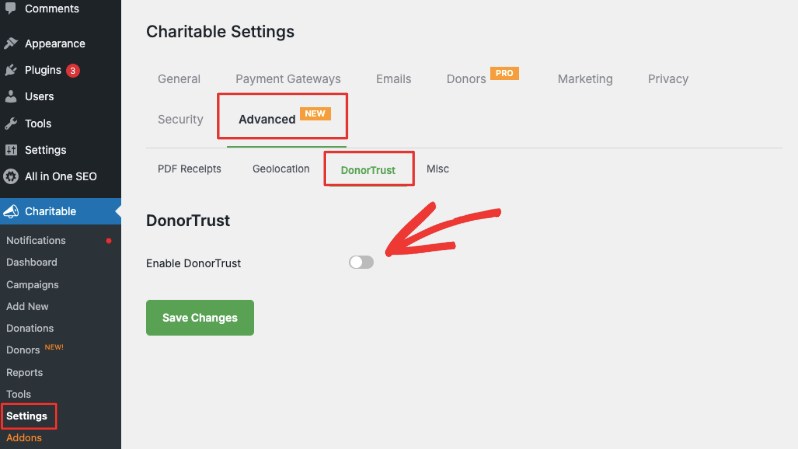
Nach der Aktivierung erscheinen neue Einstellungen.
Schritt 2: Auszuwählen, welche Kampagnen angezeigt werden sollen
Im Abschnitt Kampagnen können Sie auswählen, für welche Kampagnen Sie Benachrichtigungen anzeigen möchten. Wählen Sie einfach einzelne Kampagnen aus und verschieben Sie sie mit den Pfeilen in die rechte Spalte.
Wenn eine Kampagne zur rechten Spalte hinzugefügt wird, beginnt Charitable, Popups für Spenden zu erstellen und anzuzeigen, die für diese spezielle Kampagne getätigt wurden.
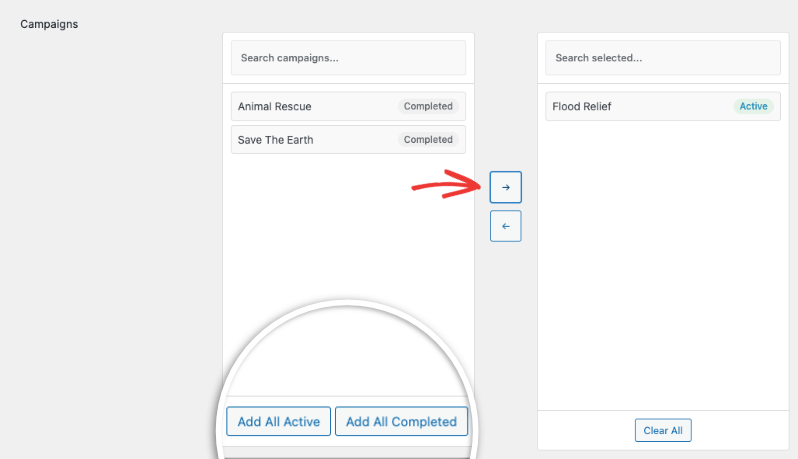
Sie können wählen, ob Sie schnell alle aktiven oder alle abgeschlossenen Kampagnen hinzufügen möchten.
Schritt 3: Klickbare Popups erstellen
Standardmäßig verlinken die Popups zur Kampagnenseite. Diese Option ist bereits aktiviert. Wenn jemand auf eine Benachrichtigung klickt, wird die Kampagne in einem neuen Tab geöffnet.

Wenn Sie lieber nur die Informationen über die letzten Spenden ohne Links anzeigen möchten, schalten Sie diesen Schalter aus.

Schritt 4: Festlegen eines Mindestspendenbetrags
Sie möchten vielleicht nicht jede Spende anzeigen. Sie können einen Mindestspendenbetrag festlegen, z. B. 25 $ oder 100 $. Entscheiden Sie, welcher Betrag Ihrer Meinung nach positive Auswirkungen auf potenzielle Spender hat.

Der Standardbetrag ist auf 0,00 $ eingestellt, was bedeutet, dass alle Spenden angezeigt werden.
Schritt 5: Anzeigeregeln festlegen
Charitable ermöglicht es Ihnen zu steuern, wo und wem Ihre Popups angezeigt werden. Wählen Sie zuerst aus, wer die Benachrichtigungen sehen kann, indem Sie die Optionen Anzeigen für verwenden:
- Alle Besucher
- Nur abgemeldete Benutzer
- Nur angemeldete Benutzer

Darunter können Sie über die Optionen Anzeigen auf wählen, wo die Popups erscheinen:
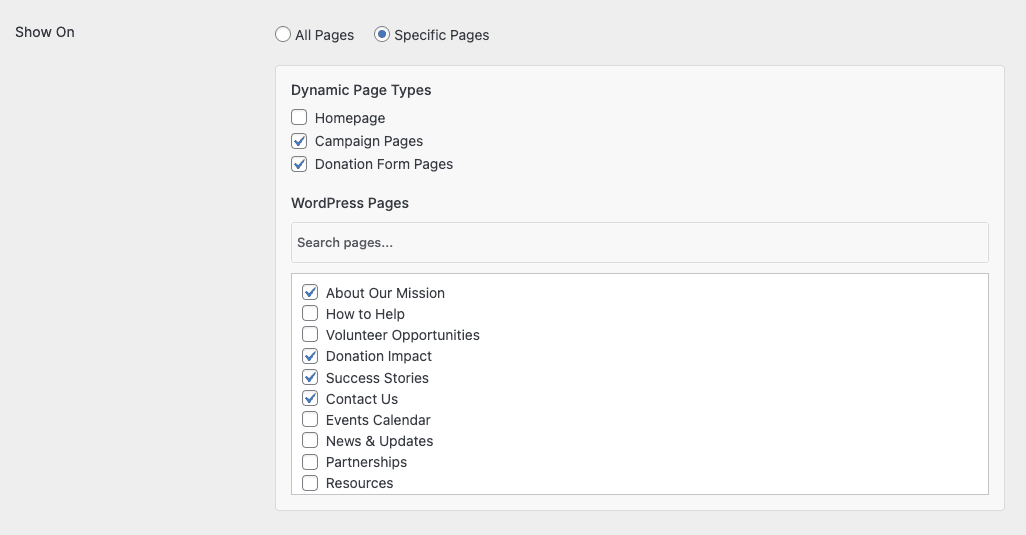
DonorTrust-Popups können auf jeder Frontend-Seite Ihrer Website angezeigt werden. Sie können auch bestimmte Seiten auswählen:
- Die Startseite
- Kampagnenseiten
- Spendenseiten
- Individuelle WordPress-Seiten
Sie können so viele dieser Optionen auswählen, wie Sie möchten.
Schritt 6: Details des Popups anpassen
Als Nächstes können Sie steuern, welche Details im Popup angezeigt werden. Dazu gehören:
- Vorname
- Nachname
- Spendensumme
- Bundesland/Region
- Land

Wichtig: Denken Sie daran, Datenschutz- und Datengesetze zu berücksichtigen, wenn Sie diese Informationen auswählen.
Sie können auch auswählen, wie die Popups sortiert werden sollen. Sie können sie nach Spendedatum, Kampagnenerstellungsdatum oder zufällig anordnen.

Sie können auch die maximale Anzahl der anzuzeigenden Spendenaufzeichnungen auswählen. Wir empfehlen, diese auf etwa 10 einzustellen, maximal jedoch 20.
Schritt 7: Erhöhen des Vertrauensfaktors
Darunter können Sie auswählen, wie lange die Spende her ist, und eine "Vor X Zeit"-Detailangabe hinzufügen. Dies hilft, Vertrauen aufzubauen.
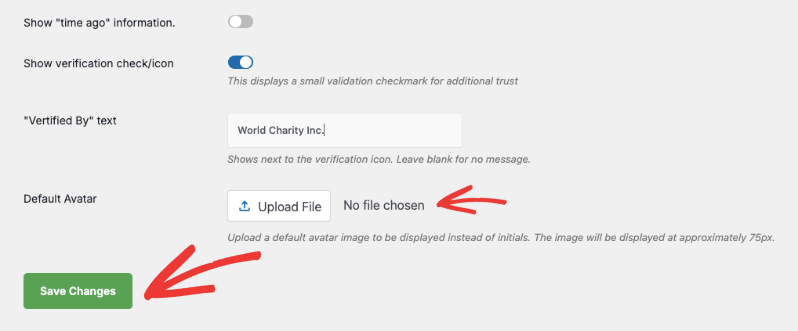
Sie können auch ein Verifizierungs-Häkchen anzeigen, um Vertrauen und Glaubwürdigkeit weiter zu erhöhen. Dies fügt dem Popup Text wie "Verifiziert von [Ihr Organisationsname]" hinzu, zum Beispiel "Verifiziert von World Charity Inc."

Standardmäßig zeigt Charitable die Initialen des Spenders an. Sie können stattdessen ein Avatarbild auswählen.
Das ist alles! Speichern Sie die Änderungen, und Ihre Popups werden nun gemäß den von Ihnen gewählten Einstellungen auf Ihrer Website angezeigt.
DonorTrust ist ein einfaches, aber leistungsstarkes Tool, das hilft, Spenden zu erhöhen, indem Vertrauen aufgebaut und sozialer Beweis gezeigt wird. Sie können die Leistung von Echtzeitbenachrichtigungen nutzen und mehr Besucher ermutigen, Ihre Sache zu unterstützen.
Als Nächstes folgen häufig gestellte Fragen, um alle Ihre Zweifel auszuräumen.
Häufig gestellte Fragen
Was ist Charitable?
Charitable ist ein leistungsstarkes und flexibles WordPress-Spenden-Plugin, das gemeinnützigen Organisationen und Wohltätigkeitsorganisationen hilft, einfach Online-Spenden anzunehmen. Es vereinfacht den Prozess der Erstellung von Spendenformularen, der Verwaltung von Kampagnen und der Verfolgung von Beiträgen.
Was ist DonorTrust? Muss ich es mit DonorTrust verwenden?
DonorTrust ist eine Funktion innerhalb von Charitable Pro. Es zeigt Echtzeitbenachrichtigungen über aktuelle Spenden auf Ihrer Website an. Dies ist eine Form des sozialen Beweises, die mehr Besucher ermutigen kann, zu Ihrer Sache beizutragen.
Wie viele Spendenaufzeichnungen sollte ich anzeigen?
Die meisten Websites zeigen 5-10 Spenden an. Dies bietet genügend sozialen Beweis, ohne eine Informationsüberflutung zu erzeugen oder die Seite überladen wirken zu lassen.
Kann ich das Aussehen der Popups anpassen?
Ja, Sie können die Details, die in den Popups angezeigt werden (Name, Spendenbetrag, Land usw.), steuern. Sie können auch die Reihenfolge ändern, in der die Einträge angezeigt werden, und steuern, wo Popups auf Ihrer Website erscheinen.
Was kann ich an den Popups ändern?
Passen Sie die Benachrichtigungen an Ihr Branding und Ihre Kampagnen an. Sie haben die Flexibilität:
- Wählen Sie aus, welche aktiven und abgeschlossenen Kampagnen angezeigt werden sollen.
- Legen Sie einen Mindestspendenbetrag fest, der angezeigt werden soll.
- Fügen Sie eine anpassbare "Verifizierungs"-Checkmark für zusätzliche Glaubwürdigkeit hinzu.
- Zeigen Sie ein benutzerdefiniertes Logo oder einen personalisierten Avatar basierend auf dem Namen des Spenders an.
- Steuern Sie den Inhalt der Benachrichtigungen und wählen Sie die Seiten aus, auf denen sie erscheinen, wie z. B. die Homepage, Kampagnenseiten oder Spenden-Seiten. Sie können auch jede WordPress-Seite auswählen.
Gibt es Datenschutzbedenken bei der Anzeige von Spenderinformationen?
Ja, das ist ein wichtiger Aspekt. Beachten Sie die Datenschutzgesetze und zeigen Sie nur Informationen an, mit denen Spender einverstanden sind. Erwägen Sie, nur Spendenbeträge und einen allgemeinen Standort (z. B. Bundesland/Region) anzuzeigen und vermeiden Sie die Anzeige vollständiger Namen oder anderer persönlich identifizierbarer Informationen, wenn Sie sich über lokale Regeln unsicher sind.
Kann ich DonorTrust testen, bevor ich es live schalte?
Ja. Sobald Sie die Einstellungen gespeichert haben, können Sie manuell eine Testspende tätigen, um zu überprüfen, ob die Popups korrekt angezeigt werden. Stellen Sie sicher, dass Sie Ihre Website aus der Sicht eines Besuchers betrachten, bevor Sie sie vollständig starten.
Was ist, wenn ich nicht möchte, dass die Popups klickbar sind?
Sie können den klickbaren Link einfach in den Einstellungen deaktivieren. Die Popups zeigen dann nur die Spendeninformationen an, ohne zur Kampagnenseite weiterzuleiten.
Funktioniert DonorTrust mit allen WordPress-Themes?
DonorTrust sollte mit den meisten gut codierten WordPress-Themes funktionieren.
Sie möchten vielleicht auch Ihre Charitable-Kampagnen mit Google Analytics verbinden, um tiefgehende Einblicke in Ihre Kampagnen zu erhalten.
Um das Beste aus Charitable und seinen Funktionen herauszuholen, besuchen Sie unser Dokumentationszentrum »


