
Dans ce guide, nous allons vous expliquer comment ajouter un bouton de don à votre site WordPress, vous permettant ainsi de générer un nouveau flux de dons constants de la part de visiteurs généreux.
L'écosystème des plugins WordPress a été fantastique pour éliminer les défis techniques et le codage du processus de personnalisation de site web.
Dans le monde d'aujourd'hui, il suffit d'un simple clic pour installer le plugin WordPress de votre choix. Une fois le plugin installé, votre site web accède instantanément aux fonctionnalités qu'il fournit.
WordPress Charitable est un plugin de dons incroyablement simple à configurer, à paramétrer et à utiliser sur votre site web, vous permettant d'ajouter un magnifique bouton de dons WordPress en quelques minutes !
Dans les sections suivantes, vous apprendrez comment ajouter un bouton de don étape par étape et où placer votre bouton pour une efficacité maximale.
Commençons !
Pourquoi ajouter un bouton de don à votre site WordPress ?
Toute organisation qui dépend des dons, en particulier les organisations à but non lucratif, a tendance à bénéficier le plus d'un bouton de don bien visible que les visiteurs ne peuvent pas manquer.
Si vous pouvez exploiter votre site WordPress pour recevoir des dons, organiser des campagnes de collecte de fonds en ligne pour atteindre une base de donateurs plus large et compléter vos efforts de marketing par e-mail avec un "Appel à l'action" (CTA) pour faire un don, votre organisation commencera à voir un nombre accru de dons de la part des visiteurs.
Exploitez votre site WordPress pour recevoir des dons
Étant donné que votre organisation possède déjà un site WordPress actif, l'ajout d'un bouton de don est une formidable opportunité de "victoire rapide".
La plupart des organisations à but non lucratif ont déjà des canaux de dons existants hors ligne, en personne ou par courrier postal, et le simple fait d'ajouter un bouton de don en ligne permet de capter un tout nouveau segment de visiteurs et d'élargir instantanément votre portée.
Votre site web peut être bien plus qu'une simple ressource éducative avec des informations sur votre organisation à but non lucratif.
En permettant à vos visiteurs existants de faire un don rapidement, facilement et en toute sécurité via un bouton de don WordPress bien placé, votre organisation peut rapidement commencer à récolter les fruits.
Organiser des campagnes de collecte de fonds en ligne
À l'ère moderne de la technologie en rapide évolution, les organisations qui n'ont pas encore entamé leur transition en ligne pourraient rapidement se retrouver à la traîne par rapport à la concurrence.
Si votre organisation n'a pas encore tenté de campagne de collecte de fonds en ligne, elle pourrait s'avérer plus efficace que vous ne l'imaginez.
Au lieu de ne collecter des dons qu'auprès de sympathisants locaux et régionaux, les campagnes de collecte de fonds en ligne ont le potentiel d'atteindre un public mondial via Internet. Lancer une collecte de fonds en ligne peut très bien fonctionner et permettre à votre organisation d'atteindre un segment de la population significativement plus large, ce qui se traduira probablement par un plus grand nombre de dons.
Complétez vos efforts de marketing par e-mail
De nombreuses organisations à but non lucratif commencent à utiliser le marketing par e-mail pour communiquer avec leurs clients, leurs prospects ou leurs anciens donateurs.
L'e-mail étant un moyen rapide et efficace de toucher un grand nombre d'individus simultanément, il vous permet d'atteindre des milliers de personnes pour une fraction infime du coût par rapport au courrier physique.
En ajoutant un bouton de don WordPress à votre site Web, vous pouvez inclure un lien dans vos e-mails pointant vers une page de dons sur votre site Web.
Une fois que quelqu'un lit votre e-mail et clique sur le lien de don, il sera dirigé vers une page où il pourra faire un don sécurisé à votre organisation en quelques minutes.
Que devriez-vous utiliser pour ajouter un bouton de don à votre WordPress Wsite web ?
Il existe un certain nombre de façons d'ajouter un bouton de don à votre site Web WordPress, allant de techniquement complexe à incroyablement simple.
En fonction de votre budget et de vos ressources, votre organisation peut choisir de créer un bouton de don entièrement codé sur mesure qui s'intègre parfaitement à votre site Web. Comme vous pouvez l'imaginer, cela peut devenir coûteux relativement rapidement.
D'autre part, vous pouvez profiter des plugins WordPress tels que WP Charitable pour ajouter rapidement un bouton de don fonctionnel sans tracas ni maux de tête supplémentaires.
Boutons de don codés sur mesure
Une solution personnalisée "sur mesure" est le meilleur moyen de créer quelque chose qui correspond à votre vision à 100 %. Malheureusement, c'est aussi très coûteux et hors de portée pour la plupart des organisations et des organisations à but non lucratif.
Si vous souhaitiez créer un plugin de bouton de don personnalisé à partir de zéro, vous devriez passer par le processus fastidieux de sélection des développeurs, d'embauche de ceux qui correspondent le mieux à votre budget et à votre demande de compétences techniques, et de vous assurer qu'ils terminent le projet à temps et selon vos spécifications.
À moins que vous ne dirigiez une société de développement à temps partiel, ce processus est trop long et irréaliste pour la plupart des organisations à but non lucratif.
C'est là qu'intervient une solution beaucoup plus gérable et peu coûteuse : utiliser un plugin WordPress réputé existant pour gérer les dons sur votre site.
Utilisez le plugin WordPress Charitable
Au lieu de consacrer votre précieux temps à gérer une équipe de développement complète, l'utilisation d'un plugin de bouton de don WordPress conçu spécifiquement pour les organisations à but non lucratif vous fera économiser une quantité énorme d'argent et de temps.
Découvrez Charitable– le plugin de dons WordPress le mieux noté, utilisé par plus de 10 000 organisations à but non lucratif pour développer leurs efforts de collecte de fonds en ligne et élargir leur portée.
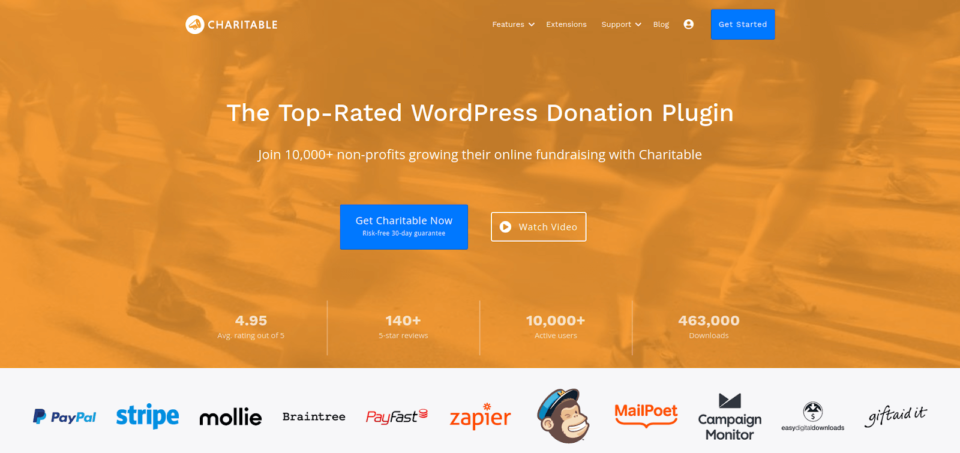
Le plugin Charitable pour WordPress est conçu pour être flexible et facile à utiliser, vous permettant de vous familiariser rapidement et de commencer à accepter des dons en quelques minutes. Il fournit également un certain nombre de modules complémentaires qui peuvent grandement améliorer les fonctionnalités.
Compatible avec les thèmes WordPress
Le plugin Charitable est compatible avec presque tous les thèmes WordPress et est livré avec un certain nombre de thèmes personnalisés pour les organisations à but non lucratif et la collecte de fonds spécialement créés pour être utilisés avec le plugin.
Ajouter un bouton de don WordPress avec Charitable est un moyen simple de vous assurer qu'il s'intègre parfaitement à votre thème actuel.
Transactions de dons sécurisées
Charitable s'intègre à plusieurs processeurs de paiement sécurisés et leaders du secteur tels que PayPal, Stripe, Authorize.Net et Braintree, pour n'en nommer que quelques-uns.
Étant donné que Charitable n'accepte ni ne stocke jamais d'informations de paiement par lui-même, vous pouvez être assuré que toutes les transactions de vos donateurs sont uniquement traitées par les fournisseurs de paiement de votre choix, en utilisant les systèmes de sécurité complets de ces plateformes.
Créez des campagnes illimitées
Le plugin WordPress Charitable ne limitera jamais le nombre de campagnes que vous pouvez créer. C'est idéal pour les organisations à but non lucratif qui ont plusieurs sites Web ou les agences qui travaillent avec des centaines d'organisations à but non lucratif à la fois.
Personnalisable pour s'adapter à votre marque
Personnalisez entièrement votre bouton de don pour qu'il corresponde à votre marque, lui permettant de s'intégrer parfaitement à votre site Web et d'offrir à vos visiteurs une expérience uniforme.
Vous pourrez ajouter des champs de don personnalisés, modifier le texte du bouton, modifier les styles du bouton, y compris les couleurs, et sélectionner les fonctionnalités que vous souhaitez utiliser pour étendre la fonctionnalité de votre bouton personnalisé.
Tutoriel : Comment ajouter un bouton de don à votre site Web WordPress
Dans cette section, nous allons vous guider à travers le processus d'ajout d'un bouton de don WordPress à votre site Web avec un guide étape par étape. La configuration du plugin Charitable est un processus assez simple, et vous devriez être opérationnel en quelques minutes.
Étape 1 : Installer le plugin WordPress Charitable
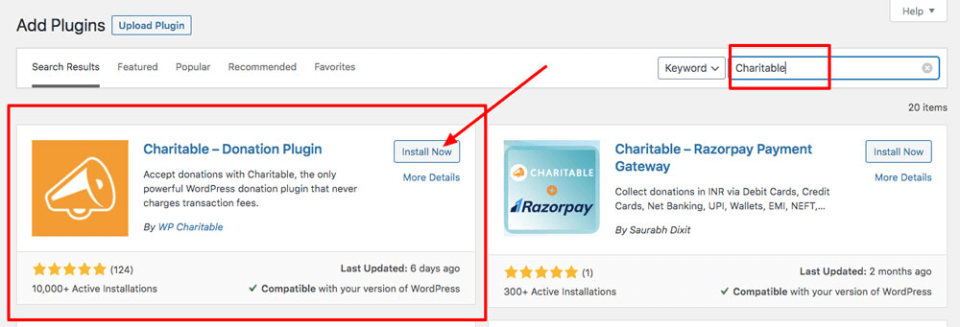
La première étape consiste à installer le plugin Charitable avec WordPress. Cela peut être fait en vous connectant à votre tableau de bord WordPress, en cliquant sur Plugins > Ajouter, et en tapant « Charitable » dans la barre de recherche.
Cliquez sur le bouton Installer maintenant, puis immédiatement sur le lien Activer maintenant pour activer le plugin sur votre site Web.
Étape 2 : Configurer les paramètres de Charitable
Maintenant que le plugin Charitable est installé et activé sur votre site Web, vous voudrez configurer les paramètres principaux de votre plugin.
Sur votre tableau de bord WordPress, trouvez Charitable dans le menu de gauche et cliquez sur Charitable > Paramètres pour afficher la page des paramètres.
Vous voudrez configurer les paramètres principaux suivants :
- Pays de base – Sélectionnez votre pays dans le menu déroulant
- Devise – Sélectionnez la devise avec laquelle vous souhaitez accepter les dons
- Paramètres facultatifs – Configurez vos options « Format de devise », « Séparateur de milliers », « Séparateur décimal » et « Nombre de décimales »
Une fois ces paramètres principaux configurés, accédez à Paramètres généraux > Options d'affichage du formulaire de don.
Ici, vous pouvez choisir d'afficher votre formulaire de don :
- Sur une page séparée – Choisissez la page spécifique sur laquelle vous souhaitez que votre formulaire de don s'affiche
- Sur la même page – Affichez votre formulaire de don sur la même page que la campagne
- Révéler dans une modale – Affichez une boîte de dialogue modale « pop-up » avec votre formulaire de don après que le visiteur a cliqué sur un bouton ou un lien
Étape 3 : Configurer les passerelles de paiement
D'emblée, Charitable vous permet d'accepter des paiements via Paypal et les dons hors ligne. Si vous souhaitez activer des passerelles de paiement supplémentaires, vous pouvez le faire via les Extensions de plugin Charitable.
Pour activer une passerelle de paiement, accédez à Charitable > Réglages > Passerelles de paiement.
Pour activer une passerelle, il vous suffit de cliquer sur le bouton « Activer la passerelle ». Vous pouvez également cliquer sur « Désactiver la passerelle » pour désactiver les passerelles de paiement que vous ne souhaitez plus utiliser.
Configuration des dons hors ligne
Pour commencer à accepter les dons hors ligne, cliquez sur le bouton « Paramètres de la passerelle » sous la passerelle de paiement « Hors ligne ».
Vous pourrez définir l'étiquette affichée sur le formulaire de don ainsi qu'ajouter des instructions spécifiques pour vos donateurs. Par exemple, si vous souhaitez accepter les dons hors ligne par virement bancaire, vous pouvez y inclure les détails de virement bancaire de votre organisation.
Instructions détaillées de configuration de Paypal
Des millions de personnes dans le monde font confiance à PayPal pour les paiements et les dons en ligne. Accepter PayPal pour votre campagne de collecte de fonds ou de dons peut renforcer la confiance et inciter davantage de vos visiteurs à faire un don.
Pour obtenir des instructions détaillées sur la configuration de PayPal avec Charitable, consultez notre Guide de configuration de PayPal.
Étape 4 : Configuration des e-mails
Pour activer les e-mails, accédez à Charitable > Réglages > E-mails.
Notez que les e-mails sont désactivés par défaut, et vous devrez cliquer sur le bouton « Activer l'e-mail » pour commencer.
Si vous avez désactivé la passerelle de paiement « Hors ligne », vous pouvez également désactiver les e-mails « Donateur : Reçu de don hors ligne » et « Administrateur : Notification de nouveau don hors ligne ».
La personnalisation du contenu de vos e-mails est aussi simple que de cliquer sur le bouton « Paramètres de l'e-mail » à côté de l'e-mail que vous souhaitez modifier. Vous verrez une liste de shortcodes que vous pouvez ajouter à votre e-mail sous le « Corps de l'e-mail », et vous pouvez utiliser le HTML pour formater le contenu comme vous le souhaitez.
Pour prévisualiser un e-mail, cliquez sur le bouton « Prévisualiser l'e-mail » en bas de la page.
Lorsque vous avez terminé, cliquez simplement sur « Enregistrer les modifications » pour mettre à jour vos e-mails. C'est aussi simple que ça !
Étape 5 : Création de votre campagne
Étant donné que Charitable est un plugin basé sur le concept de « campagnes de collecte de fonds », vous devrez créer une campagne avant de pouvoir commencer à accepter des dons au nom de vos organisations.
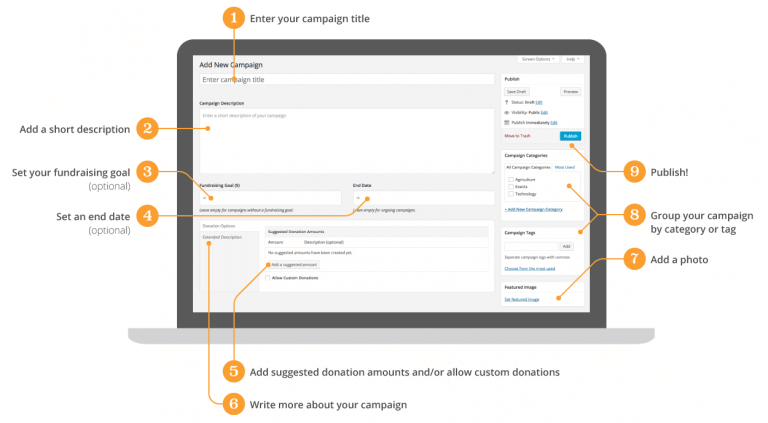
Pour commencer à créer votre campagne, accédez à Charitable > Ajouter une campagne sur votre tableau de bord WordPress.
À partir de là, vous pouvez saisir le titre de votre campagne, ajouter une description, définir votre objectif de collecte de fonds, la date de fin de campagne (si désiré), et configurer des paramètres supplémentaires pour personnaliser entièrement votre campagne.
Pour des instructions détaillées sur la configuration de campagne, consultez notre Guide de configuration de campagne détaillé pour en savoir plus.
Étape 6 : Afficher votre campagne ou votre formulaire de don
À ce stade, vous avez une campagne créée et prête à l'emploi – il ne vous reste plus qu'à montrer votre campagne aux visiteurs sur le front-end de votre site web.
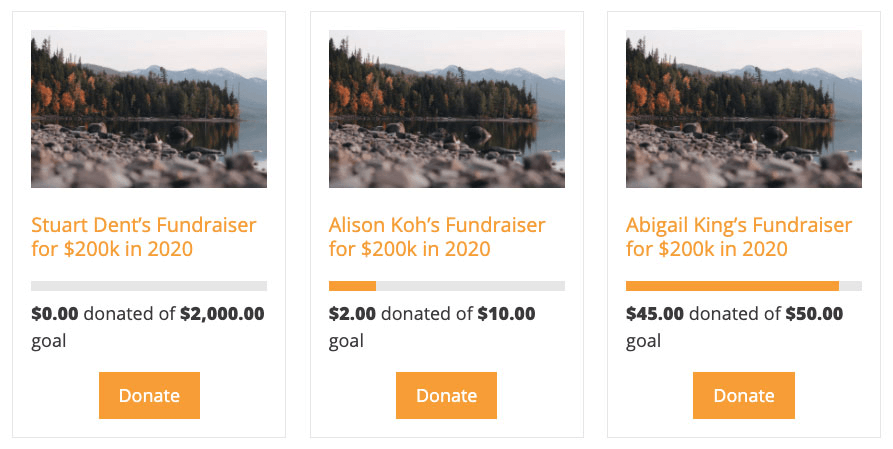
Afficher plusieurs campagnes sous forme de collection
Si vous choisissez de créer plusieurs campagnes, vous pouvez les afficher sous forme de collection dans vos articles ou pages en utilisant le shortcode [campaigns]. Consultez notre Guide détaillé des shortcodes de campagne pour plus de détails.
Afficher un formulaire de don simple
Si vous souhaitez uniquement afficher un formulaire de don simple sur des pages spécifiques, vous pouvez simplement laisser les champs « Objectif » et « Date de fin » vides lors de la création de votre campagne. En excluant ces champs, vous aurez une campagne en cours.
La dernière étape pour créer un formulaire de don indépendant consiste à créer une « Page de don » spécifique vers laquelle vos visiteurs seront dirigés au lieu d'une « Page de campagne ». Pour des détails spécifiques sur la création d'une « Page de don » distincte, lisez notre guide sur l'ajout d'un formulaire de don à une page.
Étape 7 : Ajouter un lien « Faire un don » à votre menu
Si vous souhaitez ajouter un lien de don personnalisé à l'un des menus de votre site web, vous pouvez le faire de trois manières distinctes :
- Lien vers une page de don distincte
- Ouvrir le formulaire de don dans une fenêtre modale contextuelle
- L'ajouter à votre menu
Comme chaque étape est plus complexe, vous pouvez obtenir des détails spécifiques sur l'ajout de votre lien de don à un menu WordPress en lisant notre Guide pour créer un lien de menu pour les dons.
Étape 8 : Tester votre formulaire de don
Vous l'avez officiellement fait ! Vous avez intégré avec succès Charitable à votre site web et créé un bouton de don WordPress que vos visiteurs peuvent utiliser pour faire rapidement et facilement un don à votre organisation.
Comme dernière étape, vous voudrez prévisualiser votre site web et vous assurer que vos liens de don fonctionnent comme prévu. Si des personnalisations sont nécessaires, revenez simplement aux paramètres du plugin Charitable via le tableau de bord WordPress.
Où sur votre site web ajouter votre bouton de don WordPress Bouton de don ?
Si vous voulez que les visiteurs de votre site web fassent un don à votre organisation, vous devez leur faciliter la tâche autant que possible en vous assurant que votre bouton de don est accessible et visible.
Cela peut être réalisé en plaçant votre bouton de don dans des zones très visibles de votre site web, telles que la section héro de votre page d'accueil, le coin supérieur droit de votre menu d'en-tête, ou à la fin de chaque article de blog.
Section héro de votre page d'accueil
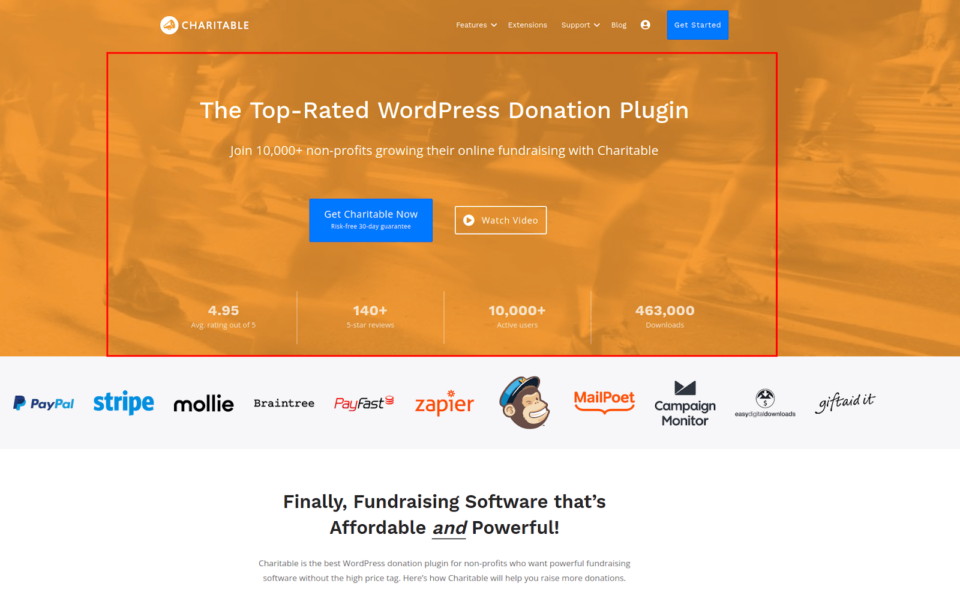
La section héro de votre page d'accueil est la section la plus haute que les visiteurs voient au-dessus de la ligne de flottaison immédiatement en ouvrant votre site web.
Sur le site web de Charitable, par exemple, la section orange la plus haute avant le contenu de la page d'accueil est considérée comme la « Section héro » et peut être un excellent endroit pour placer votre bouton de don pour une visibilité maximale.
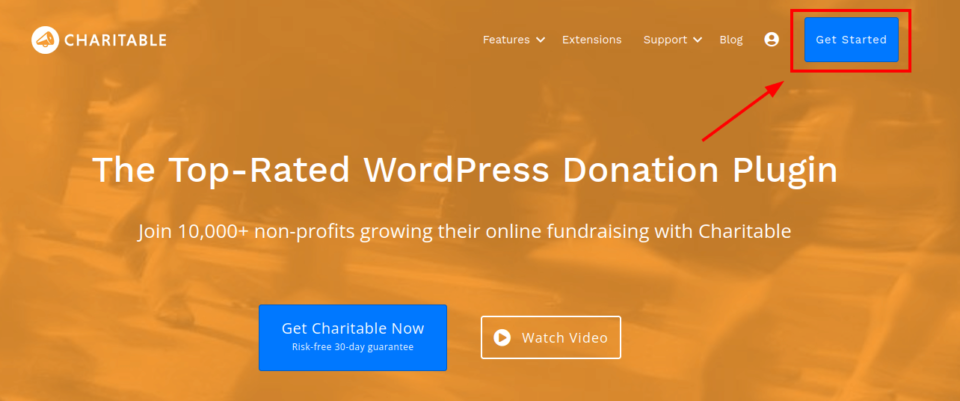
Coin supérieur droit de votre menu d'en-tête
Placer votre bouton de don dans le coin supérieur droit de votre menu d'en-tête permet à votre bouton d'être vu sur chaque page de votre site web.
Fin de chaque article de blog
Si votre site Web possède un blog, placer votre bouton de don en bas de chaque article de blog permet à vos visiteurs les plus engagés, qui lisent activement le contenu que vous avez publié, de le voir.
Une fois qu'ils arrivent à la fin d'un article, donnez-leur une occasion de faire un don ! En incluant un appel à l'action à la fin des articles, vous pouvez inspirer vos lecteurs à faire un don aux merveilleuses causes que votre organisation soutient.
Installez le plugin Charitable sur votre site Web WordPress dès aujourd'hui et commencez à accepter les dons
À ce stade, vous devriez savoir pourquoi l'ajout d'un bouton de don WordPress peut changer la donne pour votre organisation, quelles sont vos options pour ajouter des boutons de don, et les étapes exactes que vous pouvez suivre pour créer rapidement un bouton de don avec le plugin de don Charitable.
L'ajout d'un bouton de don peut augmenter le nombre de dons et les montants des dons que votre organisation à but non lucratif reçoit.
Charitable rend le processus simple et facile, vous permettant d'ajouter un beau bouton qui s'intègre parfaitement à votre site Web WordPress et représente votre marque.
Comment les organisations à but non lucratif peuvent commencer
Les plans Charitable les plus populaires pour les organisations à but non lucratif comprennent nos plans « Essentials » et « Growth ».
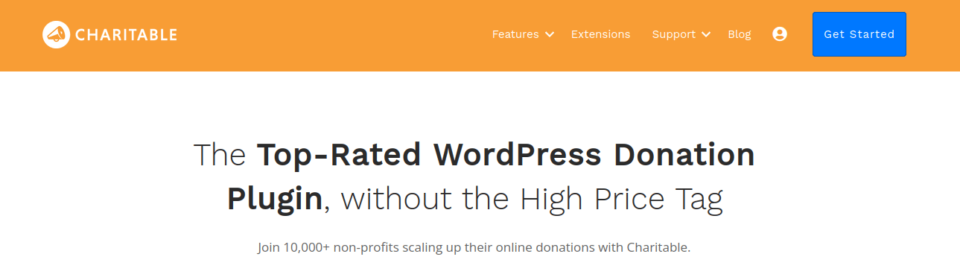
Pour toutes les organisations à but non lucratif qui ont besoin de fonctionnalités de don puissantes mais faciles à utiliser sans se ruiner ni engager une équipe de développement personnalisée, ces plans populaires sont un point de départ idéal.
En achetant un Plan Charitable « Growth » ou « Essentials », vous recevrez :
- Intégrations de passerelle de paiement et de newsletter
- Options de dons récurrents
- Options de don anonyme
- Géoréférencement
- Fonctionnalité de commentaires des donateurs
- Vidéos de campagne
- Un an de support client et de mises à jour
- Réduction des frais
- Réductions de renouvellement
Pour commencer à accepter des dons via le plugin WordPress Charitable dès aujourd'hui, visitez Charitable et choisissez un plan pour lancer votre organisation !





Laisser un commentaire