
Notre dernier plugin est Charitable Automation Connect, qui vous permet d'envoyer des informations sur vos campagnes, dons et dons récurrents à des plateformes d'automatisation comme Zapier.
Dans cet article de blog, je vais vous montrer comment intégrer Charitable, Zapier et Google Agenda pour enregistrer automatiquement les nouveaux donateurs en tant que participants à votre événement Google Agenda.
Premiers pas avec Zapier
Zapier est une application qui vous permet de créer des flux de travail automatisés qui connectent différentes applications. Avec plus de 3000 applications intégrées, les possibilités d'utilisation sont infinies.
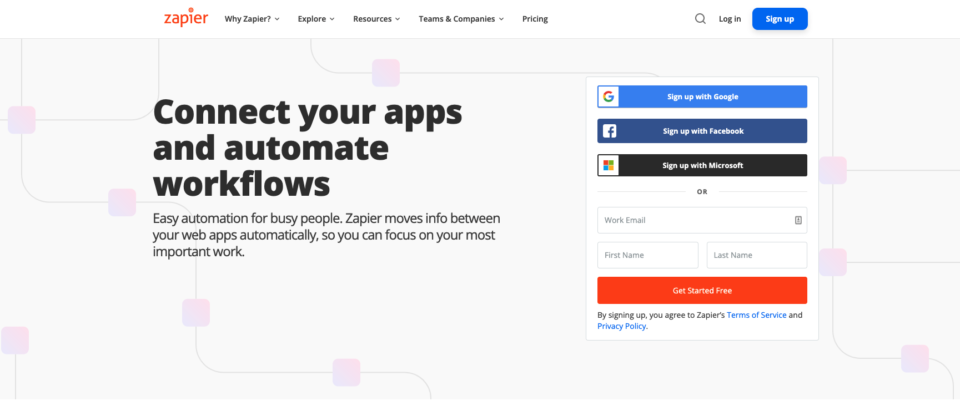
L'automatisation peut sembler effrayante, mais Zapier la rend facile grâce à un processus intuitif pour construire vos flux de travail (ou Zaps, comme on les appelle dans le jargon de Zapier). Vous pouvez créer un Zap sans avoir besoin d'un développeur.
Qu'est-ce qu'un Zap ?
Un Zap connecte deux applications ou plus pour créer un flux de travail automatisé.
Le point de départ d'un Zap est un Déclencheur. C'est l'événement qui lance l'automatisation, et il s'agit généralement d'un événement se produisant dans une application tierce. Par exemple, un événement déclencheur pourrait être l'arrivée d'un nouvel e-mail dans votre boîte de réception Gmail, ou la soumission d'un nouveau formulaire de contact sur votre site Web.
L'autre partie de votre Zap est une Action qui se produit après qu'un événement déclencheur se soit produit. Comme pour les déclencheurs, les actions sont des événements se produisant dans des applications tierces, et vous pouvez ajouter plus d'une action dans le flux de travail, de sorte qu'un seul événement déclencheur puisse déclencher plusieurs actions d'affilée.
C'est là que la magie de Zapier opère. C'est ainsi que vous pouvez prendre un nouvel e-mail et l'ajouter à votre liste de tâches du jour, ou répondre à chaque nouvelle soumission de formulaire de contact en ajoutant l'adresse e-mail du soumissionnaire à votre CRM.
Vous pouvez également créer des flux de travail conditionnels. Par exemple, peut-être qu'au lieu d'ajouter *chaque* nouvel e-mail à votre liste de tâches du jour, vous ne voulez ajouter que les e-mails de votre patron ?
Zapier propose-t-il des tarifs spéciaux pour les organisations à but non lucratif ?
Bien que Zapier dispose d'un plan gratuit (et qu'il fonctionne avec l'intégration Zapier de Charitable), nous avons constaté que pour la plupart des cas d'utilisation, vous aurez besoin des fonctionnalités et des allocations incluses dans les plans payants. Le plan Starter est le plan le plus abordable et coûte 20 $ USD par mois.
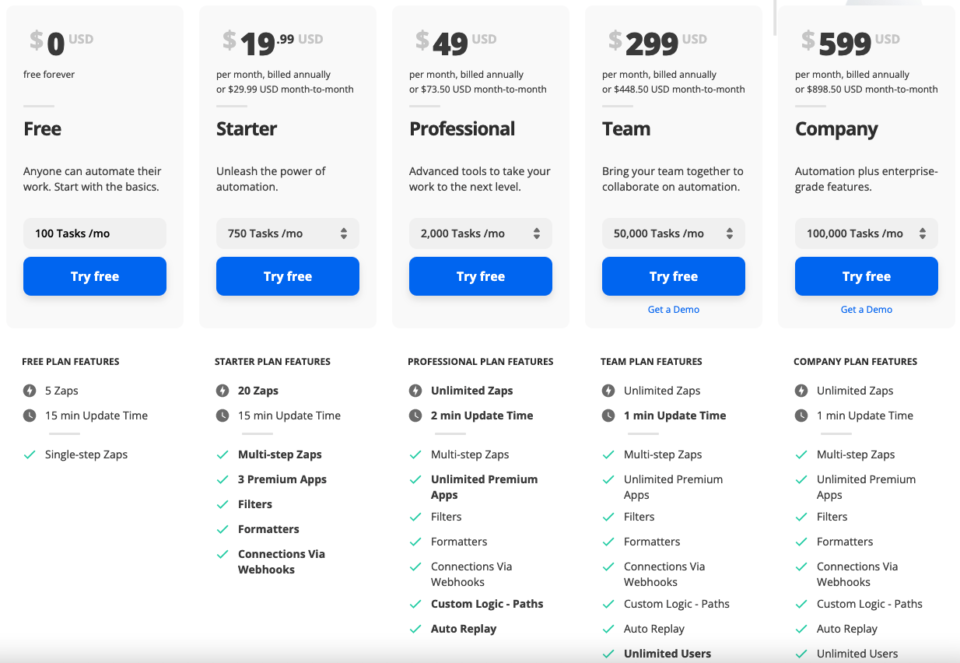
Bien sûr, chaque dollar compte pour les organisations à but non lucratif. Heureusement, Zapier offre aux organisations à but non lucratif une réduction de 15 % sur ses plans payants.
La remise est disponible sur demande, et vous devrez être en mesure de fournir à Zapier une preuve du statut d'organisation à but non lucratif de votre organisation.
Introduction à Google Agenda pour les organisations à but non lucratif
Google Agenda fait partie de la populaire collection d'applications en ligne que Google a créées pour les organisations de toutes formes et tailles. Votre organisation peut l'utiliser pour suivre les dates importantes, les réunions, gérer les événements ou coordonner les bénévoles.
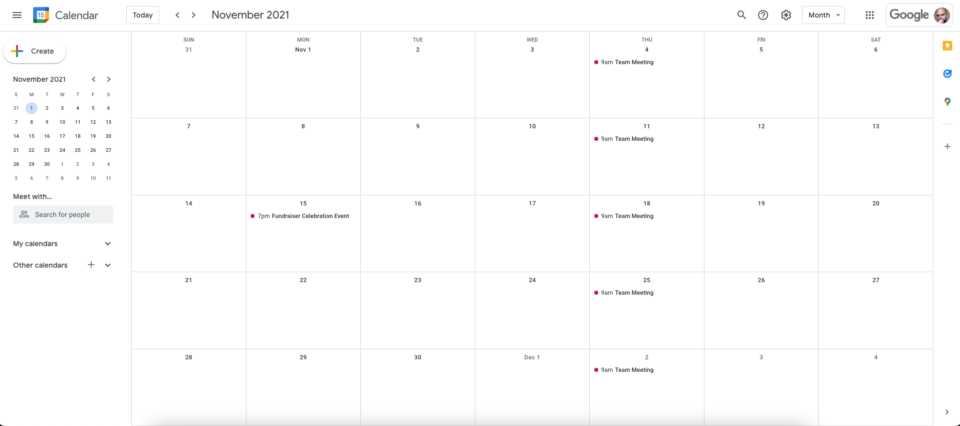
Ce qui est bien avec Google Agenda, c'est que vous pouvez gérer des calendriers privés et publics. Les calendriers privés peuvent facilement être limités à n'être consultables que par d'autres personnes au sein de l'organisation, tandis que les calendriers publics sont accessibles à tous.
Nous apprécions également la façon dont Google Agenda s'intègre à une autre application de Google, Meet, l'alternative de Google à Zoom. Cela fait de Google Agenda un bon moyen d'organiser des réunions, ou même de mettre en place un événement virtuel de collecte de fonds entre pairs.
Mieux encore, Google Agenda est inclus dans Google Workspace, qui est gratuit pour les organisations à but non lucratif. Outre Agenda, Google Workspace inclut l'accès à des applications telles que Gmail, Meet, Drive, Docs, Sheets et bien plus encore.
Comme pour Zapier, vous devrez faire une demande pour obtenir l'accès aux organisations à but non lucratif, et vous devrez fournir une preuve du statut d'organisation à but non lucratif de votre organisation.
Comment gérer un événement de collecte de fonds dans Google Agenda
Maintenant que nous avons couvert les bases de Zapier et de Google Agenda, examinons comment nous pouvons utiliser l'intégration Zapier de Charitable pour inviter des donateurs à un événement de collecte de fonds.
Notre objectif final est d'inviter automatiquement les donateurs à participer à notre événement de collecte de fonds.
Avec Zapier agissant comme intermédiaire entre Charitable et Google, nous pouvons y parvenir facilement — sans écrire une seule ligne de code.
1. Créez un nouvel événement dans Google Agenda
Pour commencer, allez sur Google Agenda :
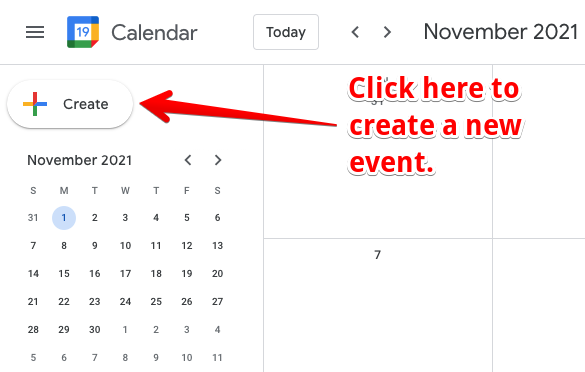
Vous pouvez ajouter un nouvel événement en cliquant sur la date à laquelle vous souhaitez l'ajouter, ou en cliquant sur le gros bouton Créer dans le coin supérieur gauche :
Ensuite, configurez votre événement :
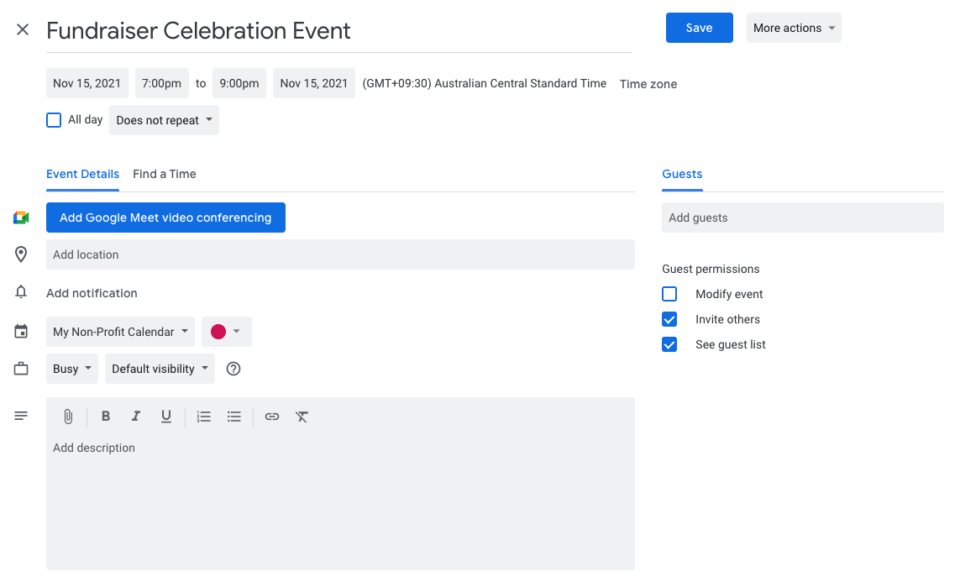
La création d'un événement est un processus relativement simple, avec la possibilité de définir un titre, de spécifier la date, l'heure de début et l'heure de fin de l'événement, ainsi que de fournir un lieu, d'activer éventuellement la visioconférence Google Meet et de configurer une description d'événement plus détaillée.
Lors de la configuration de votre événement, assurez-vous de vérifier que le bon fuseau horaire est utilisé !
2. Installez et activez Charitable Automation Connect
Ensuite, connectons-nous à notre tableau de bord WordPress et obtenons le plugin Charitable Automation Connect.
Automation Connect est une extension pour Charitable, ce qui signifie qu'il s'agit d'un plugin WordPress ordinaire conçu pour ajouter des fonctionnalités à Charitable, notre plugin de dons WordPress gratuit.
Comme Automation Connect est une extension payante, vous devrez d'abord acheter une licence. Vous trouverez le meilleur rapport qualité-prix dans l'un des forfaits Charitable, qui incluent tous Automation Connect et une gamme d'autres extensions Charitable ajoutant plus d'options de paiement, la prise en charge des dons récurrents, des outils de marketing par e-mail, la collecte de fonds entre pairs, et plus encore.
Améliorez votre collecte de fonds en ligne
Charitable est le plugin de dons WordPress le mieux noté et le plus abordable. Améliorez votre collecte de fonds WordPress dès aujourd'hui.
Installation de Charitable Automation Connect
Une fois que vous avez le plugin Automation Connect, vous pouvez l'installer via votre tableau de bord WordPress :
- Téléchargez votre extension via le lien dans votre e-mail de reçu d'achat, ou depuis votre page de compte sur wpcharitable.com.
- Dans votre tableau de bord WordPress, allez dans Plugins > Ajouter.
- Ensuite, cliquez sur le bouton Téléverser un plugin en haut de la page.
- Sélectionnez le fichier zip que vous avez téléchargé précédemment et cliquez sur Installer maintenant.
- Activez Charitable Automation Connect.
Avec cela, vous avez fait tout ce que vous aviez à faire du côté WordPress. Automation Connect est maintenant actif et prêt pour que vous connectiez Charitable à Zapier.
3. Configurez l'intégration Charitable Zapier
Pas encore inscrit à Zapier ? Vous aurez besoin d'un compte pour les prochaines étapes. Cliquez ici pour vous inscrire.
L'intégration Charitable avec Zapier est en phase d'invitation uniquement. Vous pouvez l'utiliser en cliquant sur le lien ci-dessous :
https://zapier.com/developer/public-invite/145749/3951e2d476c62199212c9731642ed145/
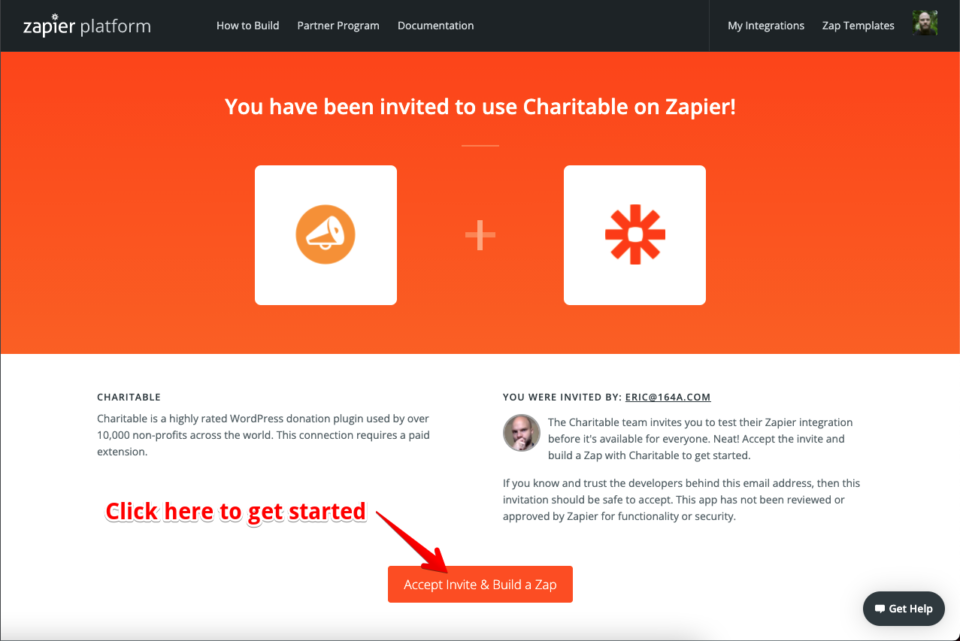
Sur la page suivante, cliquez sur le bouton Accepter l'invitation et créer un Zap, ce qui ajoutera l'intégration Charitable à votre compte Zapier :
4. Créez un nouveau Zap pour inviter les donateurs à participer à l'événement de collecte de fonds
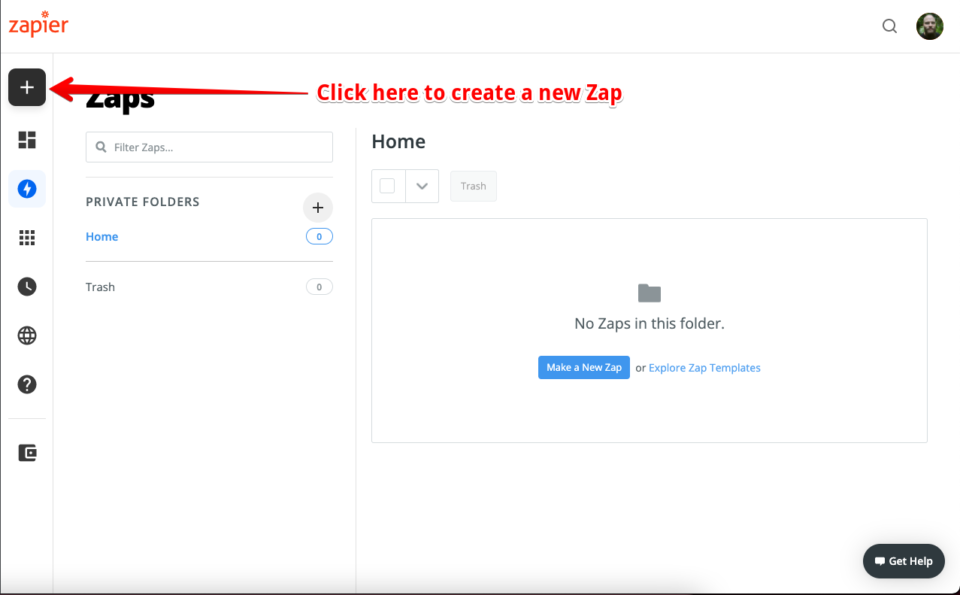
Une fois cela fait, il est temps de configurer notre Zap. Dans le coin supérieur gauche, cliquez sur le bouton Créer un Zap (sur les petits écrans, le bouton sera remplacé par un grand bouton +, comme montré ci-dessous) :
Configurez le déclencheur du Zap
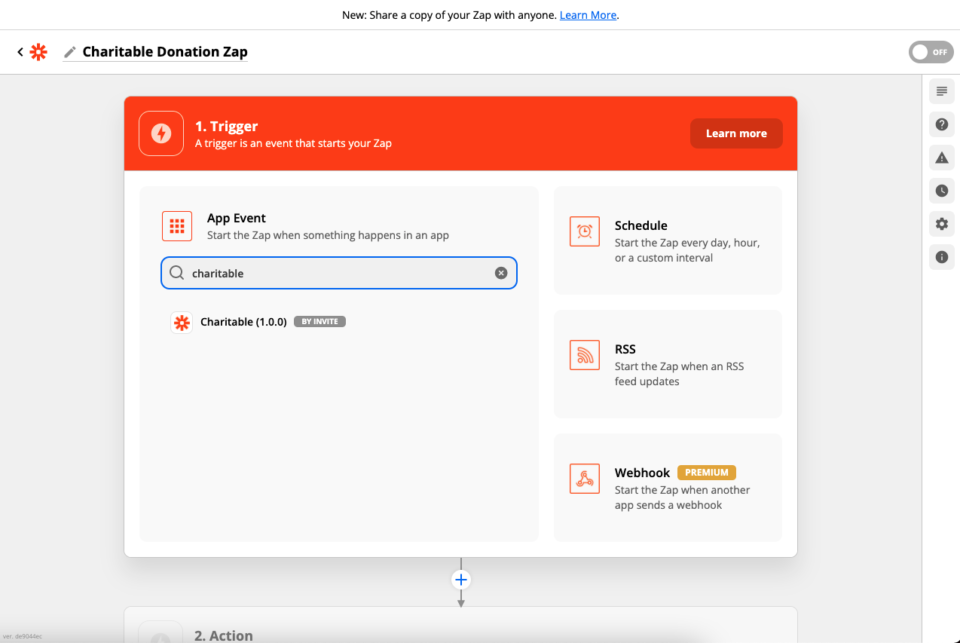
Comme discuté précédemment, un Zap commence par un Déclencheur. Le Déclencheur de notre Zap sera un événement dans Charitable — un nouveau don.
Dans le champ de recherche, recherchez « charitable » puis sélectionnez-le comme Application :
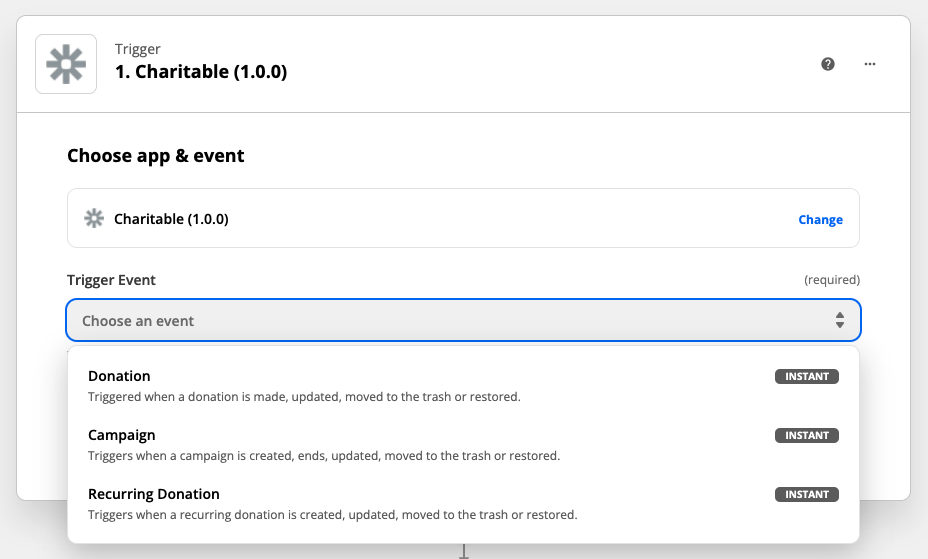
Ensuite, nous choisissons notre Événement Déclencheur. À ce stade, nous choisissons à quelle ressource Charitable (Don, Campagne ou Don Récurrent) l'Événement Déclencheur s'appliquera. Dans un instant, nous choisirons l'événement spécifique (un nouveau don, une campagne supprimée, etc.) :
Lorsque vous utilisez l'intégration Charitable Zapier pour la première fois, vous devrez connecter votre site Web à Zapier. Cliquez sur Se connecter à Charitable.
Dans le formulaire qui s'ouvre, il vous sera demandé de configurer les détails pour permettre à Zapier d'accéder à votre compte Charitable. Pour être clair, il s'agit de votre compte sur votre site Web WordPress — pas de votre compte sur wpcharitable.com.
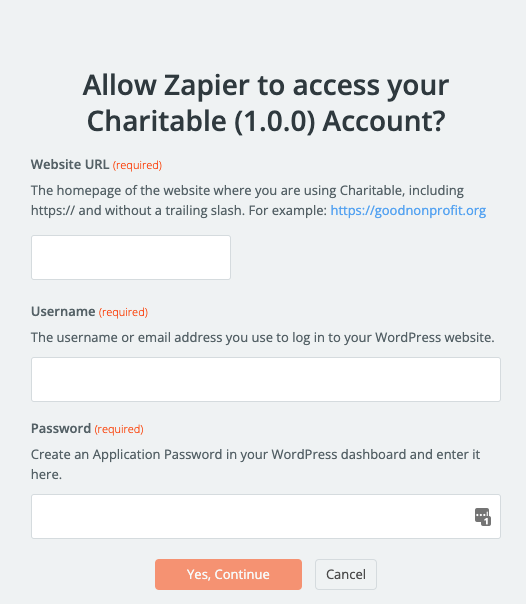
Dans le champ URL du site Web, ajoutez l'URL de la page d'accueil du site Web où vous avez installé Charitable. Assurez-vous d'inclure https:// au début et de laisser la barre oblique inverse à la fin.
Dans le champ Nom d'utilisateur, ajoutez le nom d'utilisateur ou l'adresse e-mail que vous utilisez pour vous connecter à votre tableau de bord WordPress.
Pour le champ Mot de passe, vous pourriez utiliser votre mot de passe WordPress habituel, mais pour des raisons de sécurité, nous vous recommandons fortement de configurer un mot de passe d'application à utiliser exclusivement par Zapier.
Configuration d'un mot de passe d'application
La création d'un mot de passe d'application est un processus simple en 3 étapes :
1. Allez dans Utilisateurs > Profil dans votre tableau de bord WordPress.
2. Faites défiler vers le bas et cliquez sur Ajouter un nouveau mot de passe d'application.
3. Copiez et collez le mot de passe dans Zapier.
Une fois ces détails remplis, cliquez sur Oui, Continuer.
Dans la prochaine étape, vous pouvez choisir l'événement spécifique qui démarrera votre flux de travail. Pour les dons, il existe quatre options :
- Cliquez sur Continuer pour enregistrer l'événement d'action et passer à l'étape suivante.
- Lorsqu'un don est mis à jour.
- Lorsqu'un don est déplacé vers la corbeille.
- Lorsqu'un don est restauré depuis la corbeille.
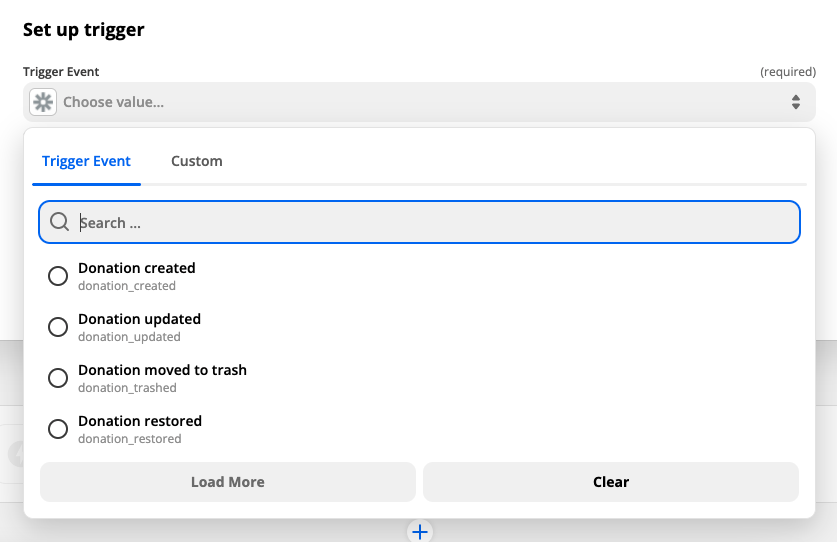
Dans notre cas, nous choisirons l'événement « Don mis à jour ». Bien que « Don créé » puisse sembler plus approprié, nous voulons nous assurer que les donateurs ne sont ajoutés en tant que participants que lorsque leur don a été payé. Les dons commencent par défaut à « En attente », donc lorsque l'événement « Don créé » se produit, le paiement ne sera pas encore confirmé.
Plus tard, nous utiliserons un filtre pour nous assurer que le don est payé avant d'ajouter le donateur en tant que participant.
Une fois cela fait, cliquez sur Continuer, puis cliquez sur Tester le déclencheur à l'étape suivante pour vous assurer que tout fonctionne.
Configurez l'action
Comme mentionné ci-dessus, nous voulons uniquement que les donateurs soient ajoutés en tant que participants lorsqu'ils terminent le paiement de leur don. Pour ce faire, nous pouvons utiliser l'outil Filtre dans Zapier. Dans la section Action, cliquez sur Filtre dans la colonne de droite :
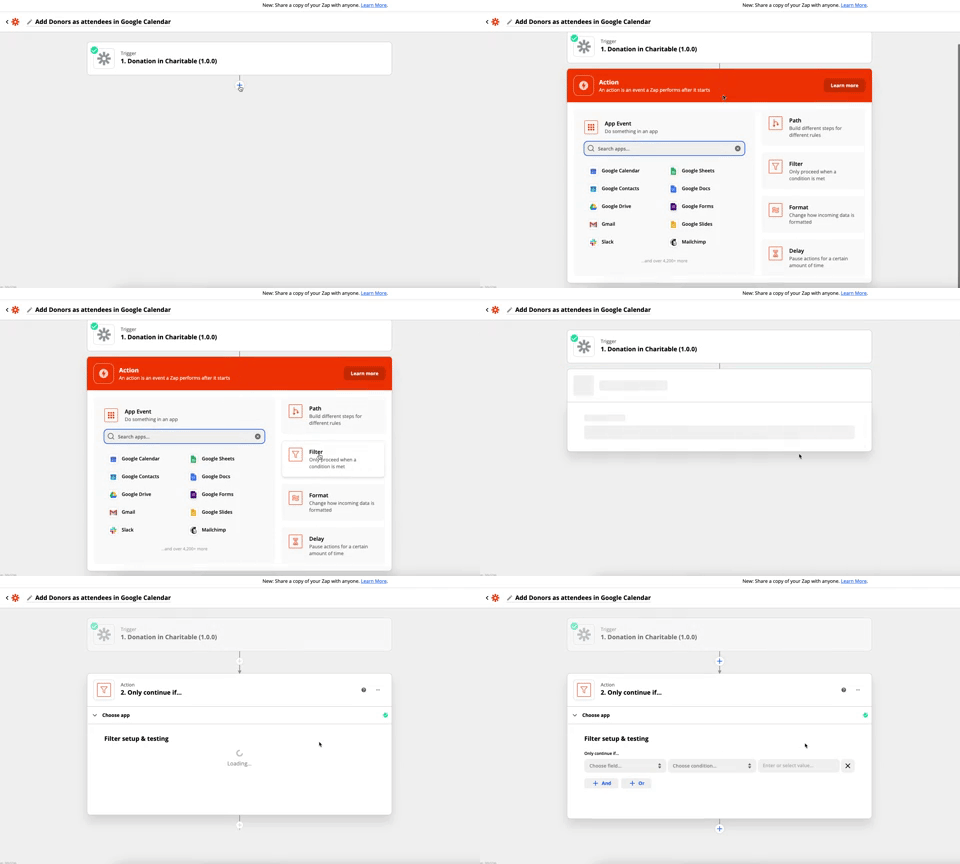
Ensuite, configurez le filtre en choisissant le champ « Statut du don » pour le filtre et en vous assurant qu'il correspond exactement à « charitable-completed » :
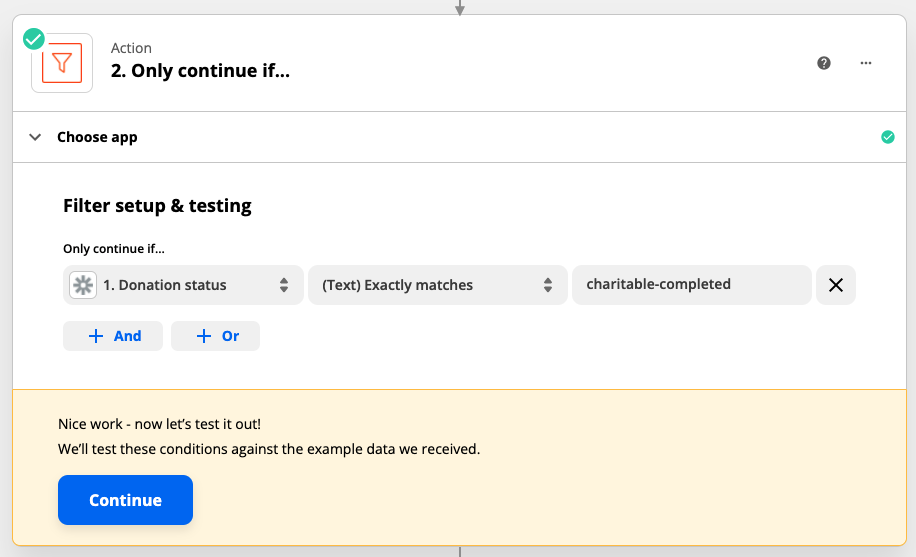
Cliquez sur Continuer pour tester le filtre. Zapier devrait vous indiquer que le Zap aurait continué, compte tenu des données de test fournies par Charitable.
Une fois cela fait, nous pouvons passer à la configuration de notre action Google Agenda. Cliquez sur l'icône + en bas du processus Zap pour ajouter une nouvelle action, puis recherchez Google Agenda.
Une fois que vous avez fait cela, cliquez sur « Choisir un événement » et choisissez « Ajouter un ou plusieurs participants à l'événement » comme événement d'action pour votre Zap :
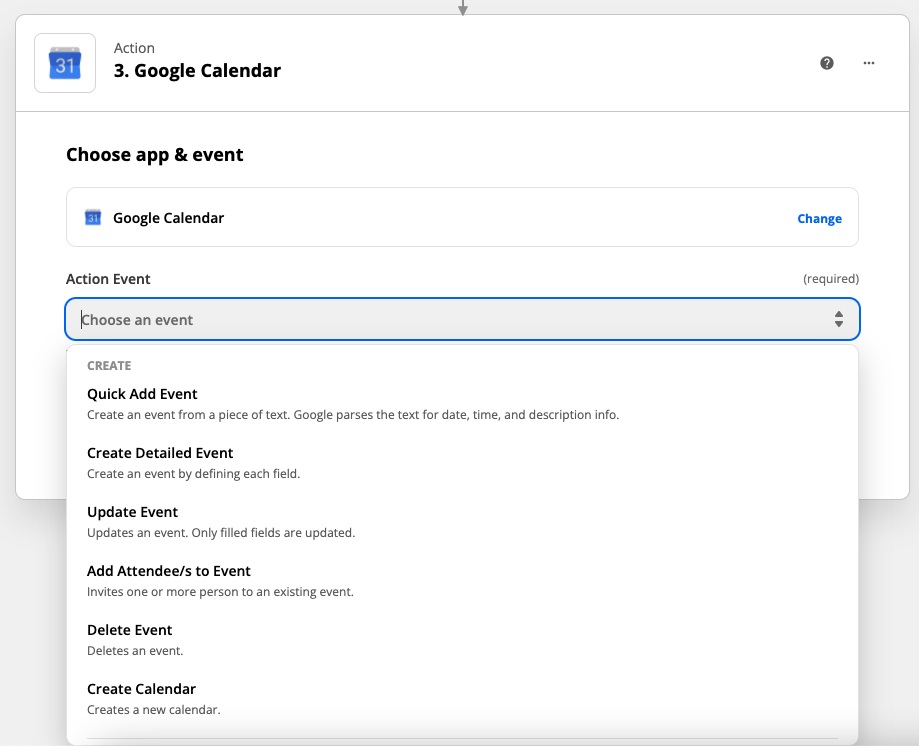
Cliquez sur Continuer pour enregistrer l'événement d'action et passer à l'étape suivante.
Si c'est la première fois que vous utilisez l'intégration Google Agenda dans Zapier, vous devrez connecter votre compte Google pour permettre à Zapier d'accéder à vos agendas et d'ajouter des participants aux événements.
Ensuite, parcourez les dernières étapes de configuration de votre action en choisissant votre agenda Google et en sélectionnant l'événement de calendrier que vous avez créé précédemment pour votre événement de collecte de fonds.
Enfin, pour le champ « Participant(s) », sélectionnez le champ de données d'e-mail envoyé par Charitable :
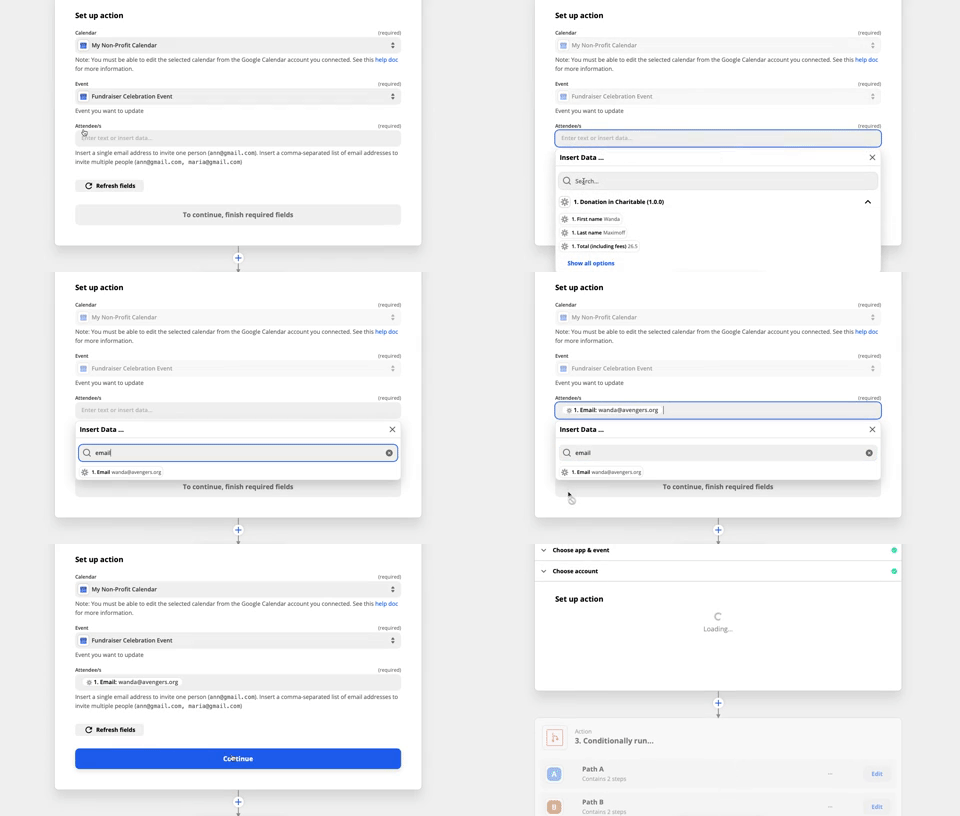
Une fois cela fait, cliquez sur Continuer pour tester l'étape d'action à l'aide des données de test. En cas de succès, vous devriez voir un nouveau participant ajouté à votre événement dans Google Agenda. N'oubliez pas de le supprimer avant de terminer. 🙂
Enfin, activez votre Zap en cliquant sur Activer le Zap. Désormais, chaque nouveau donateur sur votre site Web sera ajouté à votre événement Google Agenda, automatiquement. Magique !
Conseil bonus : Rendre l'événement exclusif à vos plus gros donateurs
Notre Zap est maintenant configuré pour ajouter sans effort des participants à notre événement, mais nous pourrions vouloir le modifier afin que seuls nos meilleurs donateurs soient ajoutés en tant que participants. En ajoutant à l'action Filtre que nous avons utilisée précédemment, nous pouvons le faire facilement :

Dans l'exemple présenté, nous n'invitons que les donateurs ayant fait un don de plus de 100 $ à l'événement.
Commencez à automatiser votre organisation à but non lucratif avec Charitable dès aujourd'hui
Comme vous l'avez vu, Charitable Automation Connect est un nouvel outil puissant disponible pour les organisations à but non lucratif. Vous pouvez l'utiliser pour créer des flux de travail automatisés comme celui que nous avons décrit ici, mais il existe de nombreuses autres possibilités.
Avec Charitable gérant de manière transparente l'intégration avec Zapier, vous pouvez facilement connecter Charitable à n'importe laquelle des milliers d'applications avec lesquelles Zapier s'intègre — sans écrire une seule ligne de code.
Améliorez votre collecte de fonds en ligne
Charitable est le plugin de dons WordPress le mieux noté et le plus abordable. Améliorez votre collecte de fonds WordPress dès aujourd'hui.





Laisser un commentaire