
Charitable intègre Stripe Payments à la plateforme. Vous n’avez pas besoin d’utiliser de clés API ni de configurer manuellement des webhooks. Connectez-vous simplement à votre compte Stripe pour finaliser la connexion.
Remarque : Avant de commencer, assurez-vous d’avoir installé Charitable sur votre site WordPress. Comme Stripe est intégré à Charitable, vous n’avez pas besoin d’installer d’extensions ou de modules complémentaires pour la fonctionnalité Stripe de base.
Voici une table des matières pour vous aider à naviguer facilement :
- Activation de la passerelle de paiement Stripe
- Connexion de votre compte Stripe
- Paramètres Stripe dans votre campagne
Activation de la passerelle de paiement Stripe
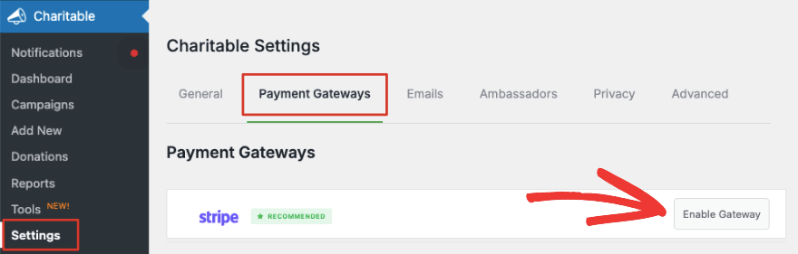
Dans votre panneau d’administration WordPress, accédez à l’onglet Charitable » Paramètres » Passerelles de paiement. Vous verrez l’onglet Stripe ainsi qu’une option pour ‘Activer la passerelle’.
Avant d’activer cette option, vous verrez également une option pour activer le ‘Mode Test’ sous la liste des passerelles. Nous recommandons d’utiliser le mode Test lors de l’activation d’une nouvelle passerelle pour vous assurer que tout est correctement configuré avant de passer en production sur votre site.
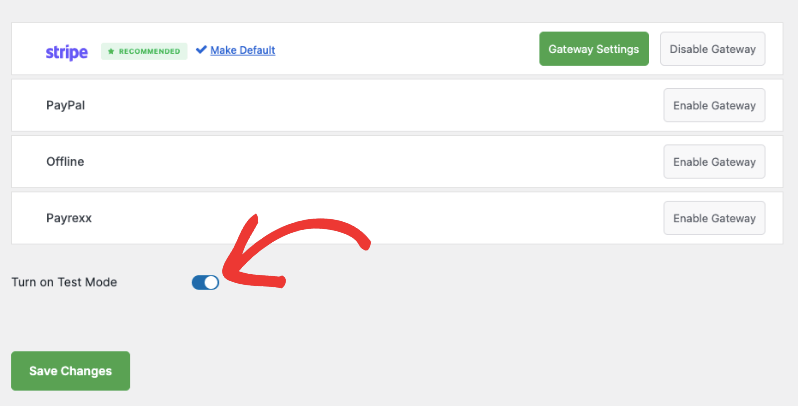
Assurez-vous de cliquer sur le bouton ‘Enregistrer les modifications’ pour activer le mode test.
Vous pouvez maintenant cliquer sur le bouton ‘Activer la passerelle’ à côté de Stripe et vous serez automatiquement redirigé vers la page des paramètres Stripe.
Remarque : Lorsque vous activez une passerelle, un bouton vert ‘Paramètres de la passerelle’ apparaîtra. Vous pouvez l’utiliser pour accéder à la page des paramètres à tout moment.
Connexion de votre compte Stripe
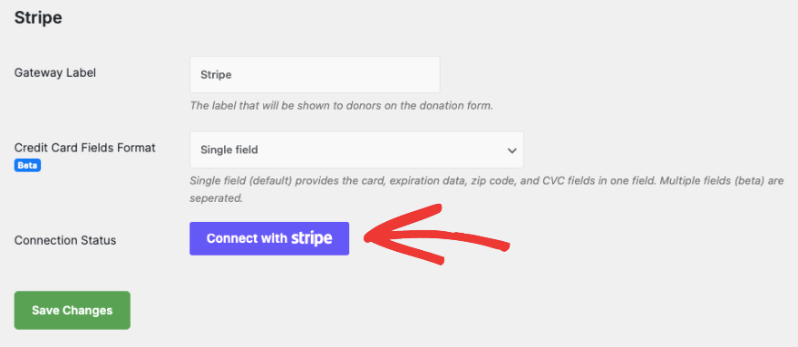
Sur la page suivante, vous pouvez ajouter une étiquette pour cette passerelle. Elle est pré-remplie avec « Stripe » pour vous, mais vous pouvez la modifier si nécessaire.
Remarque : Il y a des frais de 3 % pour chaque transaction en plus des frais Stripe si vous utilisez Charitable Lite. Pour supprimer les frais supplémentaires de 3 %, vous devrez passer à Charitable Pro.
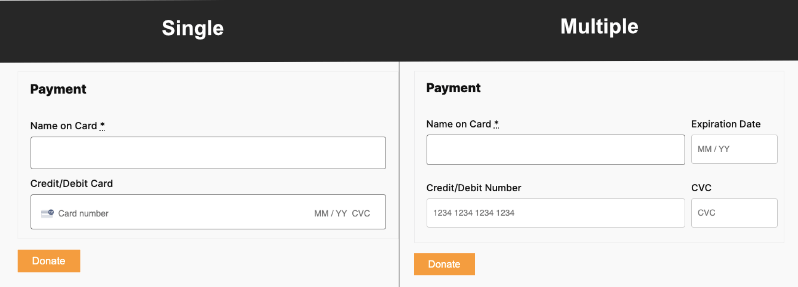
Ci-dessous, vous verrez le format des champs de carte de crédit. Cela vous permet de décider comment vous souhaitez que les clients saisissent les informations de leur carte de crédit. Il y a 2 options ici :
- Champ unique demande le numéro de carte, la date d'expiration, le code postal et les champs CVC dans un seul champ.
- Champs multiples crée un champ séparé pour chaque élément.
Voici à quoi cela ressemblera sur le front-end :
Après avoir choisi le format des champs de carte de crédit, cliquez sur le bouton ‘Se connecter avec Stripe’.
Cela vous mènera à la page Stripe où vous pourrez vous connecter à votre compte. Si vous n'avez pas de compte, vous pouvez entrer votre adresse e-mail et vous pourrez vous inscrire à un compte Stripe.
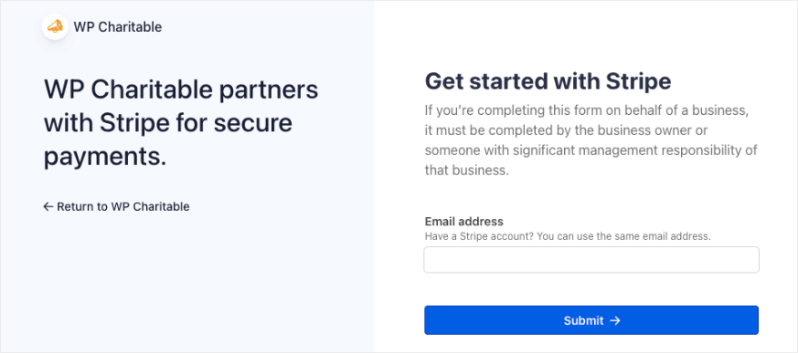
Une fois connecté à votre compte Stripe, utilisez le lien « Retourner à WP Charitable » sur la gauche. Cela vous ramènera à votre tableau de bord WordPress et vous verrez que le Statut de la connexion devrait indiquer « Connecté en mode test » ou « Connecté en mode réel » selon le mode que vous avez choisi précédemment.
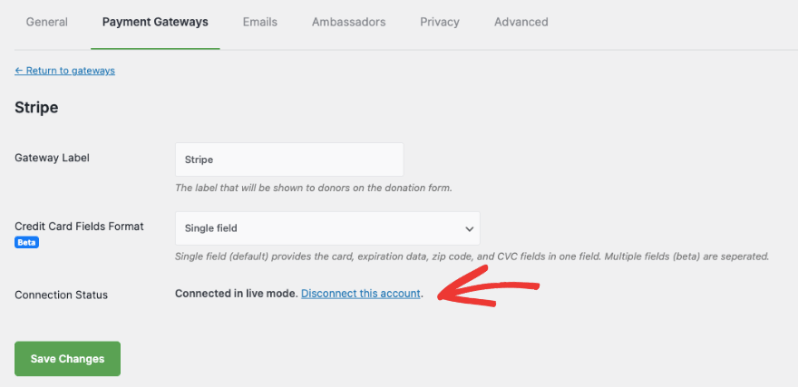
Si vous avez besoin de supprimer ce compte Stripe, vous pouvez utiliser le lien ‘Dissocier ce compte’ ici.
Vous êtes maintenant prêt à accepter des dons en utilisant la passerelle de paiement Stripe.
Paramètres Stripe dans votre campagne
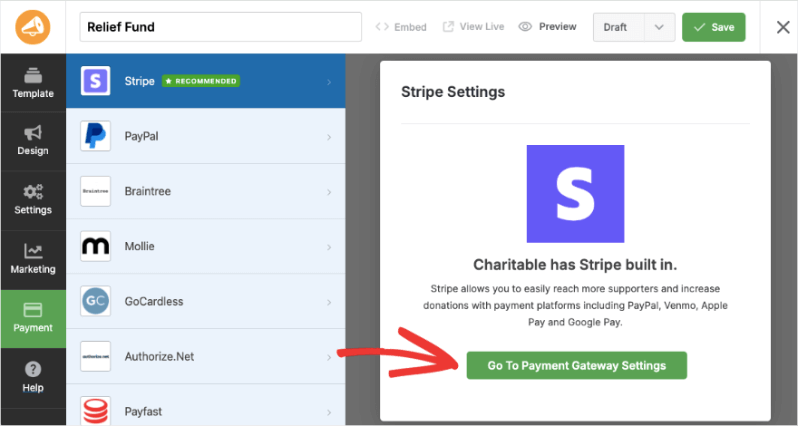
Lorsque vous créez une campagne de collecte de fonds avec Charitable, sous l’onglet Paiement dans le menu de gauche, vous verrez que Stripe est activé. Si vous avez besoin de modifier les paramètres, un bouton d’accès rapide vous mènera directement à la page des paramètres de la passerelle de paiement.
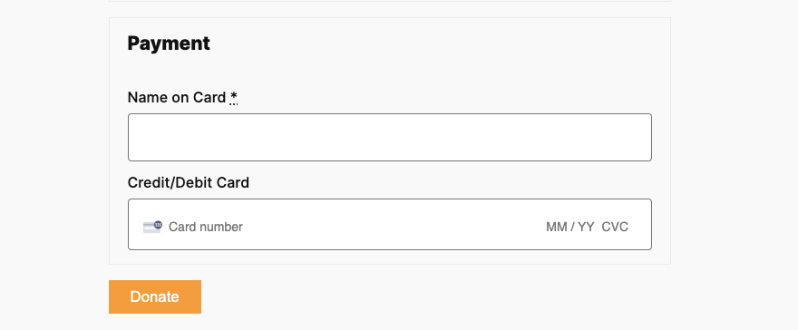
Lorsque vous publiez votre campagne, en fonction des options de paiement que vous avez activées avec Stripe, elles apparaîtront sur votre formulaire de don comme ceci :
C'est tout. Vous êtes prêt à créer vos campagnes de collecte de fonds et à accepter des dons via Stripe. Voici le guide sur Comment créer une campagne de collecte de fonds.
Vous souhaitez configurer d’autres options de paiement ? Rendez-vous sur notre page de documentation pour Configurer les passerelles de paiement.
Questions fréquemment posées
Vous avez une question sur l’utilisation de Stripe dans Charitable ? Consultez la liste ci-dessous pour nos questions les plus fréquemment posées. Si votre question n’est pas listée ici, veuillez nous contacter.
Charitable stocke-t-il les numéros de carte de crédit ?
Non. Charitable ne stocke pas les numéros de carte de crédit ni les informations de facturation sensibles similaires.
Puis-je modifier l’apparence des champs de carte de crédit de Stripe ?
Vous pouvez modifier l'apparence via un CSS personnalisé. Charitable propose également pour Stripe un « nom/CB » (standard) et une option multi-champs (quatre champs pour saisir les informations de CB de Stripe).
Quels sont les frais associés à l'utilisation de Stripe dans Charitable ?
Stripe facture des frais par transaction qui varient selon le pays. Consultez les tarifs de Stripe pour plus de détails.
Si vous utilisez Charitable avec une licence valide (voir notre page de tarifs), il n'y a aucuns frais ou charges supplémentaires au-delà de ceux de Stripe.
En plus des tarifs de Stripe, Charitable facture des frais supplémentaires de 3 % pour les transactions. Ces frais sont annulés si vous utilisez Charitable avec une licence active.
Charitable prend-il en charge les dons récurrents avec Stripe ?
Oui, En savoir plus sur notre module complémentaire Dons récurrents.


