
Charitable Automation Connect vous permet de connecter Charitable à des milliers d'autres applications en utilisant des plateformes d'automatisation tierces comme Zapier, Make.com ou Zoho Flow.
Comment installer et activer le plugin Automation Connect
Automation Connect est un plugin et peut être installé de la même manière que toute autre extension Charitable. Voici un guide rapide :
- Téléchargez votre extension depuis votre page de compte ou l'e-mail de votre reçu d'achat.
- Allez dans Plugins > Ajouter un nouveau dans votre tableau de bord WordPress.
- Cliquez sur le bouton Téléverser un plugin en haut de la page.
- Sélectionnez le fichier zip que vous avez téléchargé à l'étape 1 et cliquez sur Installer maintenant.
- Activez votre plugin !
Bloqué ? Consultez notre guide pour installer les extensions Charitable pour un tutoriel détaillé étape par étape avec des captures d'écran pour vous aider.
Comprendre les abonnements aux webhooks
Automation Connect est construit autour des abonnements aux webhooks. Alors, qu'est-ce qu'un abonnement webhook ?
En bref, un abonnement webhook est une instruction à Charitable indiquant que vous souhaitez que des informations (les données) soient envoyées à une URL spécifique (l'URL de livraison) chaque fois qu'un événement particulier se produit sur votre site web (l'événement déclencheur).
Par exemple, supposons que vous utilisiez un CRM comme Salesforce. Chaque fois que vous recevez un nouveau don, vous souhaitez que les informations relatives à ce don soient envoyées à Salesforce.
Dans ce scénario, les données sont votre don et incluront des informations telles que le montant du don, le nom et l'adresse e-mail du donateur, le statut du don, et plus encore. (Passez à la suite si vous souhaitez voir toutes les informations envoyées pour les dons, les dons récurrents et les campagnes par Charitable.)
L'événement déclencheur est un nouveau don, bien que vous souhaitiez probablement également créer des flux de travail automatisés pour gérer les cas où un don est mis à jour, déplacé vers la corbeille ou restauré depuis la corbeille.
Enfin, l'URL de livraison sera un lien unique vers une application d'automatisation comme Zapier, Make.com, Zoho Flow, ou toute autre application qui vous permet de configurer une URL de webhook. Vous pouvez ensuite utiliser votre application d'automatisation pour prendre les données reçues de Charitable et les envoyer à Salesforce.
Comment créer, modifier ou supprimer un abonnement webhook
Conseil pour les utilisateurs de Zapier
Si vous utilisez Zapier, vous n'avez pas à vous soucier de la gestion des abonnements aux webhooks dans votre tableau de bord WordPress. Notre application Zapier vous permet de gérer tout cela du côté de Zapier.
Vous pouvez créer, modifier et supprimer des abonnements aux webhooks en allant dans Charitable > Paramètres > Avancé.
Si vous êtes sur la page Plugins, vous pouvez accéder directement à cette page en cliquant sur le lien rapide « Abonnements aux webhooks » pour le plugin Charitable Automation Connect.
Créer un abonnement webhook
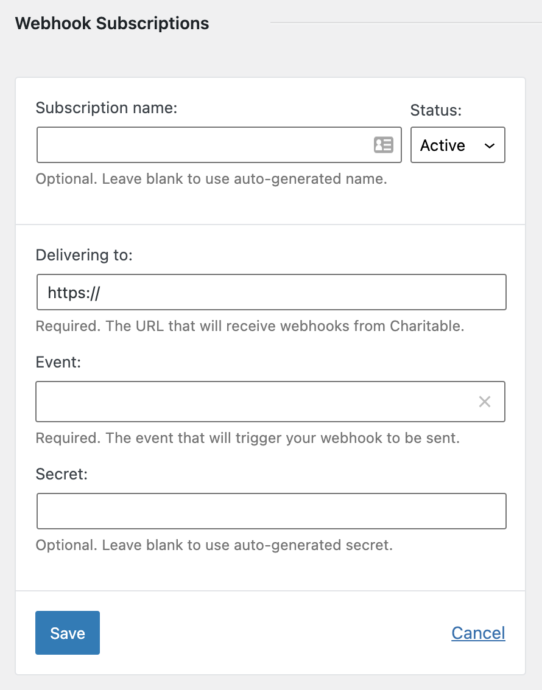
- Cliquez sur Ajouter un abonnement webhook pour créer un nouvel abonnement webhook.
- Facultativement, vous pouvez ajouter un nom descriptif à votre abonnement. Par exemple, vous pourriez l'appeler « Envoyer les dons » pour préciser qu'il s'agit d'envoyer des événements de don à Make :
- Collez l'URL de livraison. Il s'agit d'une URL unique créée par votre application d'automatisation.
- Choisissez l'événement qui déclenchera votre webhook.
- Facultativement, définissez un Secret à utiliser pour le webhook. Laissez ce champ vide pour que Charitable en génère un automatiquement.
- Cliquez sur Enregistrer pour créer l'abonnement.
Modifier ou supprimer un abonnement webhook
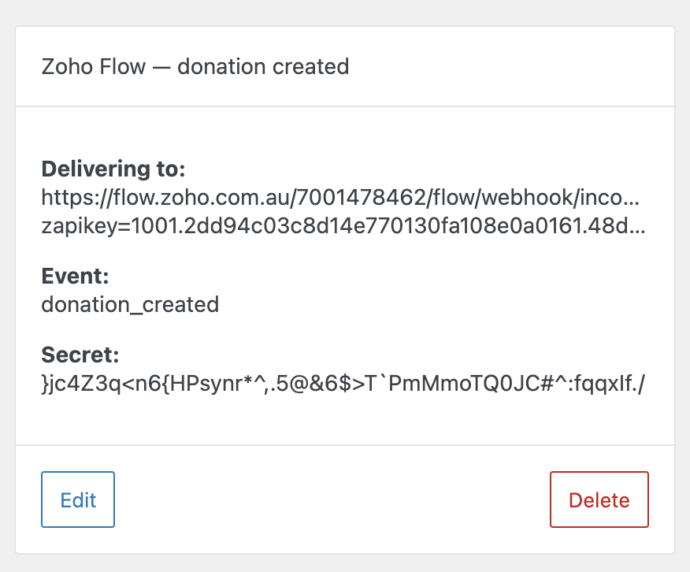
Une fois que vous avez configuré un abonnement webhook, vous pouvez le modifier en cliquant sur le bouton Modifier ; cela ouvrira le même formulaire d'abonnement webhook que celui utilisé lors de la création de l'abonnement.
Pour supprimer l'abonnement, cliquez sur Supprimer, puis confirmez la suppression en cliquant sur Supprimer l'abonnement webhook.
N'oubliez pas !
Lorsque vous supprimez un abonnement webhook, vous devez également supprimer le Zap/Scénario/Flux/Bot utilisant cet abonnement webhook dans votre application d'automatisation afin d'éviter d'être surfacturé par la plateforme d'automatisation.
Comment connecter Zapier
Zapier est une application qui vous permet de déplacer automatiquement des informations entre différentes applications. Elle se connecte à plus de 3 000 applications.
Vous aurez besoin d'un compte Zapier pour suivre les prochaines étapes. Cliquez ici pour vous inscrire.
L'intégration Zapier de Charitable est actuellement en mode sur invitation uniquement. Cliquez sur le lien ci-dessous pour commencer à l'utiliser :
https://zapier.com/developer/public-invite/145749/11b59eacc08b96703df9aa845a043b5d
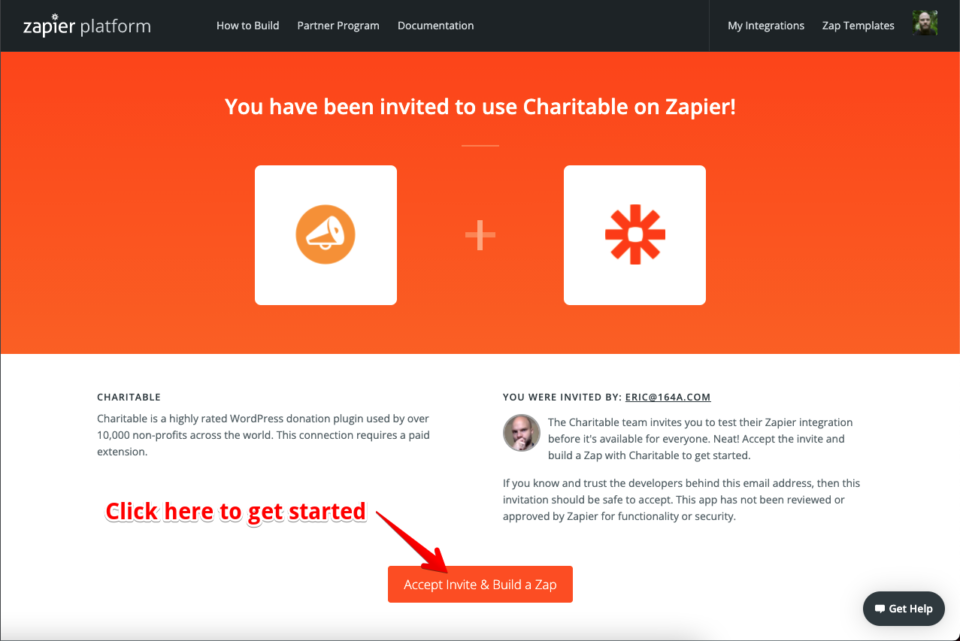
Ensuite, cliquez sur Accepter l'invitation et créer un Zap pour commencer à utiliser l'intégration, comme montré ci-dessous :
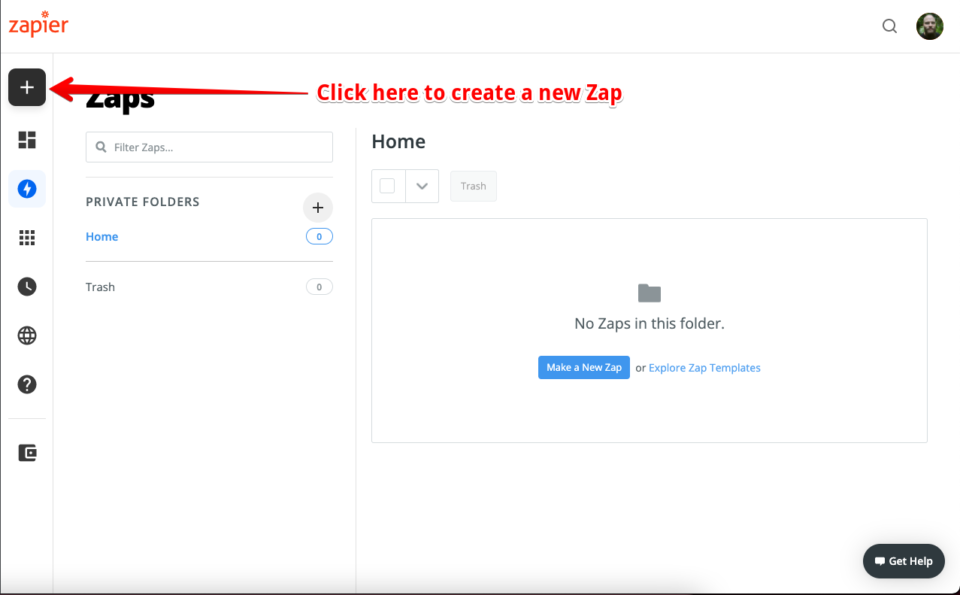
Dans le tableau de bord Zapier, cliquez sur le bouton Créer un Zap dans le menu de gauche pour créer un nouveau Zap. Si vous êtes sur un écran plus petit, le bouton Créer un Zap est remplacé par un grand bouton + :
Configuration d'un Zap pour votre événement Charitable
Un Zap nécessite deux choses :
- Un Déclencheur, qui est l'événement qui démarre le flux de travail automatisé
- Une Action, qui est l'action qui aura lieu à la suite de l'événement
Dans notre cas, le Déclencheur sera un événement Charitable, comme un nouveau don ou une mise à jour d'une campagne. Charitable ne peut pas être utilisé pour l'étape d'Action.
1. Choisissez un événement Charitable comme Déclencheur pour votre Zap
Donnez un nom à votre Zap, puis recherchez Charitable dans le champ de recherche d'applications :
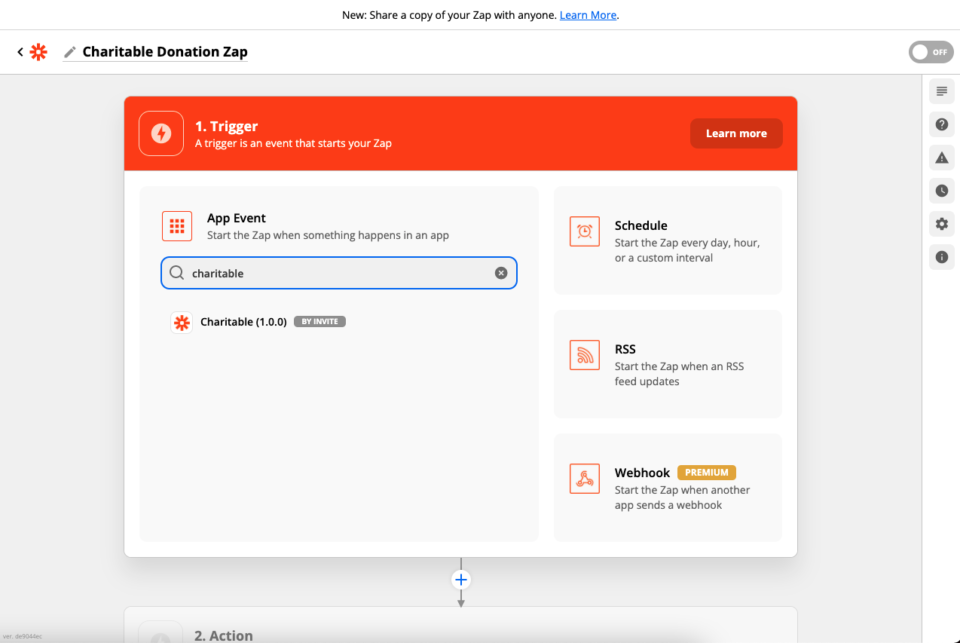
Zapier vous demandera alors de choisir l'Événement Déclencheur :
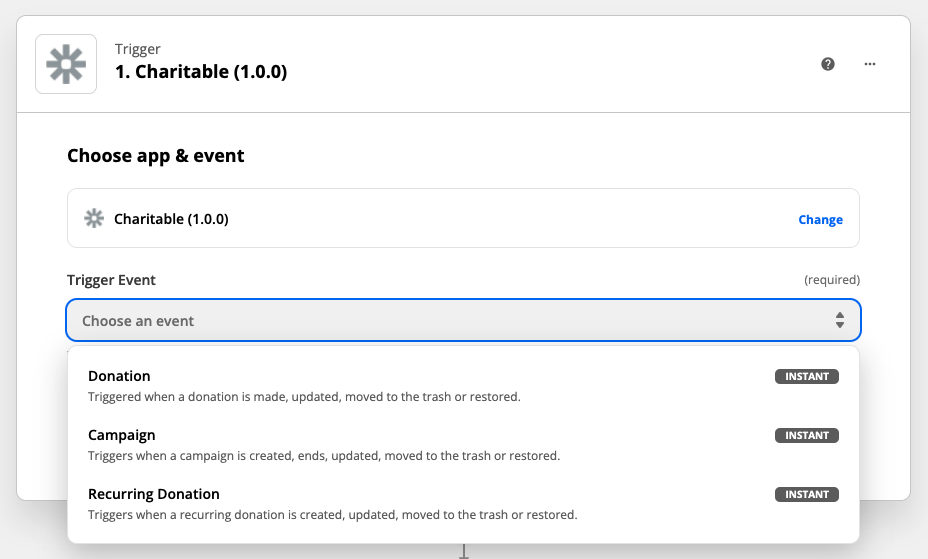
Une fois que vous avez choisi un événement, cliquez sur Continuer pour passer à l'étape suivante.
2. Configurez la connexion Charitable
Si c'est la première fois que vous créez un Zap avec Charitable, vous devrez configurer la connexion Charitable.
Cliquez sur Se connecter à Charitable pour commencer :
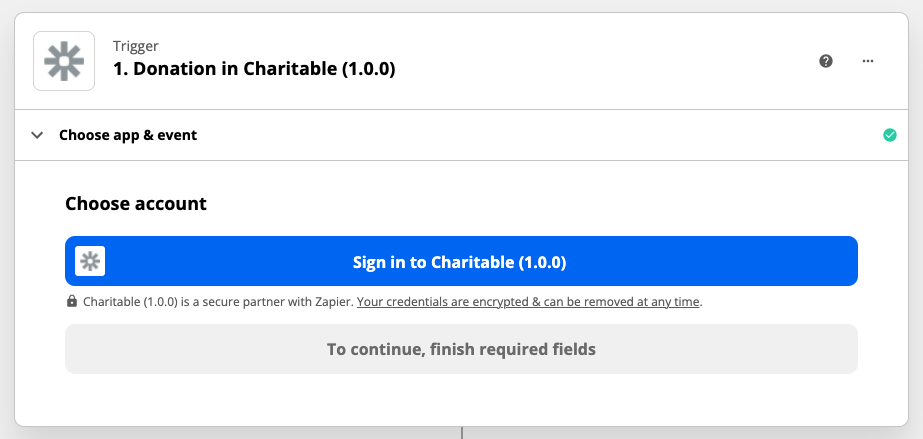
Une nouvelle fenêtre s'ouvrira avec un formulaire à remplir :
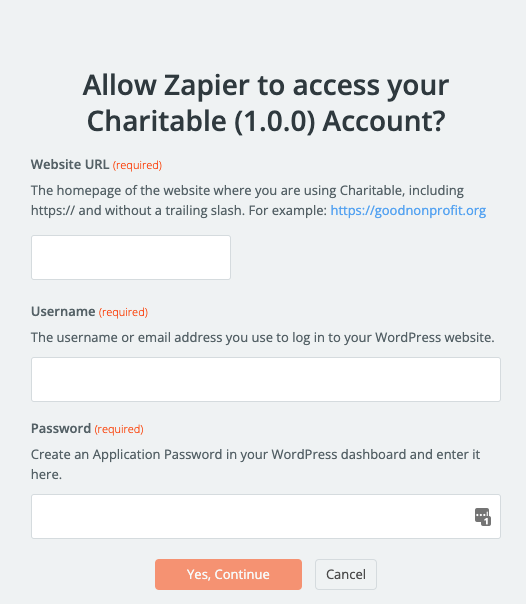
Il y a trois champs à remplir :
- L'URL de votre site web. C'est l'URL du site web où Charitable est installé.
- Votre nom d'utilisateur pour votre site web.
- Un mot de passe d'application pour votre compte sur le site web.
Bien que vous puissiez également utiliser votre mot de passe habituel, nous vous recommandons fortement de créer un mot de passe d'application, car cela maintient votre mot de passe normal plus sécurisé. Si vous n'êtes pas sûr de la manière de créer un mot de passe d'application, passez aux instructions étape par étape pour créer un mot de passe d'application.
Une fois que vous avez connecté votre compte de site web, cliquez sur Continuer pour passer à l'étape suivante.
3. Configurez un Événement Déclencheur spécifique
Auparavant, vous avez choisi le type de Déclencheur à utiliser pour votre intégration, en fonction du type de ressource : une Campagne, un Don ou un Don Récurrent. Vous devez maintenant choisir un événement spécifique lié à cette ressource.
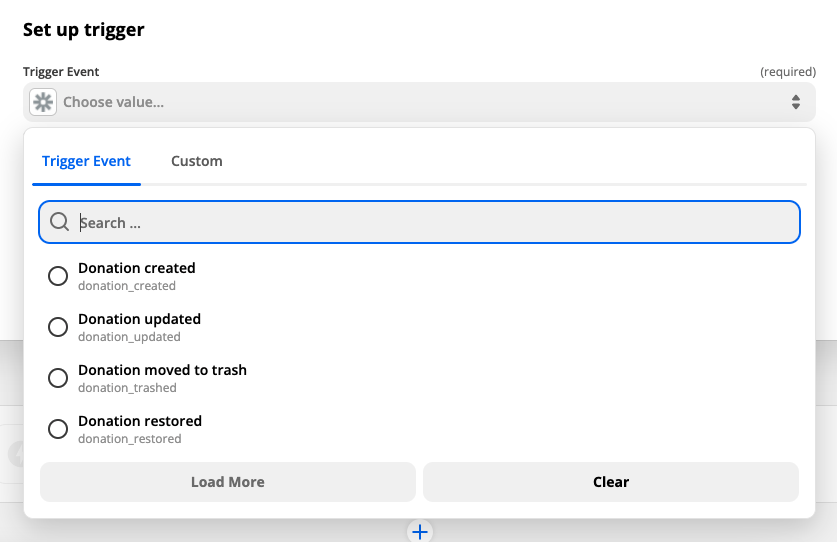
Après en avoir choisi un, cliquez sur Continuer.
4. Testez le déclencheur
Enfin, vous pouvez tester le Déclencheur en cliquant sur Tester le Déclencheur. Cela garantira que tout est correctement configuré et vous fournira également des données d'exemple pour vous montrer ce qui sera inclus dans les informations envoyées à Zapier par Charitable.
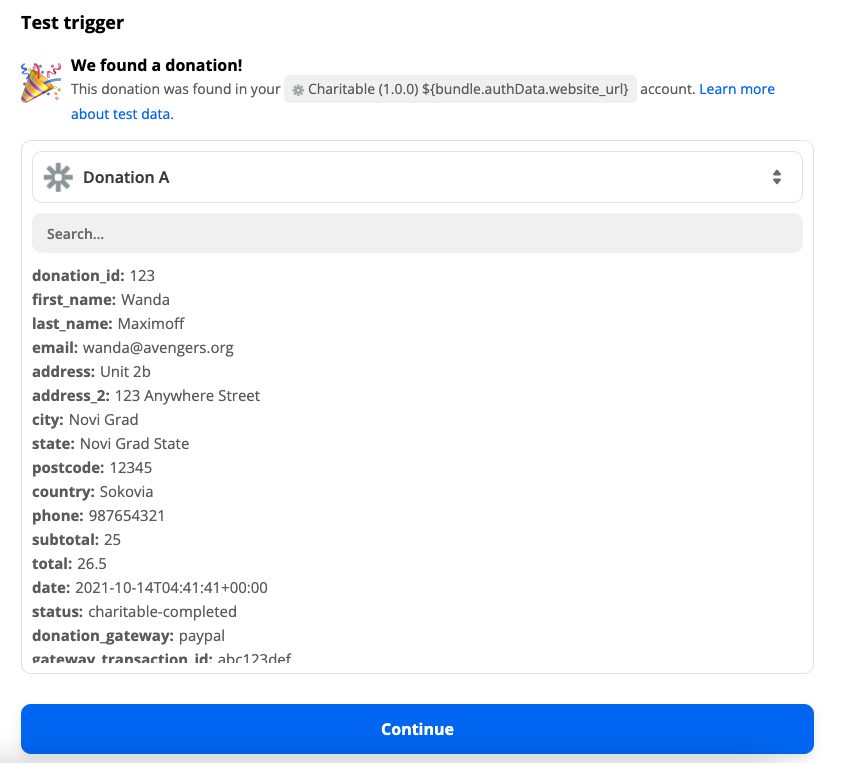
En supposant que tout a été correctement configuré, cliquez sur Continuer pour passer à l'étape de configuration de l'Action pour votre Zap.
5. Configurez l'Action pour votre Zap
La dernière étape consiste à créer une Action pour votre Zap.
Il existe des milliers de façons différentes d'utiliser Zapier et Charitable ensemble pour automatiser les flux de travail de votre organisation à but non lucratif. Voici quelques exemples :
- Ajouter des dons à un CRM comme Salesforce.
- Ajouter des dons à une feuille Google.
- Ajouter des créateurs de campagnes ou des donateurs à une liste spéciale dans votre fournisseur de marketing par e-mail (s'il ne s'agit pas d'un que nous prenons déjà en charge avec notre plugin Newsletter Connect).
- Configurer un événement dans Google Agenda pour enregistrer la fin d'une campagne.
- Envoyer un e-mail après la création d'un don ou l'ajout d'une campagne.
Lorsque vous configurez l'Action, vous pourrez sélectionner les données de Charitable que vous souhaitez utiliser.
Par exemple, dans la capture d'écran ci-dessous, de nouveaux dons sont ajoutés à une feuille Google. Les champs « ID du don » et « Prénom du donateur » correspondent à des colonnes dans la feuille Google que j'ai créée, et je peux choisir dans les données de Charitable ce qui doit aller dans chaque colonne :
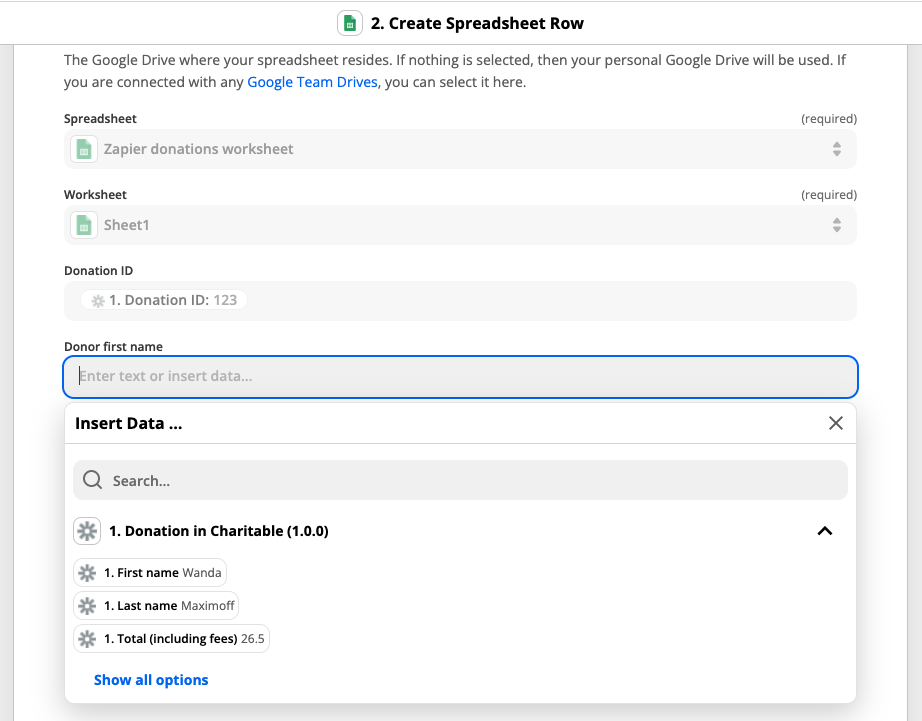
Si vous débutez avec Zapier, vous pouvez suivre ce guide détaillé pour configurer les actions Zap.
6. Activez votre Zap
Une fois que vous avez terminé la configuration de votre action, cliquez sur Tester et continuer pour l'essayer et vous assurer que tout fonctionne comme vous le souhaitez.
Si c'est le cas, la dernière étape consiste à activer le Zap en cliquant sur Activer le Zap.
Prochaines étapes avec Zapier
Ce guide a couvert les bases de la création d'un Zap en configurant un déclencheur et une action. Vous pouvez faire beaucoup plus avec Zapier. Voici quelques exemples de la façon dont vous pouvez personnaliser vos Zaps, avec des liens vers la documentation Zapier :
- Ajouter des conditions à votre Zap
- Ajouter une logique de branchement à votre Zap
- Ajouter des délais aux Zaps
- Formater les données entrantes de différentes manières
Comment intégrer avec d'autres applications d'automatisation
Automation Connect est conçu pour fonctionner avec toute application d'automatisation qui vous permet de configurer un abonnement webhook. Voici quelques exemples d'applications que vous pouvez utiliser à la place de Zapier :
- Créer
- Zoho Flow
Créer
Vous pouvez intégrer Charitable avec Make en créant un Scénario et en utilisant le module « Webhooks » avec l'option de déclenchement « Webhook personnalisé » :
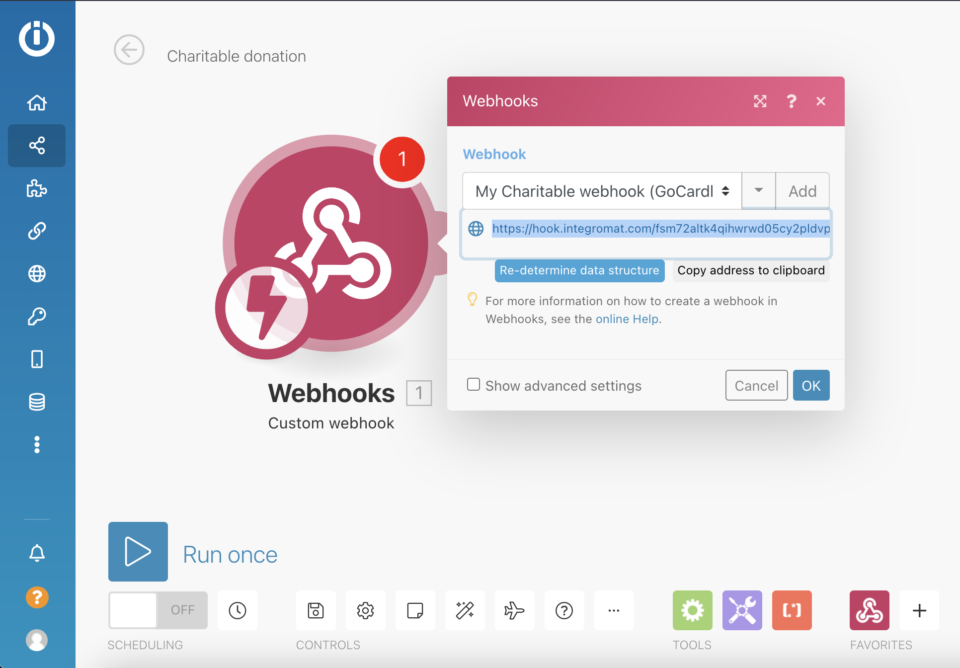
Après avoir configuré cela, copiez l'adresse du webhook et utilisez-la comme « URL de livraison » lors de la création d'un abonnement Webhook dans vos paramètres Charitable.
Zoho Flow
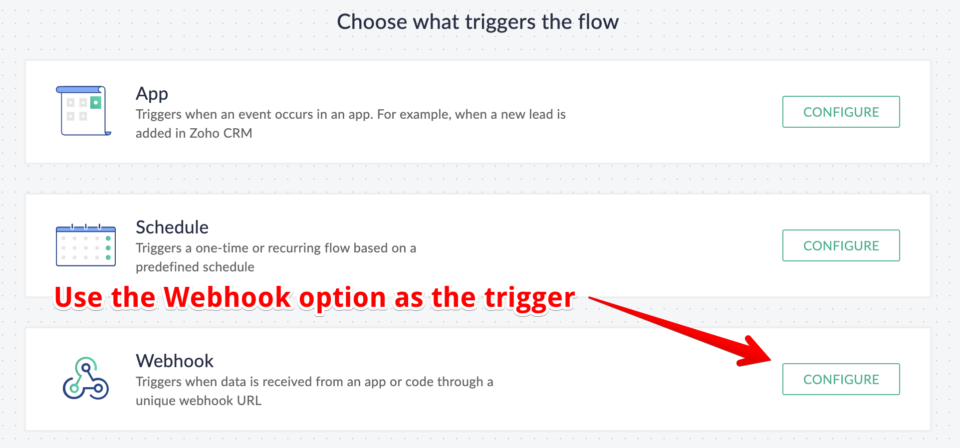
Dans Zoho Flow, créez un nouveau Flux. Après avoir défini un titre et une description, choisissez « Webhook » comme option de déclenchement :
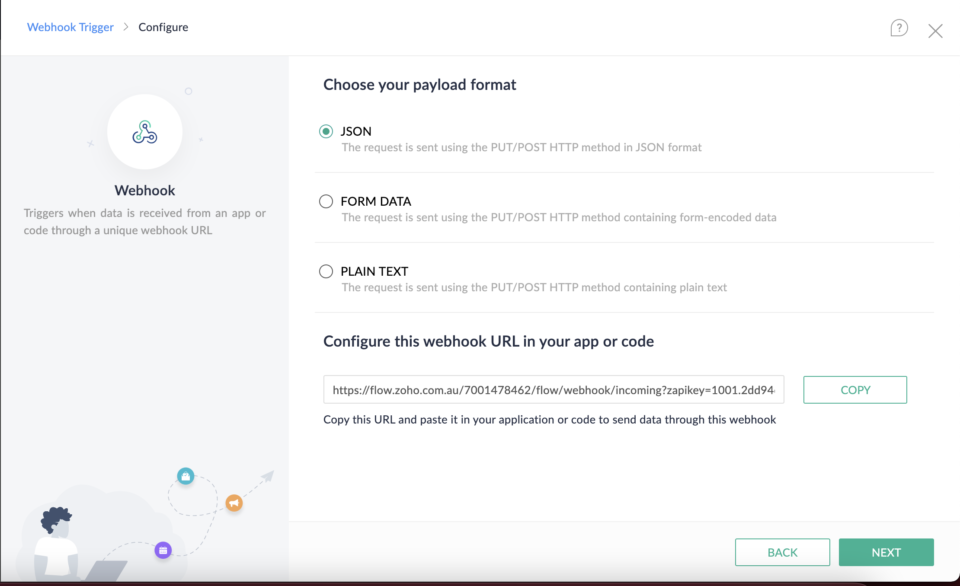
Sur la page suivante, laissez le format de la charge utile défini sur JSON. Copiez l'URL du webhook en bas et utilisez-la comme « URL de livraison » lors de la configuration d'un nouvel abonnement Webhook dans Charitable :
Comment créer un mot de passe d'application pour mon intégration ?
Vous pouvez créer un mot de passe d'application dans votre tableau de bord WordPress.
- Accédez à votre page de profil en cliquant sur Utilisateurs > Profil dans le menu de gauche. Vous pouvez également y accéder en cliquant sur votre photo de profil dans le coin supérieur droit de la page, puis en cliquant sur Modifier le profil.
- Faites défiler jusqu'à la section « Mots de passe d'application ». Donnez un nom unique à votre mot de passe d'application pour indiquer son utilisation, puis cliquez sur Ajouter un nouveau mot de passe d'application.
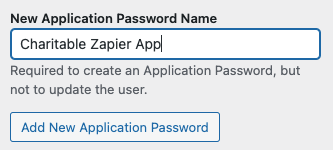
- Copiez et collez le mot de passe de l'application et enregistrez-le dans un endroit sûr. Vous ne pourrez plus accéder au mot de passe :

Quelles informations Charitable envoie-t-il aux webhooks ?
Charitable envoie des informations sur trois types de ressources :
- Dons
- Dons récurrents
- Campagnes
Les informations incluses dépendront des autres extensions Charitable que vous avez installées.
Dons
| Clé de champ | Description | Disponibilité |
|---|---|---|
| id_don | ID du don | Noyau |
| prénom | Prénom du donateur | Noyau |
| nom | Nom de famille du donateur | Noyau |
| Adresse e-mail du donateur | Noyau | |
| adresse | Adresse du donateur | Noyau |
| adresse_2 | Adresse du donateur, ligne 2 | Noyau |
| ville | Ville du donateur | Noyau |
| état | État/Province du donateur | Noyau |
| code_postal | Code postal du donateur | Noyau |
| pays | Pays du donateur | Noyau |
| téléphone | Numéro de téléphone du donateur | Noyau |
| sous-total | Montant du don, hors frais | Noyau |
| total | Montant total du don, frais inclus | Noyau |
| date | Date du don | Noyau |
| statut | Statut du don | Noyau |
| passerelle_don | Passerelle de paiement utilisée | Noyau |
| id_transaction_passerelle | ID ou référence de la passerelle de paiement pour le don | Noyau |
| mode_test | Le don a-t-il été effectué en mode test | Noyau |
| consentement_contact | Statut du consentement de contact du donateur | Noyau |
| couvrir_frais | Indique si le donateur a choisi de couvrir les frais | Réduction des frais |
| montant_frais | Le frais couvert par le donateur. | Réduction des frais |
| consentement_suivi | Indique si le donateur a donné son consentement au suivi (s'applique uniquement si Campaign Monitor est utilisé) | Connexion Newsletter |
| inscription_newsletter | Indique si le donateur s'est inscrit pour recevoir la newsletter | Connexion Newsletter |
| id_client_gocardless | L'ID client du donateur chez GoCardless | GoCardless |
| id_mandat_gocardless | L'ID de mandat GoCardless utilisé pour le don | GoCardless |
| giftaid_reclame | Indique si le donateur a réclamé le Gift Aid | Gift Aid |
| titre | Titre du donateur | Gift Aid |
| adresse_3 | 3ème ligne de l'adresse du donateur | Gift Aid |
| don_anonyme | Indique si le donateur a choisi de rester anonyme | Dons anonymes |
| commentaire_donateur | Le commentaire du donateur | Commentaires des donateurs |
Dons récurrents
Le déclencheur de don récurrent n'est disponible que si vous utilisez le plugin Dons récurrents.
| Clé de champ | Description | Disponibilité |
|---|---|---|
| id_don_recurrent | ID du don récurrent | Dons récurrents |
| id_premier_don | ID du don initial | Dons récurrents |
| sous-total_récurrent | Montant donné régulièrement (hors frais) | Dons récurrents |
| total_récurrent | Montant donné régulièrement (frais inclus) | Dons récurrents |
| periode_recu | Période de don récurrent (mois, semaine, année, etc.) | Dons récurrents |
| intervalle_récurrent | Nombre de périodes entre les dons récurrents | Dons récurrents |
| durée_récurrente | Nombre total de renouvellements du don récurrent | Dons récurrents |
| date_expiration_récurrente | Date d'expiration du don récurrent | Dons récurrents |
| date_renouvellement_récurrent | Date du prochain renouvellement du don récurrent | Dons récurrents |
| id_abonnement_passerelle | Identifiant/référence de l'abonnement à la passerelle de paiement | Dons récurrents |
| id_don | ID du don | Noyau |
| prénom | Prénom du donateur | Noyau |
| nom | Nom de famille du donateur | Noyau |
| Adresse e-mail du donateur | Noyau | |
| adresse | Adresse du donateur | Noyau |
| adresse_2 | Adresse du donateur, ligne 2 | Noyau |
| ville | Ville du donateur | Noyau |
| état | État/Province du donateur | Noyau |
| code_postal | Code postal du donateur | Noyau |
| pays | Pays du donateur | Noyau |
| téléphone | Numéro de téléphone du donateur | Noyau |
| sous-total | Montant du don, hors frais | Noyau |
| total | Montant total du don, frais inclus | Noyau |
| date | Date du don | Noyau |
| statut | Statut du don | Noyau |
| passerelle_don | Passerelle de paiement utilisée | Noyau |
| id_transaction_passerelle | ID ou référence de la passerelle de paiement pour le don | Noyau |
| mode_test | Le don a-t-il été effectué en mode test | Noyau |
| consentement_contact | Statut du consentement de contact du donateur | Noyau |
| couvrir_frais | Indique si le donateur a choisi de couvrir les frais | Réduction des frais |
| montant_frais | Le frais couvert par le donateur. | Réduction des frais |
| don_anonyme | Indique si le donateur a choisi de rester anonyme | Dons anonymes |
| commentaire_donateur | Le commentaire du donateur | Commentaires des donateurs |
Campagnes
| Clé de champ | Description | Disponibilité |
|---|---|---|
| id_campagne | ID de la campagne | Noyau |
| description | Description courte | Noyau |
| objectif | Objectif de collecte de fonds | Noyau |
| date_fin | Date de fin de la campagne | Noyau |
| titre | Titre de la campagne | Noyau |
| date | Date de création de la campagne | Noyau |
| id_createur_campagne | ID utilisateur du créateur de la campagne | Noyau |
| nom_createur_campagne | Nom complet du créateur de la campagne | Noyau |
| email_createur_campagne | Adresse e-mail du créateur de campagne | Noyau |
| montant_donné | Montant donné à la campagne | Noyau |
| nombre_donateurs | Nombre de donateurs uniques à la campagne | Noyau |
| statut | Statut de la campagne | Noyau |
| lien_permanent | URL de la campagne | Noyau |
| destinataire | Type de campagne. L'une des options suivantes : – ambassadeur (campagne pour votre organisation) – collecte de fonds (collecte de fonds pour une autre campagne) – personnel (campagne pour une cause personnelle) | Ambassadeurs |
| parent_campagne | ID du parent de la campagne, ou 0 si ce n'est pas une collecte de fonds | Ambassadeurs |
| type_collecte_fonds | Type de collecte de fonds, ou false si ce n'est pas une collecte de fonds. L'une des options suivantes : – Membre de l'équipe – Équipe – Individuel | Ambassadeurs |
| action_requise_createur | Une action requise du créateur de la campagne avant que sa campagne ne puisse être activée. | Ambassadeurs |
| email_createur_campagne_soumis | L'adresse e-mail utilisée par la personne qui a soumis la campagne. Il s'agit de la même adresse que celle du champ email_createur_campagne, sauf s'il s'agit d'une campagne de membre d'équipe ajoutée par le capitaine d'équipe. | Ambassadeurs |
| supporte_campagnes_enfants | Indique si la campagne prend en charge les collectes de fonds. | Ambassadeurs |
| id_equipe | L'ID de l'équipe à laquelle appartient cette collecte de fonds, ou 0 si elle ne fait pas partie d'une équipe. | Ambassadeurs |
| nom_equipe | Le nom de l'équipe à laquelle appartient cette collecte de fonds. | Ambassadeurs |
| id_capitaine_equipe | L'ID utilisateur du capitaine de l'équipe à laquelle appartient cette collecte de fonds, ou null si elle ne fait pas partie d'une équipe. | Ambassadeurs |


