

En esta guía, te guiaremos a través del proceso de agregar un botón de donación a tu sitio web de WordPress, lo que te permitirá obtener un nuevo flujo de donaciones constantes de visitantes generosos.
El ecosistema de plugins de WordPress ha sido fantástico para eliminar los desafíos técnicos y la codificación del proceso de personalización del sitio web.
En el mundo actual, todo lo que se requiere es un simple clic en un botón para instalar el plugin de WordPress de tu elección. Una vez que el plugin se ha instalado, tu sitio web obtiene acceso instantáneo a la funcionalidad proporcionada por el plugin.
WordPress Charitable es un plugin de donaciones que es increíblemente simple de configurar, configurar y usar en tu sitio web, ¡lo que te permite agregar un hermoso botón de donación de WordPress en minutos!
En las próximas secciones, aprenderás cómo agregar un botón de donación paso a paso y dónde debes colocar tu botón para una máxima efectividad.
¡Empecemos!
¿Por qué agregar un botón de donación a tu sitio web de WordPress?
Cualquier organización que dependa de donaciones, en particular las organizaciones sin fines de lucro, tiende a beneficiarse más de un botón de donación prominente que los visitantes no pueden pasar por alto.
Si puedes aprovechar tu sitio web de WordPress para obtener donaciones, realizar campañas de recaudación de fondos en línea para llegar a una base de donantes más amplia y complementar tus esfuerzos de marketing por correo electrónico con un "Llamado a la acción" (CTA) para donar, tu organización comenzará a ver un mayor número de donaciones de los visitantes.
Aprovecha tu sitio web de WordPress para obtener donaciones
Dado que tu organización ya tiene un sitio de WordPress activo, agregar un botón de donación es una oportunidad tremenda para una "victoria rápida".
La mayoría de las organizaciones sin fines de lucro ya tienen canales de donación existentes fuera de línea, en persona o por correo postal, y el simple acto de agregar un botón de donación en línea captura un segmento completamente nuevo de visitantes y expande instantáneamente tu alcance.
Tu sitio web puede ser mucho más que un simple recurso educativo con información sobre tu organización sin fines de lucro.
Al permitir que tus visitantes existentes donen de manera rápida, fácil y segura a través de un botón de donación de WordPress bien ubicado, tu organización puede comenzar rápidamente a cosechar las recompensas.
Realiza campañas de recaudación de fondos en línea
En la era moderna actual de tecnología en rápida evolución, las organizaciones que no han comenzado a hacer el cambio en línea podrían verse rápidamente rezagadas respecto a la competencia.
Si tu organización aún no ha intentado una campaña de recaudación de fondos en línea, puede resultar más efectiva de lo que imaginas.
En lugar de capturar donaciones solo de donantes locales y regionales, las campañas de recaudación de fondos en línea tienen el potencial de llegar a una audiencia global a través de Internet. Comenzar una recaudación de fondos en línea puede funcionar increíblemente bien y permitir que tu organización llegue a un segmento de la población significativamente mayor, lo que probablemente resultará en un mayor número de donaciones.
Complementa tus esfuerzos de marketing por correo electrónico
Muchas organizaciones sin fines de lucro están comenzando a utilizar el marketing por correo electrónico para comunicarse con sus clientes, clientela o donantes anteriores.
Dado que el correo electrónico es una forma rápida y eficiente de llegar a un gran número de personas simultáneamente, te permite llegar a miles de personas por una fracción minúscula del coste en comparación con el correo postal.
Al añadir un botón de donación de WordPress a tu sitio web, puedes incluir un enlace en tus correos electrónicos que apunte a una página de donaciones en tu sitio web.
Una vez que alguien lee tu correo electrónico y hace clic en el enlace de donación, será dirigido a una página donde podrá donar de forma segura a tu organización en cuestión de minutos.
¿Qué deberías usar para añadir un botón de donación a tu WordPress?sitio web
Hay varias formas de añadir un botón de donación a tu sitio web de WordPress, desde las técnicamente complejas hasta las increíblemente sencillas.
Dependiendo de tu presupuesto y recursos, tu organización puede optar por crear un botón de donación completamente codificado a medida que se integre perfectamente con tu sitio web. Como puedes imaginar, esto puede resultar caro con relativa rapidez.
Por otro lado, puedes aprovechar los plugins de WordPress como WP Charitable para añadir rápidamente un botón de donación funcional sin ninguna molestia o dolor de cabeza adicional.
Botones de donación codificados a medida
Una solución "a medida" codificada a medida es la mejor manera de crear algo que coincida al 100% con tu visión. Desafortunadamente, también es muy cara y prohibitiva en cuanto a costes para la mayoría de las organizaciones y organizaciones sin ánimo de lucro.
Si quisieras crear un plugin de botón de donación personalizado desde cero, tendrías que pasar por el tedioso proceso de seleccionar desarrolladores, contratar a aquellos que más se ajusten a tu presupuesto y demanda de habilidades técnicas, y asegurarte de que completan el proyecto a tiempo y según tus especificaciones.
A menos que dirijas una empresa de desarrollo a tiempo parcial, este proceso es demasiado largo y poco realista para la mayoría de las organizaciones sin ánimo de lucro.
Aquí es donde entra en juego una solución mucho más manejable y económica: utilizar un plugin de WordPress existente y de buena reputación para gestionar las donaciones en tu sitio.
Usa el plugin de WordPress Charitable
En lugar de dedicar tu valioso tiempo a gestionar un equipo de desarrollo completo, usar un plugin de botón de donación de WordPress creado *específicamente* para organizaciones sin ánimo de lucro te ahorrará una cantidad tremenda de dinero y tiempo.
Conoce Charitable– el plugin de donaciones de WordPress mejor valorado, utilizado por más de 10.000 organizaciones sin ánimo de lucro para potenciar sus esfuerzos de recaudación de fondos en línea y ampliar su alcance.
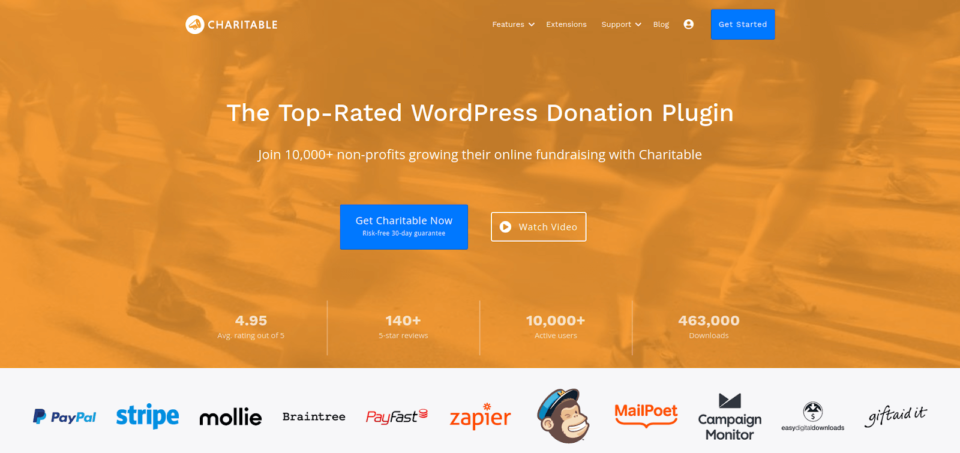
El plugin Charitable de WordPress está diseñado pensando en la flexibilidad y la facilidad de uso, lo que te permite aprender rápidamente y empezar a aceptar donaciones en cuestión de minutos. También proporciona una serie de complementos que pueden mejorar enormemente la funcionalidad.
Compatible con temas de WordPress
El plugin Charitable es compatible con casi todos los temas de WordPress y viene con una serie de temas personalizados para organizaciones sin ánimo de lucro y recaudación de fondos creados específicamente para su uso con el plugin.
Añadir un botón de donación de WordPress con Charitable es una forma sencilla de asegurar que se ajuste perfectamente a tu tema actual.
Transacciones de donación seguras
Charitable se integra con una serie de procesadores de pago seguros y líderes en la industria como PayPal, Stripe, Authorize.Net y Braintree, por nombrar algunos.
Dado que Charitable nunca acepta ni almacena información de pago por sí mismo, puede estar seguro de que todas las transacciones de sus donantes se procesan únicamente a través de los proveedores de pago de su elección, utilizando los sistemas de seguridad completos de esas plataformas.
Crea Campañas Ilimitadas
El plugin Charitable para WordPress nunca limitará el número de campañas que puedes crear. Esto es ideal para organizaciones sin fines de lucro que tienen varios sitios web o agencias que trabajan con cientos de organizaciones sin fines de lucro a la vez.
Personalizable para Adaptarse a tu Marca
Personaliza completamente tu botón de donación para que se adapte a tu marca, permitiendo que se integre perfectamente en tu sitio web y ofrezca a los visitantes una experiencia uniforme.
Podrás agregar campos de donación personalizados, cambiar el texto del botón, modificar los estilos del botón, incluidos los colores, y seleccionar qué funciones deseas utilizar para ampliar la funcionalidad de tu botón personalizado.
Tutorial: Cómo Añadir un Botón de Donación a tu Sitio Web WordPress
En esta sección, te guiaremos a través del proceso de añadir un botón de donación de WordPress a tu sitio web con una guía paso a paso. Configurar el plugin Charitable es un proceso bastante sencillo y deberías poder ponerlo en marcha en cuestión de minutos.
Paso 1: Instalar el Plugin Charitable para WordPress
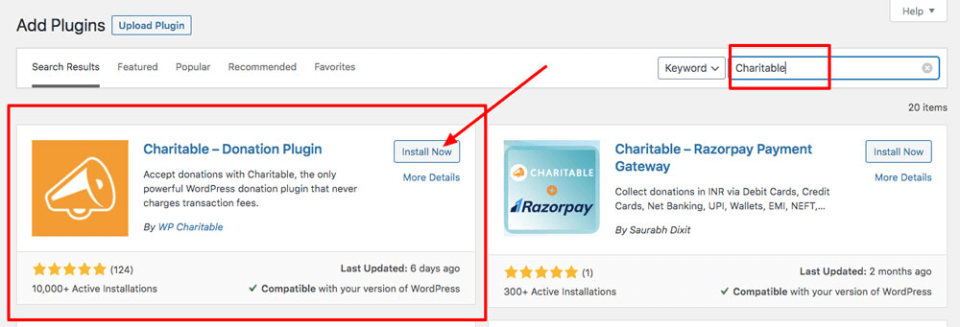
El primer paso es instalar el plugin Charitable con WordPress. Esto se puede hacer iniciando sesión en tu panel de WordPress, haciendo clic en Plugins > Añadir Nuevo y escribiendo “Charitable” en la barra de búsqueda.
Haz clic en el botón Instalar ahora y luego inmediatamente haz clic en el enlace Activar ahora para habilitar el plugin en tu sitio web.
Paso 2: Configurar los Ajustes de Charitable
Ahora que el plugin Charitable está instalado y activado en tu sitio web, querrás configurar los ajustes principales de tu plugin.
En tu panel de WordPress, busca Charitable en el menú de la izquierda y haz clic en Charitable > Ajustes para mostrar la página de ajustes.
Querrás configurar los siguientes ajustes principales:
- País base – Selecciona tu país en el menú desplegable
- Moneda – Selecciona la moneda con la que deseas aceptar donaciones
- Ajustes opcionales – Configura tus opciones de “Formato de moneda”, “Separador de miles”, “Separador decimal” y “Número de decimales”
Una vez que se hayan configurado estos ajustes principales, navega a Ajustes generales > Opciones de visualización del formulario de donación.
Aquí puedes elegir que tu formulario de donación se muestre:
- En una página separada – Elige la página específica en la que deseas que se muestre tu formulario de donación
- En la misma página – Muestra tu formulario de donación en la misma página que la campaña
- Revelar en una ventana modal – Muestra un cuadro de diálogo modal “emergente” con tu formulario de donación después de que el visitante haga clic en un botón o enlace
Paso 3: Configurar las Pasarelas de Pago
Desde el principio, Charitable te permite aceptar pagos a través de Paypal y Donaciones sin conexión. Si deseas activar pasarelas de pago adicionales, puedes hacerlo a través de Extensiones de Plugins de Charitable.
Para activar una pasarela de pago, navega a Charitable > Ajustes > Pasarelas de Pago.
Para habilitar una pasarela, todo lo que tienes que hacer es hacer clic en el botón “Habilitar Pasarela”. También puedes hacer clic en “Deshabilitar Pasarela” para desactivar cualquier pasarela de pago que ya no desees utilizar.
Configuración de Donaciones sin conexión
Para empezar a aceptar donaciones sin conexión, haz clic en el botón “Ajustes de Pasarela” bajo la pasarela de pago “Sin conexión”.
Podrás establecer la etiqueta que se muestra en el formulario de donación, así como añadir instrucciones específicas para tus donantes. Por ejemplo, si quisieras aceptar donaciones sin conexión vía transferencia bancaria, puedes incluir aquí los detalles de transferencia bancaria de tu organización.
Instrucciones detalladas de configuración de Paypal
Millones de personas en todo el mundo confían en PayPal para pagos y donaciones en línea. Aceptar PayPal para tu campaña de recaudación de fondos o donación puede aumentar la confianza y animar a más visitantes a donar.
Para ver instrucciones detalladas sobre cómo configurar PayPal con Charitable, visita nuestra Guía para la Configuración de PayPal.
Paso 4: Configuración de Correos Electrónicos
Para habilitar los correos electrónicos, navega a Charitable > Ajustes > Correos Electrónicos.
Ten en cuenta que los correos electrónicos están deshabilitados por defecto, y tendrás que hacer clic en el botón “Habilitar Correo Electrónico” para empezar.
Si has deshabilitado la pasarela de pago “Sin conexión”, también puedes desactivar los correos electrónicos “Donante: Recibo de Donación sin conexión” y “Administrador: Notificación de Nueva Donación sin conexión”.
Personalizar el contenido de tus correos electrónicos es tan sencillo como hacer clic en el botón “Ajustes de Correo Electrónico” junto al correo que deseas editar. Verás una lista de códigos cortos que puedes añadir a tu correo debajo de “Cuerpo del Correo Electrónico”, y puedes usar HTML para dar formato al contenido como desees.
Para previsualizar un correo electrónico, haz clic en el botón “Previsualizar Correo Electrónico” en la parte inferior de la página.
Cuando hayas terminado, simplemente haz clic en “Guardar Cambios” para actualizar tus correos electrónicos. ¡Es así de fácil!
Paso 5: Crear su campaña
Dado que Charitable es un plugin construido sobre el concepto de “campañas de recaudación de fondos”, necesitarás crear una campaña antes de poder empezar a aceptar donaciones en nombre de tus organizaciones.
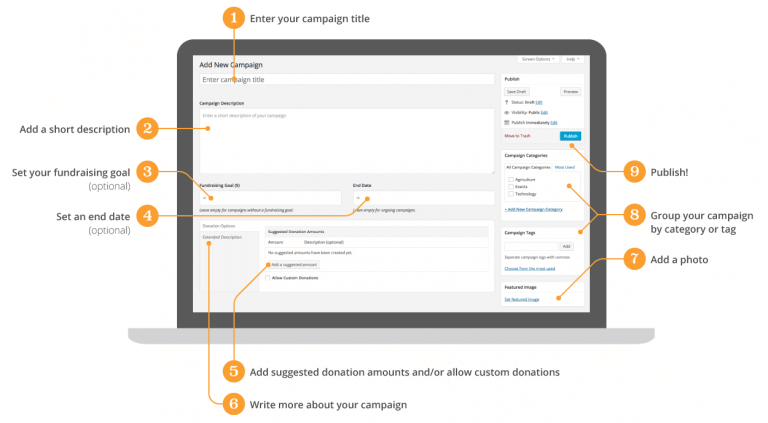
Para empezar a crear tu campaña, navega a Charitable > Añadir Campaña en tu panel de WordPress.
Desde allí, puedes introducir el título de tu campaña, añadir una descripción, establecer tu objetivo de recaudación de fondos, fecha de fin de campaña (si lo deseas), y configurar algunos ajustes adicionales para personalizar completamente tu campaña.
Para obtener instrucciones detalladas de configuración de campaña, visita nuestra detallada Guía de Configuración de Campaña para saber más.
Paso 6: Mostrar tu Campaña o Formulario de Donación
En este punto, tienes una campaña creada y lista para usar: todo lo que queda es mostrar tu campaña a los visitantes en el front-end de tu sitio web.
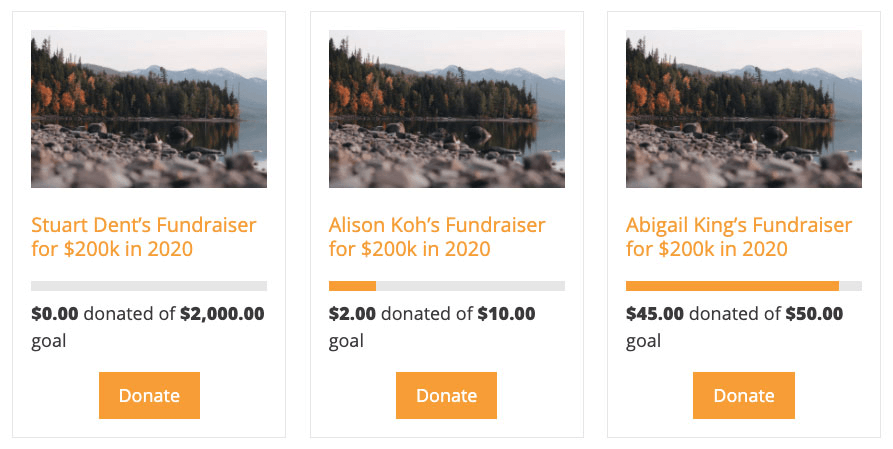
Mostrar Múltiples Campañas como una Colección
Si eliges crear m ilde{u}ltiples campa ilde{n}as, puedes mostrarlas como una colecci ilde{o}n dentro de tus publicaciones o p ilde{a}ginas usando el c ilde{o}digo corto [campaigns]. Consulta nuestra Gu ilde{i}a detallada del c ilde{o}digo corto de campa ilde{n}as para obtener m ilde{a}s detalles.
Mostrar un formulario de donaci ilde{o}n simple
Si solo deseas mostrar un formulario de donaci ilde{o}n simple en p ilde{a}ginas espec ilde{i}ficas, puedes dejar en blanco los campos "Objetivo" y "Fecha de finalizaci ilde{o}n" al crear tu campa ilde{n}a. Al excluir estos campos, tendr ilde{a}s una campa ilde{n}a continua.
El ilde{u}ltimo paso para crear un formulario de donaci ilde{o}n independiente es crear una "P ilde{a}gina de donaci ilde{o}n" espec ilde{i}fica a la que ir ilde{a}n tus visitantes en lugar de una "P ilde{a}gina de campa ilde{n}a". Para obtener detalles espec ilde{i}ficos sobre c ilde{o}mo crear una "P ilde{a}gina de donaci ilde{o}n" separada, lee nuestra gu ilde{i}a sobre C ilde{o}mo a ilde{n}adir un formulario de donaci ilde{o}n a una p ilde{a}gina.
Paso 7: A ilde{n}adir un enlace de "Donar" a tu men ilde{u}
Si deseas a ilde{n}adir un enlace de donaci ilde{o}n personalizado a uno de los men ilde{u}s de tu sitio web, puedes hacerlo a trav ilde{e}s de tres m ilde{e}todos distintos:
- Enlace a una p ilde{a}gina de donaci ilde{o}n separada
- Abrir el formulario de donaci ilde{o}n en una ventana emergente
- A ilde{n}adirlo a tu men ilde{u}
Dado que cada paso es m ilde{a}s complejo, puedes obtener detalles espec ilde{i}ficos sobre c ilde{o}mo a ilde{n}adir tu enlace de donaci ilde{o}n a un men ilde{u} de WordPress leyendo nuestra Gu ilde{i}a para crear un enlace de men ilde{u} para donaciones.
Paso 8: Prueba tu formulario de donaci ilde{o}n
ilde{U}nicamente lo has conseguido. Has integrado con ilde{e}xito Charitable en tu sitio web y has creado un bot ilde{o}n de donaci ilde{o}n de WordPress que tus visitantes pueden usar para donar r ilde{a}pida y f ilde{a}cilmente a tu organizaci ilde{o}n.
Como ilde{u}ltimo paso, querr ilde{a}s previsualizar tu sitio web y asegurarte de que tus enlaces de donaci ilde{o}n funcionan como se espera. Si hay alguna personalizaci ilde{o}n que desees realizar, simplemente navega de vuelta a la configuraci ilde{o}n del plugin Charitable a trav ilde{e}s del panel de control de WordPress.
ilde{A} d ilde{o}nde en tu sitio web deber ilde{i}as a ilde{n}adir tu WordPress Bot ilde{o}n de donaci ilde{o}n?
Si quieres que los visitantes de tu sitio web donen a tu organizaci ilde{o}n, tienes que hac ilde{e}rselo lo m ilde{a}s f ilde{a}cil posible asegur ilde{a}ndote de que tu bot ilde{o}n de donaci ilde{o}n sea accesible y visible.
Esto se puede lograr colocando tu bot ilde{o}n de donaci ilde{o}n en ilde{a}reas de alta visibilidad de tu sitio web, como la secci ilde{o}n principal de tu p ilde{a}gina de inicio, la parte superior derecha de tu men ilde{u} de cabecera, o al final de cada publicaci ilde{o}n de blog.
Secci ilde{o}n principal de tu p ilde{a}gina de inicio
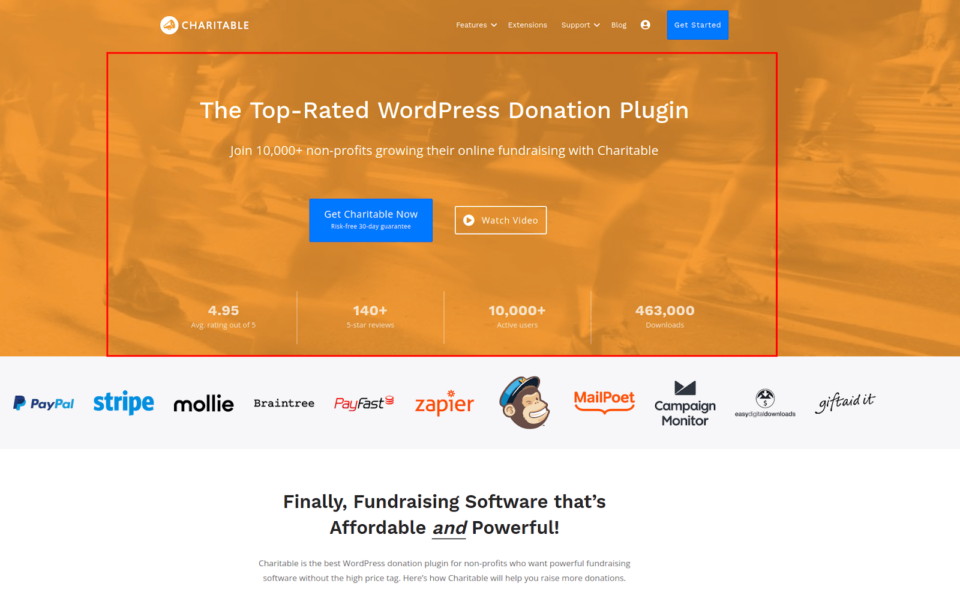
La secci ilde{o}n principal de tu p ilde{a}gina de inicio es la secci ilde{o}n superior que los visitantes ven por encima del pliegue inmediatamente al abrir tu sitio web.
En el sitio web de Charitable, por ejemplo, la secci ilde{o}n naranja superior antes del contenido de la p ilde{a}gina de inicio se considera la "Secci ilde{o}n principal" y puede ser un excelente lugar para colocar tu bot ilde{o}n de donaci ilde{o}n para una m ilde{a}xima visibilidad.
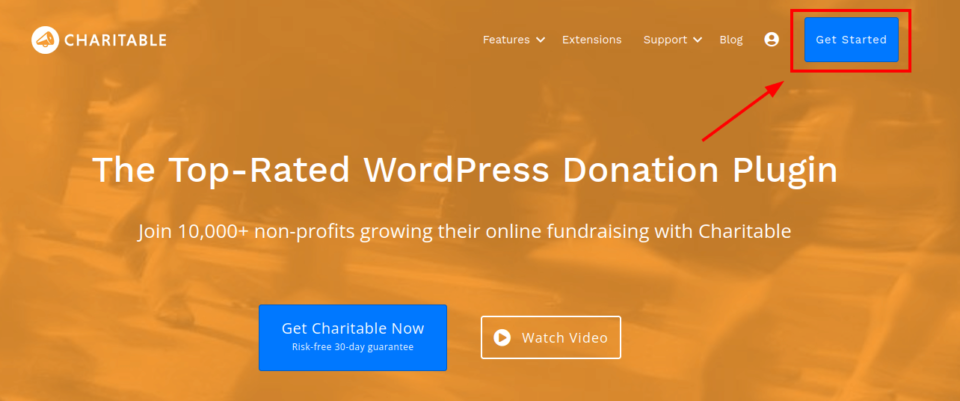
Parte superior derecha de tu men ilde{u} de cabecera
Colocar tu bot ilde{o}n de donaci ilde{o}n en la parte superior derecha de tu men ilde{u} de cabecera permite que tu bot ilde{o}n sea visto en cada p ilde{a}gina de tu sitio web.
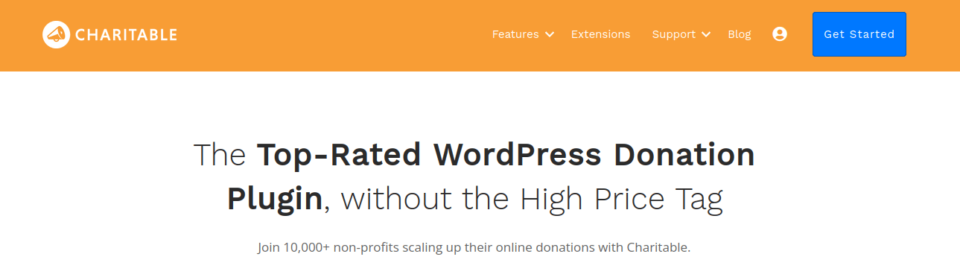
Final de cada publicaci ilde{o}n de blog
Si tu sitio web tiene un blog, colocar tu bot ilde{o}n de donaci ilde{o}n al final de cada publicaci ilde{o}n de blog permite que sea visto por tus visitantes m ilde{a}s comprometidos que est ilde{a}n leyendo activamente el contenido que has publicado.
Una vez que lleguen al final de una publicación, ¡dales la oportunidad de donar! Al incluir una llamada a la acción al final de las publicaciones, puedes inspirar a tus lectores a donar a las maravillosas causas que tu organización apoya.
Instala el Plugin Charitable en tu Sitio Web de WordPress Hoy Mismo y Empieza a Aceptar Donaciones
En este punto, deberías saber por qué añadir un botón de donación de WordPress puede cambiar las reglas del juego para tu organización, cuáles son tus opciones para añadir botones de donación y los pasos exactos que puedes seguir para crear rápidamente un botón de donación con el plugin de donaciones Charitable.
Añadir un botón de donación puede aumentar el número de donaciones y las cantidades de donación que recibe tu organización sin ánimo de lucro.
Charitable hace que el proceso sea simple y fácil, permitiéndote añadir un hermoso botón que se integra perfectamente con tu sitio web de WordPress y representa tu marca.
Cómo pueden empezar las organizaciones sin ánimo de lucro
Los planes más populares de Charitable para organizaciones sin ánimo de lucro incluyen nuestros planes "Essentials" y "Growth".
Para aquellas organizaciones sin ánimo de lucro que necesitan funciones de donación potentes pero fáciles de usar sin gastar mucho dinero o contratar un equipo de desarrollo personalizado, estos planes populares son un punto de partida perfecto.
Al comprar un Plan Charitable "Growth" o "Essentials", recibirás:
- Integraciones de pasarelas de pago y boletines informativos
- Opciones de donación recurrente
- Opciones de donación anónima
- Geolocalización
- Funcionalidad de comentarios de donantes
- Vídeos de campañas
- Un año de soporte al cliente y actualizaciones
- Alivio de tarifas
- Descuentos por renovación
Para empezar a aceptar donaciones a través del plugin Charitable para WordPress hoy mismo, visita Charitable y elige un plan para que tu organización comience.





Deja una respuesta