
Charitable macht es einfach, benutzerdefinierte PDF-Belege einzurichten, die Sie und Ihr Spender sofort erstellen und herunterladen können. Spender können die Spendenbelege auch direkt nach ihrer Spende per E-Mail versenden lassen.
Diese Anleitung zeigt Ihnen, wie Sie Ihre Belege anpassen und Einstellungen genau auf die Bedürfnisse Ihrer Organisation konfigurieren.
Inhaltsverzeichnis
- PDF-Belege einrichten und anpassen
- So versenden Sie Spendenquittungen per E-Mail
- So laden Sie als Administrator eine PDF-Quittung herunter
- So laden Sie als Spender eine PDF-Spendenquittung herunter
- Wie Spender ihre Quittung an sich selbst oder an andere senden können
- Wie Sie die Auslastung Ihres Servers reduzieren
- FAQs zu PDF-Spendenquittungen
Mindestanforderungen:
- PHP 7.2+
- Wohltätige 1.6.59+
PDF-Belege einrichten und anpassen
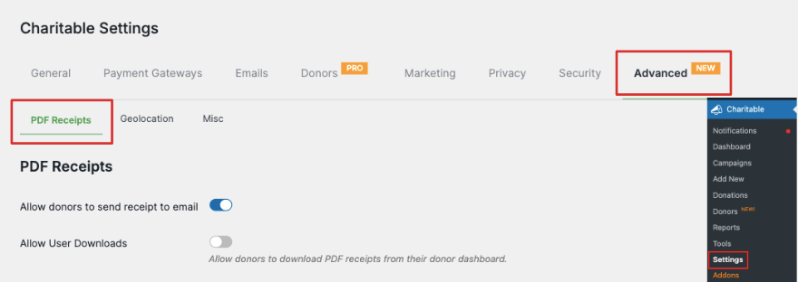
Gehen Sie in Ihrem WordPress-Admin-Menü zur Seite Charitable » Einstellungen. Hier sehen Sie oben auf der Seite ein Menü, über das Sie den Tab Erweitert auswählen können.
Nun sollten Sie sich auf der Einstellungsseite für PDF-Belege befinden. Lassen Sie uns die hier verfügbaren Einstellungen durchgehen.
Zuerst können Sie auswählen, ob Spender den Beleg per E-Mail erhalten sollen. Charitable erkennt automatisch die E-Mail-Adresse, die sie im Spendenformular eingegeben haben, erstellt einen Beleg und sendet ihn an ihre E-Mail-Adresse.
Darunter können Sie auch Benutzern erlauben, ihre Belege über ihr eigenes Spender-Dashboard herunterzuladen. Wenn Sie das Dashboard nicht aktiviert haben, erfahren Sie hier, wie Sie das tun: Spender-Dashboard verwenden »
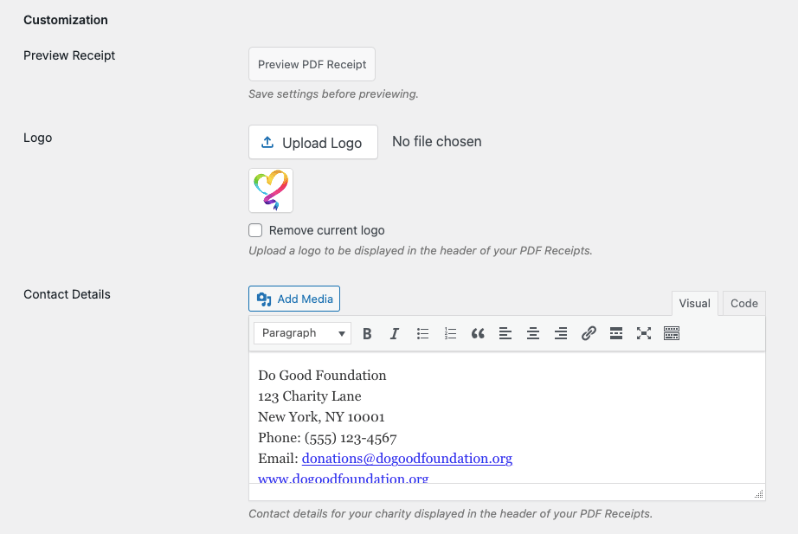
Als Nächstes können Sie den Beleg mit Ihrem Logo und Ihren Kontaktdaten anpassen. Verwenden Sie die Schaltfläche „Logo hochladen“, um Ihre Logodatei auszuwählen und sie Ihrem Beleg hinzuzufügen.
Darunter können Sie Ihre Kontaktdaten wie Adresse, Telefonnummer, E-Mail-Adresse usw. hinzufügen. Sie können hier auch Mediendateien hinzufügen, wenn Sie ein Bild anzeigen möchten.
Nun sehen Sie unter dem Feld für die Kontaktdaten eine Liste mit Optionen. Dies sind die Beschriftungen, die in Ihrer Quittung für die verschiedenen Felder angezeigt werden.
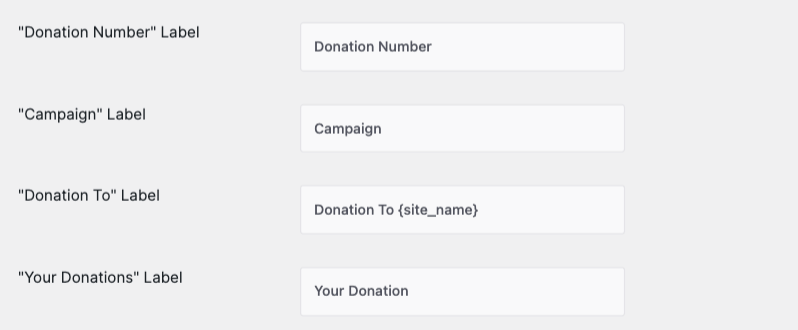
In diesen Einstellungen können Sie alle diese Bezeichnungen anpassen:
Spendennummer: Zeigt die Spenden- oder Belegnummer an.
Kampagne: Zeigt an, für welche Kampagne gespendet wurde
Spende an: Erscheint vor dem Namen der Stiftung oder gemeinnützigen Organisation
Ihre Spenden: Erscheint über den Beitragsdetails, dem Betrag und der Gesamtsumme.
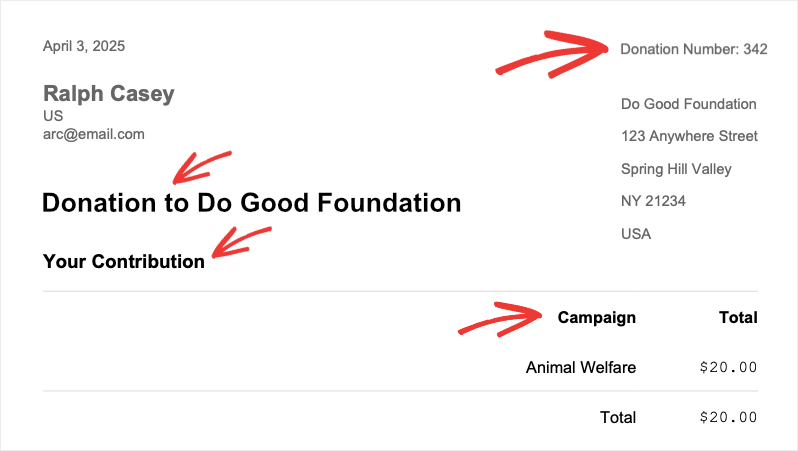
Beachten Sie, dass Sie nur die Textbezeichnungen für die Felder ändern, die in Ihrem Spendenbeleg erscheinen. Die Details wie Spendennummer, Kampagnenname und der Name Ihrer Website werden automatisch von Charitable abgerufen und in Ihrem Beleg angezeigt.
Hier ist ein Beispielbeleg, bei dem wir „Ihre Spende“ in „Ihr Beitrag“ geändert haben:
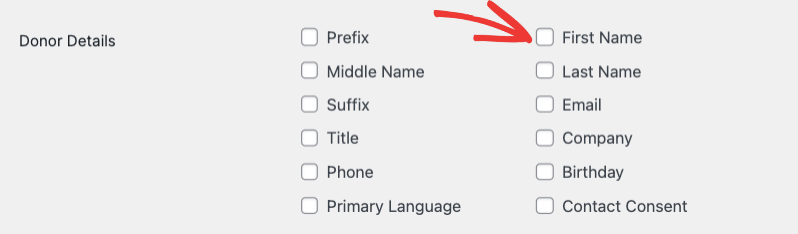
Als Nächstes sehen Sie einen Abschnitt, in dem Sie auswählen können, welche Spenderdetails im Beleg erscheinen sollen, z. B. Name und Kontaktdaten. Wir empfehlen, deren Anrede, Vor- und Nachnamen, E-Mail-Adresse und eine Kontaktinformation anzuzeigen.
Darunter können Sie einen QR-Code hinzufügen, der einen Kampagnenlink zum Teilen enthält. Es gibt auch eine Option, eine Dankesnachricht hinzuzufügen, die am oberen Rand des Belegs angezeigt wird.
Schließlich können Sie den Fußzeilenbereich Ihres Belegs anpassen, um Ihr Logo oder beliebige Bilder einzufügen. Sie können hier auch wichtige Informationen über Ihre Organisation, wofür der Beitrag verwendet wird, oder eine persönliche Nachricht hinzufügen.
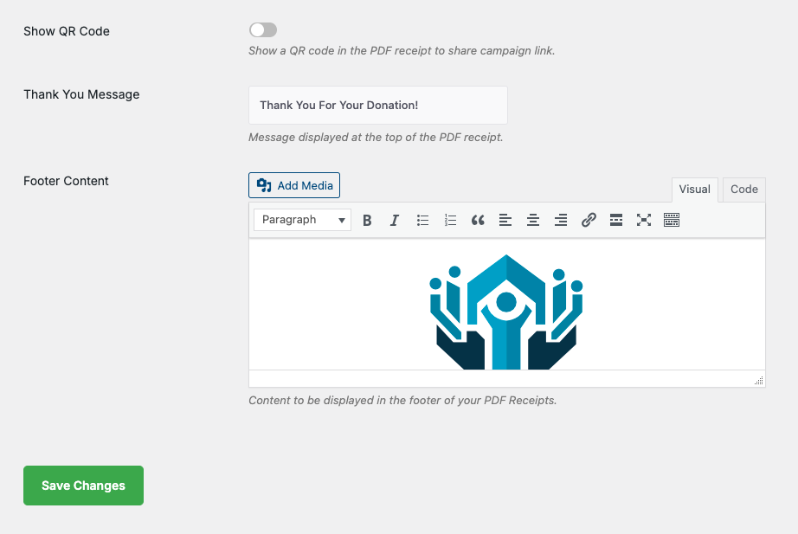
Das war's. Stellen Sie sicher, dass Sie Ihre Änderungen speichern, um Ihre Anpassungen zu sichern.
Als Nächstes zeigen wir Ihnen, wie Sie diese Quittungen per E-Mail versenden.
So versenden Sie Spendenquittungen per E-Mail
Charitable ermöglicht es Ihnen, E-Mails einzurichten, die automatisch an Ihre Spender gesendet werden, sobald diese eine Spende getätigt haben.
Gehen Sie zur Seite Charitable » Einstellungen und öffnen Sie den Tab E-Mails.
Hier sehen Sie eine Vielzahl von verfügbaren E-Mails, die Sie mit einem Klick aktivieren oder deaktivieren können.
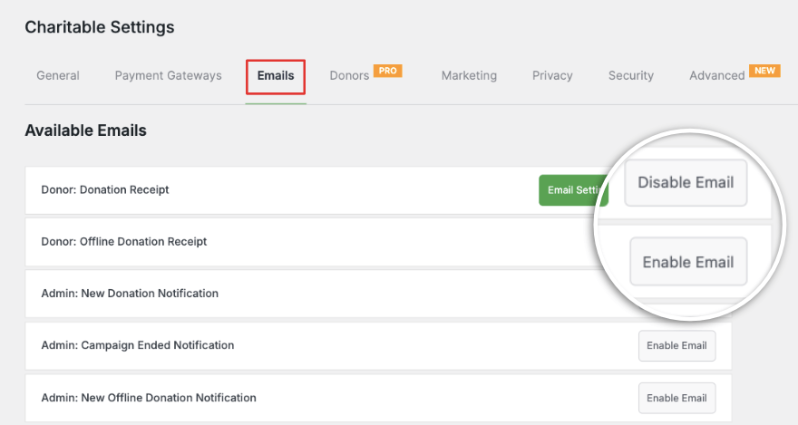
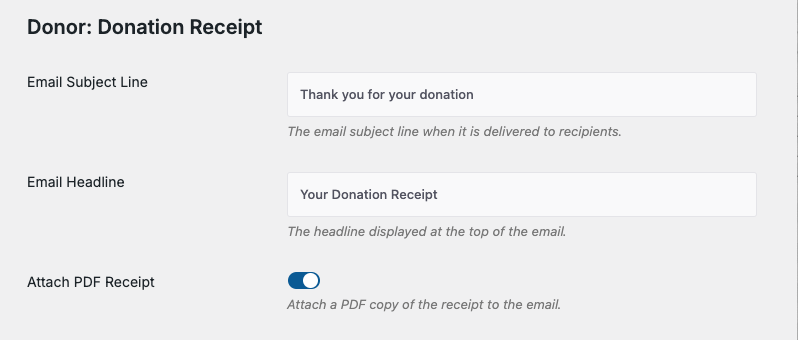
Die Spendenquittung ist standardmäßig aktiviert. Klicken Sie auf die Schaltfläche „E-Mail-Einstellungen“, um diese E-Mail anzupassen. Auf der nächsten Seite können Sie Ihre eigene Betreffzeile und Überschrift eingeben.
Es gibt auch einen Schalter, um eine PDF-Quittung an die E-Mail anzuhängen. Diese wird im Format und Stil generiert, den Sie oben erstellt haben.
Darunter können Sie den E-Mail-Text anpassen. Charitable macht es Ihnen leicht, die gewünschten Informationen ohne technisches Know-how hinzuzufügen. Es gibt eine Liste von Shortcodes, die Sie einfach kopieren und in Ihre E-Mail einfügen können.
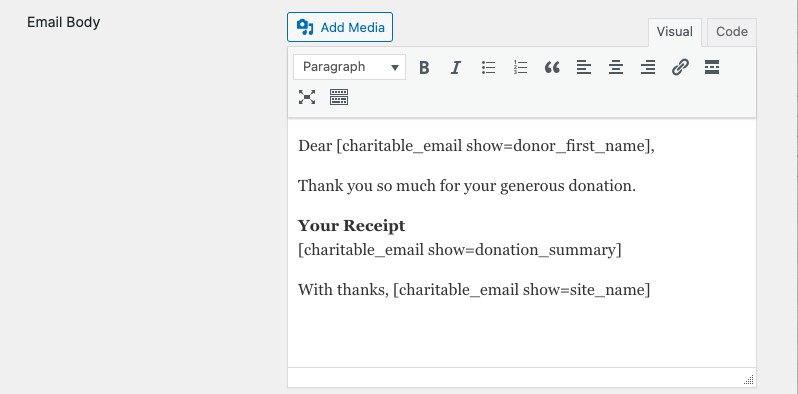
Wenn Sie beispielsweise den vollständigen Namen des Spenders einfügen möchten, können Sie [charitable_email show=donor] in Ihrer E-Mail verwenden.
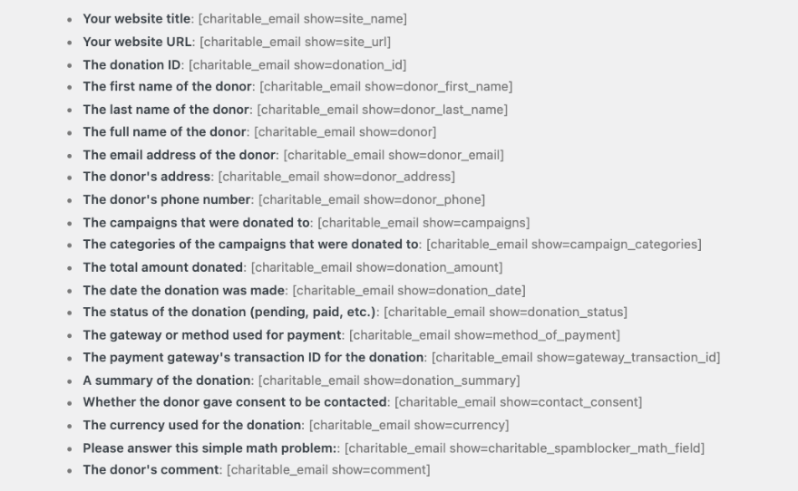
Auf diese Weise können Sie Ihre E-Mail anpassen, um eine Zusammenfassung der Spende, die Kontaktdaten des Spenders, den Titel Ihrer Website und vieles mehr einzuschließen. Die wichtigsten Shortcodes, die Sie für Ihre E-Mail benötigen, finden Sie unten:
- Ihr Website-Titel: [charitable_email show=site_name]
- Ihre Website-URL: [charitable_email show=site_url]
- Spenden-ID: [charitable_email show=donation_id]
- Vorname des Spenders: [charitable_email show=donor_first_name]
- Nachname des Spenders: [charitable_email show=donor_last_name]
- Vollständiger Name des Spenders: [charitable_email show=donor]
- E-Mail-Adresse des Spenders: [charitable_email show=donor_email]
- Adresse des Spenders: [charitable_email show=donor_address]
- Telefonnummer des Spenders: [charitable_email show=donor_phone]
- An Kampagnen gespendet: [charitable_email show=campaigns]
- Gesamt gespendeter Betrag: [charitable_email show=donation_amount]
- Datum der Spende: [charitable_email show=donation_date]
- Verwendetes Gateway oder Zahlungsmethode: [charitable_email show=method_of_payment]
- Transaktions-ID des Zahlungs-Gateways für die Spende: [charitable_email show=gateway_transaction_id]
- Eine Zusammenfassung der Spende: [charitable_email show=donation_summary]
- Ob der Spender zugestimmt hat, kontaktiert zu werden: [charitable_email show=contact_consent]
- Der Kommentar des Spenders: [charitable_email show=comment]
Nachdem Sie die E-Mail angepasst haben, bietet Ihnen Charitable die Möglichkeit, Ihre E-Mail in der Vorschau anzuzeigen, um sicherzustellen, dass alles gut aussieht.

Wenn Sie fertig sind, klicken Sie auf die Schaltfläche „Änderungen speichern“, um Ihre Anpassungen zu speichern.
So laden Sie als Administrator eine PDF-Quittung herunter
Charitable ermöglicht es Ihnen, PDF-Quittungen jederzeit von Ihrem WordPress-Dashboard herunterzuladen.
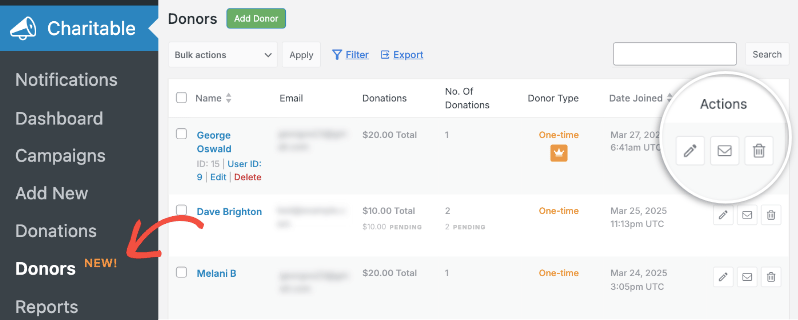
Gehen Sie zur Seite Charitable » Spender . Hier sehen Sie eine Liste von Spendern. Sie können die Suchleiste verwenden, um nach dem Spender zu suchen, der den Beitrag geleistet hat.
Verwenden Sie das Stiftsymbol oder die Schaltfläche „Bearbeiten“, um auf das Profil des Spenders zuzugreifen.
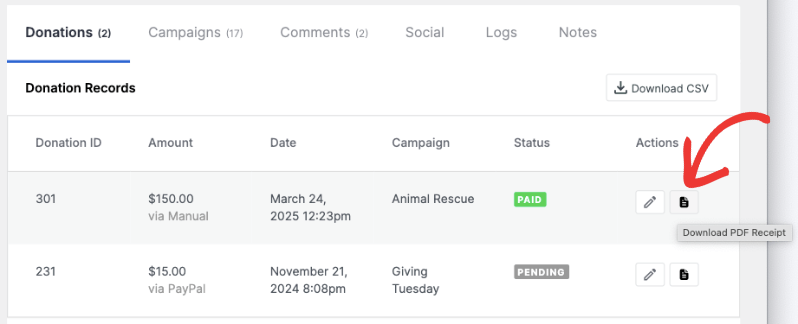
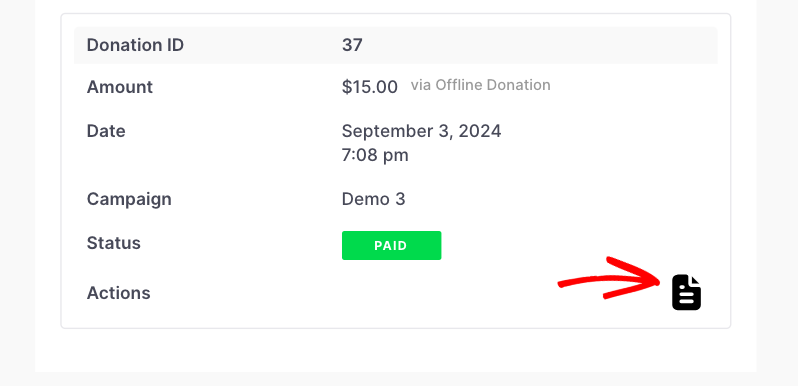
Scrollen Sie auf der Spenderprofilseite zum letzten Abschnitt, der Ihnen die Liste der vom Spender getätigten Spenden anzeigt. Neben jeder Spende befindet sich ein PDF-Symbol. Klicken Sie einfach auf dieses Symbol neben dem benötigten Spenden-Datensatz, und die PDF-Quittung wird auf Ihren Computer heruntergeladen.
Sehen wir uns nun an, wie der Spender die Quittung selbst über sein eigenes Spender-Dashboard herunterladen kann.
So laden Sie als Spender eine PDF-Spendenquittung herunter
Ihr Spender kann sich mit seinen Anmeldedaten in sein Spender-Dashboard einloggen.
Darin kann er auf sein Profil, seine Spenden, Kampagnen, Kommentare und Einstellungen zugreifen.
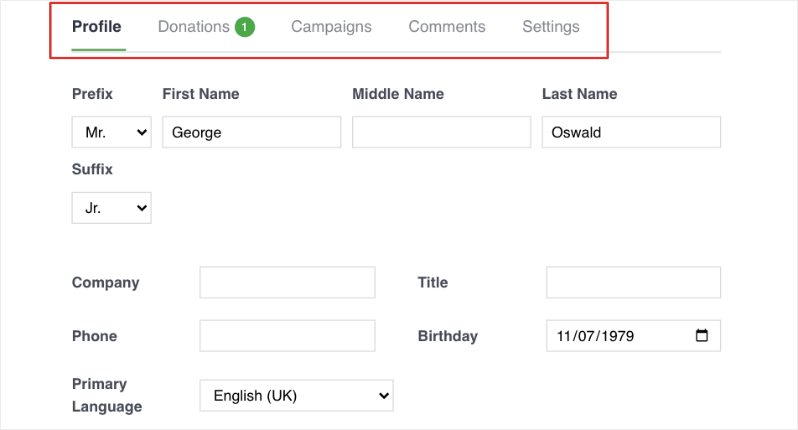
Unter Spenden kann er eine Liste aller von ihm getätigten Spenden einsehen. Er kann hier auf das PDF-Symbol klicken, um die benötigte Quittung sofort herunterzuladen.
Wie Spender ihre Quittung an sich selbst oder an andere senden können
Ihre Spender können Quittungen einfach an sich selbst oder an andere senden und ihnen so beispielsweise die Möglichkeit geben, eine Quittung mit ihrem Partner oder Buchhalter zu teilen.
Auf der Seite mit der Spendenquittung, die nach einer erfolgreichen Spende eines Spenders erscheint, gibt es die Option, sie herunterzuladen, sowie An E-Mail senden.
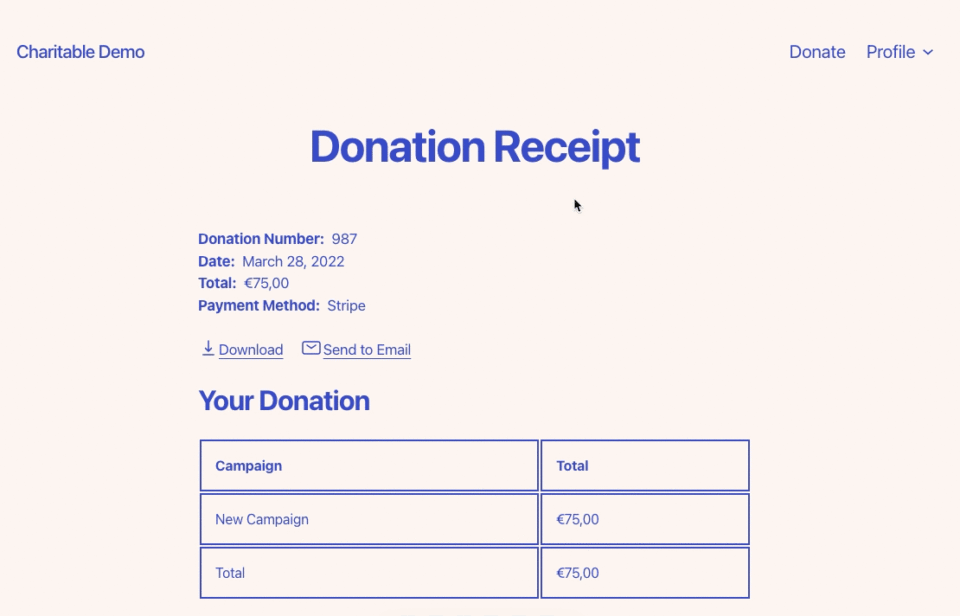
Es ist eine einfache Funktion, die dazu dient, Ihren Spendern das Leben zu erleichtern, indem sie ihnen die Werkzeuge an die Hand gibt, die sie nach ihrer Spende benötigen.
Wie Sie die Auslastung Ihres Servers reduzieren
Die PDF-Generierung kann Ihren Website belasten, insbesondere wenn Sie viele Spenden erhalten. Die Funktion „Charitable PDF Receipts“ bietet daher Möglichkeiten, die Auslastung zu verringern.
Anstatt PDF-Quittungen automatisch an Ihre Spenden-E-Mails anzuhängen, können Sie diese Option deaktivieren und stattdessen den Spendern einen direkten Link zu einer Seite zur Verfügung stellen, auf der sie eine PDF-Quittung herunterladen können.
Dies verschiebt die PDF-Generierung bis zu dem Zeitpunkt, an dem Spender sie benötigen.
Nach der Generierung werden PDF-Quittungen bis zu 2 Stunden aufbewahrt, bevor sie gelöscht werden. Dies vermeidet unnötige Bloatware und vermeidet auch die wiederholte Generierung derselben PDF in kurzer Zeit.
FAQs zu PDF-Spendenquittungen
Können Spender nach einer Spende automatisch PDF-Quittungen per E-Mail erhalten?
Ja, Spender können PDF-Quittungen automatisch per E-Mail erhalten. In den Einstellungen für PDF-Quittungen können Sie die Option aktivieren, mit der Spender Quittungen an ihre E-Mail senden können.
Charitable erkennt automatisch die E-Mail-Adresse aus dem Spendenformular, generiert die Quittung und sendet sie an sie. Sie können die PDF-Quittung auch an die Spendenquittungs-E-Mail anhängen, die nach Beiträgen automatisch gesendet wird.
Welche Informationen kann ich auf den PDF-Quittungen anpassen?
Sie können verschiedene Elemente anpassen, darunter das Logo Ihrer Organisation, Kontaktdaten (Adresse, Telefon, E-Mail), Feldbezeichnungen (z. B. „Ihre Spende“ in „Ihr Beitrag“ ändern), Spenderdetails, die auf der Quittung erscheinen, Dankesnachrichten, Fußzeileninhalte und sogar einen QR-Code mit einem Kampagnenlink hinzufügen. Die eigentlichen Spendeninformationen wie Beträge und Kampagnennamen werden automatisch von Charitable ausgefüllt.
Kann ich Spendern erlauben, die PDF-Quittung herunterzuladen, anstatt sie in der E-Mail anzuhängen?
Ja, Sie können die Option zum Anhängen von PDFs deaktiviert lassen. Ihre Spender können ihre PDF-Quittung weiterhin über ihre Spendenquittung auf Ihrer Website abrufen, und Sie können Ihren Spendern auch einen direkten Link zum Herunterladen einer PDF-Datei in Ihren Spenden-E-Mails zur Verfügung stellen.
Wo greifen Spender auf ihre PDF-Quittungen zu, wenn sie diese später herunterladen möchten?
Spender können über das Spender-Dashboard auf ihre PDF-Belege zugreifen. Nach der Anmeldung können sie zum Abschnitt Spenden navigieren, wo sie eine Liste aller ihrer Beiträge sehen. Jede Spende hat ein PDF-Symbol daneben, auf das sie klicken können, um ihren Beleg sofort herunterzuladen.
Wie aktiviere ich das Spender-Dashboard, damit Unterstützer auf ihre Belege zugreifen können?
Folgen Sie der Anleitung So verwenden Sie das Spender-Dashboard, um diese Funktion für Ihre Spender richtig zu konfigurieren.
Kann ich Spenden-E-Mail-Belege in der Vorschau anzeigen, bevor sie an Spender gesendet werden?
Ja, Charitable bietet eine Vorschauoption für E-Mails mit Spendenbelegen. Nachdem Sie Ihren E-Mail-Inhalt mit den verfügbaren Shortcodes angepasst haben, können Sie die Vorschaufunktion verwenden, um genau zu sehen, wie die E-Mail aussehen wird, bevor Sie Ihre Änderungen speichern und an die Spender senden.
Welche Shortcodes stehen zur Anpassung von Spenden-E-Mail-Belegen zur Verfügung?
Charitable bietet zahlreiche Shortcodes, darunter Spenderinformationen wie [charitable_email show=donor] für den vollständigen Namen, Spenden details wie [charitable_email show=donation_amount] für den Gesamtbetrag, Kampagneninformationen, Zahlungsmethoden, Transaktions-IDs und sogar Spenderkommentare. Diese Shortcodes rufen automatisch die relevanten Informationen für jede spezifische Spende ab.
Wie kann ich, als Administrator, PDF-Belege für beliebige Spender herunterladen?
Gehen Sie zu Charitable » Spender in Ihrem WordPress-Dashboard, finden Sie den spezifischen Spender (Sie können die Suchfunktion verwenden) und klicken Sie auf die Schaltfläche Bearbeiten oder das Stiftsymbol, um auf sein Profil zuzugreifen. Scrollen Sie zum Abschnitt Spenden, wo Sie neben jedem Spenden-Datensatz PDF-Symbole sehen. Klicken Sie auf das Symbol, um den Beleg für diesen spezifischen Beitrag herunterzuladen.
Benötige ich technisches Wissen, um PDF-Belege einzurichten und anzupassen?
Es sind keine technischen Kenntnisse erforderlich. Charitable bietet eine intuitive Benutzeroberfläche, auf der Sie Logos mit einer einfachen Schaltfläche hochladen, Kontaktdaten in Textfeldern eingeben, Bezeichnungen über Dropdown-Menüs anpassen und vorgefertigte Shortcodes verwenden können, die Sie in Ihre E-Mail-Vorlagen kopieren und einfügen können. Das System kümmert sich automatisch um alle technischen Aspekte.
Jetzt wissen Sie, wie Sie Spendenbelege für Ihre Spender verwalten. Als Nächstes möchten Sie auch etwas über die Nutzung des Spenderverwaltungssystems » erfahren.


