
Das Erstellen einer Seite für Jahresbelege sollte einfach und intuitiv sein. Im Gegensatz zu anderen Spenden-Plugins verfügt die Jahresbelege-Erweiterung von Charitable nicht über eine lange Liste von Einstellungen, bei denen Sie raten müssen, was jede Einstellung bewirkt.
Erstellen und versenden Sie einfach einen attraktiven Jahresabschlussbeleg an Spender, um ihnen bei ihrer Steuererklärung zu helfen.
Jahresbelege können online abgerufen, heruntergeladen oder ausgedruckt werden.
- Installation und Aktivierung des Jahresbelege-Plugins
- Erstellen Ihrer Seite für Jahresbelege
- Anpassen des Jahresbelege-Blocks
- Erstellen einer Seite für Jahresbelege mit einem Shortcode
- Letzte Schritte zur Veröffentlichung Ihrer Seite für Jahresbelege
- Ändern des Datums für das Ende des Geschäftsjahres
- Informieren Sie Spender darüber, dass sie ihren Bericht ausdrucken können
- Häufig gestellte Fragen zu Jahresbelegen
Mindestanforderungen:
- PHP 7.2+
- Wohltätige 1.6.57+
Sie können Ihre Seite für Jahresbelege im WordPress-Editor im Handumdrehen erstellen und dabei eine Live-Vorschau genießen, damit Sie sehen können, wie ein Jahresbeleg für Ihre Spender aussieht. Erstellen Sie einfach eine neue Seite, fügen Sie den Jahresbelege-Block hinzu und passen Sie die Einstellungen nach Ihren Wünschen an.
Der Jahresbelege-Block ermöglicht es Ihnen, die Überschrift anzupassen und Text oberhalb oder unterhalb der Spendenliste hinzuzufügen, sodass Sie problemlos alle gesetzlichen Anforderungen erfüllen können, die Ihre gemeinnützige Organisation möglicherweise für ihre Belege hat.
✨ Neu: Sehen Sie Massenversand von Jahresbelegen!
Installation und Aktivierung des Jahresbelege-Plugins
Jahresbelege ist ein WordPress-Plugin. Sie können es wie jedes andere Plugin installieren. Hier ist eine kurze Anleitung:
- Laden Sie Ihr Plugin zunächst von Ihrer Konto-Seite oder Ihrer Kaufbeleg-E-Mail herunter.
- Gehen Sie in Ihrem WordPress-Dashboard zu Plugins > Neu hinzufügen.
- Klicken Sie oben auf der Seite auf die Schaltfläche Plugin hochladen.
- Wählen Sie die zuvor heruntergeladene Zip-Datei aus und klicken Sie auf Jetzt installieren.
- Aktivieren Sie das Plugin!
Stecken geblieben? Lesen Sie unsere Anleitung zur Installation von Charitable-Erweiterungen für eine detaillierte Schritt-für-Schritt-Anleitung mit Screenshots, die Ihnen weiterhilft.
Bevorzugen Sie eine Videoanleitung? Sehen Sie sich unsere Anleitung auf YouTube an.
Erstellen Ihrer Seite für Jahresbelege
Nachdem Sie das Plugin aktiviert haben, besteht der nächste Schritt darin, eine neue Seite in Ihrem WordPress-Dashboard zu erstellen.
- Gehen Sie zu Seiten > Neu hinzufügen.
- Klicken Sie auf das blaue + Symbol in der oberen linken Ecke oder auf das + Symbol im Inhaltsbereich, um der Seite einen neuen Block hinzuzufügen.
- Sie finden den Jahresbelege-Block, indem Sie nach „Jahresbeleg“ suchen oder die Blöcke durchsuchen und nach unten zur Kategorie „Charitable-Blöcke“ scrollen.
- Klicken Sie auf den Block, um ihn einzufügen.
Ein Vorteil des Jahresbelege-Blocks ist, dass Sie auch dessen Design an Ihre Bedürfnisse anpassen können, indem Sie die Farbe des Textes und den Hintergrund für den Jahresbeleg anpassen. Sie können sogar interessante Farbverläufe einrichten, um Ihren Jahresbeleg wirklich hervorzuheben.
Anpassen des Jahresbelege-Blocks
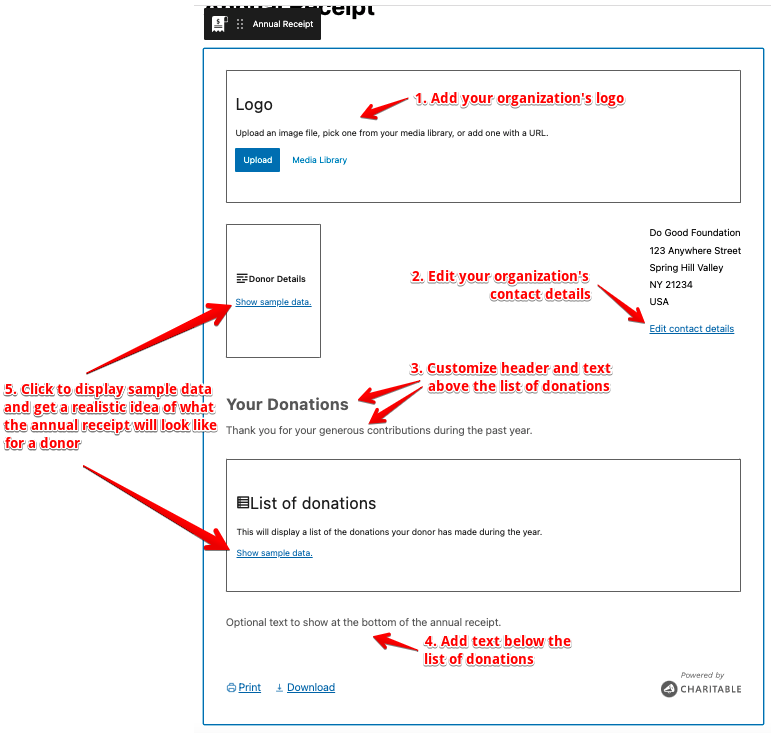
Es gibt eine Vielzahl von Einstellungen, mit denen Sie den Jahresbeleg an Ihre Bedürfnisse anpassen können.
Logo
Laden Sie ein Logo von Ihrem Computer hoch oder verwenden Sie eines aus der Mediathek Ihrer Website. Sie können ein Bild auch direkt von Ihrem Computer auf den Logo-Platzhalter ziehen.
Kontaktdaten der Organisation
Sie können die Adresse, Telefonnummer oder andere relevante Details Ihrer Organisation in der oberen rechten Ecke Ihres Jahresbelegs angeben. Die Kontaktdaten werden unter Charitable > Einstellungen > Allgemein festgelegt. Wenn Sie auf „Kontaktdaten bearbeiten“ klicken, öffnet sich ein neuer Browser-Tab, in dem Sie Ihre Kontaktdaten festlegen können.
Kopfzeile und anderer Text über Spenden
Sie können eine Kopfzeile und anderen Text hinzufügen, der über der Spendenliste angezeigt wird. Sie können hier eine Rich-Text-Formatierung verwenden, sodass Sie den Text zum Beispiel fett oder kursiv formatieren können.
Fußzeilentext
Sie können einen zusätzlichen Text direkt unter der Spendenliste hinzufügen. Rich-Text-Formatierung wird unterstützt.
Vorschau mit Beispieldaten
Der Jahresbeleg-Block zeigt Platzhalter an, wo dynamische (d. h. spenderspezifische) Inhalte angezeigt werden. Sie können auf den Link „Beispieldaten anzeigen“ in diesen Platzhaltern klicken, um die Details und die Spendenliste eines Beispielspenders anzuzeigen.
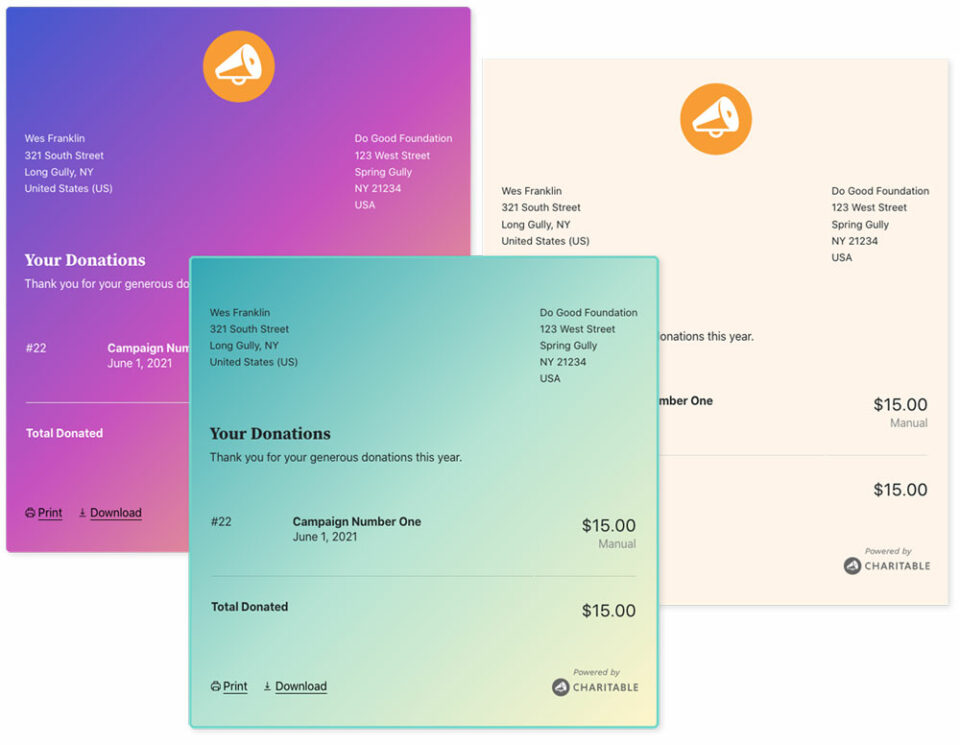
Zusätzliche Blockeinstellungen
Im Blockinspektor (dem Einstellungsbereich auf der rechten Seite der Seite) finden Sie einige weitere Optionen zur Anpassung Ihres Jahresbeleg-Blocks.
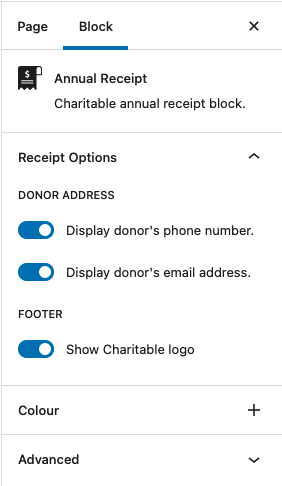
Spenderadresse
Sie können wählen, ob die Telefonnummer und E-Mail-Adresse des Spenders angezeigt werden soll. Tipp: Zeigen Sie eine Vorschau des Belegs mit Beispieldaten an, um zu sehen, wo die Telefonnummer und E-Mail-Adresse angezeigt werden.
Fußzeile
Der Jahresbeleg-Block enthält ein kleines „Powered by Charitable“-Logo in der Fußzeile. Wenn Sie dies lieber nicht anzeigen möchten, können Sie es hier einfach deaktivieren. Wir sind nicht böse, versprochen. 😉
Farbe
Erstellen Sie mit Farbeinstellungen einen einzigartigen Jahresbeleg! Sie können damit die Farbe des Textes sowie die Hintergrundfarbe ändern. Sie können sogar Farbverläufe für Ihren Jahresbeleg verwenden.
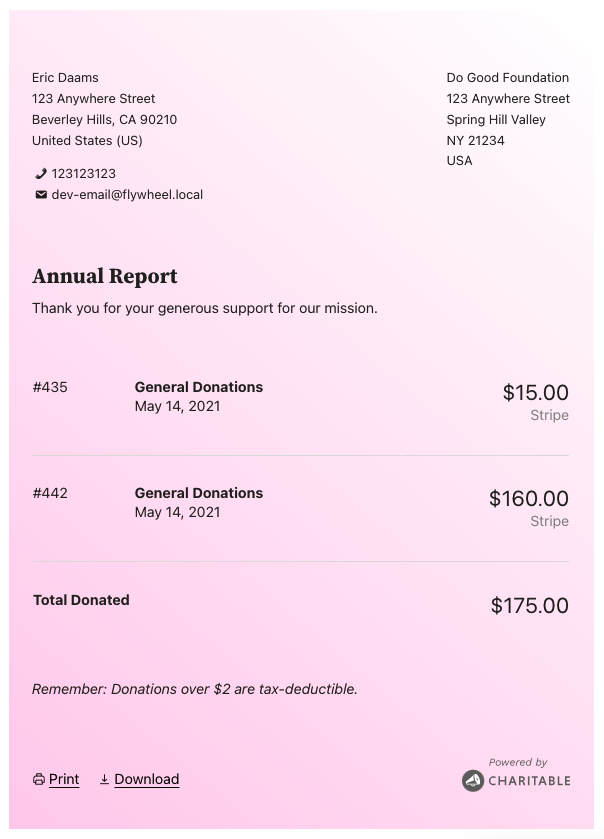
Rahmen (themenabhängig)
Möglicherweise können Sie auch den Rahmen für Ihren Jahresbeleg anpassen. Diese Funktion ist derzeit nur mit WordPress-Blockthemen verfügbar, die Full Site Editing unterstützen, wie z. B. das Twenty Twenty Two-Theme.
Zum Beispiel ist das Tove-Theme von Anders Noren ein unterhaltsames Block-Theme mit Full Site Editing-Unterstützung. Hier ist ein Beispiel für einen Jahresbeleg in Tove mit angepassten Rahmen:
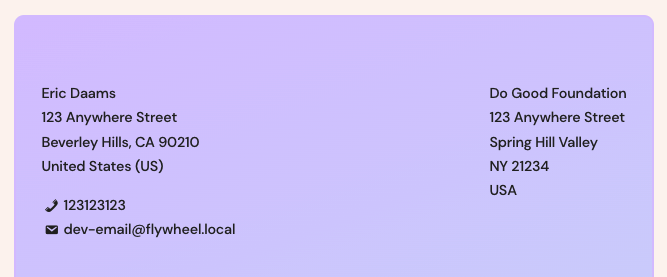
In Zukunft erwarten wir, dass diese Funktion mit jedem Theme verfügbar sein wird, dies hängt jedoch von Updates von WordPress selbst ab.
Erstellen einer Seite für Jahresbelege mit einem Shortcode
Wenn Sie den Block-Editor nicht verwenden, können Sie trotzdem eine Seite für Jahresbelege erstellen, indem Sie den Shortcode [charitable_annual_receipt] verwenden. Er unterstützt die meisten Einstellungen, die auch der Block unterstützt, verfügt jedoch nicht über dieselben Optionen zur Anpassung des Designs.
Shortcode-Parameter
logo: Die ID einer Bilddatei in Ihrer Mediathek.receipt_header: Die Kopfzeile des Jahresbelegs. Standardmäßig lautet diese „Ihre Spenden“.receipt_header_text: Der Text, der unter der Kopfzeile des Belegs und über der Liste der Spenden angezeigt wird. Dieser ist standardmäßig leer.receipt_footer_text: Der Text, der unter der Liste der Spenden angezeigt wird. Dieser ist standardmäßig leer.show_donor_phone: Ob die Telefonnummer des Spenders angegeben werden soll. Standardmäßigtrue.show_donor_email: Ob die E-Mail-Adresse des Spenders angegeben werden soll. Standardmäßigtrue.show_charitable_logo: Ob das Charitable-Logo in der Fußzeile des Jahresbelegs angezeigt werden soll. Standardmäßigtrue.
Nutzung
Standard
Ohne zusätzliche Argumente zeigt der Shortcode den Jahresbeleg mit der Kopfzeile „Ihre Spenden“ an, ohne weiteren Text über oder unter der Spendenliste und mit Angabe der Telefonnummer und E-Mail-Adresse des Spenders.
[charitable_annual_receipt]Alle Optionen hinzugefügt
[charitable_annual_receipt logo=123 receipt_header="Thank You" receipt_header_text="Your generosity is astounding." receipt_footer_text="<em>Donations over $2 are tax-deductible.</em>" show_donor_phone=0 show_donor_email=0 show_charitable_logo=1]Letzte Schritte zur Veröffentlichung Ihrer Seite für Jahresbelege
Nachdem Sie Ihren Jahresbeleg-Block oder Shortcode bearbeitet und weitere Inhalte zur Seite hinzugefügt haben, klicken Sie auf Veröffentlichen.
Nun müssen Sie Charitable mitteilen, dass die gerade erstellte Seite Ihre Seite für Jahresbelege ist:
- Gehen Sie zu Charitable » Einstellungen » Allgemein.
- Wählen Sie die gerade erstellte Seite für die Einstellung „Seite für Jahresbelege“ aus.
- Klicken Sie auf Änderungen speichern.
Ändern des Datums für das Ende des Geschäftsjahres
Das Datum, das das Ende des Geschäftsjahres markiert, unterscheidet sich von Land zu Land. Jahresbelege verwenden standardmäßig den 31. Dezember als letzten Tag des Geschäftsjahres, aber Sie können dies leicht ändern.
- Gehen Sie in Ihrem WordPress-Dashboard zu Charitable > Einstellungen > Erweiterungen.
- Im Abschnitt „Jahresbelege“ finden Sie die Einstellung „Ende des Geschäftsjahres“. Legen Sie Tag und Monat entsprechend dem Stichtag Ihres Landes fest.
- Klicken Sie auf Änderungen speichern.
Informieren Sie Spender darüber, dass sie ihren Bericht ausdrucken können
Ihre Spender können sicher auf ihren Jahresbeleg auf Ihrer Website zugreifen. Von dort aus genügt ein einziger Klick, um ihren Beleg herunterzuladen oder eine druckbare Version zu erhalten.
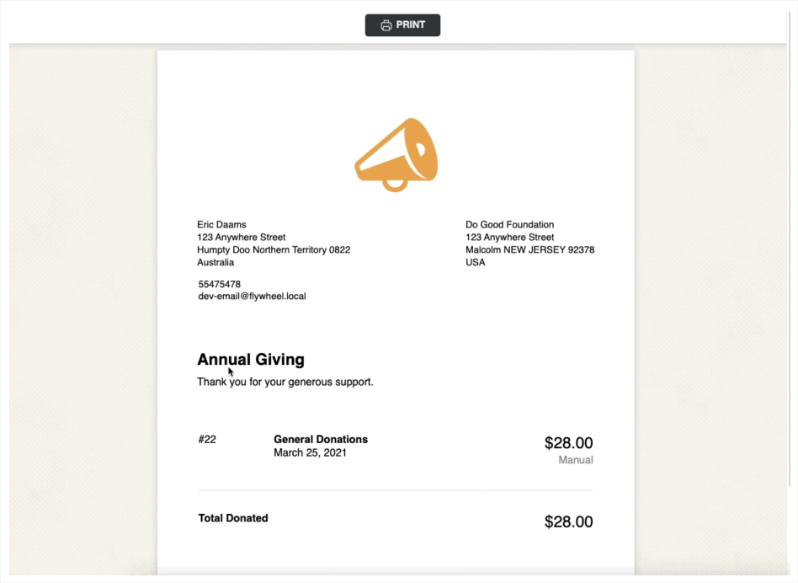
Das war's! Sie sind bereit, Jahresbelege zu versenden.
Mehr über die Funktion Jahresbelege erfahren »
Häufig gestellte Fragen zu Jahresbelegen
Benötige ich ein separates Plugin für Jahresbelege?
Ja. Jahresbelege ist ein Add-on für Charitable und muss separat vom Kern-Plugin installiert und aktiviert werden. Nach der Aktivierung finden Sie den Block „Jahresbeleg“ im WordPress-Editor und den Shortcode [charitable_annual_receipt] einsatzbereit.
Kann ich Jahresbelege ohne den Block-Editor verwenden?
Ja. Wenn Sie einen Seitenersteller oder den klassischen Editor verwenden, fügen Sie stattdessen den Shortcode [charitable_annual_receipt] zu einer beliebigen Seite hinzu. Er unterstützt die meisten Optionen des Blocks, enthält jedoch nicht dieselben Steuerelemente für Farbe und Rahmen.
Wie greifen Spender auf ihre Jahresquittung zu?
Spender können ihre Quittung online sicher auf der Seite einsehen, die Sie als Ihre Jahresquittungsseite festlegen. Von dort aus können sie sie mit einem einzigen Klick herunterladen oder ausdrucken. Auf der Seite des Spenders ist kein zusätzliches Plugin oder Setup erforderlich.
Können Spender ihre Quittung herunterladen oder ausdrucken?
Ja. Jede Jahresquittung enthält Optionen für Spender, ihre Quittung herunterzuladen oder eine druckbare Version zu öffnen, damit sie eine Kopie für Steuerzwecke aufbewahren können.
Wie lege ich fest, welche Seite für Jahresquittungen verwendet wird?
Nachdem Sie Ihre Seite veröffentlicht haben, gehen Sie zu Charitable » Einstellungen » Allgemein und wählen Sie diese Seite unter der Einstellung „Jahresquittungsseite“ aus. Klicken Sie dann auf Änderungen speichern. Dies teilt Charitable mit, wohin Spender weitergeleitet werden sollen, um ihre Quittungen einzusehen.
Kann ich das Datum des Geschäftsjahresendes ändern?
Ja. Standardmäßig verwendet Jahresquittungen den 31. Dezember als Ende des Geschäftsjahres. Sie können dies unter Charitable » Einstellungen » Erweiterungen im Abschnitt „Jahresquittungen“ ändern, wo Sie den Tag und Monat festlegen können, der dem Geschäftsjahr Ihres Landes entspricht.
Kann ich die „Powered by Charitable“-Marke von der Quittung entfernen?
Ja. Die Fußzeilenmarke kann in den Blockeinstellungen deaktiviert werden (oder durch Festlegen von show_charitable_logo=0 im Shortcode), wenn Sie sie nicht anzeigen möchten.
Kann ich die Telefonnummer oder E-Mail-Adresse des Spenders auf der Quittung ausblenden?
Ja. Beide Felder können in den Inspektoreinstellungen des Blocks oder durch Verwendung der Shortcode-Parameter show_donor_phone und show_donor_email ein- oder ausgeschaltet werden.
Kann ich eine Vorschau anzeigen, wie die Quittung vor der Veröffentlichung aussehen wird?
Ja. Der Jahresquittungsblock enthält Platzhalter für spenderbezogene Inhalte. Klicken Sie auf „Beispieldaten anzeigen“ bei einem beliebigen Platzhalter, um die Details und die Spendenliste eines Beispielspenders anzuzeigen, bevor Sie die Seite veröffentlichen.
Kann ich die Farben und das Design der Quittung anpassen?
Ja, wenn Sie den Block verwenden. Sie können Text- und Hintergrundfarben, einschließlich Verläufen, festlegen. Wenn Ihr Theme Full Site Editing unterstützt (wie z. B. Twenty Twenty-Two oder Tove), können Sie auch den Rahmen anpassen.
Wo lege ich die Kontaktdaten meiner Organisation fest, die auf der Quittung angezeigt werden?
Kontaktdaten der Organisation werden unter Charitable » Einstellungen » Allgemein verwaltet. Klicken Sie in den Blockeinstellungen auf „Kontaktdaten bearbeiten“, um diese Seite direkt in einem neuen Tab zu öffnen.
Was sind die Mindestanforderungen für Jahresquittungen?
Sie benötigen PHP 7.2 oder höher und Charitable 1.6.57 oder höher.
Kann ich Quittungen an mehrere Spender gleichzeitig senden?
Ja. Jahresquittungen unterstützt den Massenversand, sodass Sie Quittungen für alle Ihre Spender auf einmal generieren und senden können, anstatt einzeln.
Hilfreiche Links
🤝 Holen Sie sich Hilfe, wenn Sie sie brauchen
📑 Finden Sie die Anleitung, die Sie benötigen
Durchsuchen Sie den Dokumentations-Hub →
⬇️ Laden Sie bewährte Strategien, Kampagnenideen und Experten-Tools herunter
Holen Sie sich das Fundraising-Kit →
💸 Holen Sie sich kostenlose Fundraising-Ressourcen
Besuchen Sie den Charitable Fundraising Hub →
🤔 Haben Sie Fragen zu Charitable?
Charitable FAQs →
Benötigen Sie Hilfe beim Verständnis von Begriffen und Fachjargon für gemeinnützige Organisationen?
Siehe unser Glossar für gemeinnützige Organisationen→
Charitable hat über 1 Million Downloads!
Millionen vertrauen auf Charitable für erfolgreiche Spendenkampagnen. Probieren Sie Charitable noch heute risikofrei aus.
✅ 14-tägige Geld-zurück-Garantie
✅ Transparente Preisgestaltung
✅ Einrichtung ohne Code


