Embajadores benéficos: Equipos – Agrupa las recaudaciones de fondos bajo un capitán
Requisitos: Charitable Pro 1.8.16+ Charitable Ambassadors 3.1.0+
Un equipo en Charitable Ambassadors es un grupo de recaudadores de fondos que trabajan juntos hacia un objetivo compartido bajo un solo capitán. El capitán administra la página del equipo; los miembros crean sus propias recaudaciones de fondos personales que se suman a los totales del equipo. Los donantes pueden donar directamente a un miembro, al equipo en su conjunto o a ambos.
Los equipos son la unidad natural para maratones, caminatas, recaudaciones de fondos por colegios, promesas de comunidades religiosas y cualquier otro modelo de "peer-to-peer" donde los patrocinadores se autoorganicen en grupos. Charitable Ambassadors 3.1 ofrece a los administradores una superficie de gestión completa para equipos (lista, vista detallada del perfil, transferencias de capitán, correo electrónico de miembros) y ofrece a los donantes una sección limpia de Miembros del equipo en cada página de campaña de equipo.
Cuándo usar equipos
Participar en una maratón o caminata donde los patrocinadores forman equipos (por empresa, por colegio, por grupo de amigos) y desean una página de equipo que puedan compartir.
Permitir que un colegio o iglesia coordine bajo un mismo paraguas, con cada aula o grupo pequeño organizando su propia sub-recaudación de fondos.
Organizar una campaña de donaciones corporativas con contrapartida donde cada departamento lidere un equipo y compita por el total más alto.
En cualquier lugar donde necesites un "ranking de grupos, no de individuos" - los equipos se agregan de forma natural donde los recaudadores de fondos individuales no lo hacen.
El modelo mental
Los equipos se sitúan encima de la estructura existente de campañas principales / recaudaciones de fondos de Ambassadors:
Una campaña principal es la causa general (por ejemplo, "Maratón de Primavera 2026").
Una campaña de equipo es un equipo bajo esa campaña principal (por ejemplo, "Equipo Acme Corp"). El equipo tiene un capitán.
Una recaudación de fondos de miembro es la página individual de una persona bajo el equipo (por ejemplo, "Página de Maratón de Primavera de Sarah"). Sarah es miembro del Equipo Acme Corp.
Las donaciones a la página de Sarah cuentan para Sarah, para el total del Equipo Acme Corp y para el total general de la Maratón de Primavera 2026. Los cálculos se suman automáticamente a través de la agregación existente de campañas principales / secundarias de Charitable - los equipos no introducen una nueva capa de contabilidad.
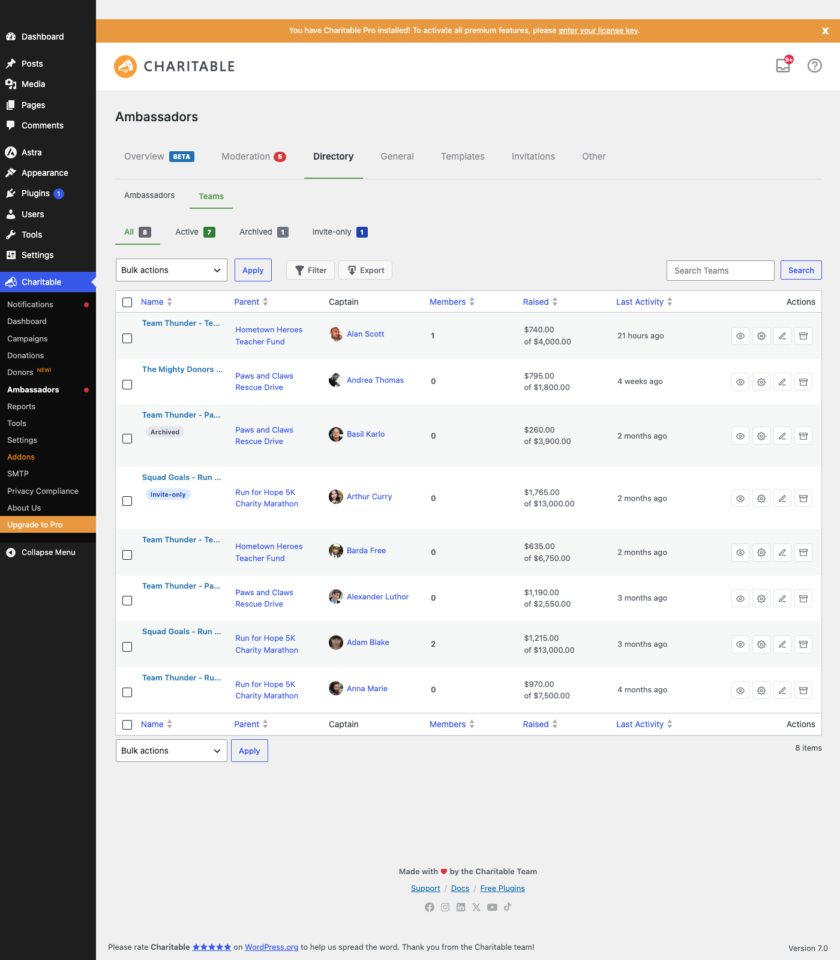
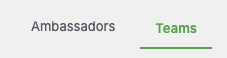
La pestaña Directorio ahora tiene una sub-navegación con dos vistas: Embajadores (la lista existente de recaudadores de fondos individuales) y Equipos (esta nueva vista). La vista de Equipos está estructurada exactamente como la vista de Embajadores para que la memoria muscular se traslade.
La lista muestra una fila por equipo con estas columnas:
Columna
Lo que muestra
Equipo
Nombre del equipo, con una etiqueta "Equipo" de color. Haz clic para ver el perfil del equipo.
Capitán
El nombre de visualización del capitán con un pequeño avatar. Si el equipo no tiene un capitán asignado, verás "Sin capitán" en cursiva.
Campaña principal
La campaña principal a la que se suma este equipo. Haz clic para abrir la campaña principal.
Miembros
El número de recaudadores de fondos miembros en este equipo.
Recaudado
Total recaudado en el equipo (capitán + todos los miembros).
Última actividad
Fecha de la donación más reciente a cualquier persona del equipo.
Estado
“Activo” o “Archivado”.
Filtros
Encima de la lista, cuatro accesos directos de vista (Todos / Activos / Archivados / Solo invitación) y un cuadro de búsqueda. El botón Filtrar abre una ventana modal para un filtrado más detallado:
Filtro
Opciones
Archivado
Cualquiera / Sí / No
Solo invitación
Cualquiera / Sí / No
Campaña principal
Seleccionar de tus campañas
Capitán
Búsqueda de texto libre por nombre de capitán + correo electrónico
Creado desde / hasta
Intervalo de fechas
La búsqueda y los filtros se componen: al aplicar un filtro y luego buscar, se reduce aún más el conjunto de resultados.
Acciones masivas
Selecciona filas con la columna de casillas de verificación y luego usa el menú desplegable masivo:
Archivar seleccionados – cambia el indicador de archivado. Los equipos archivados dejan de mostrarse en las páginas de listado pero conservan todos sus datos; permanecen buscables y se pueden desarchivar más tarde.
Desarchivar seleccionados – lo contrario.
Mover a la papelera – envía la publicación de la campaña del equipo a la papelera de WP. Los recaudadores de fondos de los miembros no se ven afectados.
Exportar seleccionados como CSV – transmite un CSV solo de las filas seleccionadas.
La lista completa también se puede exportar a través del botón Exportar en la barra de herramientas. El CSV es seguro contra inyecciones de fórmulas.
Admin – el perfil del equipo
Haz clic en el nombre de cualquier equipo de la lista para acceder al perfil del equipo. El perfil es una sola página con una tira principal en la parte superior y cuatro subpestañas debajo: Resumen, Miembros, Donaciones, Configuración.
Tira principal
La tira principal muestra la identidad del equipo de un vistazo: nombre del equipo, capitán (enlazado al perfil de Embajador si el capitán coincidía con un usuario de WP), campaña principal (enlazada), fecha de creación y número de miembros. También se muestra una insignia “Capitaneado por [nombre]” en el perfil del Directorio de Embajadores del propio capitán, para que puedas navegar desde una persona a todos los equipos que capitanea.
Subpestañas
Subpestaña
Qué hay ahí
Visión general
KPIs (recaudado, donantes, donaciones, promedio) limitados solo a este equipo. Un gráfico que muestra la velocidad de donación durante la vida útil del equipo.
Miembros
La lista de recaudadores de fondos de los miembros, con totales recaudados, fecha de la última donación, fecha del último contacto y acciones por fila (eliminar miembro, reenviar invitación).
Donaciones
Cada donación que se acumuló para este equipo, filtrable por rango de fechas y estado, con exportación a CSV.
Configuración
El mismo formulario que verías en el metabox de la campaña del equipo en la pantalla de edición de la publicación, incrustado aquí para mayor comodidad. Incluye el interruptor de solo invitación, el campo de notas internas del administrador y el control para reemplazar al capitán.
Cada subpestaña carga su contenido de forma diferida: los datos no se obtienen hasta que haces clic en la pestaña. Esto mantiene la representación inicial del perfil rápida, incluso en equipos con cientos de miembros o donaciones.
Reemplazar capitán flujo de trabajo
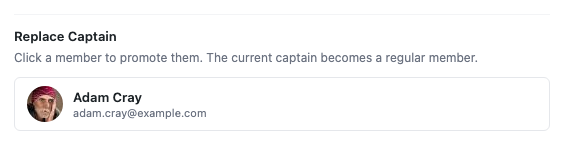
Los capitanes cambian. Alguien se retira, alguien toma el relevo. El control de Reemplazar capitán en la subpestaña de Configuración (y dentro del meta-cuadro de Configuración del equipo posterior a la edición) abre un selector que muestra a los miembros elegibles del equipo.
Cómo funciona:
El selector muestra a todos los miembros activos de este equipo. Puedes buscar por nombre o correo electrónico.
Selecciona un nuevo capitán y confirma.
El capitán anterior es degradado a miembro regular (su recaudación de fondos se mantiene intacta).
El nuevo capitán hereda la propiedad de la página del equipo.
El cambio se registra en el registro de auditoría del equipo.
El selector solo ofrece miembros que ya están en el equipo; no es una forma de agregar a una persona nueva y convertirla inmediatamente en capitán. Para hacerlo, invítala primero como miembro y luego promuévela.
Modal Enviar correo electrónico (miembros del equipo)
La subpestaña Miembros y las acciones por fila exponen un botón de Enviar correo electrónico. Al hacer clic en él, se abre un modal que permite al administrador enviar un correo electrónico con plantilla a uno o más miembros del equipo, con etiquetas inteligentes sustituidas en el servidor. Si el `wp_mail` de tu sitio no está configurado para entrega saliente, el modal recurre a un enlace `mailto:` que abre el propio cliente de correo del administrador con el cuerpo pre-rellenado.
El panel de Miembros también muestra una fecha de Último contacto en cada fila para que puedas ver de un vistazo a quién ya has enviado un correo electrónico y a quién no.
Conmutador "solo por invitación" por equipo
Algunos equipos deben ser de acceso abierto (cualquiera puede registrarse como miembro); otros deben ser solo por invitación (el capitán selecciona quién puede unirse). La subpestaña Configuración tiene un conmutador Solo por invitación que cambia esto. Cuando "solo por invitación" está activado:
La sección de Miembros del equipo en el frontend oculta la llamada a la acción para unirse.
Las nuevas inscripciones a través del flujo de "enviar recaudación de fondos" de la campaña principal no pueden seleccionar este equipo.
El equipo aún se puede unir a través de enlaces de invitación directos.
Notas internas del administrador
La subpestaña Configuración tiene un campo de Notas internas del administrador - un área de texto enriquecido visible solo para los administradores. Útil para contexto como "el capitán es miembro de la junta, priorizar respuestas" o "el equipo recaudó 50.000 dólares el año pasado, tratar como VIP". Las notas nunca aparecen en el frontend.
Frontend - la sección Miembros del equipo
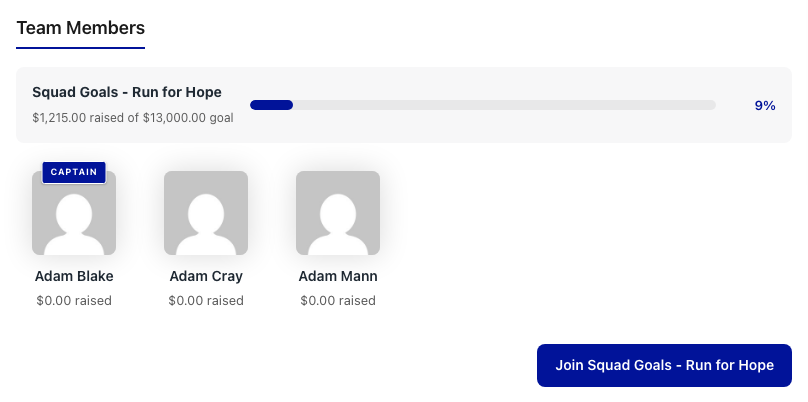
En el lado público, cada página de campaña de equipo ahora muestra una Sección de Miembros del equipo debajo del cuerpo principal de la campaña. Esto es lo que ven los donantes y los posibles miembros cuando visitan la página de un equipo.
La sección tiene tres partes:
Parte
Lo que muestra
Barra de progreso del equipo
El total recaudado combinado del equipo frente al objetivo del equipo. Esto suma el capitán + todos los miembros.
Tarjetas de miembros
Una tarjeta por cada recaudación de fondos de miembro: foto del miembro, nombre, total recaudado, barra de progreso y un enlace a su página individual.
Llamada a la acción para unirse
Un botón "Únete a este equipo" que lleva a los visitantes al flujo de "enviar recaudación de fondos" de la campaña principal con este equipo preseleccionado. Oculto cuando el equipo es solo por invitación.
Los donantes pueden donar directamente a un miembro haciendo clic en su tarjeta, o al equipo en su conjunto a través del botón principal de donación en la propia página del equipo. Cualquiera de las dos vías cuenta para el total del equipo.
Modo mejorado vs. visual
La sección Miembros del equipo funciona en ambos modos de plantilla Mejorado y Visual: no está ligada a una variante de diseño particular. El estilo se adapta:
El modo mejorado utiliza una cuadrícula de tarjetas estándar que coincide con la variante de diseño elegida (clásica, story-forward, rally, etc.).
El modo visual hereda el estilo de la campaña de plantilla configurada. El espaciado de las tarjetas, la tipografía y los colores de acento fluyen de la misma fuente que el resto de la página de recaudación de fondos.
Fila de identidad en las páginas de campañas de equipo
Las páginas de campañas de equipo también tienen una fila de identidad encima del botón donar que nombra al capitán y a la campaña principal como enlaces rápidos. Esto da a los visitantes un contexto inmediato: "Capitaneado por Sarah Lee, parte de la Maratón de Primavera de 2026".
Consejos
Siembra tu primer equipo antes de lanzar el programa. Crea un equipo, capitanéalo tú mismo, invita a 2-3 colegas como miembros y recorre el flujo de cara al donante una vez. Capturar la pregunta "¿es visible la llamada a la acción para unirse?" o "¿se está actualizando correctamente la barra de progreso?" ahora ahorra un ticket de soporte más adelante.
Configura la invitación solo para miembros de forma reflexiva. La opción de unirse libremente es la opción predeterminada correcta para la mayoría de las maratones públicas. La opción de invitación solo para miembros se ajusta a contextos corporativos, escolares o de grupos de amigos donde deseas que el capitán organice la membresía.
Usa el modal Enviar correo electrónico con moderación. Un envío masivo a cada miembro del equipo cada semana se siente como spam. Úsalo para hitos genuinos (inicio, punto medio, último empujón, gracias por terminar).
Archiva al final de una temporada. No elimines los equipos una vez que la maratón haya terminado, archívalos. Conservas los datos históricos, el capitán y los miembros conservan sus páginas públicas, y puedes desarchivarlos el próximo año si el mismo equipo quiere volver a participar.
Comprueba la columna Último contacto antes de enviar. Si ya has enviado un correo electrónico a este equipo esta semana, la columna Último contacto te lo dirá. Evita el doble envío.
Migración desde versiones anteriores
Si ejecutaste un sitio de Embajadores en la versión 3.0 antes de actualizar a la 3.1, tus campañas de equipo existentes seguirán funcionando exactamente como antes. Las nuevas interfaces de administración de Equipos solo exponen lo que ya estaba en la base de datos con una interfaz de usuario adecuada. No se requiere migración de datos. La primera vez que visites Directorio > Equipos después de actualizar, la lista se poblará a partir de tus publicaciones de campaña de equipo existentes.
Referencia del desarrollador
Puertas de capacidad
Acción
Capacidad requerida
Ver lista de equipos y perfil de equipo
gestionar_configuración_caritativa
Archivar / desarchivar / eliminar un equipo
gestionar_configuración_caritativa
Reemplazar al capitán de un equipo
gestionar_configuración_caritativa
Enviar correo electrónico a un miembro del equipo
gestionar_configuración_caritativa
Editar la configuración de un equipo
gestionar_configuración_caritativa
Las mismas puertas de capacidad rigen cada acción de administración de Equipos. No se introducen nuevas capacidades; si un usuario puede administrar la configuración de Caridad, puede administrar equipos.
Filtros
Filtro
Predeterminado
Propósito
charitable_ambassadors_team_section_include_self
verdadero
Si la tarjeta del propio organizador de la recaudación de fondos aparece en la sección Miembros del equipo. Filtra a false para ocultar su propia tarjeta cuando acceda a su página de recaudación de fondos.
charitable_ambassadors_team_section_show_join_cta
verdadero
Si el botón de llamada a la acción para unirse se muestra. Se fuerza a false cuando el equipo solo admite invitaciones.
Número de tarjetas de miembros por fila en la cuadrícula.
charitable_ambassadors_team_section_member_order
'recaudado_desc'
Orden de clasificación de las tarjetas de miembros. Opciones: raised_desc, raised_asc, name_asc, name_desc, recent_first.
charitable_ambassadors_teams_list_per_page
20
Tamaño de página para la lista de administradores de equipos.
charitable_ambassadors_teams_export_columns
matriz
Columnas incluidas en la exportación CSV de equipos.
Acciones
Acción
Se dispara cuando
Argumentos
charitable_ambassadors_team_captain_replaced
El administrador reemplaza al capitán de un equipo a través del selector.
$team_id, $old_captain_id, $new_captain_id
charitable_ambassadors_team_archived
El equipo está archivado (individual o masivamente).
$team_id, $archived_by
charitable_ambassadors_team_unarchived
El equipo se ha desarchivado.
$team_id, $unarchived_by
charitable_ambassadors_team_member_email_sent
El modal Enviar correo electrónico envía un correo electrónico a un miembro del equipo.
$team_id, $member_id, $subject, $body
Clases y base de datos
Símbolo
Rol
Equipo de Embajadores Benéficos
El objeto de dominio del equipo. Respaldado por la tabla personalizada wp_charitable_teams para metadatos específicos del equipo (ID del capitán, indicador de solo invitación, indicador de archivo) y por la publicación de WordPress del equipo para todo lo demás.
Base de datos de equipos benéficos
Accesor de tabla personalizada para wp_charitable_teams. Creado en la activación del plugin; seguro de reconstruir a través de las comprobaciones de Salud del Sitio.
Base de datos de miembros de equipos benéficos
Accesor de tabla personalizada para wp_charitable_team_members. Rastrea el estado de unión e invitación de los miembros del equipo.
Datos de equipos del directorio de embajadores benéficos
Modelo de lectura para la vista de lista de Equipos. Posee la SQL de búsqueda y filtrado.
Tabla de lista de equipos del directorio de embajadores benéficos
La subclase WP_List_Table que renderiza la lista de administración.
Perfil de equipo de embajadores benéficos
El perfil del equipo detallado. Despacha las cuatro sub-pestañas y maneja la carga diferida de AJAX.
Caja de metadatos del equipo de embajadores benéficos
Renderiza el meta-box de Configuración del Equipo en la pantalla de edición de publicaciones, compartido con la sub-pestaña de Configuración en el perfil.
Ajax de configuración del equipo de embajadores benéficos
Punto final AJAX para el flujo de trabajo de guardado del meta-box y reemplazo del capitán.
Exportar CSV de equipos de embajadores benéficos
Exportación CSV transmitida para la lista de Equipos y el panel de Miembros del perfil del equipo.
Enviar un correo electrónico puntual a un miembro del equipo a través de la ventana modal.
wp_ajax_charitable_ambassadors_team_profile_panel
Cargar perezosamente el contenido de una subpestaña (Descripción general / Miembros / Donaciones / Configuración).
Todos los puntos de conexión comprueban current_user_can( 'manage_charitable_settings' ) y verifican un nonce por acción. Las mutaciones masivas y por fila también se registran en el registro de auditoría del equipo.
Anulaciones de plantilla
Para personalizar la sección de Miembros del equipo en el frontend desde tu tema:
La variante compacta (team-members-section-compact.php) se utiliza dentro de variantes de diseño estrechas; la variante estándar ocupa todo el ancho de la página.
Ejemplos de personalización
Ocultar la llamada a la acción (CTA) de unirse en todos los equipos:
Enviar una notificación de Slack cuando se reemplace un capitán:
add_action( 'charitable_ambassadors_team_captain_replaced', function ( $team_id, $old_captain_id, $new_captain_id ) {
    $team = get_post( $team_id );
    wp_remote_post( 'https://hooks.slack.com/services/...', array(
        'body' => wp_json_encode( array(
            'text' => sprintf(
                'Captain replaced on team "%s" - was user #%d, now user #%d.',
                $team->post_title,
                $old_captain_id,
                $new_captain_id
            ),
        ) ),
    ) );
}, 10, 3 );
Relacionado
Directorio – la superficie de administración principal que alberga la subpestaña de Equipos.
Página de Recaudación – cubre la representación en el frontend de todos los tipos de campaña, incluidas las campañas de equipo.
Enviar Campaña – cómo los embajadores crean sus recaudaciones; para los equipos, aquí es donde los miembros eligen a qué equipo unirse.
Permisos – requisitos de capacidad para cada acción de administración.
Lista de activos (para el editor de documentación)
Nombre de archivo
Qué capturar
Texto alternativo sugerido
01-teams-list.png
Directorio > Vista de lista de equipos, 4-6 equipos visibles con sus capitanes y totales recaudados.
La subpestaña Directorio > Equipos en administración, que muestra una lista de equipos con capitán, miembros, recaudado y estado de archivo.
02-directory-subnav.png
Primer plano de la sub-navegación del Directorio que muestra las pestañas Embajadores / Equipos, con Equipos activa.
La sub-navegación del Directorio con las pestañas Embajadores y Equipos, con Equipos activa.
03-team-profile-hero.png
La franja principal del perfil de un equipo con enlace al capitán, enlace al padre, insignias de miembros.
El héroe del perfil del equipo con enlace al capitán, enlace a la campaña principal, fecha de creación e insignias de recuento de miembros.
04-reemplazar-capitan.png
Se abre la ventana modal Reemplazar capitán con el selector de miembros.
La ventana modal Reemplazar capitán con una lista de miembros actuales del equipo con capacidad de búsqueda
05-seccion-miembros-equipo-frontend.png
Página de campaña del equipo de frontend que muestra la sección Miembros del equipo con tarjetas.
Una página de campaña de equipo en el frontend, que muestra la sección Miembros del equipo con tarjetas de miembros y una llamada a la acción para unirse
Notas
Estas capturas necesitan:
Al menos 4-6 equipos sembrados en al menos 2 campañas principales diferentes.
Cada equipo necesita un capitán (un usuario de WP emparejado por correo electrónico) y de 3 a 5 miembros recaudadores de fondos.
Un equipo debe archivarse para que el estado de la fila "archivado" se muestre en la lista.
Un equipo debe ser solo por invitación para que la captura de frontend pueda mostrar esa variante por separado si es necesario.
El sembrador "Padres P2P" del complemento data-spawner crea el esqueleto estructural; aún necesitará marcar manualmente un par como equipos a través de la taxonomía de tipo de campaña.
¿Todavía tienes preguntas? ¡Estamos aquí para ayudarte!
🔔Suscríbete para recibir nuestras últimas actualizaciones
📧Suscribirse a correos electrónicos
Suscripción por correo electrónico
MejoraPagos
💰 Acepta donaciones recurrentes con Windcave y Charitable
Un donante configura su donación una vez en la página de pago segura de Windcave, y Charitable factura cada renovación según lo programado. Por qué esto es importante:
🏦 Organizaciones con sede en Nueva Zelanda o Australia: donaciones mensuales en la pasarela con la que tu banco ya te ha configurado, sin un segundo procesador que incorporar.
⛪ Iglesias que reciben diezmos y ofrendas regulares: los miembros de la congregación establecen su propio calendario una vez, que es la forma más sencilla de lanzar donaciones recurrentes para la iglesia sin una plataforma separada.
🌏 Grupos con donantes en varias divisas: Windcave gestiona más de 20, por lo que un donante puede dar en la divisa que realmente posee.
📅 Fondos operativos en lugar de campañas puntuales: activa el modo Solo Recurrente y la opción única desaparece, por lo que cada donación a esa campaña es una suscripción.
🧾 Equipos sin desarrollador en plantilla: 3 conjuntos de credenciales pegados en una página de configuración, y sin código en ninguna parte.
⚡ Creador Visual de Automatización: ¡Arrastrar y Soltar Sin Código!
Charitable Automation Connect 2.3.0 presenta el Generador de Automatización Visual, un lienzo a pantalla completa que presenta cada automatización como un flujo de tarjetas conectadas: un desencadenador, condiciones opcionales y una lista de acciones que se ejecutan en orden.
🧩 Muchas acciones, un desencadenador: Etiqueta a un donante, envía un correo electrónico, agrega una nota y activa una llamada webhook desde un solo evento, arrastrado en cualquier orden.
✉️ Actúa dentro de Charitable: Las nuevas acciones Enviar correo electrónico, Etiquetar donante y Agregar nota de donante se ejecutan sin necesidad de un servicio externo.
🔤 Etiquetas de combinación: Personaliza correos electrónicos y notas con campos en vivo como {first_name}, {total} y {campaign_name}.
🔁 Aplicar a donantes existentes: Ejecuta Etiquetar donante y Agregar nota de donante contra los donantes que ya tienes.
🖥️ Lienzo o Simple: Cambia de vista en cualquier momento, y las automatizaciones creadas antes de la 2.3.0 siguen funcionando sin cambios.
Lee más aquí.
✓
¡Gracias por tu opinión!
Integraciónactualizado
📬 Presentamos Brevo para Charitable: Convierte donantes en suscriptores automáticamente
El momento en que un donante realiza una donación es cuando está más comprometido. Con la nueva integración de Brevo para Charitable, puedes convertir automáticamente a esos donantes únicos en suscriptores a largo plazo sin tocar una sola hoja de cálculo.
Simplemente recopila el consentimiento del donante directamente en tu formulario de donación y comienza tu serie de bienvenida de inmediato.
Novedades:
🔄 Sincronización automática de suscriptores: Los nuevos donantes que aceptan se añaden directamente a tu lista de contactos de Brevo tan pronto como se procesa su pago, sin necesidad de exportaciones manuales ni importaciones de CSV.
🎯 Control granular de consentimiento y opción de suscripción: Personaliza la etiqueta de tu casilla de verificación, elige si se marca por defecto o no, o activa la doble opción de suscripción de Brevo para mantener tu lista limpia y conforme.
📋 Mapeo de listas por campaña: Dirige a los donantes a tu lista de correo global o mapea campañas específicas a listas de Brevo dirigidas para adaptar tus mensajes de seguimiento.
⚡ Configuración en 5 minutos: Conéctate al instante pegando tu clave API de Brevo en la configuración de Newsletter, mapea tus campos de contacto y empieza a crear tu lista de correo en piloto automático.
¿Listo para hacer crecer tu lista de correo? Brevo ya está disponible a partir del plan Charitable Plus. ¡Conecta tu cuenta hoy mismo!
✓
¡Gracias por tu opinión!
donaciones recurrentesactualizado
💳 Presentamos Actualizaciones de Tarjeta: ¡Soluciona Tarjetas Caducadas Sin Perder Suscripciones!
Las tarjetas de crédito caducadas o actualizadas son una de las mayores fugas silenciosas en la recaudación de fondos recurrente. Con las actualizaciones de tarjetas en la extensión de donaciones recurrentes, los donantes ahora pueden actualizar sus detalles de pago directamente, manteniendo intactas su suscripción, su calendario y su historial de donaciones.
Sin planes cancelados, sin historial perdido y sin dolores de cabeza administrativos para tu equipo.
Novedades:
⚡ Autoservicio en 30 Segundos: Los donantes obtienen un botón dedicado de “Actualizar Tarjeta” en su panel que abre el Portal de Clientes seguro y compatible con PCI de Stripe para actualizar los detalles de la tarjeta al instante.
🔒 Acceso Seguro y Delimitado: Delimitado exclusivamente a las actualizaciones de tarjetas por defecto, los donantes no pueden cancelar ni alterar accidentalmente sus planes desde el portal, manteniendo tus webhooks y datos sincronizados.
🤝 Soporte Asistido por Administrador: ¿Ayudando a un donante por teléfono? Abre su portal seguro de Stripe con un solo clic desde tu pantalla de administrador o genera un enlace de actualización de un solo uso para enviárselo por correo electrónico.
📋 Pista de Auditoría Automática: Cada actualización de método de pago se registra automáticamente con una marca de tiempo tanto en los registros generales del sistema como en el perfil del donante individual.
¡Listo para proteger tus ingresos recurrentes? Obtén el plan Plus o Pro y actualiza Donaciones Recurrentes a la versión 2.3.0+ y activa “Actualizar Método de Pago” en tu Configuración hoy mismo.
✓
¡Gracias por tu opinión!
Integraciónconstructor de páginas
¡Fans de Divi, regocíjense! ¡Módulo nativo de barra de progreso de campaña para Divi 5!
Con nuestro nuevo módulo nativo para Divi 5, puedes anclar tus micrositios con estadísticas de recaudación de fondos en tiempo real directamente en el lienzo visual. Así es como funciona y por qué vale la pena activarlo hoy.
Crea actualizaciones de campaña que sean VISUALES Y EN VIVO. También puedes:
📊 Barra de progreso de la campaña: Inserta una barra de progreso en vivo en cualquier diseño de Divi 5 y muestra el progreso de los objetivos en tiempo real.
🎨 Controles de estilo avanzados: Personaliza fácilmente el color de la barra y el seguimiento, la altura y el radio para que coincidan perfectamente con tu marca.
👁️ Listo para el constructor visual: Configura y previsualiza todo directamente en el lienzo de Divi como un módulo de primera clase.
🔁 Renderizado idéntico: El mismo motor exacto impulsa este módulo, lo que significa un diseño consistente sin soluciones alternativas heredadas.
✅ Lanzamientos más rápidos: Nunca salgas de la interfaz de Divi 5 para configurar códigos cortos o adivinar cómo se verán las etiquetas de tus objetivos.
Cloudflare's bot products identify and mitigate automated traffic to protect your site from bad bots. Cloudflare places the __cf_bm cookie on End User devices that access Customer sites that are protected by Bot Management or Bot Fight Mode. The __cf_bm cookie is necessary for the proper functioning of these bot solutions.
session
__cflb
When enabling session affinity with Cloudflare Load Balancer, Cloudflare sets a __cflb cookie with a unique value on the first response to the requesting client. Cloudflare routes future requests to the same origin, optimizing network resource usage. In the event of a failover, Cloudflare sets a new __cflb cookie to direct future requests to the failover pool.
session
_cfuvid
The _cfuvid cookie is only set when a site uses this option in a Rate Limiting Rule, and is only used to allow the Cloudflare WAF to distinguish individual users who share the same IP address.
session
cf_clearance
Whether a CAPTCHA or Javascript challenge has been solved.
session
__cfseq
Sequence rules uses cookies to track the order of requests a user has made and the time between requests and makes them available via Cloudflare Rules. This allows you to write rules that match valid or invalid sequences. The specific cookies used to validate sequences are called sequence cookies.
session
cf_ob_info
The cf_ob_info cookie provides information on: The HTTP Status Code returned by the origin web server. The Ray ID of the original failed request. The data center serving the traffic
session
__cfwaitingroom
The __cfwaitingroom cookie is only used to track visitors that access a waiting room enabled host and path combination for a zone. Visitors using a browser that does not accept cookies cannot visit the host and path combination while the waiting room is active.
session
cf_chl_rc_i
These cookies are for internal use which allows Cloudflare to identify production issues on clients.
session
cf_chl_rc_ni
These cookies are for internal use which allows Cloudflare to identify production issues on clients.
session
cf_chl_rc_m
These cookies are for internal use which allows Cloudflare to identify production issues on clients.
session
__cfruid
Used by the content network, Cloudflare, to identify trusted web traffic.
session
cf_use_ob
The cf_use_ob cookie informs Cloudflare to fetch the requested resource from the Always Online cache on the designated port. Applicable values are: 0, 80, and 443. The cf_ob_info and cf_use_ob cookies are persistent cookies that expire after 30 seconds.
session
These cookies are needed for adding comments on this website.
Name
Description
Duration
comment_author
Used to track the user across multiple sessions.
Session
comment_author_email
Used to track the user across multiple sessions.
Session
comment_author_url
Used to track the user across multiple sessions.
Session
Easy Digital Downloads is a WordPress plugin for selling digital products effortlessly and managing transactions.
Name
Description
Duration
edd_session_
Stores information about the current user session.
Session
edd_items_in_cart
Stores information about the cart contents.
Session
These cookies are used for managing login functionality on this website.
Name
Description
Duration
wordpress_logged_in
Used to store logged-in users.
Persistent
wordpress_sec
Used to track the user across multiple sessions.
15 days
wordpress_test_cookie
Used to determine if cookies are enabled.
Session
WPForms is a user-friendly WordPress plugin for creating custom forms with drag-and-drop functionality.
Name
Description
Duration
wpfuuid
Used to track user interactions with forms.
11 years
Statistics cookies collect information anonymously. This information helps us understand how visitors use our website.
Clarity is a web analytics service that tracks and reports website traffic.