
Standardmäßig hat Ihre Website eine einzige Spendeneingangsbestätigungs-Seite, zu der Spender nach ihrer Spende automatisch weitergeleitet werden.
Sie können die automatisch generierte Bestätigungs-Seite von Charitable sofort nutzen oder eine bestimmte Seite als Ihre Spendeneingangsbestätigungs-Seite festlegen. Lesen Sie die folgende Anleitung, wenn Sie sich nicht sicher sind, wie das geht:
Aber was, wenn Sie für verschiedene Kampagnen eine andere Bestätigungs-Seite verwenden möchten? Das ist standardmäßig nicht möglich, aber dank der integrierten Flexibilität von Charitable ist dies mit nur zwei PHP-Funktionen erreichbar.
Die Lösung
Unsere Lösung fügt dem Kampagnen-Editor ein neues Feld hinzu, mit dem Sie eine statische Seite als Spendeneingangsbestätigungs-Seite für Ihre Kampagne auswählen können. Wenn Sie keine bestimmte Seite auswählen, wird die Standardoption verwendet, d. h. die Einstellung unter Charitable > Einstellungen > Allgemein für die Option „Spendeneingangsbestätigungs-Seite“.
Ich werde die Lösung unten erklären, aber wenn Sie nur den Code möchten, können Sie ihn von Github herunterladen:
https://github.com/Charitable/Charitable-Custom-Campaign-Receipt-Pages
Schritt 1: Unsere Funktion hinzufügen
Wie bei den letzten beiden Tutorials beginnt dieses mit einer PHP-Funktion, die aufgerufen wird, wenn der init Hook innerhalb von WordPress aufgerufen wird. init ist ein Hook, der früh während des Ladens von WordPress aufgerufen wird, bevor die Seite gerendert wird.
add_action( 'init', function() {
    // Our code will go in here.
} );
Wir verwenden hier eine anonyme Funktion, was in Ordnung ist, solange Sie eine PHP-Version größer als 5.2 verwenden.
Wenn Sie sich nicht sicher sind, wie Sie dies zu Ihrer Website hinzufügen können, lesen Sie unsere Anleitung:
Schritt 2: Das Feld zum Kampagnen-Editor hinzufügen
Wir können nun unsere Einstellung „Spendeneingangsbestätigungs-Seite“ hinzufügen, indem wir ein neues Feld mit der Campaign Fields API registrieren.
add_action( 'init', function() {

	/**
	 * Create a new field as an instance of `Charitable_Campaign_Field`.
	 *
	 * See all available arguments at:
	 *
	 * @https://github.com/Charitable/Charitable/blob/ef9a468fbdd6fa83307abe6ac0c38896f625cf45/includes/fields/class-charitable-campaign-field.php
	*/
	$campaign_field = new Charitable_Campaign_Field( 'donation_receipt_page', array(
		'label'      => 'Donation Receipt Page',
		'data_type'  => 'meta',
		'admin_form' => array(
			'type'     => 'select',
			'required' => false,
			'options'  => array(
				'default' => 'Use the default donation receipt page',
				'pages'   => array(
					'options' => charitable_get_pages_options(),
					'label'   => 'Pages',
				),
			),
			'default'  => 'default',
			'section'  => 'campaign-donation-options',
		),
                'show_in_export' => true,
	) );

	/**
	 * Now, we register our new field.
	 */
	charitable()->campaign_fields()->register_field( $campaign_field );

} );
Dies ist der gleiche Ansatz, den wir in den beiden vorherigen Tutorials verwendet haben. Wenn Sie diese gelesen haben, wird Ihnen dies sehr bekannt vorkommen. Ein neues Detail ist, wie die Einstellung admin_form des Feldes eingerichtet ist:
'admin_form' => array(
	'type'     => 'select',
	'required' => false,
	'options'  => array(
		'default' => 'Use the default donation receipt page',
		'pages'   => array(
			'options' => charitable_get_pages_options(),
			'label'   => 'Pages',
		),
	),
	'default'  => 'default',
	'section'  => 'campaign-donation-options',
),
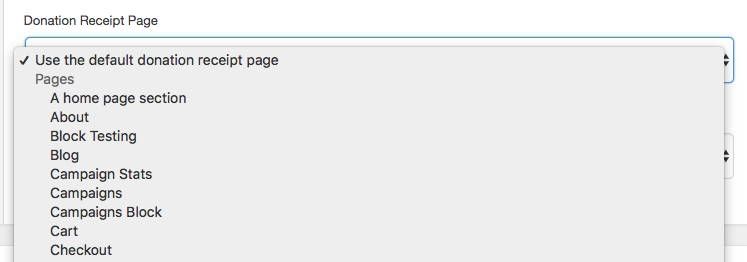
Der type ist auf select gesetzt, was bedeutet, dass ein Dropdown-Auswahlfeld verwendet wird. Auswahlfelder erfordern eine Reihe von Optionen, die als Array übergeben werden. Unser Array enthält zunächst eine default-Auswahl, gefolgt von einer Liste von Seiten, die mit der Funktion charitable_get_pages_options() abgerufen werden. Wenn Sie mit HTML vertraut sind, bedeutet die Struktur dieses Arrays, dass das options-Array innerhalb von pages ein optgroup-Element mit label als Beschriftung erstellt.
Schritt 3: Überschreiben der Standard-Spendeneingangsbestätigungs-Seite
Innerhalb von Charitable wird die URL der Spendeneingangsbestätigung für eine bestimmte Spende wie folgt abgerufen:
charitable_get_permalink( 'donation_receipt_page', array(
    'donation_id' => $donation_id,
) );
Diese Funktion verwendet wiederum die Endpoint API, die eine strukturierte Möglichkeit bietet, wichtige Endpunkte innerhalb von Charitable zu verwalten, wie z. B. Kampagnen, Spendenseiten, die Anmeldeseite und die Spendeneingangsbestätigungs-Seite.
Was für unseren Fall wichtig ist, ist, dass der zurückgegebene Permalink gefiltert werden kann. Im Falle der Spendenquittungsseite ist der zu verwendende Filter charitable_permalink_donation_receipt_page. Er liefert zwei Parameter:
$default– Der Standard-Permalink, der verwendet werden soll. Wir greifen darauf zurück, wenn die Kampagne keine benutzerdefinierte Quittungsseite festgelegt hat oder wenn sie die Standardeinstellung verwendet.$args– Ein Array, das die Spenden-ID enthält.
Schritt 3a: Erstellen Sie die Gliederung der Callback-Funktion
Sehen wir uns zunächst an, wie die Struktur unserer Callback-Funktion aussehen wird:
/**
 * Filter the page to redirect the donor to after making their donation.
 *
 * @param  string $default The endpoint's URL.
 * @param  array  $args    Mixed set of arguments.
 * @return string
 */
add_filter( 'charitable_permalink_donation_receipt_page', function( $default, $args ) {

   // Code goes here.

}, 10, 2 } );
Wie Sie sehen können, definieren wir eine anonyme Funktion, die in den charitable_permalink_donation_receipt_page-Filter eingehakt ist. Wichtig ist, dass unsere letzte Zeile die Callback-Funktion so einstellt, dass sie mit der Priorität 10 (dem Standard) arbeitet und 2 Parameter empfängt.
Schritt 3b: Rufen Sie die Kampagne für die Spendenquittung ab
Der Parameter $args enthält eine Eigenschaft donation_id. Wir verwenden diese, um ein Charitable_Donation-Objekt zu erhalten, und verwenden dieses wiederum, um das Charitable_Campaign-Objekt zu erhalten:
/**
 * Get the donation object.
 */
$donation_id = isset( $args['donation_id'] ) ? $args['donation_id'] : get_the_ID();
$donation    = charitable_get_donation( $donation_id );

/**
 * Get the campaign that received the donation.
 */
$campaign_id = current( $donation->get_campaign_donations() )->campaign_id;
$campaign    = charitable_get_campaign( $campaign_id );
Schritt 3c: Rufen Sie die Spendenquittungsseite der Kampagne ab
Nachdem wir nun ein Charitable_Campaign-Objekt haben, können wir die Einstellung für die Spendenquittungsseite für die Kampagne mit der Methode get() abrufen:
/**
 * Get the campaign's donation receipt page.
 */
$receipt_page = $campaign->get( 'donation_receipt_page' );
Schritt 3d: Prüfen Sie, ob die Standard-Quittungs-URL zurückgegeben werden soll
Denken Sie daran, dass Sie die Kampagne so einstellen können, dass sie die Standardquittung verwendet. Es ist auch möglich, dass Sie Ihre Kampagne seit dem Hinzufügen der Einstellung für die Spendenquittungsseite nicht aktualisiert haben. In diesem Fall ist die Variable $receipt_pagefalse. Wenn eine dieser Bedingungen zutrifft, geben wir die Variable $default zurück, da wir für diese Kampagne keine benutzerdefinierte Quittung haben:
/**
 * If we haven't set a donation receipt page or we chose
 * the default option, return the default.
 */
if ( ! $receipt_page || 'default' == $receipt_page ) {
    return $default;
}
Schritt 3e: Geben Sie die benutzerdefinierte Quittungs-URL zurück
Wenn wir bis zu diesem Punkt noch hier sind, bedeutet dies, dass für diese Kampagne eine benutzerdefinierte Quittungsseite festgelegt ist. Alles, was noch zu tun ist, ist, den Permalink für diese Seite abzurufen und dann donation_id sowie donation_receipt anzuhängen. Die resultierende URL wird wie folgt aussehen:
https://mysite.com/my-custom-receipt-page/?donation_id=123&donation_receipt=1
So machen wir das:
/**
 * Get the permalink for the receipt page and then append
 * the donation_id and donation_receipt arguments to it.
 */
$receipt_page_url = get_permalink( $receipt_page );
$receipt_page_url = add_query_arg(
	array(
		'donation_id'      => $donation_id,
		'donation_receipt' => 1,
	),
	$receipt_page_url
);

/**
 * Return the escaped URL.
 */
return esc_url_raw( $receipt_page_url );
get_permalink ist ein Kern-Plugin von WordPress, das verwendet wird, um die URL für eine bestimmte Seite oder einen Beitrag abzurufen. Wir verwenden dies als Basis für unsere URL und hängen dann die erforderlichen Abfrageargumente mit add_query_arg an. Schließlich geben wir sie mit esc_url_raw als maskierten Wert zurück.
Zusatzschritt: Richten Sie Ihre benutzerdefinierte Quittungsseite ein
Diese Lösung ermöglicht es Ihnen, jede beliebige Seite als Spendenquittungsseite zu verwenden. Wahrscheinlich möchten Sie dem Spender Informationen über die Spende anzeigen, wenn er auf der Quittungsseite landet. Um dies einzuschließen, können Sie den Shortcode [donation_receipt] verwenden; er zeigt die dynamischen Quittungsinformationen an, die normalerweise auf Charitable-Quittungen angezeigt werden.
Bonus-Ideen für die Anpassung der Spendenquittungsseite
Wir haben hier gesehen, wie die Spendenquittungsseite pro Kampagne angepasst werden kann. Aber was ist, wenn Sie eine andere Spendenquittungsseite basierend auf einem anderen Faktor verwenden möchten?
In unserer Code-Snippet-Bibliothek finden Sie einige Snippets, die Ihnen zeigen, wie Sie in anderen Szenarien eine andere Spendenquittung verwenden können:
- Verwenden Sie eine andere Spendenquittung für wiederkehrende Spenden
- Verwenden Sie eine andere Spendenquittung für Offline-Spenden (kann für andere Zahlungs-Gateways angepasst werden).
Haben Sie eine Idee für ein weiteres Tutorial?
Wenn Sie eine Idee für ein weiteres Tutorial haben, würde ich mich freuen, davon zu hören! Hinterlassen Sie einen Kommentar unten oder kontaktieren Sie uns über unsere Support-Seite.





Hinterlassen Sie eine Antwort