
Möchten Sie Ihre eigene WordPress-Seite als Spendenquittung verwenden, anstatt der integrierten Quittung von Charitable? Die Seite für die Spendenquittung ist das, was Spender sofort nach Abschluss einer Spende sehen, und Charitable ermöglicht es Ihnen, die Standardquittung durch jede Seite auf Ihrer Website zu ersetzen. Dies ist nützlich, wenn Sie ein bestimmtes Seitenlayout anpassen, benutzerdefinierte Markenelemente hinzufügen oder zusätzliche Inhalte neben den Quittungsdetails einfügen möchten.
Diese Anleitung führt Sie durch die Schritte zur Einrichtung einer benutzerdefinierten Seite für Spendenquittungen in Charitable.
Stellen Sie vor Beginn sicher, dass Charitable auf Ihrer Website installiert und aktiviert ist. Wenn Sie eine Auffrischung der Standardquittungserfahrung wünschen, lesen Sie So erkennt Charitable die Quittungsseite.
- Funktionsweise der Standard-Quittungsseite
- Auffinden der Einstellung für die Spendenquittungsseite
- Erstellen Ihrer benutzerdefinierten Quittungsseite
- Hinzufügen des Shortcodes für die Spendenquittung
- Auswählen Ihrer benutzerdefinierten Seite in Charitable
- Testen Ihrer benutzerdefinierten Quittungsseite
- Ein Hinweis zu Stripe Checkout
- Fehlerbehebung
- Häufig gestellte Fragen
Funktionsweise der Standard-Quittungsseite
Standardmäßig verwendet Charitable eine automatische Quittungsseite. Sie müssen keine Seite erstellen oder auswählen – wenn ein Spender eine Spende abschließt, generiert Charitable die Quittung "on the fly" mithilfe einer integrierten virtuellen Seite. Dies ist das Standardverhalten für jede Neuinstallation.
Die automatische Quittung funktioniert für die meisten Websites gut, aber es gibt einige Gründe, warum Sie stattdessen Ihre eigene Seite verwenden möchten:
- Sie wünschen ein bestimmtes Seitenlayout – Wählen Sie ein Layout aus Ihrem Theme, das zum Rest Ihrer Website passt.
- Sie möchten zusätzliche Inhalte hinzufügen – Fügen Sie oberhalb oder unterhalb der Quittung ein Dankesvideo, Social-Sharing-Buttons oder eine weiterführende Handlungsaufforderung ein.
- Sie möchten die volle Kontrolle über die URL – Wählen Sie den genauen Slug, auf dem Spender nach der Spende landen.
Wenn Sie keine der oben genannten Optionen benötigen, ist die automatische Quittungsseite die empfohlene Option und es ist keine Einrichtung erforderlich.
Auffinden der Einstellung für die Spendenquittungsseite
Um die Einstellung für die Spendenquittungsseite zu finden, gehen Sie zu Charitable » Einstellungen in Ihrem WordPress-Adminbereich. Öffnen Sie von dort aus den Tab Allgemein und scrollen Sie dann zum Abschnitt Seiten.
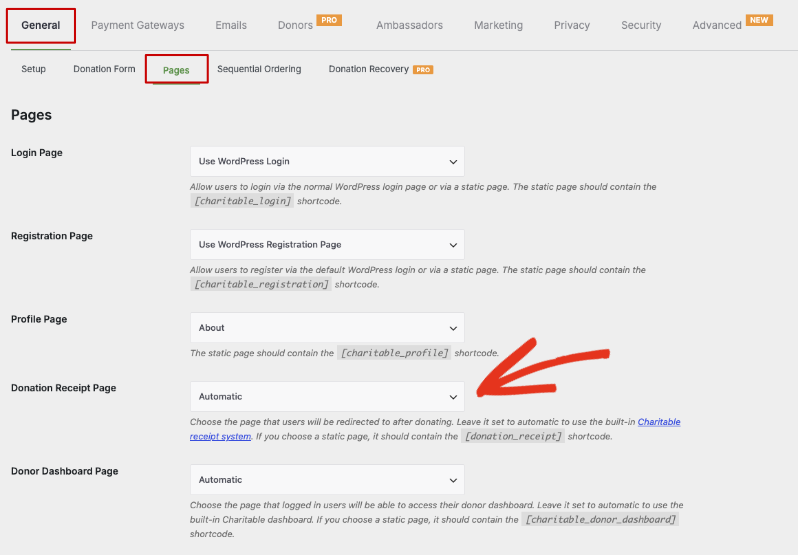
Das Dropdown-Menü Spendenquittungsseite bietet zwei Arten von Optionen:
- Automatisch – Der Standard. Charitable generiert die Quittungsseite "on the fly". Wählen Sie diese Option, wenn Sie kein benutzerdefiniertes Layout oder zusätzliche Inhalte auf der Quittung benötigen.
- Eine statische Seite von Ihrer Website – Jede veröffentlichte WordPress-Seite kann aus der Liste ausgewählt werden. Wählen Sie diese Option, wenn Sie eine dedizierte Quittungsseite mit benutzerdefiniertem Styling oder Inhalt erstellt haben (oder erstellen möchten).
Hinweis: Wenn Sie eine statische Seite auswählen, muss diese Seite den Shortcode [donation_receipt] enthalten, damit Charitable die Spenderdetails anzeigen kann. Ohne den Shortcode sehen Spender den Inhalt Ihrer Seite, aber keine Quittungsinformationen.
Erstellen Ihrer benutzerdefinierten Quittungsseite
Wenn Sie noch keine Seite haben, die Sie verwenden möchten, erstellen Sie zuerst eine. Gehen Sie in Ihrem WordPress-Adminbereich zu Seiten » Neu hinzufügen.
Geben Sie der Seite einen klaren Titel – etwas wie Spendenquittung oder Vielen Dank für Ihre Spende. Dieser Titel kann in Browser-Tabs und Suchergebnissen erscheinen, wählen Sie also etwas, das Spender erkennen werden.
Hinweis: Verlinken Sie diese Seite nicht in der Hauptnavigation oder im Footer Ihrer Website. Die Quittungsseite sollte nur erreicht werden, nachdem ein Spender eine Spende abgeschlossen hat – wenn Sie sie direkt aufrufen, ohne dass eine Spende im Gange ist, wird eine leere oder generische Nachricht angezeigt.
Hinzufügen des Shortcodes für die Spendenquittung
Damit Ihre benutzerdefinierte Seite die Spendenquittung des Spenders tatsächlich anzeigt – den Spendenbetrag, den Spendernamen, die Kampagnendetails und die Bestätigungsnachricht – müssen Sie den [donation_receipt] Shortcode zum Seiteninhalt hinzufügen.
Fügen Sie beim Bearbeiten Ihrer Seite einen Shortcode-Block hinzu (oder fügen Sie ihn direkt in einen Absatzblock ein, wenn Sie den klassischen Editor verwenden):
[donation_receipt]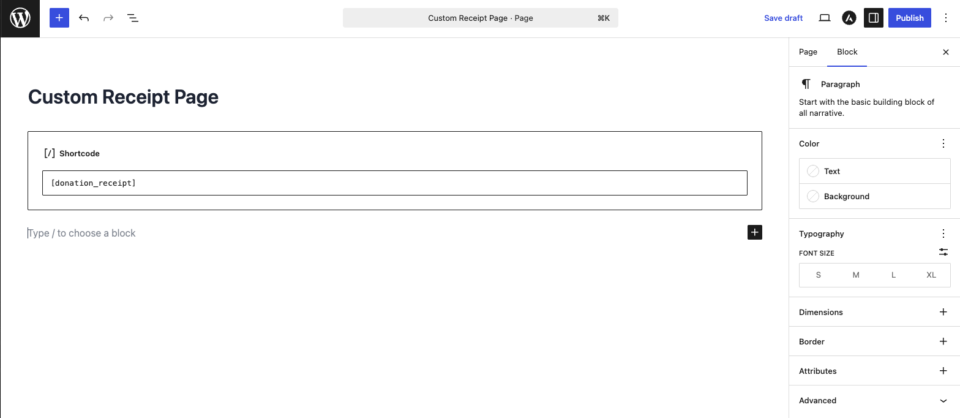
Sie können den Shortcode überall auf der Seite platzieren. Jeder Inhalt, den Sie über oder unter dem Shortcode hinzufügen – eine Überschrift, eine Dankesnachricht, Social-Share-Buttons – wird um die Quittungsdetails herum angezeigt, wenn Spender die Seite aufrufen.
Wenn Sie mit dem Layout zufrieden sind, klicken Sie auf Veröffentlichen (oder Aktualisieren, wenn die Seite bereits existiert).
Hinweis: Der [donation_receipt] Shortcode hat keine Attribute. Er ruft automatisch die richtige Spende für den Spender ab, der die Seite aufruft, und zeigt die Quittungsdetails mit der Standardvorlage von Charitable an.
Auswählen Ihrer benutzerdefinierten Seite in Charitable
Sobald Ihre benutzerdefinierte Quittungsseite veröffentlicht ist, kehren Sie zu Charitable » Einstellungen » Allgemein zurück und scrollen Sie zum Abschnitt Seiten.
Wählen Sie im Dropdown-Menü Spendenquittungsseite die Seite aus, die Sie gerade erstellt haben. Die Liste zeigt jede veröffentlichte Seite auf Ihrer Website an, suchen Sie also nach dem von Ihnen verwendeten Titel.
Wenn Sie Ihre Seite ausgewählt haben, scrollen Sie nach unten und klicken Sie auf Änderungen speichern.
Testen Ihrer benutzerdefinierten Quittungsseite
Bevor Sie echte Spender auf die neue Quittungsseite leiten, führen Sie eine Testspende durch, um sicherzustellen, dass alles korrekt angezeigt wird. Wir empfehlen die Verwendung eines Testmodus-Zahlungsgateways (wie dem Testmodus von Stripe) oder des Offline-Spenden-Gateways, damit Sie die Spende ohne eine echte Abbuchung abschließen können.
Schließen Sie eine Spende von Anfang bis Ende ab. Nachdem die Spende abgeschlossen ist, sollten Sie auf Ihrer benutzerdefinierten Seite landen und die Quittungsdetails dort sehen, wo Sie den [donation_receipt] Shortcode platziert haben. Überprüfen Sie, ob der Spendername, der Spendenbetrag, der Kampagnentitel und die Bestätigungsnachricht alle korrekt angezeigt werden.
Ein Hinweis zu Stripe Checkout
Wenn Sie Stripe Checkout (die gehostete Stripe-Zahlungsseite) verwenden, funktioniert Ihre benutzerdefinierte Quittungsseite genauso wie jedes andere Gateway. Stripe leitet Spender zurück zu der Seite, die Sie unter Spendenquittungsseite ausgewählt haben, und der [donation_receipt] Shortcode rendert die Quittungsdetails normal.
Eine Sache, die Sie beachten sollten: Stripe Checkout bestätigt Spenden über einen Hintergrund-Webhook und nicht über die Weiterleitung selbst. In seltenen Fällen kann es vorkommen, dass ein Spender kurz vor dem Eintreffen des Bestätigungs-Webhooks von Stripe auf der Empfangsbestätigungs-Seite landet. Daher kann der Spendenstatus kurzzeitig als ausstehend angezeigt werden. Der Status wird automatisch aktualisiert, sobald der Webhook eintrifft, normalerweise innerhalb einer oder zwei Sekunden.
Hinweis: Wenn Spenden länger als nur kurzzeitig auf ausstehend hängen bleiben, ist Ihr Stripe-Webhook möglicherweise nicht korrekt konfiguriert. Sehen Sie unter Stripe Webhooks einrichten nach, ob Webhooks auf Ihrer Website ankommen.
Fehlerbehebung
Die benutzerdefinierte Seite wird geladen, aber es werden keine Empfangsbestätigungsdetails angezeigt
Das bedeutet fast immer, dass der [donation_receipt] -Shortcode auf der Seite fehlt. Bearbeiten Sie die Seite, stellen Sie sicher, dass der Shortcode vorhanden ist, und achten Sie darauf, dass er nicht in einem Block eingeschlossen ist, der die Ausgabe von Shortcodes maskiert. Der Shortcode muss exakt als [donation_receipt] ohne zusätzliche Attribute erscheinen.
Spender werden nach der Spende woandershin weitergeleitet
Charitable leitet Spender zu der Seite weiter, die im Dropdown-Menü Spenden-Empfangsbestätigungs-Seite ausgewählt ist. Wenn Spender woanders landen, überprüfen Sie, ob Ihre benutzerdefinierte Seite diejenige ist, die unter Charitable » Einstellungen » Allgemein » Seiten ausgewählt ist, und ob Sie auf Änderungen speichern geklickt haben.
Wenn Sie ein Caching- oder Optimierungs-Plugin verwenden, leeren Sie Ihren Website-Cache, nachdem Sie die Einstellungen geändert haben, damit die neue Weiterleitung wirksam wird.
Die Empfangsbestätigung zeigt die falsche Spende an
Der [donation_receipt] -Shortcode zeigt die Spende an, die mit der aktuellen Sitzung verknüpft ist, oder die in der URL übergebene Spenden-ID. Wenn ein Spender die Empfangsbestätigungs-Seite direkt aufruft (außerhalb des Spenden-Flows), gibt es keine Spende anzuzeigen. Dies ist das erwartete Verhalten – die Empfangsbestätigungs-Seite ist nur dazu gedacht, am Ende einer Spende erreicht zu werden.
Das ist alles! Spender, die eine Spende abschließen, landen nun auf Ihrer benutzerdefinierten Empfangsbestätigungs-Seite, und der [donation_receipt] -Shortcode füllt die Empfangsbestätigungsdetails automatisch aus. Sehen Sie als Nächstes Anpassen der Spenden-Empfangsbestätigungs-Vorlage, um zu erfahren, wie Sie das Layout oder die Felder der Empfangsbestätigung ändern können, oder Anpassen der Spenden-Empfangsbestätigungs-E-Mail, wenn Sie die E-Mail aktualisieren möchten, die Spender erhalten.
Häufig gestellte Fragen
Muss ich eine benutzerdefinierte Empfangsbestätigungs-Seite erstellen?
Nein. Die Standardeinstellung Automatisch von Charitable generiert eine Empfangsbestätigungs-Seite für Sie ohne jegliche Einrichtung. Eine benutzerdefinierte Seite ist nur erforderlich, wenn Sie das Layout, die URL oder den umgebenden Inhalt steuern möchten.
Was macht der [donation_receipt] -Shortcode?
Er teilt Charitable mit, wo auf Ihrer benutzerdefinierten Seite die Empfangsbestätigung des Spenders angezeigt werden soll – der Spendenbetrag, der Name des Spenders, die Kampagne, der Zahlungsstatus und alle anderen Empfangsbestätigungsfelder. Ohne ihn wird Ihre benutzerdefinierte Seite geladen, aber es werden keine Empfangsbestätigungsdetails angezeigt.
Kann ich meiner benutzerdefinierten Empfangsbestätigungs-Seite weitere Inhalte hinzufügen?
Ja. Alles, was Sie oberhalb oder unterhalb des [donation_receipt] Shortcodes platzieren – Text, Bilder, Videos, Blöcke – wird um die Quittung auf der Seite herum angezeigt.
Warum ist die Quittungsseite leer, wenn ich sie direkt aufrufe?
Die Quittungsseite ist so konzipiert, dass sie am Ende einer Spende aufgerufen wird und nicht direkt. Wenn keine aktive Spende vorhanden ist, hat der [donation_receipt] Shortcode nichts anzuzeigen. Dies ist beabsichtigt – verlinken Sie die Quittungsseite nicht in Ihren Menüs oder Fußzeilen.
Kann ich später wieder zur automatischen Quittungsseite wechseln?
Ja. Gehen Sie zu Charitable » Einstellungen » Allgemein » Seiten, ändern Sie das Dropdown-Menü Spendenzahlungsseite zurück auf Automatisch und klicken Sie auf Änderungen speichern.
Wo kann ich ändern, was auf der Quittung selbst angezeigt wird?
Die Felder und das Layout der Quittung werden von der Quittungsvorlage von Charitable gesteuert, nicht von der Seite, die den Shortcode enthält. Sehen Sie sich Anpassen der Spendenzahlungsvorlage für die vollständige Anleitung an.


