Möchten Sie eine Ihrer Kampagnen auf einer anderen Seite Ihrer WordPress-Website anzeigen – Ihrer Homepage, einer „Über uns“-Seite oder irgendwo außerhalb der eigenen URL der Kampagne? Der [campaign] Shortcode bindet eine vollständige Kampagne ein – genau wie im visuellen Kampagnen-Builder gestaltet, einschließlich Layout, Story, Fortschrittsbalken, Spenderliste und Spendenformular – in jeden Beitrag, jede Seite oder jedes Widget-Bereich.
Diese Anleitung führt Sie durch die Schritte zum Einbinden einer einzelnen Kampagne mithilfe des Shortcodes.
Stellen Sie vor Beginn sicher, dass Charitable installiert und aktiviert ist und dass Sie mindestens eine Kampagne erstellt haben.
In dieser Anleitung
- Was der [campaign] Shortcode tut
- Wie er sich von anderen Kampagnen-Shortcodes unterscheidet
- Ihre Kampagnen-ID finden
- Einbinden einer bestimmten Kampagne
- Verwendung von id="current" in benutzerdefinierten Vorlagen
- Verwendung des Einbindungs-Assistenten stattdessen
- Testen Ihrer eingebundenen Kampagne
- Shortcode-Beispiele
- 1. Einbinden einer bestimmten Kampagne
- 2. Hervorheben einer Kampagne auf Ihrer Homepage
- 3. Einbinden mehrerer Kampagnen auf einer Seite
- 4. Verwendung von id="current" in einer Theme-Builder-Vorlage
- 5. Hinzufügen der Kampagne in einem Page Builder
- 6. Einbinden in einer Seitenleiste oder einem Widget-Bereich
- 7. Aufrufen des Shortcodes aus PHP in einer benutzerdefinierten Vorlage
- Häufig gestellte Fragen
Was der [campaign] Shortcode tut
Der [campaign] Shortcode rendert eine vollständige Kampagnenseite inline – überall dort, wo der Shortcode erscheint. Er verwendet dasselbe Layout, das Sie im visuellen Kampagnen-Builder entworfen haben, sodass die eingebundene Version mit dem übereinstimmt, was Besucher auf der eigenen URL der Kampagne sehen würden.
Dies ist nützlich, wenn eine Kampagne an mehreren Orten leben soll. Ein gängiges Beispiel: Hervorheben Ihrer aktivsten Kampagne auf der Homepage der Website, während die Kampagne unter ihrer eigenen URL für die gemeinsame Nutzung zugänglich bleibt.
Hinweis: Der Shortcode rendert die gesamte Kampagne, einschließlich des Spendenformulars. Wenn Sie nur das Spendenformular (ohne Story, Header oder Fortschrittsbalken) wünschen, verwenden Sie stattdessen [charitable_donation_form].
Wie er sich von anderen Kampagnen-Shortcodes unterscheidet
Charitable enthält mehrere kampagnenbezogene Shortcodes, und es ist leicht, sie zu verwechseln. So wählen Sie die richtige aus:
[campaign]– Bindet eine vollständige Kampagne (Layout des visuellen Builders) ein. Verwenden Sie dies, wenn Sie eine bestimmte Kampagne auf einer anderen Seite hervorheben möchten.[campaigns]– Zeigt ein Raster oder eine Liste von mehreren Kampagnen an. Verwenden Sie dies für ein Kampagnenarchiv oder eine Seite „Alle Spenden“. Sehen Sie sich die [campaigns] Dokumentation an.[charitable_donation_form]– Bindet nur das Spendenformular für eine Kampagne ein – keine Story, kein Fortschrittsbalken, keine Spenderliste. Verwenden Sie dies, wenn Sie bereits Ihren eigenen Seiteninhalt geschrieben haben und nur das Formular benötigen. Sehen Sie sich die Anleitung zum Einbinden des Spendenformulars an.
Ihre Kampagnen-ID finden
Jeder Spendenlauf hat eine eindeutige ID. Um sie zu finden, gehen Sie in Ihrem WordPress-Adminbereich zu Spendenläufe » Spendenläufe . Die ID wird in der Spendenlauf-Liste neben jedem Spendenlauf-Titel angezeigt.
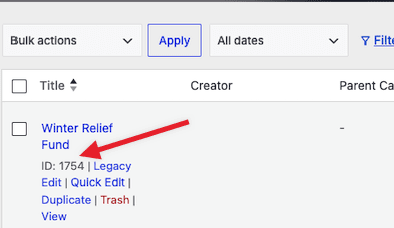
Hinweis: Stellen Sie sicher, dass Sie die numerische ID kopieren – nicht den Spendenlauf-Titel oder Slug. Der Shortcode funktioniert nicht mit einem Spendenlauf-Namen.
Einbinden einer bestimmten Kampagne
Sobald Sie die Spendenlauf-ID haben, können Sie den Shortcode überall dort einfügen, wo der WordPress-Editor Shortcodes akzeptiert – Beiträge, Seiten, Widget-Bereiche oder Vorlagenteile.
Der grundlegende Shortcode sieht so aus:
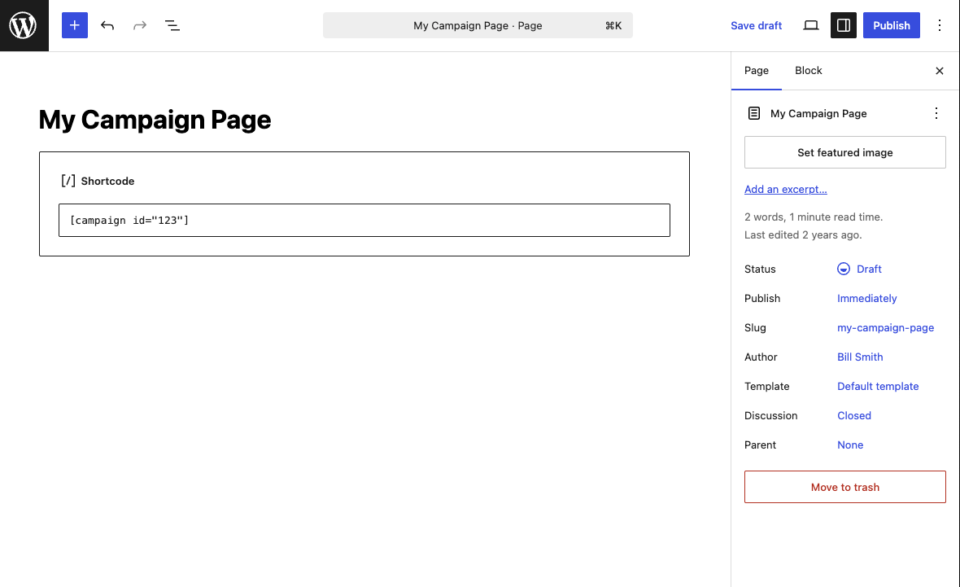
[campaign id="123"]Ersetzen Sie 123 durch Ihre tatsächliche Spendenlauf-ID. Wenn die Seite geladen wird, rendert Charitable das vollständige Spendenlauf-Layout anstelle des Shortcodes.
Um ihn über den Block-Editor hinzuzufügen, fügen Sie einen Shortcode -Block ein und fügen Sie den Code dort ein. Für Page Builder wie Elementor, Divi oder WPBakery verwenden Sie das Shortcode-Widget des Builders – jeder wichtige Builder enthält eines.
Hinweis: Wenn die Spendenlauf-ID nicht existiert – oder der Spendenlauf gelöscht wurde oder auf Entwurf gesetzt wurde – zeigt der Shortcode nichts an. Überprüfen Sie immer die ID, bevor Sie die Seite veröffentlichen.
Verwendung von id=”current” in benutzerdefinierten Vorlagen
Für Entwickler und Theme-Autoren akzeptiert das Attribut id einen speziellen Wert: "current". Wenn es so eingestellt ist, rendert der Shortcode den Spendenlauf, der gerade in der aktuellen Anfrage angezeigt wird.
[campaign id="current"]Dies ist nützlich in benutzerdefinierten Einzel-Spendenlauf-Vorlagen, wo Sie möchten, dass der Shortcode dynamisch den Spendenlauf im Geltungsbereich rendert – ohne eine ID fest zu codieren. Wenn der aktuelle Beitrag kein Spendenlauf ist, zeigt der Shortcode nichts an.
Hinweis: Sie benötigen diesen Wert nicht für die normale Einbettung von Seiten. Es ist eine Entwickler-Annehmlichkeit für Vorlagen, die über Spendenlauf-Beiträge iterieren.
Verwendung des Einbindungs-Assistenten stattdessen
Wenn Sie lieber nicht direkt mit Shortcodes arbeiten möchten, enthält Charitable einen Einbettungs-Assistenten, der die gleiche Aufgabe mit einer geführten Oberfläche erledigt. Suchen Sie im Spendenlauf-Builder nach der Schaltfläche Einbetten oben auf dem Bildschirm. Der Assistent ermöglicht es Ihnen, eine vorhandene Seite auszuwählen oder eine neue zu erstellen, und fügt den Shortcode für Sie ein.
Der Assistent ist der einfachste Weg für technisch nicht versierte Benutzer. Der Shortcode-Ansatz ist schneller, wenn Sie bereits wissen, wo der Spendenlauf erscheinen soll und welche Spendenlauf-ID Sie benötigen.
Testen Ihrer eingebundenen Kampagne
Nachdem Sie die Seite gespeichert haben, rufen Sie sie im Frontend auf und bestätigen Sie, dass der Spendenlauf wie erwartet angezeigt wird. Die eingebettete Version sollte identisch mit der eigenen Seite des Spendenlaufs aussehen – gleicher Header, gleicher Story-Inhalt, gleiches Spendenformular-Verhalten.
Senden Sie eine Testspende über das eingebettete Formular, um zu bestätigen, dass es korrekt verarbeitet wird. Spenden, die über einen eingebetteten Spendenlauf getätigt werden, werden für denselben Spendenlauf aufgezeichnet wie Spenden, die über die eigene URL des Spendenlaufs getätigt werden – es gibt keine separate Nachverfolgung.
Das ist es! Sie wissen jetzt, wie Sie eine vollständige Kampagne auf jeder Seite oder in jedem Beitrag mit dem Shortcode [campaign] einbetten. Als Nächstes möchten Sie vielleicht die Dokumentation zum Shortcode [campaigns] lesen, wenn Sie ein Raster mehrerer Kampagnen anzeigen möchten, oder die vollständige Kategorie Widgets & Shortcodes durchsuchen, um weitere Einbettungsoptionen zu erhalten.
Shortcode-Beispiele
Der Shortcode [campaign] hat nur ein Attribut – id –, aber er kann je nachdem, wo die Kampagne erscheinen soll, auf verschiedene Weise verwendet werden. Die folgenden Beispiele decken die gängigsten Szenarien ab.
1. Einbinden einer bestimmten Kampagne
Die einfachste Verwendung des Shortcodes. Ersetzen Sie 123 durch die tatsächliche Kampagnen-ID aus Ihrer Kampagnenliste.
[campaign id="123"]2. Hervorheben einer Kampagne auf Ihrer Homepage
Der gleiche Shortcode funktioniert auch für die Einbettung auf der Startseite. Fügen Sie ihn in den Inhalt der Startseite (oder eine Vorlage für die Startseite) ein, um Ihre wichtigste Kampagne „above the fold“ (im sichtbaren Bereich) hervorzuheben.
[campaign id="42"]Hinweis: Einige Themes wenden auf die Startseite eine Inhaltsbreite an, die schmaler ist als die einer Standardseite. Wenn die eingebettete Kampagne gequetscht aussieht, wechseln Sie die Startseite zu einer Vollbildvorlage.
3. Einbinden mehrerer Kampagnen auf einer Seite
Sie können den Shortcode mehrmals auf derselben Seite verwenden. Jede Instanz rendert ihre eigene Kampagne, getrennt durch den Inhalt, den Sie dazwischen einfügen.
[campaign id="42"]

<h2>Or support our second cause:</h2>

[campaign id="55"]
Hinweis: Das Einbetten vieler Kampagnen auf einer Seite erhöht das Seiten-Gewicht. Für längere Listen ist der Shortcode [campaigns] eine leichtere Option.
4. Verwendung von id=”current” in einer Theme Builder Vorlage
Beim Erstellen einer benutzerdefinierten Einzelkampagnen-Vorlage in Divi Theme Builder, Elementor Theme Builder oder einem Child-Theme verwenden Sie das Schlüsselwort current, damit der Shortcode die jeweilige Kampagne rendert, die der Besucher gerade ansieht.
[campaign id="current"]5. Hinzufügen der Kampagne in einem Page Builder
Seiten-Builder wie Elementor, Divi und WPBakery enthalten alle ein Shortcode-Widget oder -Modul. Derselbe Shortcode kommt hinein, genau wie Sie ihn im WordPress-Editor schreiben würden.
[campaign id="123"]Hinweis: Im Inline-Editor von WPBakery zeigt eine leere id einen Platzhalter mit der Meldung „Bitte wählen Sie eine Kampagne aus der Dropdown-Liste aus, um eine Vorschau anzuzeigen“. Sobald Sie veröffentlichen, wird der Platzhalter durch die Kampagne ersetzt.
6. Einbinden in einer Seitenleiste oder einem Widget-Bereich
Für Widget-Bereiche fügen Sie einen Shortcode-Block (blockbasierte Widgets) oder ein älteres Text-Widget hinzu und fügen den Shortcode darin ein.
[campaign id="123"]Hinweis: Kampagnen-Layouts sind für Inhaltsbereiche in voller Breite konzipiert. Schmale Seitenleisten können dazu führen, dass das Layout unschön umbricht – erwägen Sie stattdessen die Verwendung eines Spenden-Button- oder Fortschrittsbalken-Shortcodes für Platzierungen in der Seitenleiste.
7. Aufrufen des Shortcodes aus PHP in einer benutzerdefinierten Vorlage
Für Entwickler, die benutzerdefinierte Vorlagen erstellen, kann der Shortcode direkt aus PHP mit der WordPress-Funktion do_shortcode() gerendert werden.
<?php echo do_shortcode( '[campaign id="123"]' ); ?>Um die aktuelle Kampagne innerhalb einer benutzerdefinierten Einzelkampagnen-Vorlagenschleife zu rendern:
<?php echo do_shortcode( '[campaign id="current"]' ); ?>Häufig gestellte Fragen
Kann ich dieselbe Kampagne auf mehreren Seiten einbetten?
Ja. Der Shortcode kann auf beliebig vielen Seiten verwendet werden, und alle Spenden, die über eine dieser Seiten getätigt werden, werden für dieselbe Kampagne erfasst.
Wird die eingebettete Kampagne das gleiche Layout wie die Originalkampagne verwenden?
Ja. Der Shortcode verwendet das Layout, das Sie im visuellen Kampagnen-Builder erstellt haben. Jede Änderung, die Sie am Kampagnendesign vornehmen, wird automatisch überall dort angezeigt, wo der Shortcode verwendet wird.
Enthält die eingebettete Kampagne das Spendenformular?
Ja. Die vollständige Kampagne – Story, Fortschrittsbalken, Spenderliste und Spendenformular – werden zusammen gerendert. Wenn Sie nur das Spendenformular wünschen, verwenden Sie stattdessen [charitable_donation_form] .
Was passiert, wenn die Kampagne auf Entwurf gesetzt oder gelöscht wird?
Der Shortcode rendert nichts. Die Seite selbst wird weiterhin geladen – aber der Kampagnenabschnitt wird leer sein. Bestätigen Sie immer, dass die Kampagne veröffentlicht ist, bevor Sie sie einbetten.
Kann ich eine Kampagne in einem Sidebar-Widget einbetten?
Ja. Fügen Sie einen Shortcode-Block (oder ein älteres Text-Widget) zum Widget-Bereich hinzu und fügen Sie den Shortcode ein. Beachten Sie, dass das Kampagnenlayout für Inhaltsbereiche in voller Breite konzipiert ist, sodass es in einer schmalen Seitenleiste eng aussehen kann.