
Charitable Automation Connect ermöglicht es Ihnen, Charitable mit Tausenden von anderen Apps zu verbinden, indem Sie 3rd-Party-Automatisierungsplattformen wie Zapier, Make.com oder Zoho Flow verwenden.
Installation und Aktivierung des Automation Connect Plugins
Automation Connect ist ein Plugin und kann auf die gleiche Weise wie jede andere Charitable-Erweiterung installiert werden. Hier ist eine kurze Anleitung:
- Laden Sie Ihre Erweiterung von Ihrer Konto-Seite oder Ihrer Kaufbeleg-E-Mail herunter.
- Gehen Sie in Ihrem WordPress-Dashboard zu Plugins > Neues hinzufügen .
- Klicken Sie oben auf der Seite auf die Schaltfläche Plugin hochladen.
- Wählen Sie die ZIP-Datei aus, die Sie in Schritt 1 heruntergeladen haben, und klicken Sie auf Jetzt installieren.
- Aktivieren Sie Ihr Plugin!
Stecken geblieben? Lesen Sie unsere Anleitung zur Installation von Charitable-Erweiterungen für eine detaillierte Schritt-für-Schritt-Anleitung mit Screenshots, die Ihnen weiterhilft.
Webhook-Abonnements verstehen
Automation Connect basiert auf Webhook-Abonnements. Was ist also ein Webhook-Abonnement?
Kurz gesagt, ein Webhook-Abonnement ist eine Anweisung an Charitable, dass Sie möchten, dass Informationen (die Daten) an eine bestimmte URL (die Zustell-URL) gesendet werden, wann immer ein bestimmtes Ereignis auf Ihrer Website stattfindet (das Trigger-Ereignis).
Nehmen wir zum Beispiel an, Sie verwenden ein CRM wie Salesforce. Jedes Mal, wenn Sie eine neue Spende erhalten, möchten Sie, dass Informationen über diese Spende an Salesforce gesendet werden.
In diesem Szenario sind die Daten Ihre Spende und enthalten Informationen wie den Spendenbetrag, den Namen und die E-Mail-Adresse des Spenders, den Status der Spende und mehr. (Überspringen, wenn Sie alle Informationen sehen möchten, die für Spenden, wiederkehrende Spenden und Kampagnen von Charitable gesendet werden.)
Das auslösende Ereignis ist eine neue Spende, obwohl Sie wahrscheinlich auch automatisierte Workflows erstellen möchten, um zu behandeln, wenn eine Spende aktualisiert, in den Papierkorb verschoben oder aus dem Papierkorb wiederhergestellt wird.
Schließlich ist die Liefer-URL ein eindeutiger Link zu einer Automatisierungs-App wie Zapier, Make.com, Zoho Flow oder einer anderen App, mit der Sie eine Webhook-URL konfigurieren können. Sie können dann Ihre Automatisierungs-App verwenden, um die von Charitable empfangenen Daten zu nehmen und an Salesforce zu senden.
Erstellen, Bearbeiten oder Löschen eines Webhook-Abonnements
Tipp für Zapier-Benutzer
Wenn Sie Zapier verwenden, müssen Sie sich keine Sorgen um die Verwaltung von Webhook-Abonnements in Ihrem WordPress-Dashboard machen. Unsere Zapier-App ermöglicht es Ihnen, all dies von der Zapier-Seite aus zu erledigen.
Sie können Webhook-Abonnements erstellen, bearbeiten und löschen, indem Sie zu Charitable > Einstellungen > Erweitert gehen.
Wenn Sie sich auf der Plugins-Seite befinden, können Sie direkt zu dieser Seite gelangen, indem Sie auf den Schnelllink „Webhook-Abonnements“ für das Charitable Automation Connect-Plugin klicken.
Webhook-Abonnement erstellen
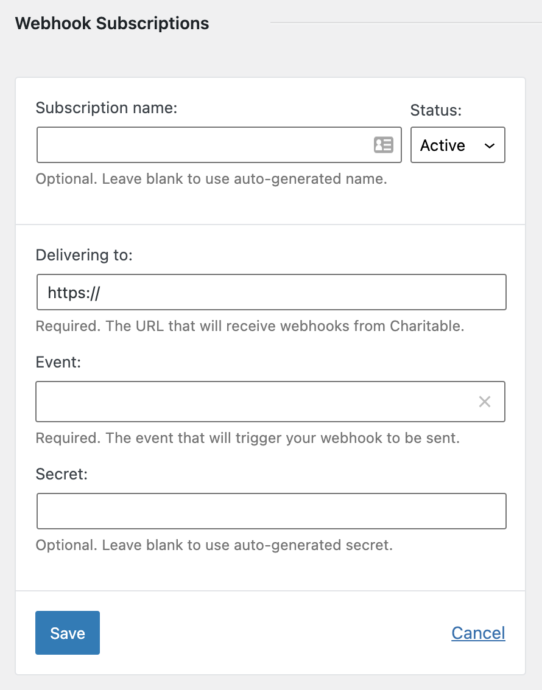
- Klicken Sie auf Webhook-Abonnement hinzufügen, um ein neues Webhook-Abonnement zu erstellen.
- Optional können Sie Ihrer Abonnement eine beschreibende Bezeichnung hinzufügen. Sie könnten es zum Beispiel „Spenden senden“ nennen, um zu verdeutlichen, dass es zum Senden von Spendenereignissen an Make dient:
- Fügen Sie die Liefer-URL ein. Dies ist eine eindeutige URL, die von Ihrer Automatisierungs-App erstellt wurde.
- Wählen Sie das Ereignis aus, das Ihren Webhook auslöst.
- Legen Sie optional ein Geheimnis für den Webhook fest. Lassen Sie dieses Feld leer, damit Charitable automatisch eines generiert.
- Klicken Sie auf Speichern, um das Abonnement zu erstellen.
Webhook-Abonnement bearbeiten oder löschen
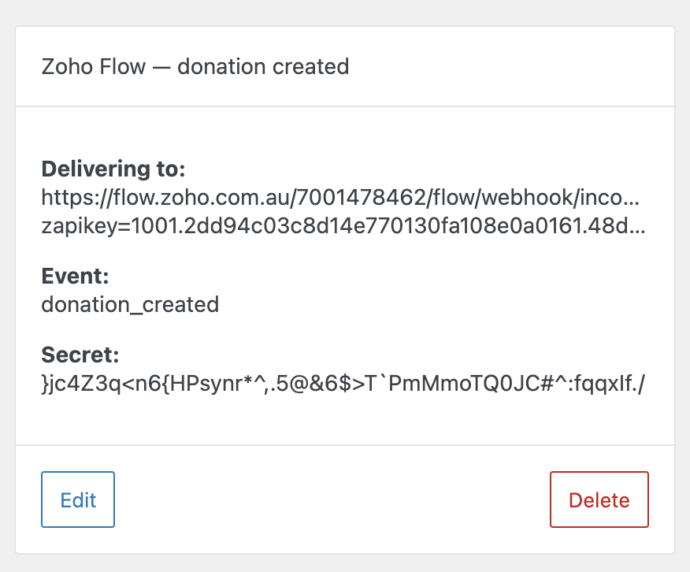
Sobald Sie ein Webhook-Abonnement eingerichtet haben, können Sie es bearbeiten, indem Sie auf die Schaltfläche Bearbeiten klicken. Dies öffnet dasselbe Webhook-Abonnementformular, das Sie beim Erstellen des Abonnements verwendet haben.
Um das Abonnement zu löschen, klicken Sie auf Löschen und bestätigen Sie dann die Löschung, indem Sie auf Webhook-Abonnement löschen klicken.
Nicht vergessen!
Wenn Sie ein Webhook-Abonnement löschen, sollten Sie auch den Zap/das Szenario/den Flow/den Bot löschen, der dieses Webhook-Abonnement in Ihrer Automatisierungs-App verwendet, um eine Überbelastung durch die Automatisierungsplattform zu vermeiden.
Zapier verbinden
Zapier ist eine App, mit der Sie automatisch Informationen zwischen verschiedenen Apps verschieben können. Es verbindet sich mit über 3.000 Apps.
Sie benötigen ein Zapier-Konto, um die folgenden Schritte auszuführen. Klicken Sie hier, um sich anzumelden.
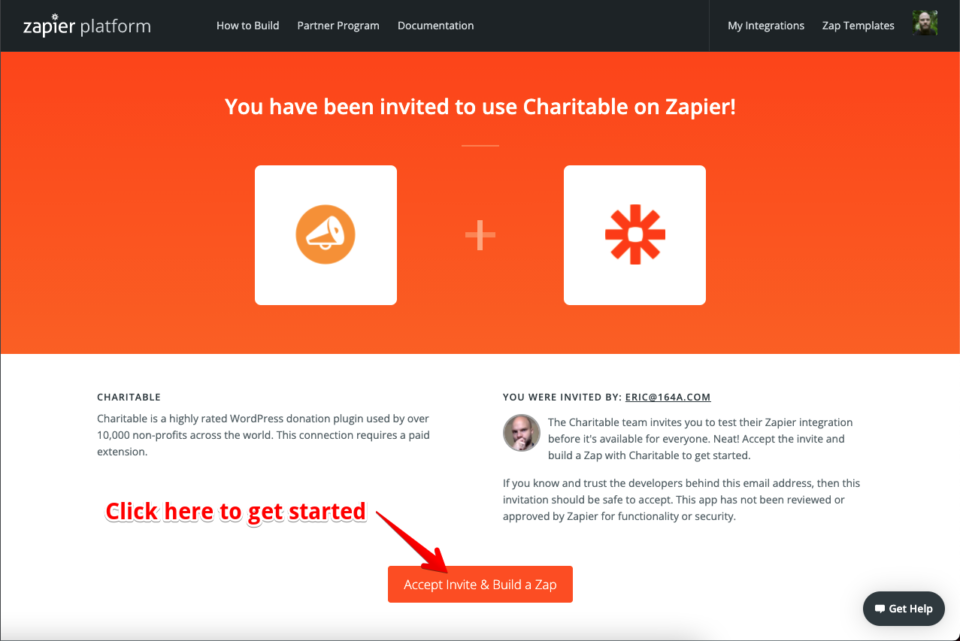
Die Zapier-Integration von Charitable befindet sich derzeit im Nur-Einladungsmodus. Klicken Sie auf den untenstehenden Link, um mit der Nutzung zu beginnen:
https://zapier.com/developer/public-invite/145749/11b59eacc08b96703df9aa845a043b5d
Klicken Sie als Nächstes auf Einladung annehmen & Zap erstellen, um mit der Nutzung der Integration zu beginnen, wie unten gezeigt:
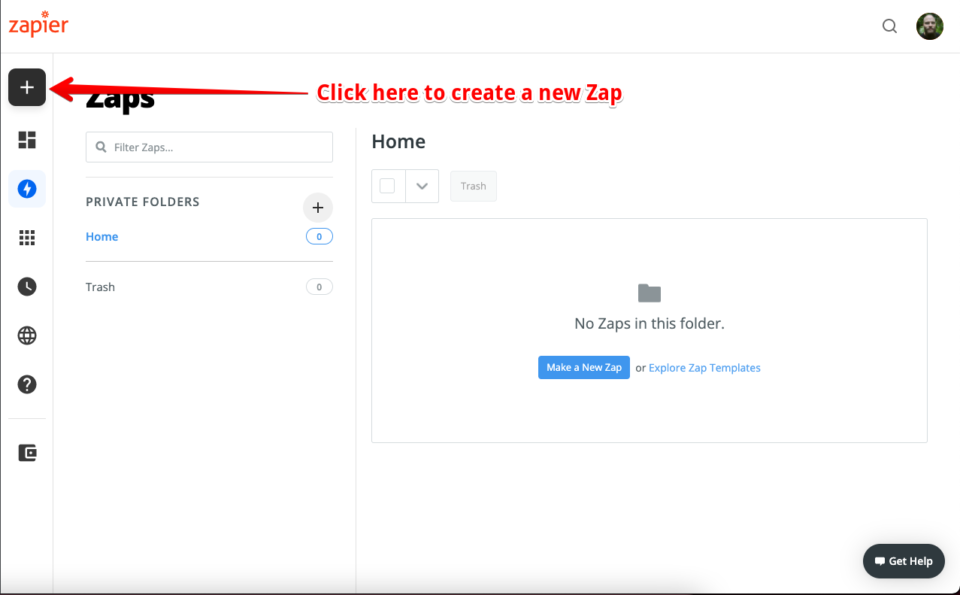
Klicken Sie im Zapier-Dashboard im linken Menü auf die Schaltfläche Zap erstellen, um einen neuen Zap zu erstellen. Wenn Sie sich auf einem kleineren Bildschirm befinden, wird die Schaltfläche Zap erstellen durch eine große + Schaltfläche ersetzt:
Einrichtung eines Zaps für Ihr Charitable-Event
Ein Zap benötigt zwei Dinge:
- Einen Trigger, das ist das Ereignis, das den automatisierten Workflow startet
- Eine Aktion, das ist die Aktion, die als Ergebnis des Ereignisses stattfindet
In unserem Fall ist der Trigger ein Charitable-Ereignis, wie eine neue Spende oder eine Aktualisierung einer Kampagne. Charitable kann nicht für den Aktionsschritt verwendet werden.
1. Wählen Sie ein Charitable-Event als Trigger für Ihren Zap
Geben Sie Ihrem Zap einen Namen und suchen Sie dann im App-Suchfeld nach Charitable:
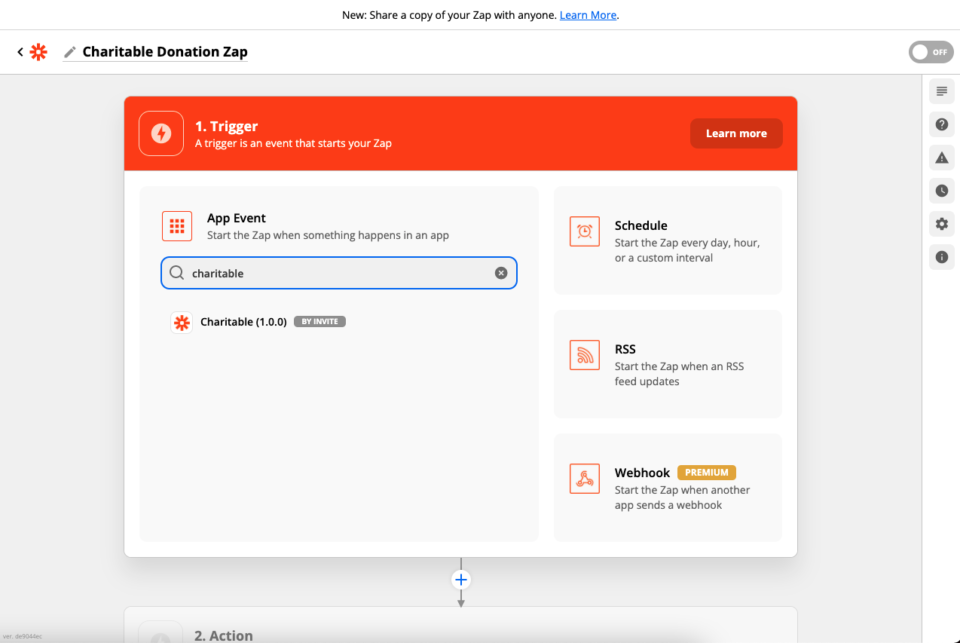
Zapier wird Sie dann auffordern, das Trigger-Ereignis auszuwählen:
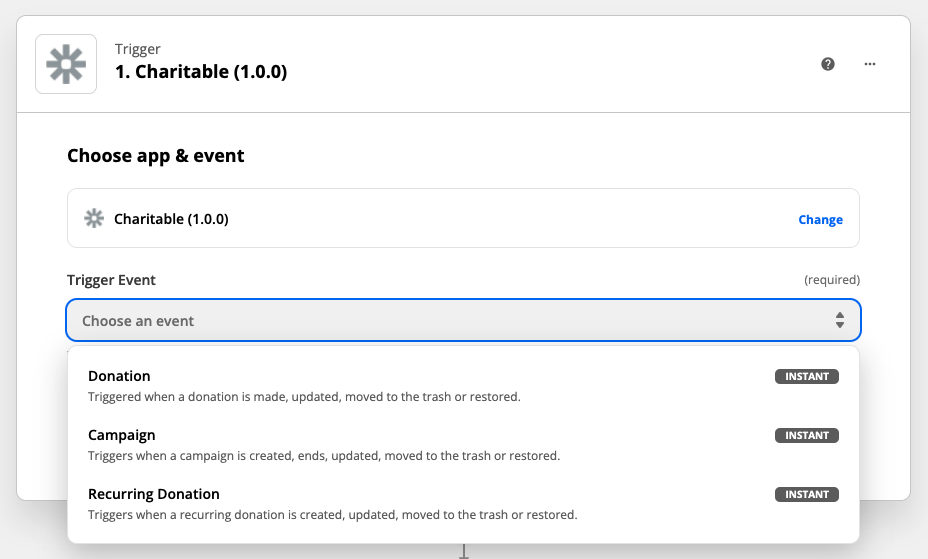
Sobald Sie ein Ereignis ausgewählt haben, klicken Sie auf Weiter, um zum nächsten Schritt zu gelangen.
2. Richten Sie die Charitable-Verbindung ein
Wenn Sie zum ersten Mal einen Zap mit Charitable erstellt haben, müssen Sie die Charitable-Verbindung einrichten.
Klicken Sie auf Bei Charitable anmelden, um zu beginnen:
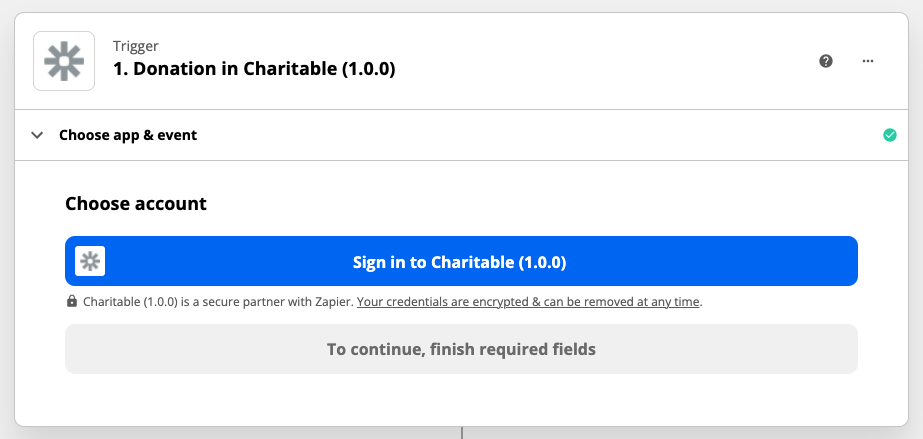
Ein neues Fenster wird mit einem Formular geöffnet, das Sie ausfüllen müssen:
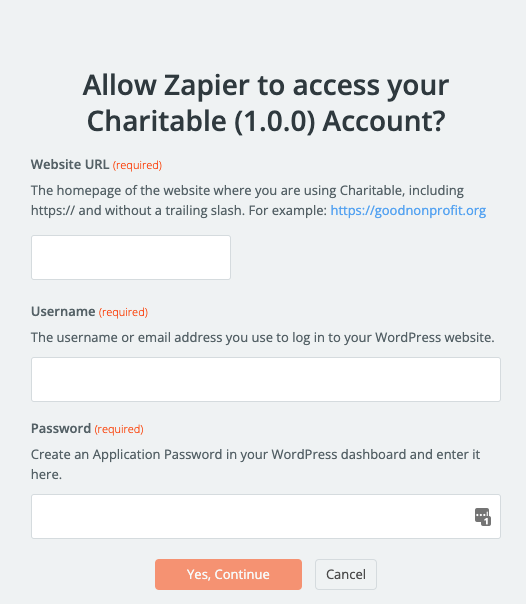
Es gibt drei Dinge auszufüllen:
- Ihre Website-URL. Dies ist die URL der Website, auf der Charitable installiert ist.
- Ihr Benutzername für Ihre Website.
- Ein Anwendungspasswort für Ihr Konto auf der Website.
Obwohl Sie auch Ihr reguläres Website-Passwort verwenden können, empfehlen wir dringend, ein Anwendungspasswort zu erstellen, da dies Ihr normales Passwort sicherer hält. Wenn Sie nicht sicher sind, wie Sie ein Anwendungspasswort erstellen, springen Sie zu den Schritt-für-Schritt-Anleitungen zur Erstellung eines Anwendungspassworts.
Sobald Sie Ihr Website-Konto verbunden haben, klicken Sie auf Weiter, um mit dem nächsten Schritt fortzufahren.
3. Richten Sie einen spezifischen Trigger-Event ein
Zuvor haben Sie den Typ des Triggers ausgewählt, den Sie für Ihre Integration verwenden möchten, basierend auf dem Ressourcentyp: eine Kampagne, eine Spende oder eine wiederkehrende Spende. Jetzt müssen Sie ein bestimmtes Ereignis auswählen, das mit dieser Ressource zusammenhängt.
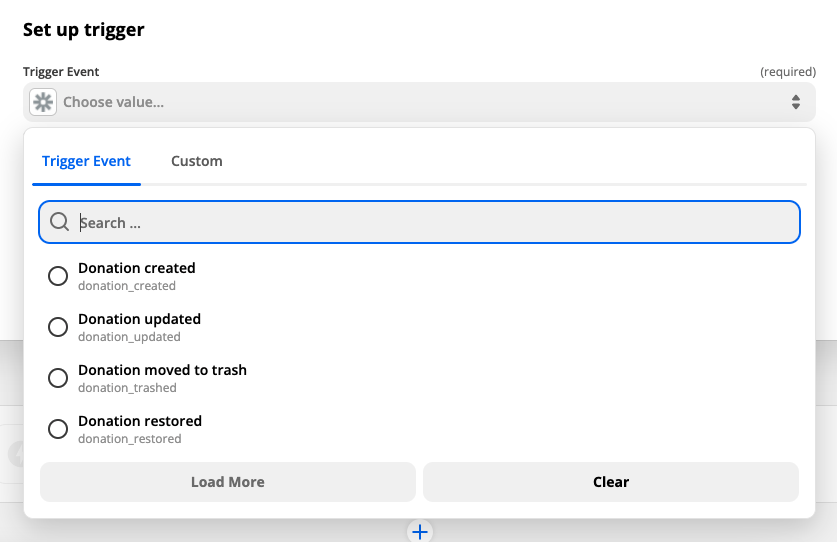
Nachdem Sie eines ausgewählt haben, klicken Sie auf Weiter.
4. Testen Sie den Trigger
Schließlich können Sie den Trigger testen, indem Sie auf Trigger testen klicken. Dies stellt sicher, dass alles korrekt eingerichtet ist, und liefert Ihnen auch Beispieldaten, um Ihnen zu zeigen, was in den von Charitable an Zapier gesendeten Informationen enthalten sein wird.
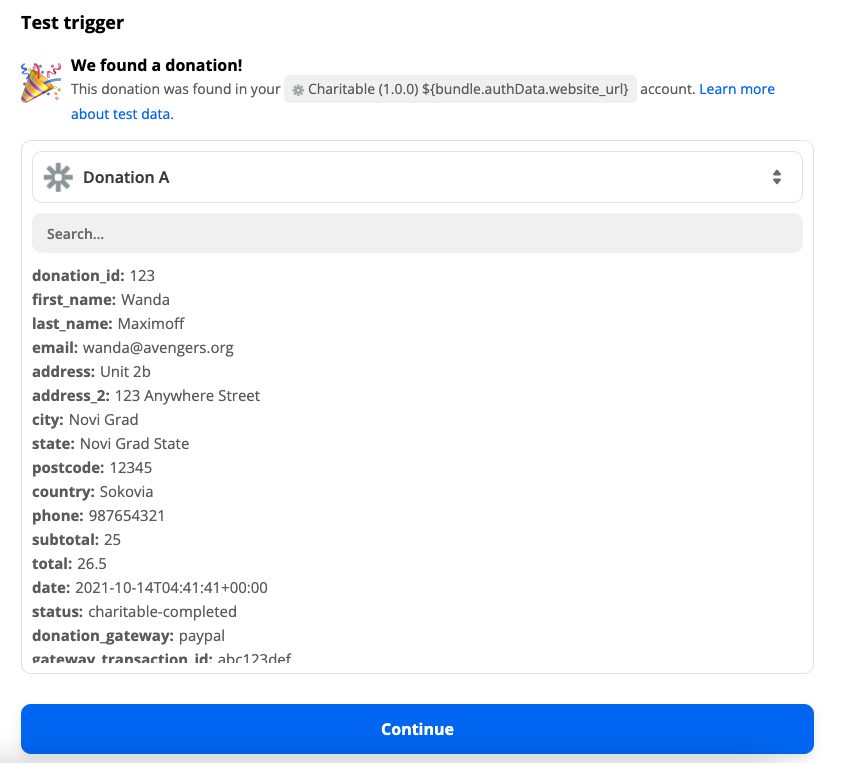
Wenn alles korrekt eingerichtet wurde, klicken Sie auf Weiter, um mit dem Aktions-Setup-Schritt für Ihren Zap fortzufahren.
5. Richten Sie die Aktion für Ihren Zap ein
Der letzte Schritt ist die Erstellung einer Aktion für Ihren Zap.
Es gibt Tausende von verschiedenen Möglichkeiten, wie Sie Zapier und Charitable gemeinsam nutzen können, um Workflows für Ihre gemeinnützige Organisation zu automatisieren. Hier sind einige Beispiele:
- Fügen Sie Spenden zu einem CRM wie Salesforce hinzu.
- Fügen Sie Spenden zu einem Google Sheet hinzu.
- Fügen Sie Kampagnenersteller oder Spender zu einer speziellen Liste in Ihrem E-Mail-Marketing-Anbieter hinzu (wenn es sich nicht um einen handelt, den wir bereits mit unserem Newsletter Connect-Plugin unterstützen).
- Richten Sie ein Ereignis im Google Kalender ein, um zu erfassen, wann eine Kampagne endet.
- Senden Sie eine E-Mail, nachdem eine Spende erstellt wurde oder wenn eine Kampagne hinzugefügt wurde.
Wenn Sie die Aktion einrichten, können Sie die Daten aus Charitable auswählen, die Sie verwenden möchten.
Zum Beispiel werden im folgenden Screenshot neue Spenden zu einer Google-Tabelle hinzugefügt. Die Felder „Spenden-ID“ und „Vorname des Spenders“ entsprechen Spalten in der von mir erstellten Google-Tabelle, und ich kann aus den Charitable-Daten auswählen, was in jede Spalte gelangen soll:
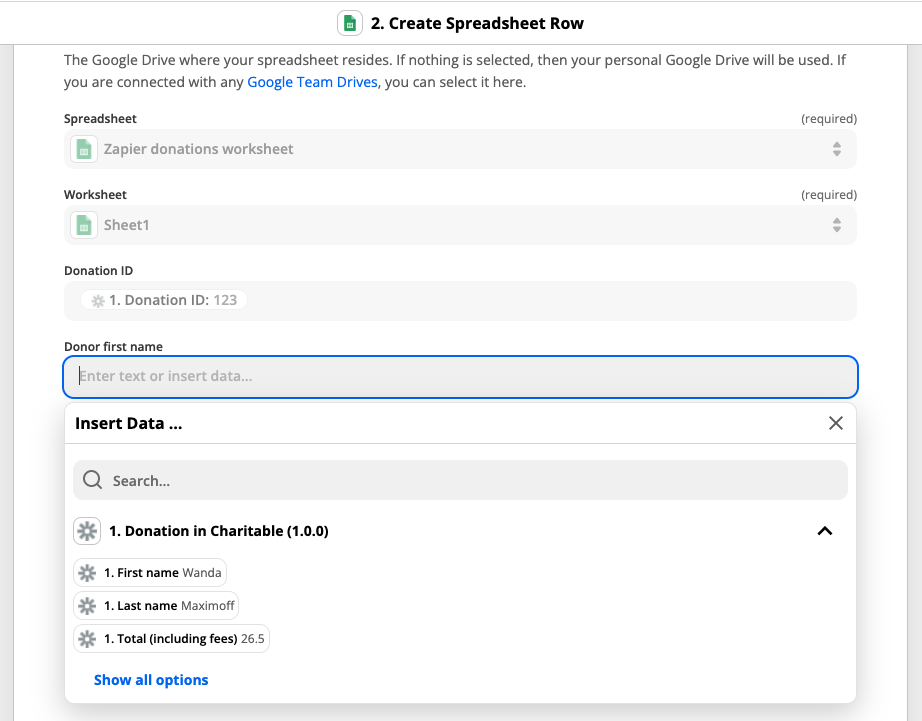
Wenn Sie neu bei Zapier sind, können Sie dieser detaillierten Anleitung zum Einrichten von Zap-Aktionen folgen.
6. Schalten Sie Ihren Zap ein
Nachdem Sie Ihre Aktion eingerichtet haben, klicken Sie auf Testen und fortfahren, um sie auszuprobieren und sicherzustellen, dass alles wie gewünscht funktioniert.
Wenn ja, ist der letzte Schritt, den Zap zu aktivieren, indem Sie auf Zap aktivieren klicken.
Nächste Schritte mit Zapier
Diese Anleitung hat die Grundlagen der Erstellung eines Zaps durch die Einrichtung eines Triggers und einer Aktion behandelt. Mit Zapier können Sie noch viel mehr tun. Hier sind einige Beispiele, wie Sie Ihre Zaps anpassen können, mit Links zur Zapier-Dokumentation:
- Bedingungen zu Ihrem Zap hinzufügen
- Verzweigungslogik zu Ihrem Zap hinzufügen
- Verzögerungen zu Zaps hinzufügen
- Eingehende Daten auf verschiedene Weise formatieren
Integration mit anderen Automatisierungs-Apps
Automation Connect ist so konzipiert, dass es neben jeder Automatisierungs-App funktioniert, die es Ihnen ermöglicht, ein Webhook-Abonnement zu konfigurieren. Hier sind einige Beispiele für Apps, die Sie anstelle von Zapier verwenden können:
- Erstellen
- Zoho Flow
Erstellen
Sie können Charitable mit Make integrieren, indem Sie ein Szenario erstellen und das Modul „Webhooks“ mit der Option „Benutzerdefinierter Webhook“-Trigger verwenden:
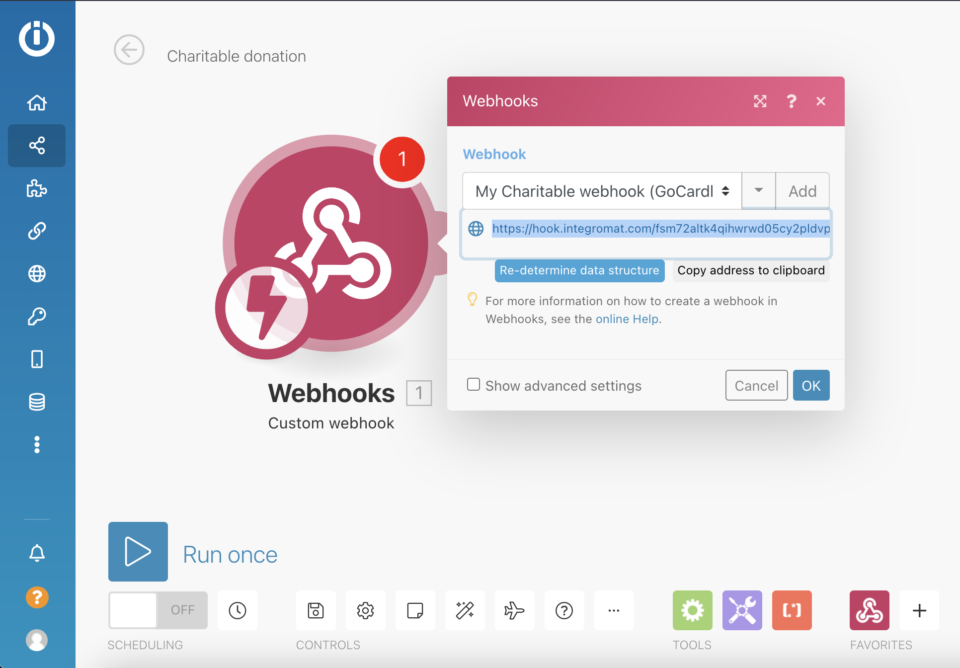
Kopieren Sie nach der Einrichtung die Adresse des Webhooks und verwenden Sie sie als „Zustellungs-URL“, wenn Sie in Ihren Charitable-Einstellungen ein Webhook-Abonnement erstellen.
Zoho Flow
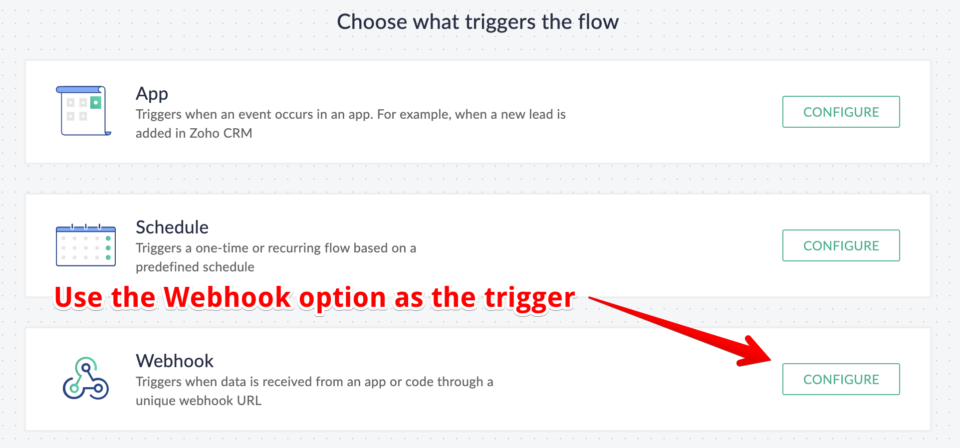
Erstellen Sie in Zoho Flow einen neuen Flow. Nachdem Sie einen Titel und eine Beschreibung festgelegt haben, wählen Sie „Webhook“ als Trigger-Option:
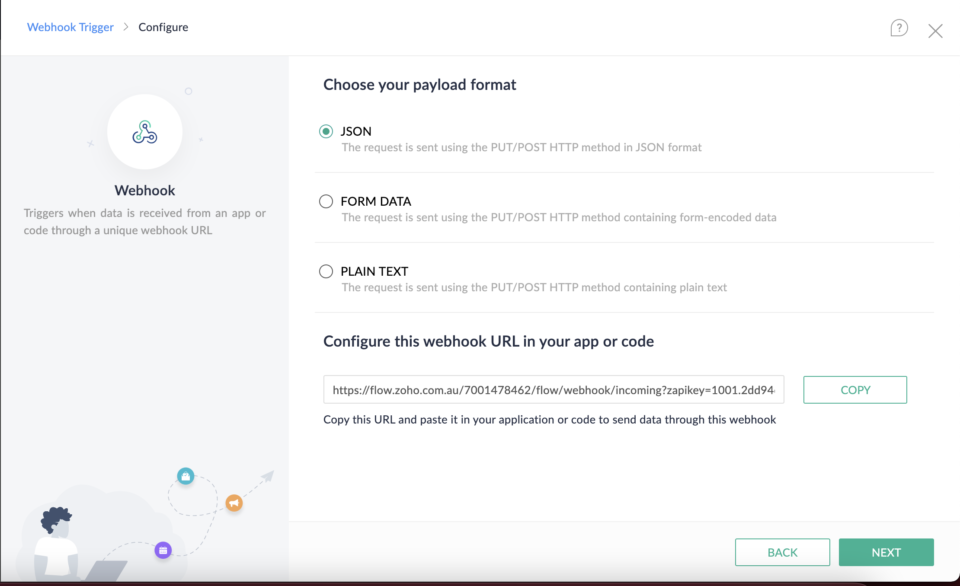
Lassen Sie auf der folgenden Seite das Payload-Format auf JSON eingestellt. Kopieren Sie die Webhook-URL unten und verwenden Sie sie als „Zustellungs-URL“, wenn Sie in Charitable ein neues Webhook-Abonnement einrichten:
Wie erstelle ich ein Anwendungspasswort für meine Integration?
Sie können ein Anwendungspasswort in Ihrem WordPress-Dashboard erstellen.
- Gehen Sie zu Ihrer Profilseite, indem Sie im linken Menü auf Benutzer > Profil klicken. Sie können auch dorthin gelangen, indem Sie auf Ihr Profilbild in der oberen rechten Ecke der Seite klicken und dann auf Profil bearbeiten.
- Scrollen Sie nach unten zum Abschnitt „Anwendungspasswörter“. Geben Sie Ihrem Anwendungspasswort einen eindeutigen Namen, um anzugeben, wie es verwendet wird, und klicken Sie dann auf Neues Anwendungspasswort hinzufügen.
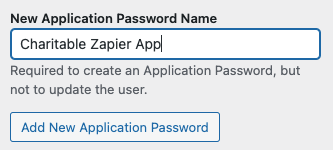
- Kopieren und fügen Sie das Anwendungspasswort ein und speichern Sie es an einem sicheren Ort. Sie können das Passwort nicht erneut abrufen:

Welche Informationen sendet Charitable an Webhooks?
Charitable sendet Informationen zu drei Arten von Ressourcen:
- Spenden
- Wiederkehrende Spenden
- Kampagnen
Die enthaltenen Informationen hängen davon ab, welche anderen Charitable-Erweiterungen Sie installiert haben.
Spenden
| Feldschlüssel | Beschreibung | Verfügbarkeit |
|---|---|---|
| donation_id | Spenden-ID | Kern |
| vorname | Vorname des Spenders | Kern |
| nachname | Nachname des Spenders | Kern |
| E-Mail-Adresse des Spenders | Kern | |
| Adresse | Adresse des Spenders | Kern |
| adresse_2 | Adresse des Spenders, Zeile 2 | Kern |
| Stadt | Stadt des Spenders | Kern |
| Bundesland | Bundesland/Provinz des Spenders | Kern |
| Postleitzahl | Postleitzahl/PLZ des Spenders | Kern |
| Land | Spenderland | Kern |
| Telefon | Telefonnummer des Spenders | Kern |
| Zwischensumme | Spendenbetrag, ohne Gebühren | Kern |
| Gesamtbetrag | Gesamter Spendenbetrag, inklusive Gebühren | Kern |
| Datum | Datum der Spende | Kern |
| Status | Spendenstatus | Kern |
| Spendenzahlungstor | Verwendetes Zahlungs-Gateway | Kern |
| Zahlungstransaktions-ID | Zahlungs-Gateway-ID oder Referenz für die Spende | Kern |
| Testmodus | Ob die Spende im Testmodus getätigt wurde | Kern |
| Kontaktzustimmung | Der Zustimmungsstatus des Spenders für Kontaktaufnahmen | Kern |
| Gebühren übernehmen | Ob der Spender die Übernahme der Gebühren gewählt hat | Gebührenermäßigung |
| Gebührenbetrag | Die vom Spender übernommenen Gebühren. | Gebührenermäßigung |
| Zustimmung zur Nachverfolgung | Ob der Spender der Nachverfolgung zugestimmt hat (gilt nur, wenn Campaign Monitor verwendet wird) | Newsletter Connect |
| Newsletter-Anmeldung | Ob der Spender sich für den Erhalt des Newsletters angemeldet hat | Newsletter Connect |
| GoCardless-Kunden-ID | Die Kunden-ID des Spenders bei GoCardless | GoCardless |
| GoCardless-Mandats-ID | Die für die Spende verwendete GoCardless-Mandats-ID | GoCardless |
| Geschenk-Aid beansprucht | Ob der Spender Geschenk-Aid beansprucht hat | Geschenk-Hilfe |
| Titel | Titel des Spenders | Geschenk-Hilfe |
| Adresse Zeile 3 | 3. Zeile der Spenderadresse | Geschenk-Hilfe |
| Anonyme Spende | Ob der Spender sich entschieden hat, anonym zu bleiben | Anonyme Spenden |
| Kommentar des Spenders | Der Kommentar des Spenders | Spenderkommentare |
Wiederkehrende Spenden
Der Auslöser für wiederkehrende Spenden ist nur verfügbar, wenn Sie das Plugin für wiederkehrende Spenden verwenden.
| Feldschlüssel | Beschreibung | Verfügbarkeit |
|---|---|---|
| ID der wiederkehrenden Spende | ID der wiederkehrenden Spende | Wiederkehrende Spenden |
| ID der ersten Spende | ID der ursprünglichen Spende | Wiederkehrende Spenden |
| Zwischensumme wiederkehrende Spende | Der regelmäßig gespendete Betrag (ohne Gebühren) | Wiederkehrende Spenden |
| recurring_total | Der regelmäßig gespendete Betrag (inklusive Gebühren) | Wiederkehrende Spenden |
| wiederkehrende_periode | Wiederkehrender Spendenzeitraum (Monat, Woche, Jahr usw.) | Wiederkehrende Spenden |
| recurring_interval | Anzahl der Zeiträume zwischen wiederkehrenden Spenden | Wiederkehrende Spenden |
| recurring_length | Gesamtzahl der Wiederholungen für wiederkehrende Spenden | Wiederkehrende Spenden |
| recurring_expiration_date | Datum, an dem die wiederkehrende Spende abläuft | Wiederkehrende Spenden |
| recurring_renewal_date | Datum, an dem die wiederkehrende Spende das nächste Mal erneuert wird | Wiederkehrende Spenden |
| gateway_subscription_id | Zahlungs-Gateway-Abonnement-ID / Referenz | Wiederkehrende Spenden |
| donation_id | Spenden-ID | Kern |
| vorname | Vorname des Spenders | Kern |
| nachname | Nachname des Spenders | Kern |
| E-Mail-Adresse des Spenders | Kern | |
| Adresse | Adresse des Spenders | Kern |
| adresse_2 | Adresse des Spenders, Zeile 2 | Kern |
| Stadt | Stadt des Spenders | Kern |
| Bundesland | Bundesland/Provinz des Spenders | Kern |
| Postleitzahl | Postleitzahl/PLZ des Spenders | Kern |
| Land | Spenderland | Kern |
| Telefon | Telefonnummer des Spenders | Kern |
| Zwischensumme | Spendenbetrag, ohne Gebühren | Kern |
| Gesamtbetrag | Gesamter Spendenbetrag, inklusive Gebühren | Kern |
| Datum | Datum der Spende | Kern |
| Status | Spendenstatus | Kern |
| Spendenzahlungstor | Verwendetes Zahlungs-Gateway | Kern |
| Zahlungstransaktions-ID | Zahlungs-Gateway-ID oder Referenz für die Spende | Kern |
| Testmodus | Ob die Spende im Testmodus getätigt wurde | Kern |
| Kontaktzustimmung | Der Zustimmungsstatus des Spenders für Kontaktaufnahmen | Kern |
| Gebühren übernehmen | Ob der Spender die Übernahme der Gebühren gewählt hat | Gebührenermäßigung |
| Gebührenbetrag | Die vom Spender übernommenen Gebühren. | Gebührenermäßigung |
| Anonyme Spende | Ob der Spender sich entschieden hat, anonym zu bleiben | Anonyme Spenden |
| Kommentar des Spenders | Der Kommentar des Spenders | Spenderkommentare |
Kampagnen
| Feldschlüssel | Beschreibung | Verfügbarkeit |
|---|---|---|
| campaign_id | Kampagnen-ID | Kern |
| description | Kurze Beschreibung | Kern |
| Ziel | Spendenziel | Kern |
| Enddatum | Kampagnen-Enddatum | Kern |
| Titel | Kampagnentitel | Kern |
| Datum | Kampagnenerstellungsdatum | Kern |
| campaign_creator_id | Benutzer-ID des Kampagnenerstellers | Kern |
| campaign_creator_name | Vollständiger Name des Kampagnenerstellers | Kern |
| campaign_creator_email | E-Mail-Adresse des Kampagnenerstellers | Kern |
| gespendeter_betrag | Gespendeter Betrag für die Kampagne | Kern |
| spender_anzahl | Anzahl der eindeutigen Spender für die Kampagne | Kern |
| Status | Kampagnenstatus | Kern |
| Permalink | Kampagnen-URL | Kern |
| Empfänger | Art der Kampagne. Eine der folgenden: – Botschafter (Kampagne für Ihre Organisation) – Spendenaktion (Spendenaktion für eine andere Kampagne) – Persönlich (persönliche Spendenziel-Kampagne) | Botschafter |
| post_parent | ID der übergeordneten Kampagne oder 0, wenn dies keine Spendenaktion ist | Botschafter |
| fundraiser_type | Art der Spendenaktion oder false, wenn dies keine Spendenaktion ist. Eine der folgenden: – Teammitglied – Team – Einzelperson | Botschafter |
| creator_action_required | Eine Aktion, die vom Kampagnenersteller durchgeführt werden muss, bevor seine Kampagne aktiviert werden kann. | Botschafter |
| submitted_campaign_creator_email | Die E-Mail-Adresse, die von der Person verwendet wurde, die die Kampagne eingereicht hat. Dies ist dasselbe wie das Feld campaign_creator_email, es sei denn, dies ist eine Team-Mitglieder-Kampagne, die vom Teamkapitän hinzugefügt wurde. | Botschafter |
| supports_child_campaigns | Ob die Kampagne Spendenaktionen unterstützt. | Botschafter |
| team_id | Die ID des Teams, zu dem diese Spendenaktion gehört, oder 0, wenn sie keinem Team angehört. | Botschafter |
| team_name | Der Name des Teams, zu dem diese Spendenaktion gehört. | Botschafter |
| team_captain_id | Die Benutzer-ID des Kapitäns des Teams, zu dem diese Spendenaktion gehört, oder null, wenn sie keinem Team angehört. | Botschafter |


