
Voulez-vous montrer aux visiteurs exactement combien de temps il reste avant la clôture de votre campagne ? Le compte à rebours de campagne ajoute un compte à rebours en direct et en temps réel à n'importe quelle page de campagne Charitable – affichant les jours, heures, minutes et secondes jusqu'à la date de fin de votre campagne.
Table des matières
- Exigences
- Ajouter le compte à rebours à votre campagne
- Définir la date de fin de votre campagne
- Configurer le compte à rebours
- Comment le compte à rebours apparaît aux donateurs
- Questions fréquemment posées
Exigences
Le compte à rebours de campagne est disponible sur tous les plans Charitable Pro : Basic, Plus, Pro et Elite. Il n'est pas disponible sur Charitable Lite.
Important : Votre campagne doit avoir une date de fin définie avant que le compte à rebours ne s'affiche sur le frontend. Si aucune date de fin n'est configurée, le bloc de compte à rebours apparaîtra dans le constructeur de campagne mais ne sera pas visible par les visiteurs.
Voir plus sur le compte à rebours de campagne »
Ajouter le compte à rebours à votre campagne
- Dans votre tableau de bord WordPress, allez dans Charitable » Campagnes et ouvrez la campagne que vous souhaitez modifier.
- Dans le constructeur de campagne, localisez le panneau Ajouter une mise en page sur le côté gauche de l'écran.
- Faites défiler jusqu'à la section Pro et cliquez sur Compte à rebours. Le bloc de compte à rebours sera ajouté à votre canevas de campagne.
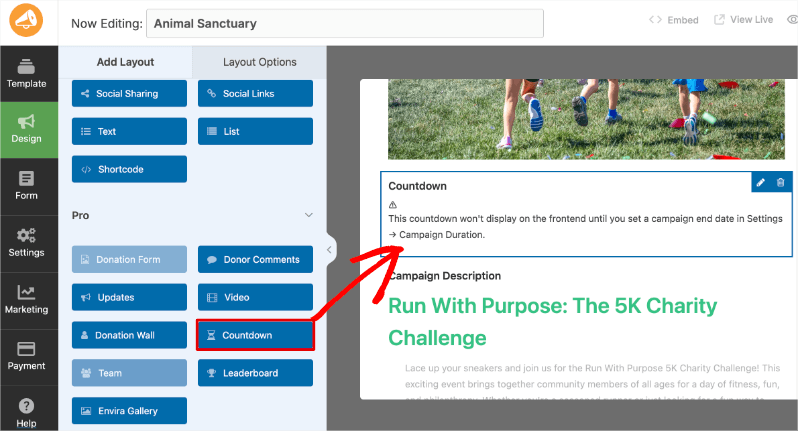
Remarque : Après avoir ajouté le bloc, vous pourriez voir le message « Ce compte à rebours ne s'affichera pas sur le frontend tant que vous n'aurez pas défini une date de fin de campagne dans Paramètres » Durée de la campagne ». Voir la section suivante pour définir votre date de fin.
Définir la date de fin de votre campagne
Le compte à rebours lit automatiquement la date de fin de votre campagne. Si vous n'en avez pas encore défini une :
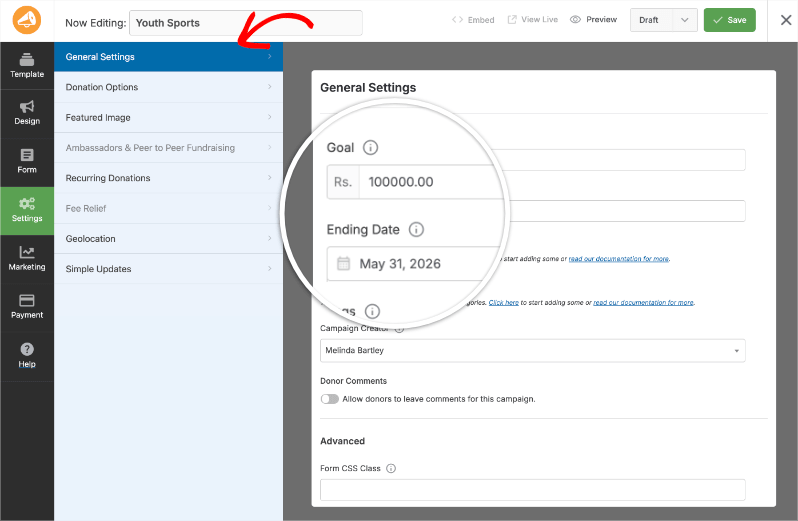
- Dans le constructeur de campagne, cliquez sur Paramètres dans la barre latérale gauche.
- Ouvrez Paramètres généraux.
- Cliquez sur le champ Date de fin et sélectionnez la date de fin de votre campagne.
- Enregistrez vos modifications en utilisant le bouton en haut à droite. Le compte à rebours reflétera maintenant la date de fin que vous avez définie.
Configurer le compte à rebours
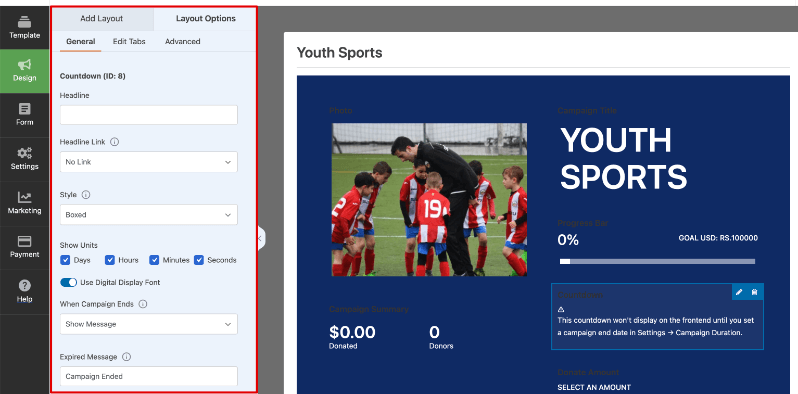
Pour accéder aux paramètres du compte à rebours, cliquez sur le bloc Compte à rebours sur le canevas de campagne, puis cliquez sur Options de mise en page dans le panneau de gauche. Tous les paramètres se trouvent sous l'onglet Général.
Effet de célébration
Ceci affiche un effet animé sur le frontend lorsque la campagne se termine.
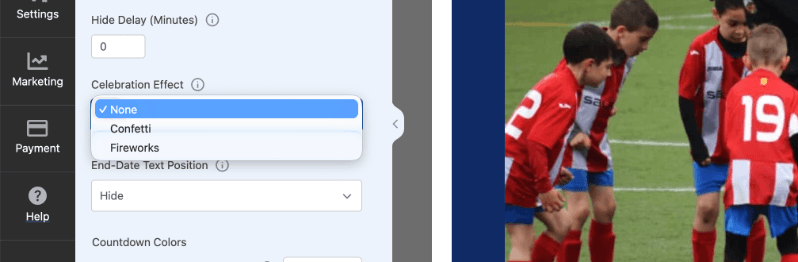
Vous pouvez choisir d'afficher :
- Aucun : Aucune animation ne se joue à la clôture de la campagne (par défaut)
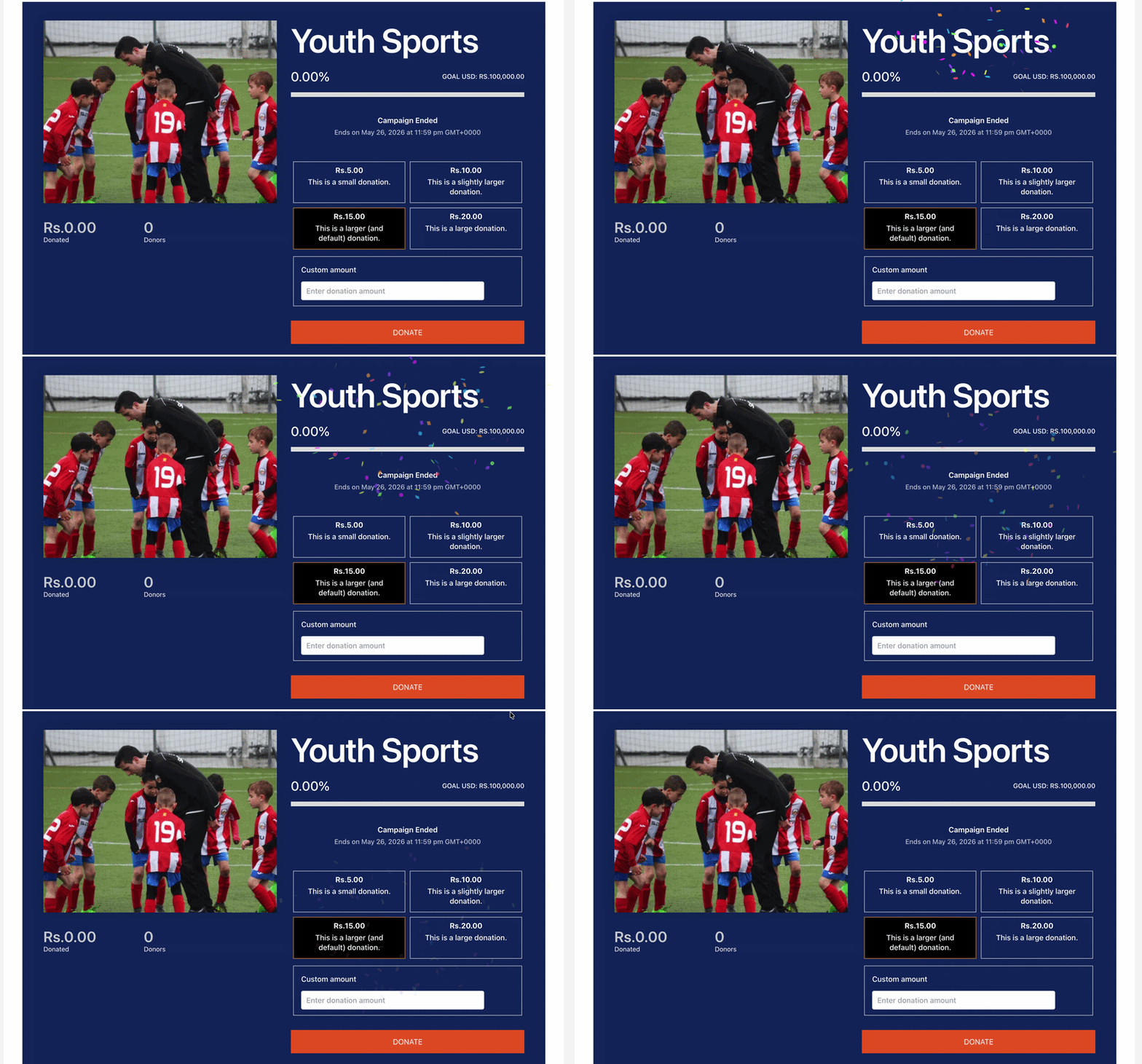
- Confettis : Une animation de gerbe de confettis se joue à la fin de la campagne
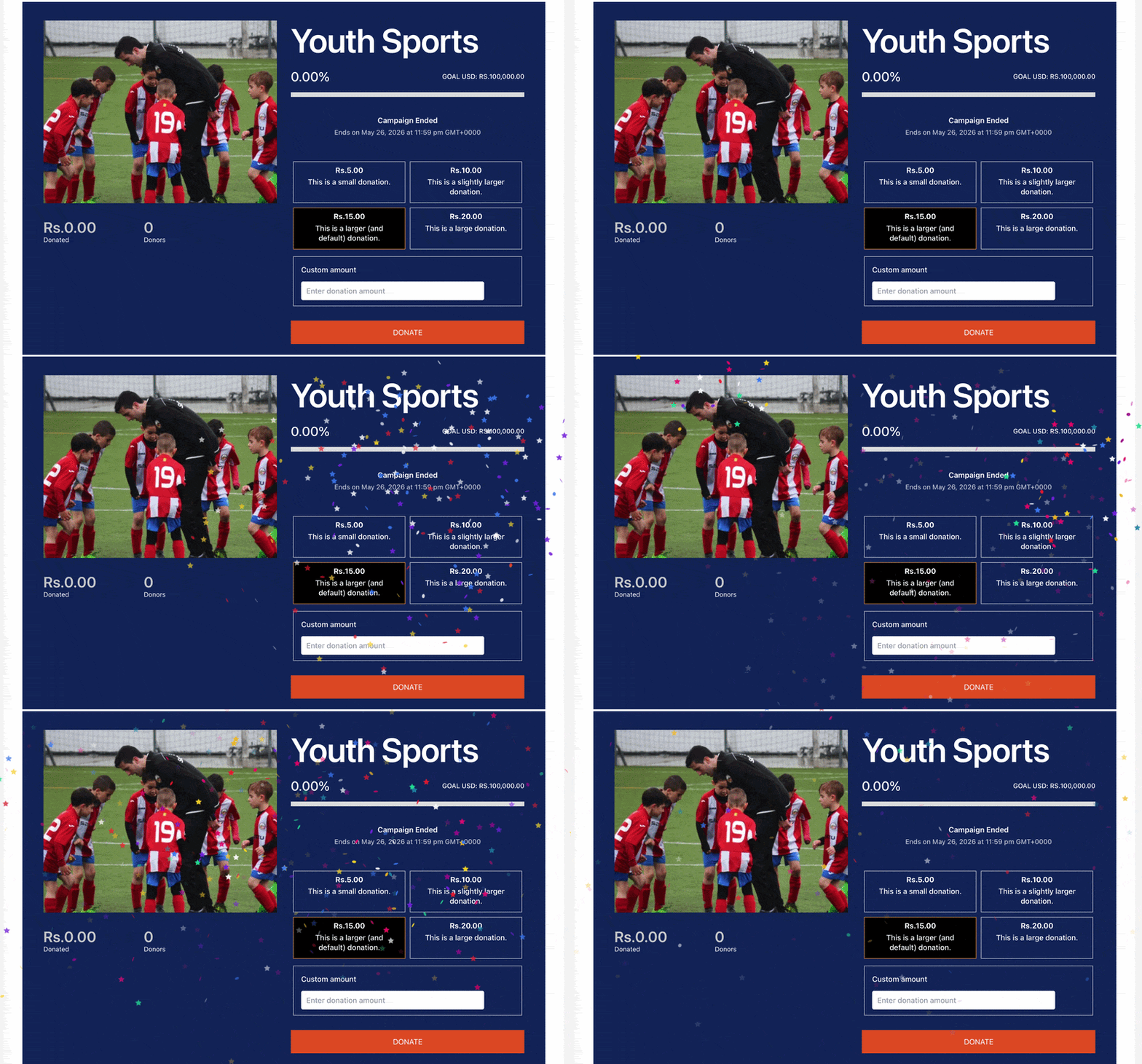
- Feux d'artifice : Une animation de feux d'artifice se joue à la fin de la campagne
Voici à quoi ressemblent les confettis :
Voici à quoi ressemblent les feux d'artifice :
Position du texte de la date de fin
Ceci contrôle où l'étiquette de la date de fin apparaît par rapport au compte à rebours :
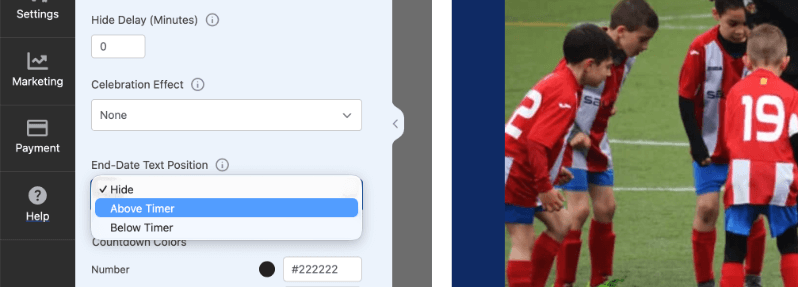
Vous pouvez choisir parmi :
- Masquer : L'étiquette de la date de fin n'est pas affichée (par défaut)
- Au-dessus du compte à rebours : La date de fin s'affiche au-dessus des chiffres du compte à rebours
- En dessous du minuteur : La date de fin s'affiche sous les chiffres du compte à rebours
Couleurs du compte à rebours
Définissez une couleur personnalisée pour chaque élément de l'affichage du minuteur. Cliquez sur n'importe quelle vignette de couleur pour ouvrir le sélecteur de couleurs :
- Chiffre : Couleur des chiffres du compte à rebours
- Libellé : Couleur des libellés d'unité (Jours, Heures, Minutes, Secondes)
- Arrière-plan : Couleur de fond de chaque boîte de minuteur
- Bordure : Couleur de la bordure de chaque boîte de minuteur
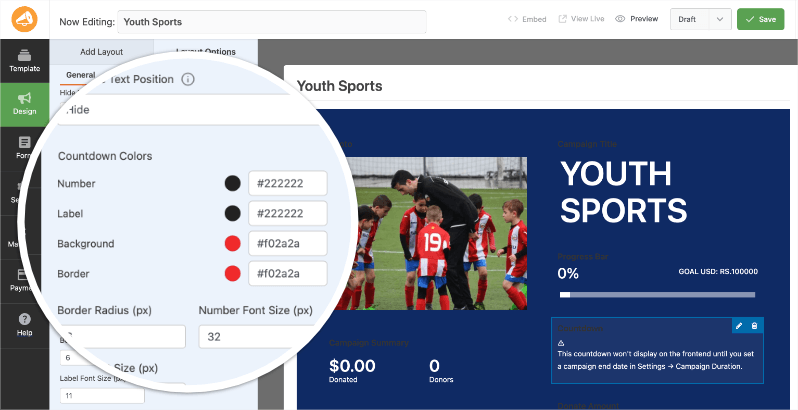
Vous pouvez également ajuster le Rayon de la bordure (px) pour contrôler à quel point les coins de chaque boîte de minuteur sont arrondis, la Taille de la police des chiffres (px) pour définir la taille des chiffres du compte à rebours, et la Taille de la police des libellés (px) pour définir la taille des libellés d'unité.
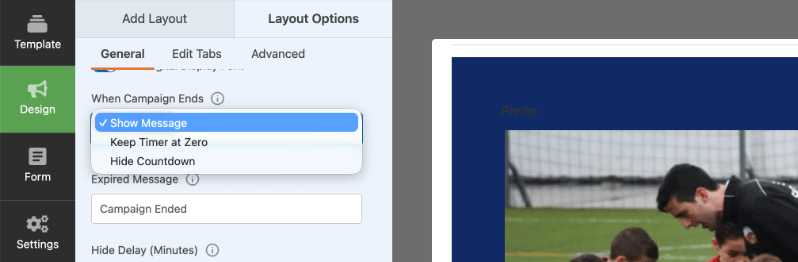
Quand la campagne se termine
Contrôle ce que les donateurs voient après que le compte à rebours a atteint zéro :
- Afficher un message : Affiche un message personnalisé que vous définissez dans le champ Message expiré. Le texte par défaut est « Campagne terminée » — modifiez-le pour qu'il corresponde à votre campagne.
- Conserver le minuteur à zéro : Le bloc de compte à rebours reste visible mais reste figé à 00:00:00:00
- Masquer le compte à rebours : Le bloc de compte à rebours est entièrement supprimé de la page une fois la campagne terminée
Délai de masquage (minutes)
Si vous avez défini « Quand la campagne se termine » sur « Masquer le compte à rebours », utilisez ce champ pour ajouter un délai (en minutes) avant que le bloc du minuteur ne disparaisse. Cela donne plus de temps à vos donateurs pour faire un don avant la fin de la campagne.
Définissez sur 0 pour masquer le compte à rebours immédiatement à la fin de la campagne.
Une fois que vous avez configuré tous les paramètres, cliquez sur Enregistrer pour publier vos modifications.
Comment le compte à rebours apparaît aux donateurs
Lorsqu'un visiteur consulte votre page de campagne, le minuteur de compte à rebours s'affiche sous forme d'une rangée de boîtes indiquant les jours, heures, minutes et secondes restants. Le minuteur se met à jour en temps réel sans nécessiter de rafraîchissement de la page.
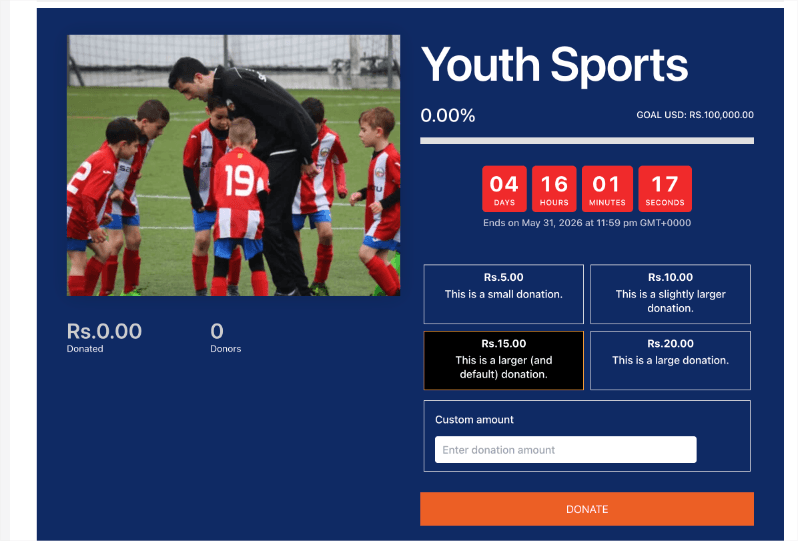
Astuce de pro : Placez le bloc Compte à rebours près du haut de la mise en page de votre campagne ou juste au-dessus du formulaire de don afin qu'il soit visible par les donateurs sans avoir à faire défiler.
Questions fréquemment posées
Pourquoi mon minuteur de compte à rebours ne s'affiche-t-il pas sur la page de campagne ?
Le minuteur nécessite une date de fin de campagne pour s'afficher. Accédez à Paramètres » Paramètres généraux dans le constructeur de campagne et assurez-vous qu'une date de fin est définie. Enregistrez la campagne après avoir ajouté la date.
Puis-je utiliser le minuteur de compte à rebours sur Charitable Lite ?
Non. Le minuteur de compte à rebours de campagne est disponible sur tous les plans Charitable Pro (Basic, Plus, Pro et Elite). Mettez à niveau vers Charitable Pro pour accéder à cette fonctionnalité.
Puis-je ajouter le minuteur de compte à rebours à plusieurs campagnes ?
Oui. Vous pouvez ajouter le bloc Compte à rebours à autant de campagnes que vous le souhaitez. Chaque campagne utilise sa propre date de fin indépendamment.
Que se passe-t-il avec le minuteur après la fin de la campagne ?
Cela dépend de votre paramètre « Quand la campagne se termine ». Vous pouvez choisir d'afficher un message expiré personnalisé, de figer le minuteur à zéro ou de le masquer entièrement.
Puis-je personnaliser les couleurs pour qu'elles correspondent à ma campagne ?
Oui. La section Couleurs du compte à rebours dans Options de mise en page vous permet de définir des couleurs distinctes pour les chiffres, les libellés, l'arrière-plan et la bordure de chaque boîte de minuteur. Aucune CSS requise.
C'est tout ! Vous avez appris à ajouter et configurer le compte à rebours de campagne sur vos campagnes Charitable.
Ensuite, vous voudrez peut-être aussi apprendre à définir des objectifs de dons ou à configurer les paramètres de votre campagne.
Si vous préférez les tutoriels vidéo, consultez notre chaîne YouTube ou regardez ci-dessous :
Restez connecté pour plus de ressources pour les organisations à but non lucratif
Pour plus de tutoriels et de vidéos adaptés aux organisations à but non lucratif, abonnez-vous à notre chaîne YouTube. Nous publions régulièrement des conseils d'experts, des guides étape par étape sur les dons en ligne, des stratégies de collecte de fonds et des ressources pratiques pour aider votre organisation à réussir.
🗞️ Recevez des conseils hebdomadaires et des guides exclusifs dans votre boîte de réception
Rejoignez notre newsletter →
🎥 Regardez des tutoriels étape par étape et des histoires de réussite
Abonnez-vous à notre chaîne YouTube →
👩🏽💻 Connectez-vous avec notre communauté et obtenez des informations quotidiennes sur les organisations à but non lucratif
Suivez-nous sur LinkedIn →
🥳 Reels amusants et informations sur les organisations à but non lucratif
Suivez-nous sur Instagram →
👀 Vidéos perspicaces et amusantes pour vous aider à développer votre cause
Suivez-nous sur TikTok→
🌎 Abonnez-vous et suivez pour des conseils généraux sur la collecte de fonds
Obtenez des conseils sur la collecte de fonds sur TikTok →
Ressources puissantes pour la collecte de fonds
⬇️ Téléchargez des stratégies éprouvées, des idées de campagnes et des outils d'experts
Obtenez le kit de collecte de fonds →
💸 Obtenez des ressources gratuites pour la collecte de fonds
Rendez-vous sur le Hub de collecte de fonds Charitable →
🤔 Des questions sur Charitable ?
FAQ Charitable →
🏎️ Essayez Charitable
Créez votre démo Charitable →
Comprendre les termes et le jargon des organisations à but non lucratif
Glossaire des organisations à but non lucratif→
% Vous recherchez des offres et des réductions pour les organisations à but non lucratif ?
Meilleures offres et réductions pour les organisations à but non lucratif →


