
Conexión de Automatización Benéfica te permite conectar Charitable con miles de otras aplicaciones utilizando plataformas de automatización de terceros como Zapier, Make.com o Zoho Flow.
Cómo instalar y activar el plugin Conexión de Automatización
Automation Connect es un plugin y se puede instalar de la misma manera que cualquier otra extensión de Charitable. Aquí tienes una guía rápida:
- Descarga tu extensión desde tu página de cuenta o el correo electrónico de tu recibo de compra.
- Ve a Plugins > Añadir nuevo en tu panel de WordPress.
- Haz clic en el botón Subir plugin en la parte superior de la página.
- Selecciona el archivo zip que descargaste en el paso 1 y haz clic en Instalar ahora.
- ¡Activa tu plugin!
¿Atascado? Consulta nuestra guía para instalar extensiones de Charitable para obtener un tutorial detallado paso a paso con capturas de pantalla que te ayudarán.
Entender las suscripciones de webhooks
Automation Connect se basa en suscripciones de webhooks. Entonces, ¿qué es una suscripción de webhook?
En resumen, una suscripción de webhook es una instrucción para Charitable de que deseas que la información (los datos) se envíe a una URL específica (la URL de entrega) cada vez que ocurra un evento determinado en tu sitio web (el evento disparador).
Por ejemplo, supongamos que utilizas un CRM como Salesforce. Cada vez que recibes una nueva donación, te gustaría que la información sobre esa donación se envíe a Salesforce.
En este escenario, los datos son tu donación e incluirán información como el importe de la donación, el nombre y la dirección de correo electrónico del donante, el estado de la donación y más. (Salta adelante si deseas ver toda la información que se envía para donaciones, donaciones recurrentes y campañas de Charitable).
El evento disparador es una nueva donación, aunque probablemente también querrás crear flujos de trabajo automatizados para gestionar cuándo se actualiza una donación, se mueve a la papelera o se restaura de la papelera.
Finalmente, la URL de entrega será un enlace único a una aplicación de automatización como Zapier, Make.com, Zoho Flow o cualquier otra aplicación que te permita configurar una URL de webhook. Luego puedes usar tu aplicación de automatización para tomar los datos recibidos de Charitable y enviarlos a Salesforce.
Cómo crear, editar o eliminar una suscripción de webhook
Consejo para usuarios de Zapier
Si estás utilizando Zapier, no necesitas preocuparte por gestionar las suscripciones de webhooks en tu panel de WordPress. Nuestra aplicación Zapier te permite gestionar todo esto desde el lado de Zapier.
Puedes crear, editar y eliminar suscripciones de webhooks yendo a Charitable > Ajustes > Avanzado.
Si te encuentras en la página de Plugins, puedes ir directamente a esta página haciendo clic en el enlace rápido “Suscripciones de Webhook” para el plugin Charitable Automation Connect.
Crear una suscripción de webhook
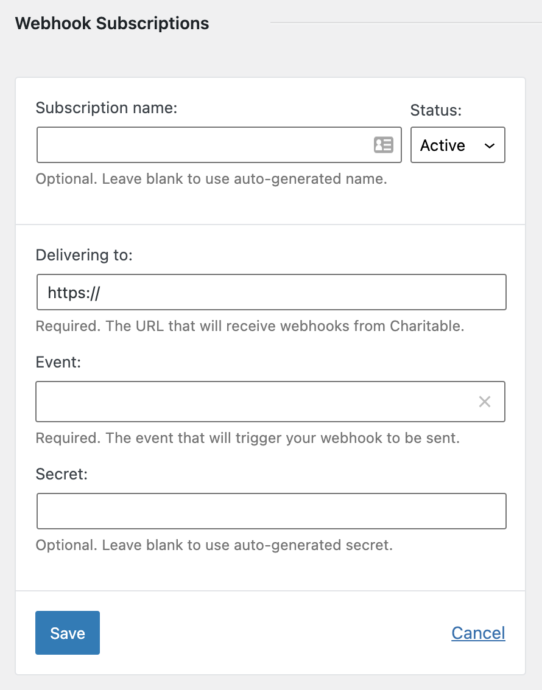
- Haz clic en Añadir suscripción de webhook para crear una nueva suscripción de webhook.
- Opcionalmente, puedes añadir un nombre descriptivo para tu suscripción. Por ejemplo, podrías llamarla “Donaciones a Make” para aclarar que es para enviar eventos de Donación a Make:
- Pega la URL de entrega. Esta es una URL única creada por tu aplicación de automatización.
- Elige el evento que activará tu webhook.
- Opcionalmente, establece una Clave secreta para usarla en el webhook. Déjalo en blanco para que Charitable genere una automáticamente.
- Haz clic en Guardar para crear la suscripción.
Editar o eliminar una suscripción de webhook
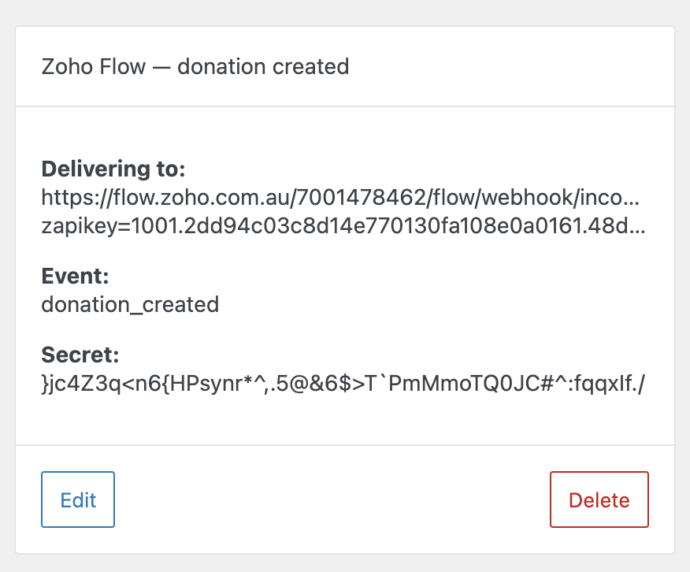
Una vez que hayas configurado una suscripción de webhook, puedes editarla haciendo clic en el botón Editar; esto abrirá el mismo formulario de suscripción de webhook que se utilizó al crear la suscripción.
Para eliminar la suscripción, haz clic en Eliminar y luego confirma la eliminación haciendo clic en Eliminar suscripción de webhook.
¡No lo olvides!
Cuando elimines una suscripción de webhook, también deberías eliminar el Zap/Escenario/Flujo/Bot que utiliza esta suscripción de webhook en tu aplicación de automatización para evitar cargos excesivos por parte de la plataforma de automatización.
Cómo conectar Zapier
Zapier es una aplicación que te permite mover automáticamente información entre diferentes aplicaciones. Se conecta a más de 3.000 aplicaciones.
Necesitarás una cuenta de Zapier para seguir estos próximos pasos. Haz clic aquí para registrarte.
La integración de Zapier de Charitable está actualmente en modo solo por invitación. Haz clic en el enlace de abajo para empezar a usarla:
https://zapier.com/developer/public-invite/145749/11b59eacc08b96703df9aa845a043b5d
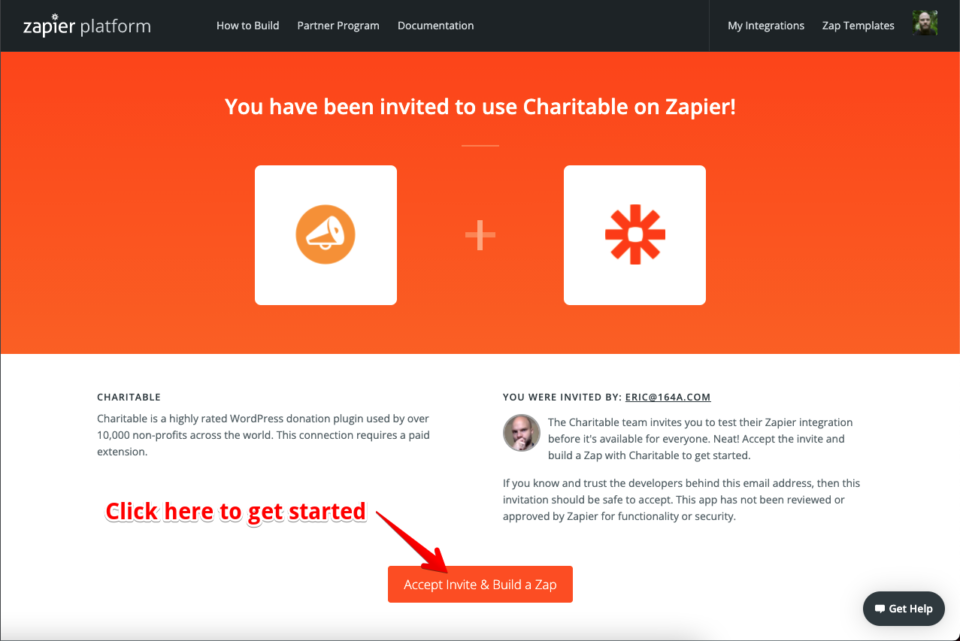
A continuación, haz clic en Aceptar invitación y crear un Zap para empezar a usar la integración, como se muestra a continuación:
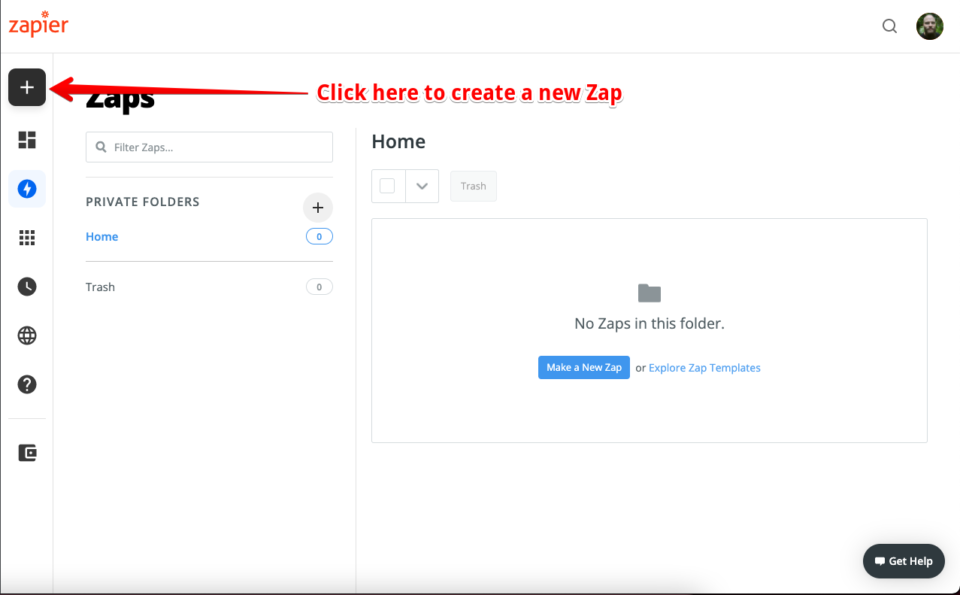
En el panel de control de Zapier, haz clic en el botón Crear Zap en el menú de la izquierda para crear un nuevo Zap. Si te encuentras en una pantalla más pequeña, el botón Crear Zap se reemplaza por un botón + grande:
Configurar un Zap para tu evento de Charitable
Un Zap requiere dos cosas:
- Un Disparador, que es el evento que inicia el flujo de trabajo automatizado
- Una Acción, que es la acción que tendrá lugar como resultado del evento
En nuestro caso, el Disparador será un evento de Charitable, como una nueva donación o una actualización de una campaña. Charitable no se puede utilizar para el paso de Acción.
1. Elige un evento de Charitable como el Disparador para tu Zap
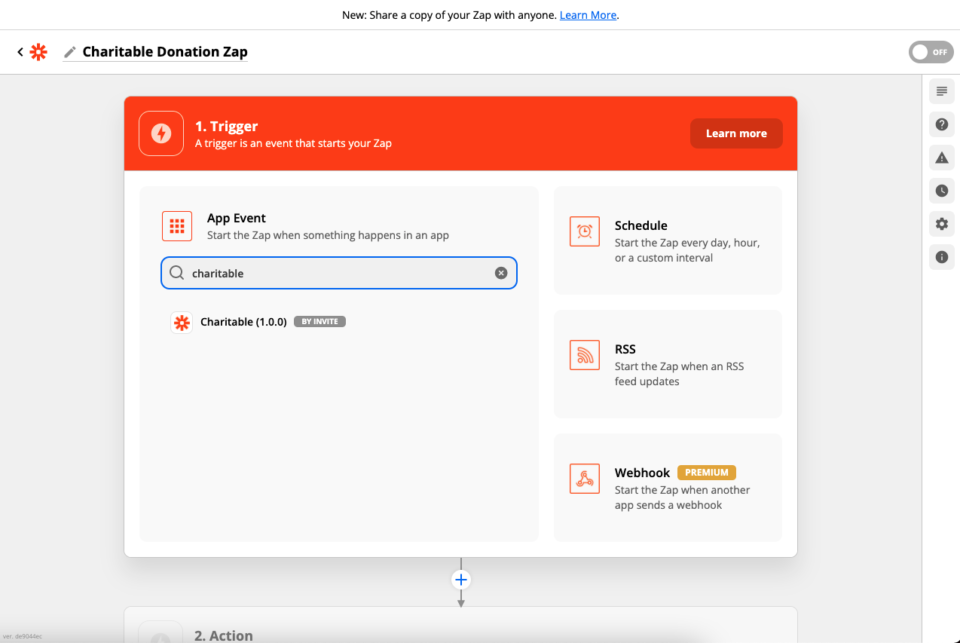
Dale un nombre a tu Zap y luego busca Charitable en el campo de búsqueda de aplicaciones:
Zapier te pedirá que elijas el Evento Disparador:
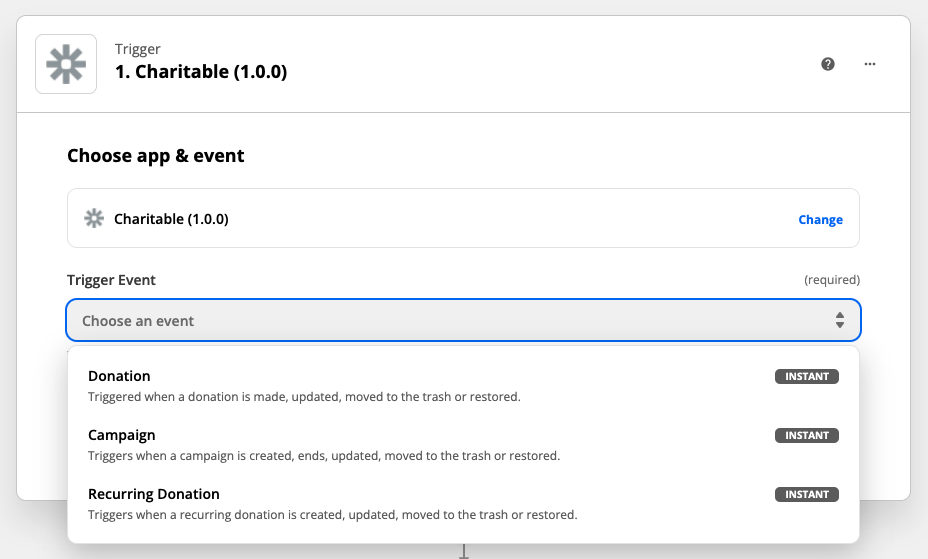
Una vez que hayas elegido un evento, haz clic en Continuar para pasar al siguiente paso.
2. Configura la conexión de Charitable
Si es la primera vez que creas un Zap con Charitable, necesitarás configurar la conexión de Charitable.
Haz clic en Iniciar sesión en Charitable para empezar:
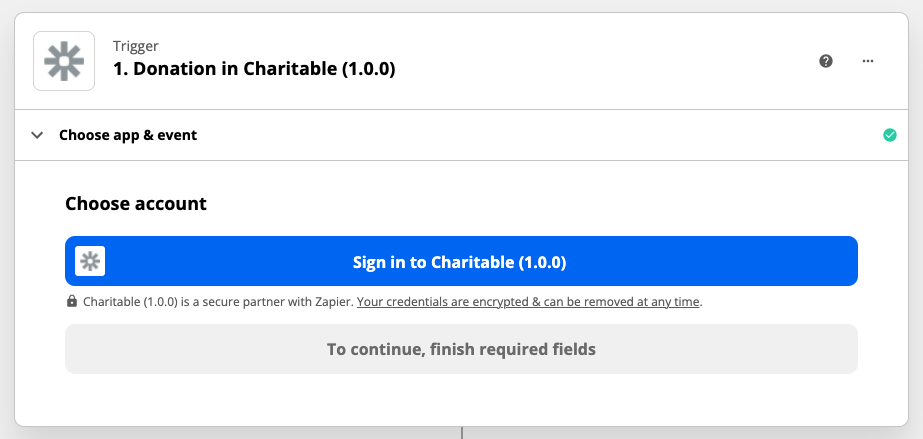
Se abrirá una nueva ventana con un formulario para que lo completes:
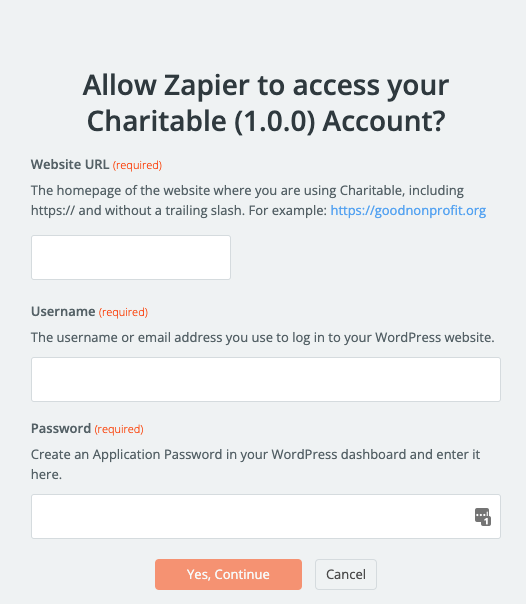
Hay tres campos que rellenar:
- La URL de tu sitio web. Esta es la URL del sitio web donde está instalado Charitable.
- Tu nombre de usuario para tu sitio web.
- Una Contraseña de Aplicación para tu cuenta en el sitio web.
Aunque también puedes usar la contraseña normal de tu sitio web, te recomendamos encarecidamente que crees una contraseña de aplicación, ya que esto mantiene tu contraseña normal más segura. Si no estás seguro de cómo crear una contraseña de aplicación, salta a las instrucciones paso a paso para crear una contraseña de aplicación.
Una vez que hayas conectado tu cuenta del sitio web, haz clic en Continuar para pasar al siguiente paso.
3. Configura un Evento Disparador específico
Anteriormente, elegiste el tipo de Disparador a usar para tu integración, basándote en el tipo de recurso: una Campaña, una Donación o una Donación Recurrente. Ahora necesitas elegir un evento específico relacionado con ese recurso.
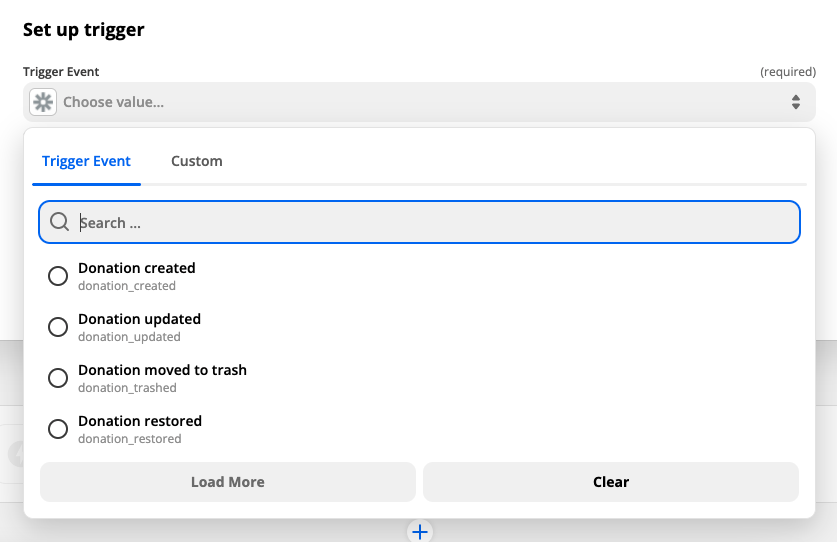
Después de elegir uno, haz clic en Continuar.
4. Prueba el disparador
Finalmente, puedes probar el Disparador haciendo clic en Probar Disparador. Esto asegurará que todo esté configurado correctamente y también te proporcionará datos de ejemplo para mostrarte qué se incluirá en la información enviada a Zapier por Charitable.
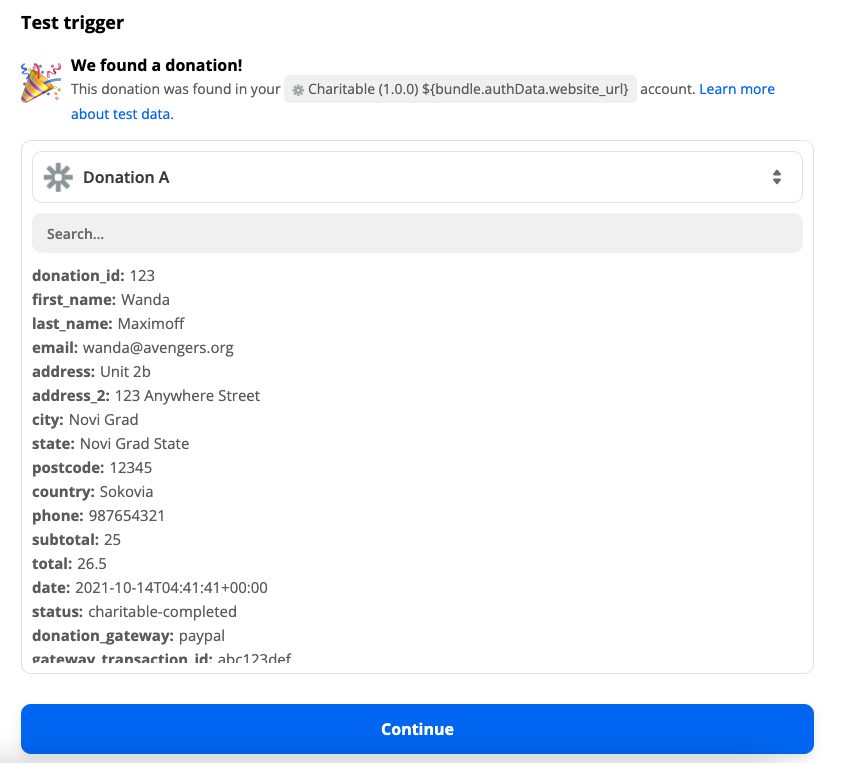
Suponiendo que todo se configuró correctamente, haz clic en Continuar para pasar al paso de configuración de Acción para tu Zap.
5. Configura la Acción para tu Zap
El paso final es crear una Acción para tu Zap.
Hay miles de maneras diferentes en las que puedes usar Zapier y Charitable juntos para automatizar flujos de trabajo para tu organización sin fines de lucro. Aquí tienes algunos ejemplos:
- Añadir donaciones a un CRM como Salesforce.
- Añadir donaciones a una Hoja de Cálculo de Google.
- Añadir creadores de campañas o donantes a una lista especial en tu proveedor de marketing por correo electrónico (si no es uno que ya soportamos con nuestro plugin Newsletter Connect).
- Configurar un evento en Google Calendar para registrar cuándo finaliza una campaña.
- Enviar un correo electrónico después de que se crea una donación o cuando se añade una campaña.
Al configurar la Acción, podrás seleccionar los datos de Charitable que deseas utilizar.
Por ejemplo, en la captura de pantalla a continuación, se añaden nuevas donaciones a una Hoja de Cálculo de Google. Los campos "ID de donación" y "Nombre del donante" corresponden a las columnas de la Hoja de Cálculo de Google que creé, y puedo elegir de los datos de Charitable qué debe ir en cada columna:
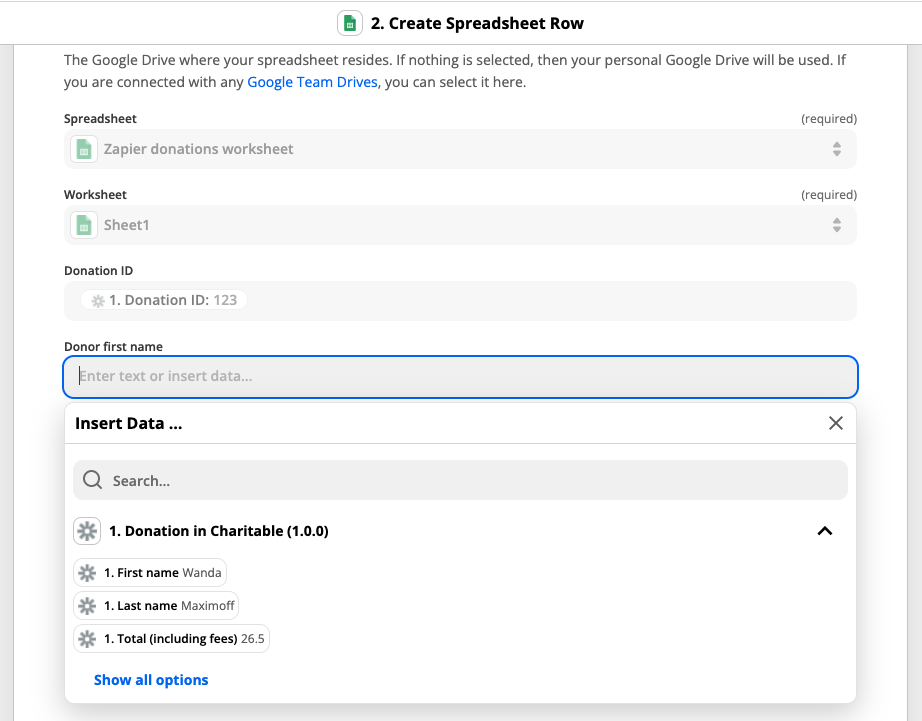
Si eres nuevo en Zapier, puedes seguir esta guía detallada para configurar Acciones de Zap.
6. Activa tu Zap
Después de haber terminado de configurar tu Acción, haz clic en Probar y Continuar para probarla y asegurarte de que todo funciona como deseas.
Si es así, el último paso es activar el Zap haciendo clic en Activar Zap.
Próximos pasos con Zapier
Esta guía ha cubierto los conceptos básicos de la creación de un Zap configurando un Disparador y una Acción. Hay mucho más que puedes hacer con Zapier. Aquí tienes algunos ejemplos de cómo puedes personalizar tus Zaps, con enlaces a la documentación de Zapier:
- Añadir condiciones a tu Zap
- Añadir lógica de ramificación a tu Zap
- Añadir retrasos a los Zaps
- Formatear los datos entrantes de diferentes maneras
Cómo integrar con otras aplicaciones de automatización
Automation Connect está diseñado para funcionar junto con cualquier aplicación de automatización que te permita configurar una suscripción a webhooks. Aquí tienes algunos ejemplos de aplicaciones que puedes usar en lugar de Zapier:
- Hacer
- Zoho Flow
Hacer
Puedes integrar Charitable con Make creando un Escenario y utilizando el módulo “Webhooks” con la opción de activación “Webhook personalizado”:
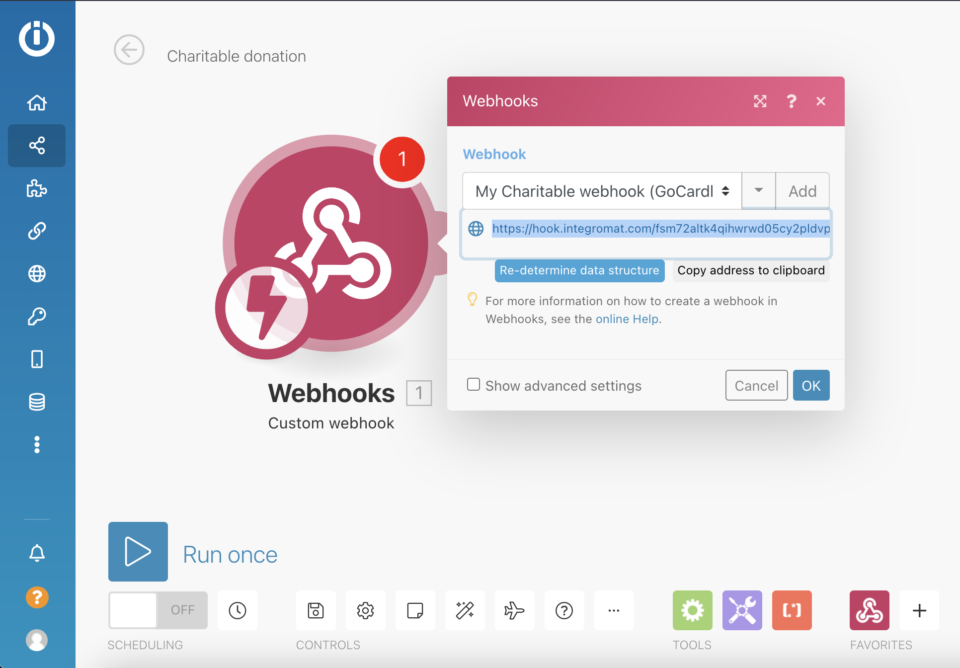
Después de configurar esto, copia la dirección del webhook y úsala como la “URL de entrega” al crear una Suscripción de Webhook en tu configuración de Charitable.
Zoho Flow
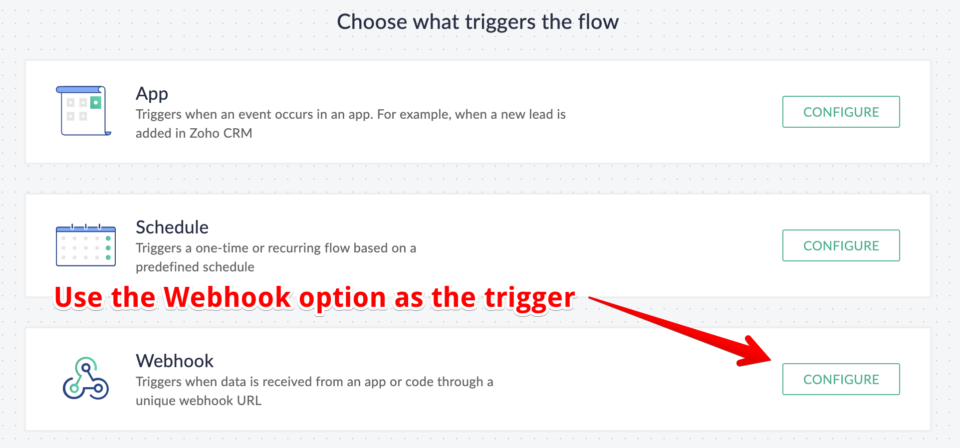
En Zoho Flow, crea un nuevo Flujo. Después de establecer un título y una descripción, elige “Webhook” como la opción de activación:
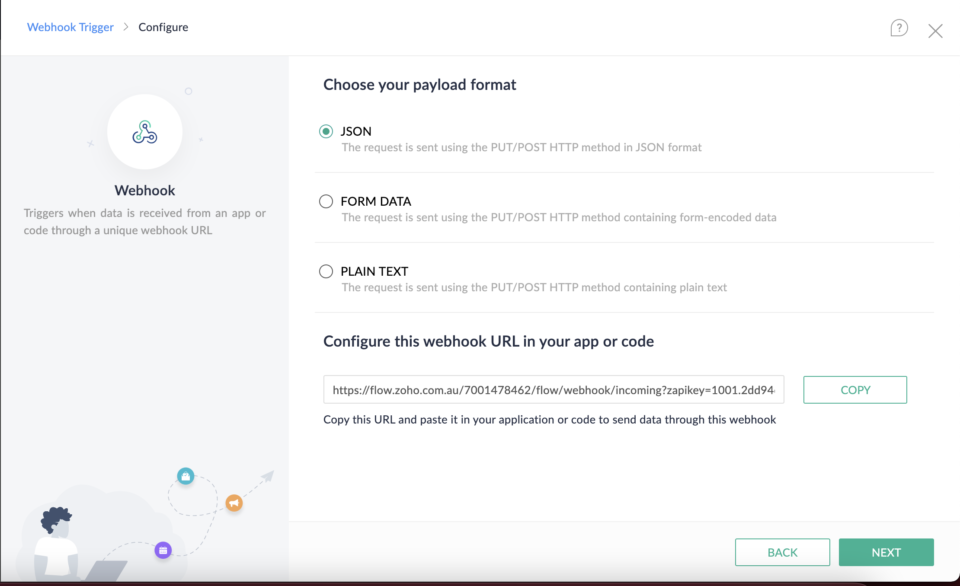
En la siguiente página, deja el formato del payload configurado como JSON. Copia la URL del webhook en la parte inferior y úsala como la “URL de entrega” al configurar una nueva Suscripción de Webhook en Charitable:
¿Cómo creo una Contraseña de Aplicación para mi integración?
Puedes crear una Contraseña de Aplicación en tu panel de WordPress.
- Ve a tu página de Perfil haciendo clic en Usuarios > Perfil en el menú de la izquierda. También puedes llegar haciendo clic en tu foto de perfil en la esquina superior derecha de la página y luego haciendo clic en Editar Perfil.
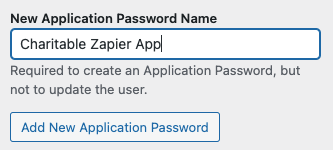
- Desplázate hacia abajo hasta la sección “Contraseñas de Aplicación”. Dale a tu Contraseña de Aplicación un nombre único para indicar cómo se usa y luego haz clic en Añadir Nueva Contraseña de Aplicación.
- Copia y pega la Contraseña de Aplicación y guárdala en un lugar seguro. No podrás acceder a la contraseña de nuevo:

¿Qué información envía Charitable a los webhooks?
Charitable envía información sobre tres tipos de recursos:
- Donaciones
- Donaciones recurrentes
- Campañas
La información incluida dependerá de qué otras extensiones de Charitable tengas instaladas.
Donaciones
| Clave de campo | Descripción | Disponibilidad |
|---|---|---|
| donation_id | ID de donación | Núcleo |
| nombre | Nombre del donante | Núcleo |
| apellido | Apellido del donante | Núcleo |
| correo electrónico | Dirección de correo electrónico del donante | Núcleo |
| direccion | Dirección del donante | Núcleo |
| direccion_2 | Línea 2 de la dirección del donante | Núcleo |
| ciudad | Ciudad del donante | Núcleo |
| provincia | Provincia/Estado del donante | Núcleo |
| codigo_postal | Código postal del donante | Núcleo |
| pais | País del donante | Núcleo |
| telefono | Número de teléfono del donante | Núcleo |
| subtotal | Importe de la donación, excluyendo las comisiones | Núcleo |
| total | Importe total de la donación, incluidas las comisiones | Núcleo |
| fecha | Fecha de la donación | Núcleo |
| estado | Estado de la donación | Núcleo |
| pasarela_donacion | Pasarela de pago utilizada | Núcleo |
| id_transaccion_pasarela | Identificador o referencia de la pasarela de pago para la donación | Núcleo |
| modo_prueba | Si la donación se realizó en Modo de Prueba | Núcleo |
| consentimiento_contacto | El estado de Consentimiento de Contacto del donante | Núcleo |
| cubrir_comisiones | Si el donante eligió cubrir las comisiones | Alivio de comisiones |
| importe_comision | La tarifa cubierta por el donante. | Alivio de comisiones |
| consentimiento para rastrear | Si el donante dio su consentimiento para ser rastreado (solo se aplica si se utiliza Campaign Monitor) | Conexión con Boletines |
| Boletín de noticias | Si el donante se suscribió para recibir el boletín informativo | Conexión de boletín |
| ID de cliente de GoCardless | El ID de cliente del donante en GoCardless | GoCardless |
| ID de mandato de GoCardless | El ID de mandato de GoCardless utilizado para la donación | GoCardless |
| Gift Aid reclamado | Si el donante reclamó Gift Aid | Gift Aid |
| título | Título del donante | Gift Aid |
| dirección 3 | 3ª línea de la dirección del donante | Gift Aid |
| donación anónima | Si el donante eligió permanecer en el anonimato | Donaciones anónimas |
| comentario del donante | El comentario del donante | Comentarios de Donantes |
Donaciones recurrentes
El disparador de Donación Recurrente solo está disponible si está utilizando el plugin de Donaciones Recurrentes.
| Clave de campo | Descripción | Disponibilidad |
|---|---|---|
| ID de donación recurrente | ID de donación recurrente | Donaciones recurrentes |
| ID de la primera donación | ID de la donación inicial | Donaciones recurrentes |
| Subtotal recurrente | El importe donado de forma regular (excluyendo comisiones) | Donaciones recurrentes |
| Total recurrente | El importe donado de forma regular (incluyendo comisiones) | Donaciones recurrentes |
| periodo_recurrente | Período de donación recurrente (mes, semana, anual, etc.) | Donaciones recurrentes |
| Intervalo recurrente | Número de períodos entre donaciones recurrentes | Donaciones recurrentes |
| Duración recurrente | Número total de veces para renovar la donación recurrente | Donaciones recurrentes |
| Fecha de expiración recurrente | Fecha en la que caducará la donación recurrente | Donaciones recurrentes |
| Fecha de renovación recurrente | Fecha en la que la donación recurrente se renovará la próxima vez | Donaciones recurrentes |
| ID de suscripción de la pasarela | ID de suscripción / referencia de la pasarela de pago | Donaciones recurrentes |
| donation_id | ID de donación | Núcleo |
| nombre | Nombre del donante | Núcleo |
| apellido | Apellido del donante | Núcleo |
| correo electrónico | Dirección de correo electrónico del donante | Núcleo |
| direccion | Dirección del donante | Núcleo |
| direccion_2 | Línea 2 de la dirección del donante | Núcleo |
| ciudad | Ciudad del donante | Núcleo |
| provincia | Provincia/Estado del donante | Núcleo |
| codigo_postal | Código postal del donante | Núcleo |
| pais | País del donante | Núcleo |
| telefono | Número de teléfono del donante | Núcleo |
| subtotal | Importe de la donación, excluyendo las comisiones | Núcleo |
| total | Importe total de la donación, incluidas las comisiones | Núcleo |
| fecha | Fecha de la donación | Núcleo |
| estado | Estado de la donación | Núcleo |
| pasarela_donacion | Pasarela de pago utilizada | Núcleo |
| id_transaccion_pasarela | Identificador o referencia de la pasarela de pago para la donación | Núcleo |
| modo_prueba | Si la donación se realizó en Modo de Prueba | Núcleo |
| consentimiento_contacto | El estado de Consentimiento de Contacto del donante | Núcleo |
| cubrir_comisiones | Si el donante eligió cubrir las comisiones | Alivio de comisiones |
| importe_comision | La tarifa cubierta por el donante. | Alivio de comisiones |
| donación anónima | Si el donante eligió permanecer en el anonimato | Donaciones anónimas |
| comentario del donante | El comentario del donante | Comentarios de Donantes |
Campañas
| Clave de campo | Descripción | Disponibilidad |
|---|---|---|
| id_campaña | ID de la campaña | Núcleo |
| description | Descripción corta | Núcleo |
| Objetivo | Objetivo de recaudación de fondos | Núcleo |
| Fecha de finalización | Fecha de fin de la campaña | Núcleo |
| título | Título de la campaña | Núcleo |
| fecha | Fecha de creación de la campaña | Núcleo |
| ID del creador de la campaña | ID de usuario del creador de la campaña | Núcleo |
| Nombre del creador de la campaña | Nombre completo del creador de la campaña | Núcleo |
| Correo electrónico del creador de la campaña | Dirección de correo electrónico del creador de la campaña | Núcleo |
| Monto donado | Cantidad donada a la campaña | Núcleo |
| Número de donantes | Número de donantes únicos a la campaña | Núcleo |
| estado | Estado de la campaña | Núcleo |
| Enlace permanente | URL de la campaña | Núcleo |
| Destinatario | Tipo de campaña. Una de: – embajador (campaña para tu organización) – recaudador (recaudador para otra campaña) – personal (campaña de causa personal) | Embajadores |
| Elemento padre | ID de la campaña principal, o 0 si no es una recaudación de fondos | Embajadores |
| Tipo de recaudador | Tipo de recaudación de fondos, o false si no es una recaudación de fondos. Uno de: – Miembro de equipo – Equipo – Individual | Embajadores |
| Se requiere acción del creador | Una acción requerida del creador de la campaña antes de que su campaña pueda ser activada. | Embajadores |
| Correo electrónico del creador de la campaña enviado | La dirección de correo electrónico utilizada por la persona que envió la campaña. Es la misma que el campo campaign_creator_email, a menos que se trate de una campaña de Miembro de equipo añadida por el capitán del equipo. | Embajadores |
| Admite sub-campañas | Si la campaña admite recaudaciones de fondos. | Embajadores |
| id_equipo | El ID del equipo al que pertenece esta recaudación de fondos, o 0 si no forma parte de un equipo. | Embajadores |
| nombre_del_equipo | El nombre del equipo al que pertenece esta recaudación de fondos. | Embajadores |
| id_capitan_equipo | El ID de usuario del capitán del equipo al que pertenece esta recaudación de fondos, o null si no forma parte de un equipo. | Embajadores |


