
Wenn Sie viele Kampagnen durchführen, müssen Sie möglicherweise kampagnenspezifischen Text zu Ihren Spendenquittungs-E-Mails hinzufügen. Charitable unterstützt dies nicht von Haus aus, aber dank der Flexibilität des zugrunde liegenden Codes ist es möglich, dies zu ermöglichen.
Die Lösung
Um dieses Problem zu lösen, fügen wir dem Kampagnen-Editor im WordPress-Dashboard ein neues Feld hinzu. Dieses Feld ermöglicht es Ihnen, Inhalte hinzuzufügen.
Zusätzlich fügen wir einen neuen E-Mail-Tag hinzu, der zu jeder Spenden-E-Mail, einschließlich der Spendenquittung, hinzugefügt werden kann.
Das Beste daran ist, dass wir all dies mit nur zwei PHP-Funktionen erreichen können! Sehen wir uns an, wie.
Schritt 1: Unsere Funktion hinzufügen
Zuerst fügen wir eine PHP-Funktion hinzu, die aufgerufen wird, wenn der init-Hook innerhalb von WordPress aufgerufen wird. init ist ein Hook, der frühzeitig während des Ladens von WordPress aufgerufen wird, bevor die Seite mit dem Rendern beginnt.
add_action( 'init', function() {
    // Our code will go in here.
} );
Beachten Sie, dass wir in diesem Beispiel eine sogenannte anonyme Funktion erstellen; im Wesentlichen ist dies eine unbenannte Funktion. Dies ist in Ordnung, solange Sie eine PHP-Version größer als 5.2 verwenden.
Sie sind sich nicht sicher, wie Sie Code zu Ihrer Website hinzufügen können? Hier ist unser Leitfaden zu drei verschiedenen Möglichkeiten, wie Sie benutzerdefinierten Code zu Ihrer Website hinzufügen können.
Schritt 2: Das Feld zum Kampagnen-Editor hinzufügen
Seit Version 1.6 enthält Charitable eine API namens Campaign Fields API, die eine einfache Möglichkeit bietet, neue Felder zum Kampagnen-Editor hinzuzufügen. Dies folgte auf die Donation Fields API, die wir in Version 1.5 hinzugefügt haben.
Unser nächster Schritt ist die Verwendung der Campaign Fields API, um unser benutzerdefiniertes Feld zum Kampagnen-Editor hinzuzufügen:
add_action( 'init', function() {

    /**
     * Create a new field as an instance of `Charitable_Campaign_Field`.
     *
     * See all available arguments at:
     *
     * @https://github.com/Charitable/Charitable/blob/ef9a468fbdd6fa83307abe6ac0c38896f625cf45/includes/fields/class-charitable-campaign-field.php
    */
    $campaign_field = new Charitable_Campaign_Field( 'campaign_email_content', array(
       'label' => 'Donation Email Content',
       'data_type' => 'meta',
       'admin_form' => array(
          'type' => 'textarea',
          'required' => false,
       ),
   ) );

    /**
     * Now, we register our new field.
     */
    charitable()->campaign_fields()->register_field( $campaign_field );

} );
In diesem Code erstellen wir zuerst ein neues Feld, indem wir ein Charitable_Campaign_Field-Objekt erstellen. Wir übergeben zwei Parameter beim Erstellen dieses Objekts:
– Ein Schlüssel – campaign_email_content
– Ein Array von Argumenten
Wir verwenden nur eine Teilmenge aller Argumente, die bei der Registrierung eines Kampagnenfeldes möglich sind. Um andere verfügbare Argumente zu sehen, lesen Sie die vollständige Inline-Dokumentation auf Github.
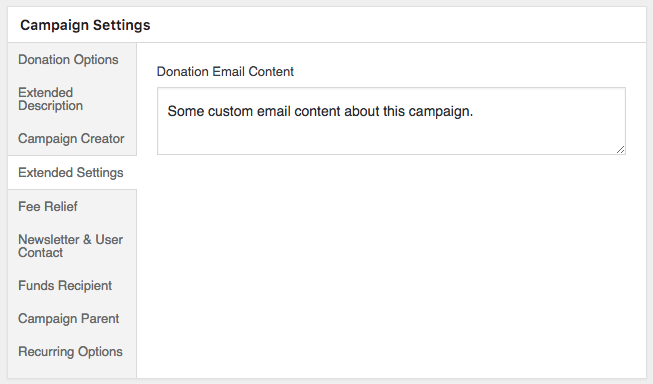
Wenn wir eine neue Kampagne hinzufügen oder eine bestehende bearbeiten, sehen wir nun ein Panel "Erweiterte Einstellungen" und darin ein Feld "Spenden-E-Mail-Inhalt".
Schritt 3: Einen Spenden-E-Mail-Tag hinzufügen
Nachdem wir nun unser Kampagnenfeld eingerichtet haben, besteht der nächste Schritt darin, einen neuen E-Mail-Tag für Spenden zu erstellen. Es gibt verschiedene Möglichkeiten, dies zu tun. Eine Option ist die Verwendung der Donation Fields API, um ein neues Spendenfeld zu registrieren und automatisch einen E-Mail-Tag dafür hinzuzufügen. Dies wäre angebracht, wenn wir das Feld an mehreren Stellen verwenden möchten, z. B. im Spendenexport oder innerhalb der Spenden-Metadaten.
In unserem Fall möchten wir nur einen E-Mail-Tag, also registrieren wir nur diesen. Der erste Schritt ist die Erstellung einer neuen Funktion, die auf dem charitable_email_donation_fields Filter-Hook aufgerufen wird:
/**
 * We create a new function that will be called on the `charitable_email_donation_fields` filter.
 *
 * This function accepts two parameters:
 *
 * @param array $fields All registered donation email fields.
 * @param Charitable_Donation|null $donation When an email is being sent, this will be an instance of `Charitable_Donation`. Otherwise it's null.
 */
add_filter( 'charitable_email_donation_fields', function( $fields, $donation ) {
    Add our field here.
}, 10, 2 );
Wie bei unserer obigen Funktion handelt es sich hierbei um eine anonyme Funktion. Diese akzeptiert jedoch ein paar Parameter. Da wir zwei Parameter verwenden möchten, müssen wir dies in der letzten Codezeile angeben, wo wir eine Priorität von 10 und die Anzahl der Parameter, 2, übergeben.
Als Nächstes erstellen wir in unserer Funktion eine Variable namens $field, die das Feld definiert.
/**
 * Define our field as an array.
 */
$field = array(
    'description' => 'Campaign-specific content',
    'preview' => 'This is some campaign-specific content.',
);
Bisher werden hier nur eine Beschreibung und ein reiner Vorschlagswert für das Feld festgelegt. Der Vorschlagswert ist das, was Sie anstelle des E-Mail-Shortcodes sehen, wenn Sie im E-Mail-Fenster auf die Schaltfläche „E-Mail vorschauen“ klicken.
Unser nächster Schritt ist es, den Wert zu erhalten, der angezeigt werden soll, wenn eine E-Mail gesendet wird:
/**
 * When this filter is called with a Donation object, we need to set
 * the `value` of the field to the campaign content. The rest of the
 * time, we don't need a `value` parameter.
 */
if ( ! is_null( $donation ) ) {
    /**
     * Get the campaign that received the donation.
     */
    $campaign_id = current( $donation->get_campaign_donations() )->campaign_id;
    $campaign = charitable_get_campaign( $campaign_id );

    /**
     * Set the `value` of our field to the campaign's email content.
     */
    $field['value'] = $campaign->get( 'campaign_email_content' );
}
In diesem Code prüfen wir zuerst, ob der Parameter $donation null ist. Wir müssen dies prüfen, da dieser Filter (charitable_email_donation_fields) nicht nur aufgerufen wird, wenn eine Spenden-E-Mail gesendet wird, sondern auch zu anderen Zeiten. Wenn Sie beispielsweise die E-Mail-Einstellungen für die Spendenquittungs-E-Mail aufrufen, wird dieser Filter aufgerufen, um eine vollständige Liste der Spenden-E-Mail-Felder abzurufen.
Wenn wir wissen, dass $donation nicht null ist, können wir die Kampagnen-ID mithilfe der Methode $donation->get_campaign_donations() abrufen. Diese gibt uns eine Reihe von Zeilen, die alle Kampagnenspenden enthalten, die mit einer bestimmten Spende verknüpft sind. Sofern Sie nicht programmatisch Spenden erstellen oder unsere Easy Digital Downloads Connect-Integration verwenden, gibt es nur eine Zeile. Wir rufen also die erste Zeile mit current() ab und dann die Eigenschaft campaign_id daraus.
$campaign_id = current( $donation->get_campaign_donations() )->campaign_id;
Mit der $campaign_id in der Hand können wir charitable_get_campaign( $campaign_id ) aufrufen, um das Charitable_Campaign-Objekt zu erhalten.
$campaign = charitable_get_campaign( $campaign_id );
Wir setzen dann den value-Eigenschaft unseres Feldes auf den Wert des campaign_email_content-Feldes der Kampagne – das, das wir in Schritt 2 oben registriert haben.
$field['value'] = $campaign->get( 'campaign_email_content' );
Schließlich fügen wir unser Feld zum $fields-Array hinzu und geben $fields zurück, wobei unser benutzerdefiniertes Feld enthalten ist.
$fields['campaign_content'] = $field;

return $fields;
Schritt 4: Fügen Sie den Shortcode zum E-Mail-Inhalt hinzu
Wenn Sie bisher mitgearbeitet haben, sollten Sie nun den folgenden Code haben:
/**
 * We are creating a function which will be called on the `init` hook.
 */
add_action( 'init', function() {

	/**
	 * Create a new field as an instance of `Charitable_Campaign_Field`.
	 *
	 * See all available arguments at:
	 *
	 * @https://github.com/Charitable/Charitable/blob/ef9a468fbdd6fa83307abe6ac0c38896f625cf45/includes/fields/class-charitable-campaign-field.php
	 */
	$campaign_field = new Charitable_Campaign_Field( 'campaign_email_content', array(
		'label'      => 'Donation Email Content',
		'data_type'  => 'meta',
		'admin_form' => array(
			'type'     => 'textarea',
			'required' => false,
		),
	) );

	/**
	 * Now, we register our new field.
	 */
	charitable()->campaign_fields()->register_field( $campaign_field );

} );

/**
 * We create a new function that will be called on the `charitable_email_donation_fields` filter.
 *
 * This function accepts two parameters and must return an array.
 *
 * @param array                    $fields   All registered donation email fields.
 * @param Charitable_Donation|null $donation When an email is being sent, this will be an instance of `Charitable_Donation`. Otherwise it's null.
 */
add_filter( 'charitable_email_donation_fields', function( $fields, $donation ) {
	/**
	 * Define our field as an array.
	 */
	$field = array(
		'description' => 'Campaign-specific content',
		'preview'     => 'This is some campaign-specific content.',
	);

	/**
	 * When this filter is called with a Donation object, we need to set
	 * the `value` of the field to the campaign content. The rest of the
	 * time, we don't need a `value` parameter.
	 */
	if ( ! is_null( $donation ) ) {
		/**
		 * Get the campaign that received the donation.
		 */
		$campaign_id = current( $donation->get_campaign_donations() )->campaign_id;
		$campaign    = charitable_get_campaign( $campaign_id );

		/**
		 * Set the `value` of our field to the campaign's email content.
		 */
		$field['value'] = $campaign->get( 'campaign_email_content' );
	}

	/**
	 * Finally, we add our new field to the `$fields` array.
	 *
	 * The key used here (`campaign_content`) will become the email tag
	 * key, so the email tag would be shown like this:
	 *
	 * [charitable_email show=campaign_content]
	 */
	$fields['campaign_content'] = $field;

	return $fields;

}, 10, 2 );
Hier sind nur zwei Funktionen enthalten, aber zusammen erledigen sie alles, was wir von ihnen brauchen.
Der letzte Schritt ist das Hinzufügen des E-Mail-Shortcodes zum E-Mail-Text, was im Bereich E-Mail-Einstellungen erfolgen kann:
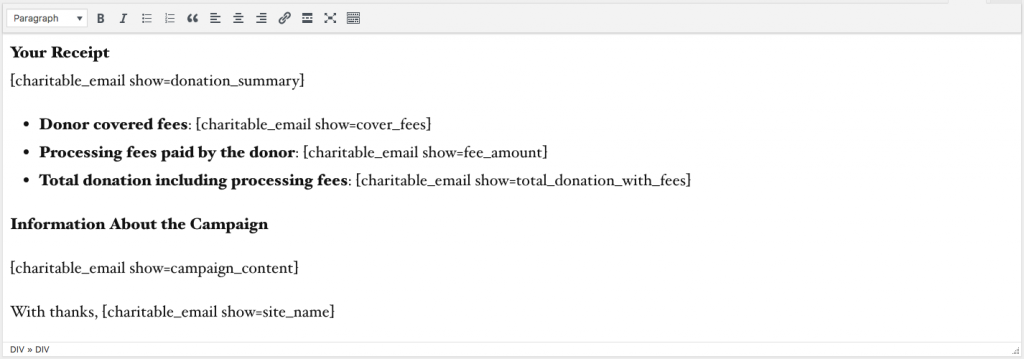
Sobald Sie dies getan haben, testen Sie alles, indem Sie eine Ihrer Kampagnen bearbeiten, einige Kampagneninhalte festlegen und schließlich eine Testspende zur Kampagne hinzufügen. Die E-Mail sollte Ihren benutzerdefinierten, kampagnenspezifischen Inhalt enthalten.
Bonus-Tipp: Easy Digital Downloads E-Mail-Tag hinzufügen
Wenn Sie unsere Easy Digital Downloads Connect-Erweiterung verwenden und Ihre kampagnenspezifischen Inhalte in den Kauf-E-Mails von EDD anzeigen möchten, können Sie den Code aus diesem Gist einfügen:
Original-Gist auf GitHub ansehen →
Hat Ihnen das gefallen?
Ich plane, weitere Tutorials wie dieses zu schreiben, um verschiedene Möglichkeiten zu veranschaulichen, wie Sie Charitable an Ihre Bedürfnisse anpassen und optimieren können. Dieses Tutorial wurde insbesondere als Antwort auf die Anfrage eines Benutzers verfasst. Wenn Sie also eine Idee für ein Thema haben, das ich in Zukunft behandeln soll, senden Sie uns eine E-Mail über unsere Support-Seite oder hinterlassen Sie einen Kommentar unten.






Hinterlassen Sie eine Antwort