
Möchten Sie Besuchern genau zeigen, wie viel Zeit verbleibt, bevor Ihre Kampagne endet? Der Kampagnen-Countdown-Timer fügt jeder Charitable-Kampagnenseite einen Live-Echtzeit-Countdown hinzu – der Tage, Stunden, Minuten und Sekunden bis zum Enddatum Ihrer Kampagne anzeigt.
Inhaltsverzeichnis
- Voraussetzungen
- Hinzufügen des Countdown-Timers zu Ihrer Kampagne
- Festlegen des Kampagnen-Enddatums
- Konfigurieren des Timers
- So erscheint der Timer für Spender
- Häufig gestellte Fragen
Voraussetzungen
Der Kampagnen-Countdown-Timer ist in allen Charitable Pro-Tarifen verfügbar: Basic, Plus, Pro und Elite. Er ist nicht in Charitable Lite verfügbar.
Wichtig: Ihre Kampagne muss ein Enddatum festgelegt haben, bevor der Timer im Frontend angezeigt wird. Wenn kein Enddatum konfiguriert ist, wird der Timer-Block im Kampagnen-Builder angezeigt, ist aber für Besucher nicht sichtbar.
Mehr erfahren über Kampagnen-Countdown »
Hinzufügen des Countdown-Timers zu Ihrer Kampagne
- Gehen Sie in Ihrem WordPress-Dashboard zu Charitable » Kampagnen und öffnen Sie die Kampagne, die Sie bearbeiten möchten.
- Suchen Sie im Kampagnen-Builder das Bedienfeld Layout hinzufügen auf der linken Seite des Bildschirms.
- Scrollen Sie nach unten zum Abschnitt Pro und klicken Sie auf Countdown. Der Timer-Block wird Ihrer Kampagnen-Leinwand hinzugefügt.
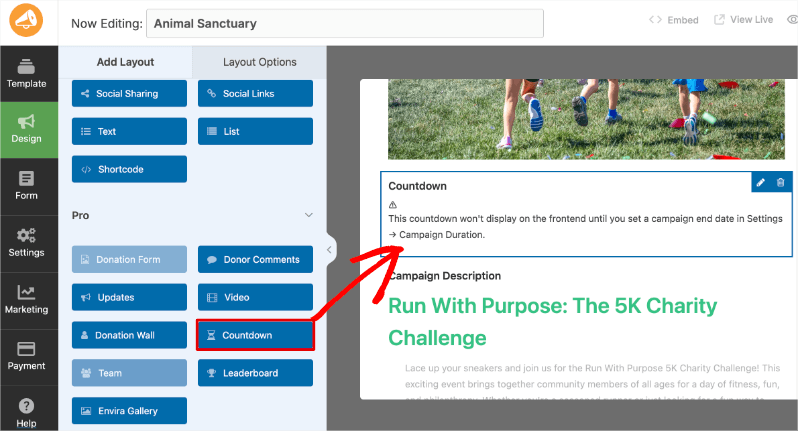
Hinweis: Nachdem Sie den Block hinzugefügt haben, sehen Sie möglicherweise die Meldung „Dieser Countdown wird erst im Frontend angezeigt, wenn Sie ein Kampagnen-Enddatum unter Einstellungen » Kampagnendauer festlegen.“ Im nächsten Abschnitt erfahren Sie, wie Sie Ihr Enddatum festlegen.
Festlegen des Kampagnen-Enddatums
Der Countdown-Timer liest automatisch das Enddatum Ihrer Kampagne aus. Wenn Sie noch keines festgelegt haben:
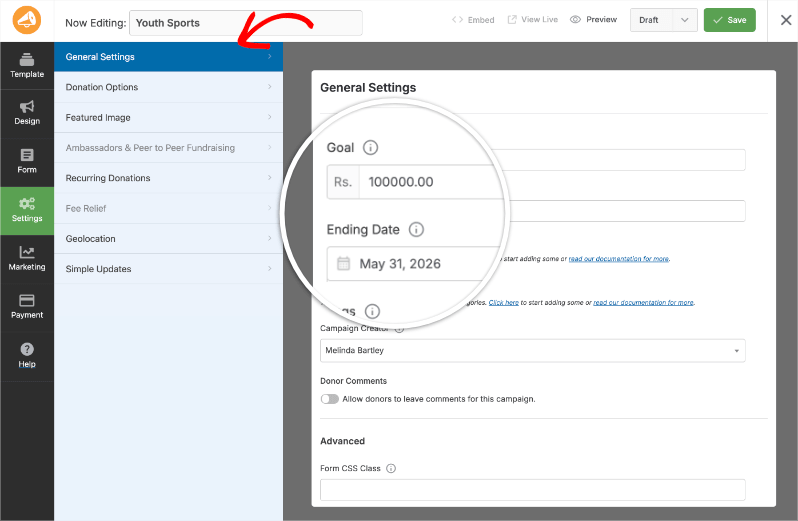
- Klicken Sie im Kampagnen-Builder in der linken Seitenleiste auf Einstellungen.
- Öffnen Sie Allgemeine Einstellungen.
- Klicken Sie auf das Feld Enddatum und wählen Sie das Enddatum Ihrer Kampagne aus.
- Speichern Sie Ihre Änderungen mit der Schaltfläche in der oberen rechten Ecke. Der Timer spiegelt nun das von Ihnen festgelegte Enddatum wider.
Konfigurieren des Timers
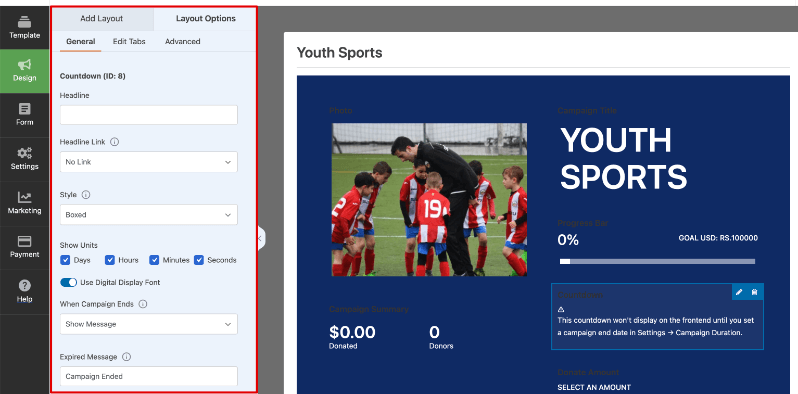
Um auf die Timer-Einstellungen zuzugreifen, klicken Sie auf den Countdown-Block auf der Kampagnen-Leinwand und dann im linken Bedienfeld auf Layout-Optionen. Alle Einstellungen befinden sich unter der Registerkarte Allgemein.
Feiereffekt
Dies zeigt einen animierten Effekt im Frontend an, wenn die Kampagne endet.
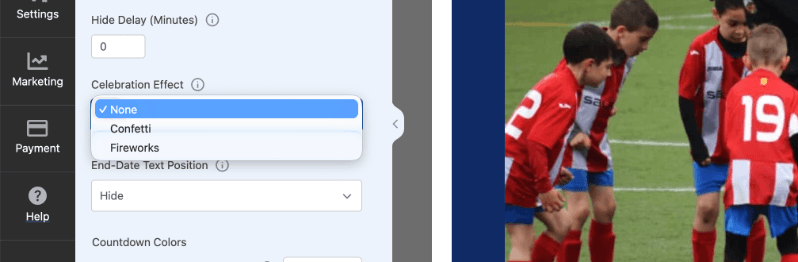
Sie können wählen, ob Sie Folgendes anzeigen möchten:
- Keine: Keine Animation wird abgespielt, wenn die Kampagne endet (Standard)
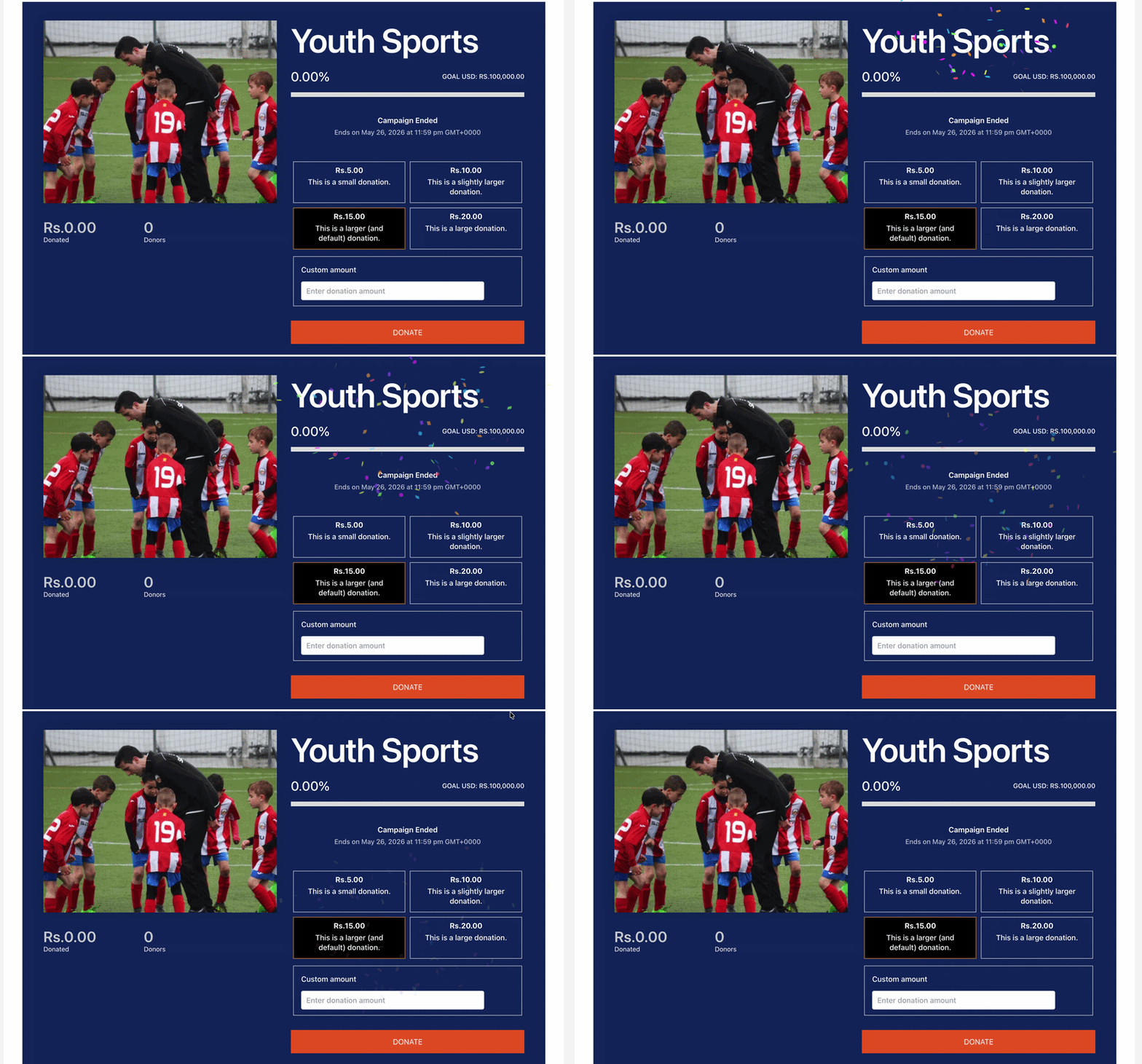
- Konfetti: Eine Konfetti-Explosionsanimation wird am Ende der Kampagne abgespielt
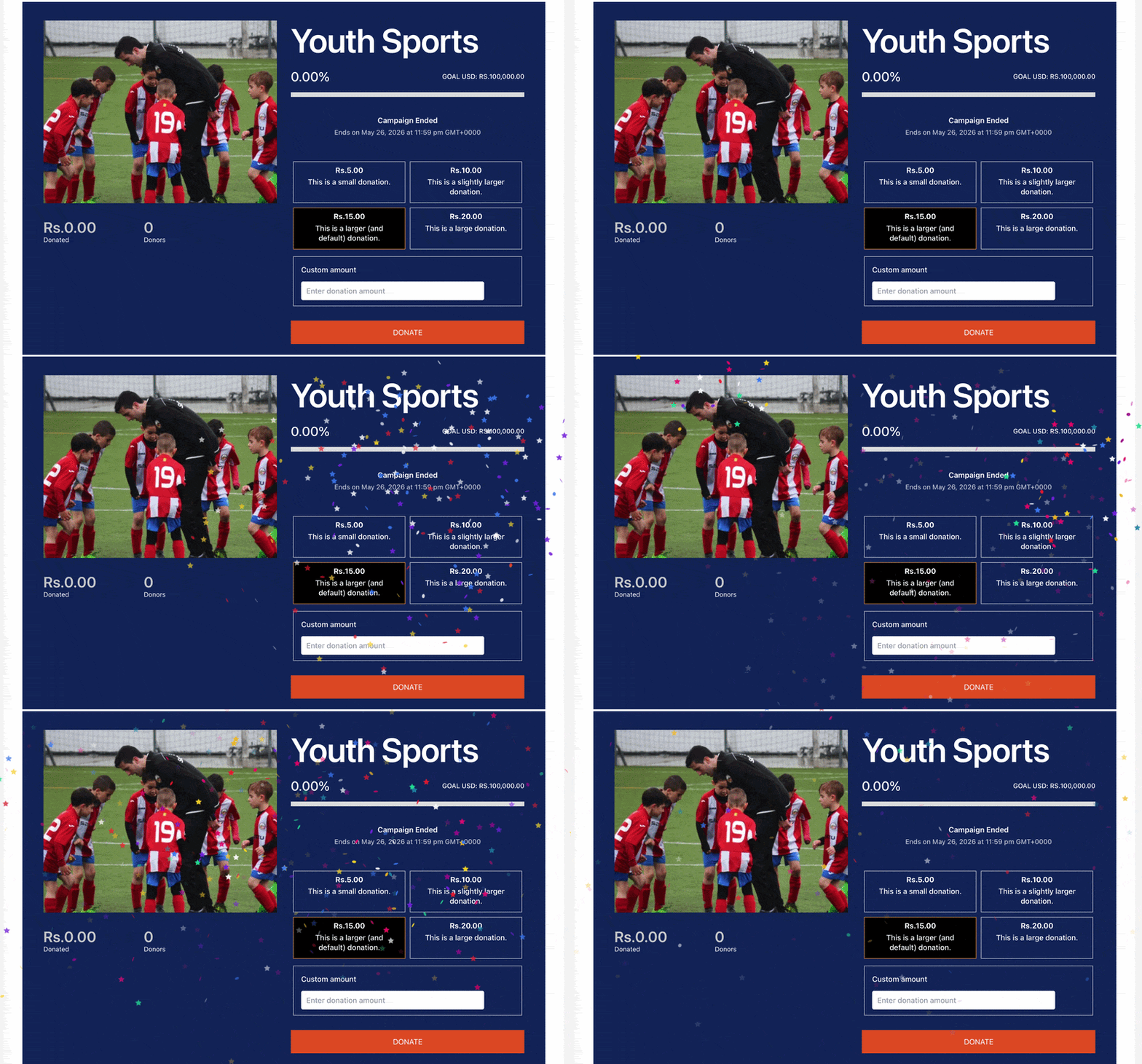
- Feuerwerk: Eine Feuerwerksanimation wird am Ende der Kampagne abgespielt
So sieht das Konfetti aus:
So sieht das Feuerwerk aus:
Textposition für das Enddatum
Dies steuert, wo das Enddatums-Label relativ zum Countdown erscheint:
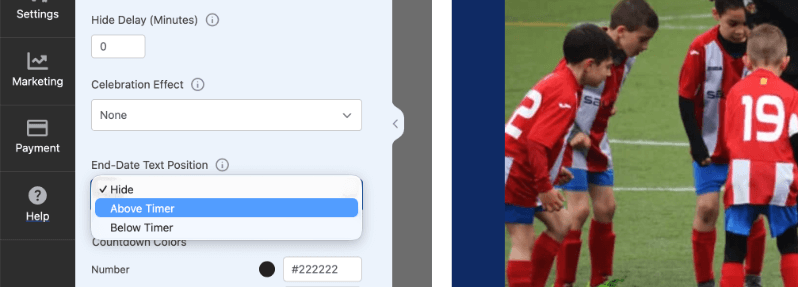
Sie können wählen aus:
- Ausblenden: Die Enddatum-Beschriftung wird nicht angezeigt (Standard)
- Über dem Timer: Das Enddatum wird über den Countdown-Zahlen angezeigt
- Unter dem Timer: Das Enddatum wird unter den Countdown-Zahlen angezeigt
Countdown-Farben
Legen Sie eine benutzerdefinierte Farbe für jedes Element der Timer-Anzeige fest. Klicken Sie auf eine beliebige Farbfeld, um den Farbwähler zu öffnen:
- Zahl: Farbe der Countdown-Ziffern
- Beschriftung: Farbe der Einheiten-Beschriftungen (Tage, Stunden, Minuten, Sekunden)
- Hintergrund: Hintergrundfarbe jeder Timer-Box
- Rahmen: Rahmenfarbe jeder Timer-Box
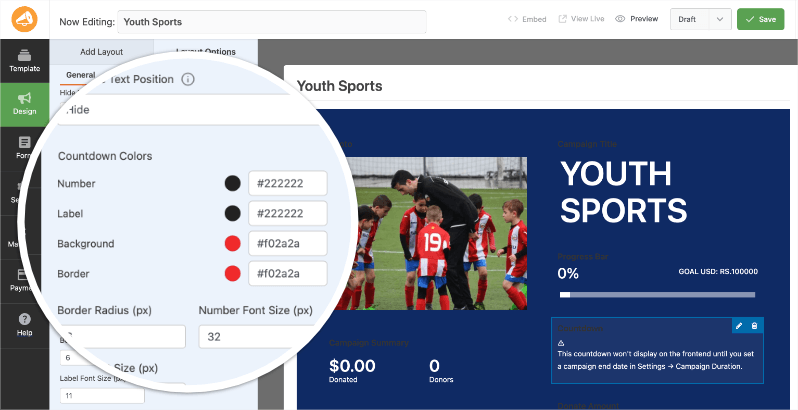
Sie können auch Rahmenradius (px) anpassen, um zu steuern, wie abgerundet die Ecken jeder Timer-Box erscheinen, Schriftgröße der Zahlen (px), um die Größe der Countdown-Ziffern festzulegen, und Schriftgröße der Beschriftung (px), um die Größe der Einheiten-Beschriftungen festzulegen.
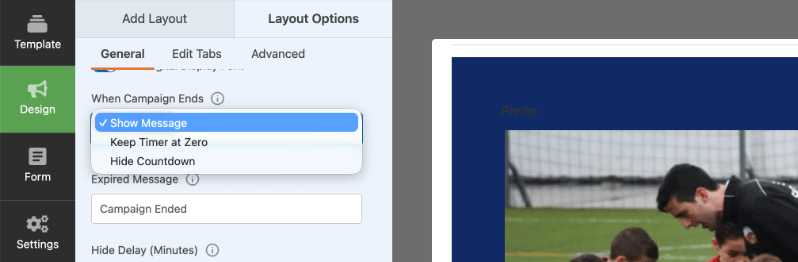
Wenn die Kampagne endet
Steuert, was Spender sehen, nachdem der Countdown Null erreicht hat:
- Nachricht anzeigen: Zeigt eine benutzerdefinierte Nachricht an, die Sie im Feld Nachricht bei Ablauf definieren. Der Standardtext lautet „Kampagne beendet“ – bearbeiten Sie diesen Text, um ihn an Ihre Kampagne anzupassen.
- Timer auf Null halten: Der Countdown-Block bleibt sichtbar, friert aber bei 00:00:00:00 ein
- Countdown ausblenden: Der Countdown-Block wird nach Ende der Kampagne vollständig von der Seite entfernt
Verzögerung beim Ausblenden (Minuten)
Wenn Sie „Wenn die Kampagne endet“ auf „Countdown ausblenden“ gesetzt haben, verwenden Sie dieses Feld, um eine Verzögerung (in Minuten) hinzuzufügen, bevor der Timer-Block verschwindet. Dies gibt Ihren Spendern mehr Zeit, eine Spende zu tätigen, bevor die Kampagne endet.
Setzen Sie auf 0, um den Countdown sofort auszublenden, wenn die Kampagne endet.
Nachdem Sie alle Einstellungen konfiguriert haben, klicken Sie auf Speichern, um Ihre Änderungen zu veröffentlichen.
So erscheint der Timer für Spender
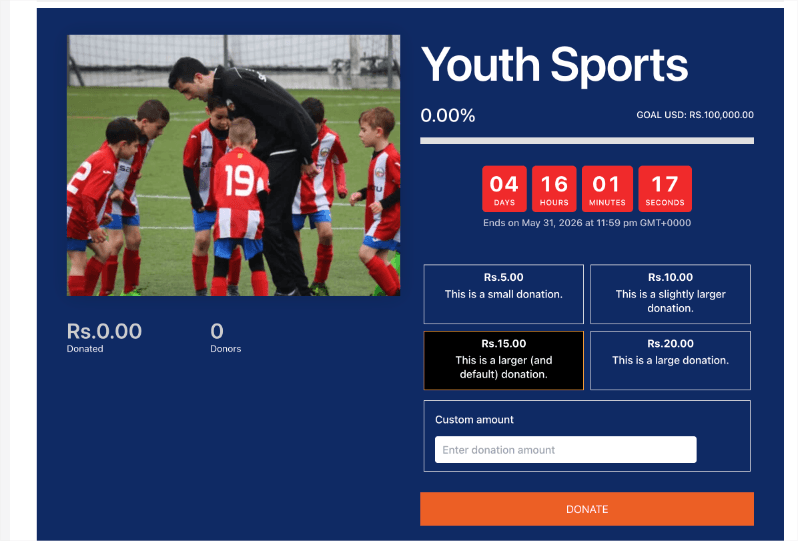
Wenn ein Besucher Ihre Kampagnenseite aufruft, wird der Countdown-Timer als Reihe von Feldern angezeigt, die die verbleibenden Tage, Stunden, Minuten und Sekunden anzeigen. Der Timer aktualisiert sich in Echtzeit, ohne dass eine Seitenaktualisierung erforderlich ist.
Profi-Tipp: Platzieren Sie den Countdown-Block nahe am oberen Rand Ihres Kampagnenlayouts oder direkt über dem Spendenformular, damit er für Spender sichtbar ist, ohne scrollen zu müssen.
Häufig gestellte Fragen
Warum wird mein Countdown-Timer nicht auf der Kampagnenseite angezeigt?
Der Timer benötigt ein Kampagnen-Enddatum, um angezeigt zu werden. Gehen Sie zu Einstellungen » Allgemeine Einstellungen im Kampagnen-Builder und stellen Sie sicher, dass ein Enddatum festgelegt ist. Speichern Sie die Kampagne nach dem Hinzufügen des Datums.
Kann ich den Countdown-Timer auf Charitable Lite verwenden?
Nein. Der Kampagnen-Countdown-Timer ist auf allen Charitable Pro-Plänen (Basic, Plus, Pro und Elite) verfügbar. Upgrade auf Charitable Pro, um auf diese Funktion zuzugreifen.
Kann ich den Countdown-Timer zu mehr als einer Kampagne hinzufügen?
Ja. Sie können den Countdown-Block zu beliebig vielen Kampagnen hinzufügen. Jede Kampagne verwendet ihr eigenes Enddatum unabhängig voneinander.
Was passiert mit dem Timer, nachdem die Kampagne beendet ist?
Das hängt von Ihrer Einstellung „Wenn die Kampagne endet“ ab. Sie können wählen, ob eine benutzerdefinierte Ablaufnachricht angezeigt, der Timer auf Null eingefroren oder vollständig ausgeblendet werden soll.
Kann ich die Farben an meine Kampagne anpassen?
Ja. Der Abschnitt Countdown-Farben in den Layout-Optionen ermöglicht es Ihnen, separate Farben für die Zahlen, Beschriftungen, den Hintergrund und den Rahmen jeder Timer-Box festzulegen. Kein CSS erforderlich.
Das ist alles! Sie haben gelernt, wie Sie den Kampagnen-Countdown-Timer zu Ihren Charitable-Kampagnen hinzufügen und konfigurieren.
Als Nächstes möchten Sie vielleicht auch lernen, wie Sie Spendenziele festlegen oder Ihre Kampagneneinstellungen konfigurieren.
Wenn Sie Video-Tutorials bevorzugen, besuchen Sie unseren YouTube-Kanal oder sehen Sie sich das Video unten an:
Bleiben Sie verbunden für weitere Ressourcen für gemeinnützige Organisationen
Für weitere Tutorials und Videos, die auf gemeinnützige Organisationen zugeschnitten sind, abonnieren Sie unseren YouTube-Kanal. Wir veröffentlichen regelmäßig Expertentipps, Schritt-für-Schritt-Anleitungen zu Online-Spenden, Fundraising-Strategien und praktische Ressourcen, die Ihrer Organisation zum Erfolg verhelfen.
🗞️ Erhalten Sie wöchentliche Tipps und exklusive Anleitungen in Ihrem Posteingang
Melden Sie sich für unseren Newsletter an →
🎥 Sehen Sie sich Schritt-für-Schritt-Tutorials und Erfolgsgeschichten an
Abonnieren Sie unseren YouTube-Kanal →
👩🏽💻 Vernetzen Sie sich mit unserer Community und erhalten Sie tägliche Einblicke in gemeinnützige Organisationen
Folgen Sie uns auf LinkedIn →
🥳 Lustige Reels und Einblicke in gemeinnützige Organisationen
Folgen Sie uns auf Instagram →
👀 Aufschlussreiche & unterhaltsame Videos, die Ihnen helfen, Ihre Sache voranzubringen
Folgen Sie uns auf TikTok→
🌎 Abonnieren und folgen Sie uns für allgemeine Fundraising-Tipps
Holen Sie sich Fundraising-Tipps auf TikTok →
Leistungsstarke Fundraising-Ressourcen
⬇️ Laden Sie bewährte Strategien, Kampagnenideen und Experten-Tools herunter
Holen Sie sich das Fundraising-Kit →
💸 Holen Sie sich kostenlose Fundraising-Ressourcen
Besuchen Sie den Charitable Fundraising Hub →
🤔 Haben Sie Fragen zu Charitable?
Charitable FAQs →
🏎️ Probieren Sie Charitable aus
Erstellen Sie Ihre Charitable Demo →
Verstehen Sie Begriffe und Jargon von gemeinnützigen Organisationen
Glossar für gemeinnützige Organisationen→
% Suchen Sie nach Angeboten und Rabatten für gemeinnützige Organisationen?
Beste Angebote und Rabatte für gemeinnützige Organisationen →


