
Möchten Sie Spenden von Unterstützern mit deren bevorzugten lokalen Zahlungsmethoden annehmen? Das Braintree-Addon von Charitable Pro (Version 1.3.0 und neuer) fügt Unterstützung für sechs europäische und polnische Zahlungsmethoden hinzu, darunter iDEAL, Bancontact, EPS, BLIK, Przelewy24 und MyBank. Diese Methoden werden automatisch auf Ihrem Spendenformular angezeigt, wenn Ihre Website-Währung mit den unterstützten Währungen der Methode übereinstimmt.
Diese Anleitung führt Sie durch die Aktivierung und Konfiguration lokaler Zahlungsmethoden im Braintree-Addon.
Voraussetzungen: Lokale Zahlungsmethoden erfordern Charitable Pro mit dem Braintree-Addon Version 1.3.0 oder neuer.
Lesen Sie die vollständige Funktionsankündigung »
Stellen Sie vor Beginn sicher, dass Charitable Pro und das Braintree-Addon auf Ihrer Website installiert und aktiviert sind und Ihre Braintree-API-Anmeldeinformationen bereits konfiguriert sind.
Noch kein Charitable Pro-Benutzer? Melden Sie sich noch heute an und erhalten Sie bis zu 50 % Rabatt auf Ihren Plan. Wir sind zuversichtlich, dass Sie es lieben werden, mit Charitable Spenden zu sammeln. Wenn Charitable aus irgendeinem Grund nicht das Richtige für Sie ist, erstatten wir Ihnen den Kaufbetrag im Rahmen unserer 14-tägigen Geld-zurück-Garantie zurück. Holen Sie sich jetzt Charitable Pro »
Inhaltsverzeichnis
- Verfügbare lokale Zahlungsmethoden
- Lokale Zahlungsmethoden aktivieren
- Wie funktioniert die Währungsfilterung?
- Das Spendererlebnis
- Webhooks einrichten
- Einschränkungen bei wiederkehrenden Spenden
- Ihre Einrichtung testen
- FAQ
Verfügbare lokale Zahlungsmethoden
Das Braintree-Addon unterstützt sechs lokale Zahlungsmethoden. Jede Methode ist an bestimmte Währungen und Länder gebunden:
- iDEAL – Nur EUR. Wird in den Niederlanden verwendet.
- Bancontact – Nur EUR. Wird in Belgien verwendet.
- EPS – Nur EUR. Wird in Österreich verwendet.
- BLIK – Nur PLN. Wird in Polen verwendet.
- Przelewy24 – PLN oder EUR. Wird in Polen verwendet.
- MyBank – Nur EUR. Wird in Italien und Portugal verwendet.
Ihre Spender sehen nur Methoden, die mit der Währung Ihrer Website übereinstimmen. Eine Website, die auf EUR eingestellt ist, zeigt beispielsweise iDEAL, Bancontact, EPS, Przelewy24 und MyBank an, aber nicht BLIK (das PLN erfordert).
Lokale Zahlungsmethoden aktivieren
Um lokale Zahlungsmethoden zu konfigurieren, gehen Sie in Ihrem WordPress-Adminbereich zu Charitable » Einstellungen » Zahlungs-Gateways »Þ Braintree. Scrollen Sie nach unten zum Abschnitt Lokale Zahlungsmethoden.
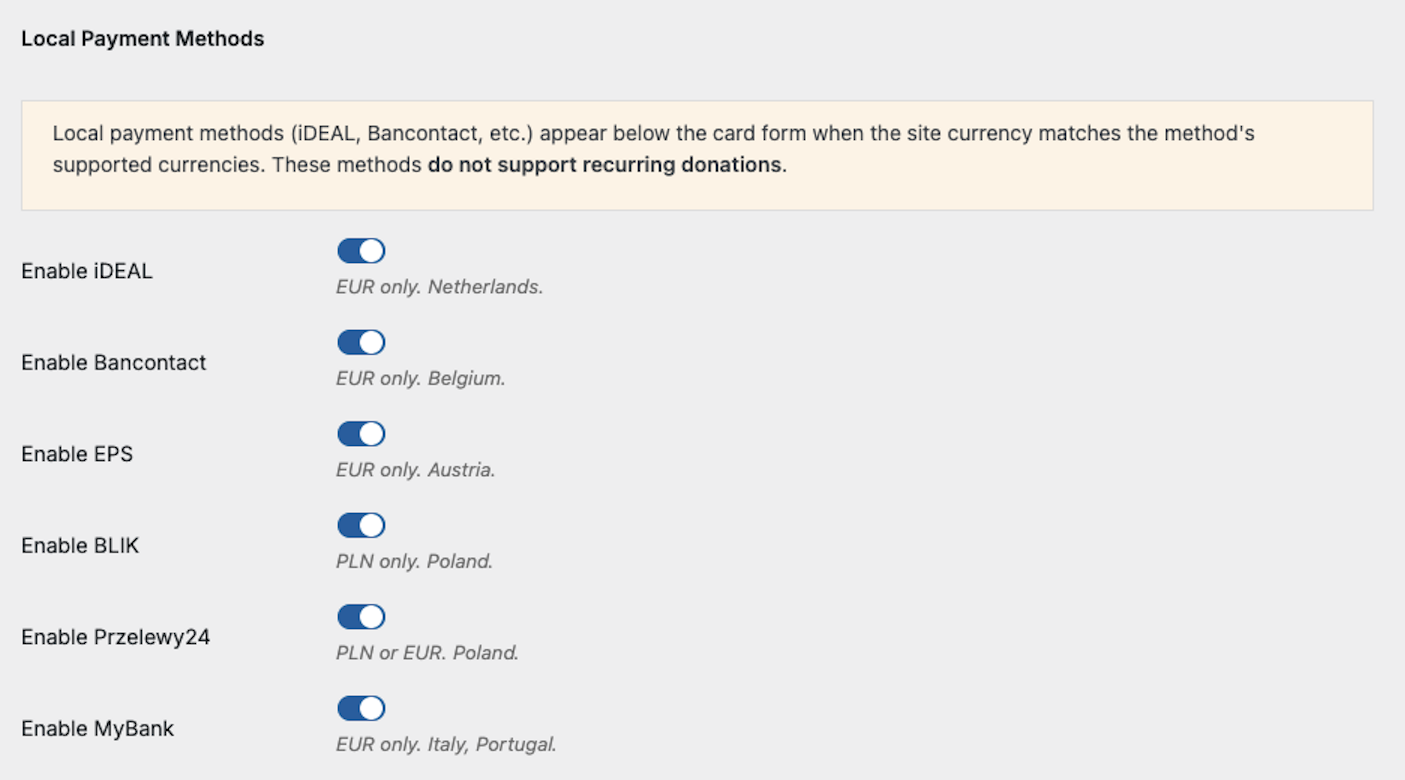
Jede Methode hat ihren eigenen Schalter. Der Hilfetext unter jedem Schalter zeigt an, welche Währungen und Länder die Methode unterstützt. Aktivieren Sie die Methoden, die Sie Ihren Spendern anbieten möchten.
Wenn Sie Ihre bevorzugten Methoden aktiviert haben, scrollen Sie zum Ende der Seite und klicken Sie auf Änderungen speichern.
Hinweis: Sie müssen lokale Zahlungsmethoden auch auf Kontoebene in Ihrem Braintree-Dashboard aktivieren. Wenn Ihre Spender Fehler erhalten, wenn sie versuchen, eine lokale Zahlungsmethode zu verwenden, wenden Sie sich an den Braintree-Support und bitten Sie ihn, lokale Zahlungen für Ihr Händlerkonto zu aktivieren.
Wie funktioniert die Währungsfilterung?
Lokale Zahlungsmethoden erscheinen nur auf Ihrem Spendenformular, wenn die Währung Ihrer Website mit den unterstützten Währungen der Methode übereinstimmt. Diese Filterung erfolgt automatisch. Sie müssen nichts weiter konfigurieren, als die gewünschten Methoden zu aktivieren.
Wenn Ihre Website-Währung auf USD eingestellt ist, werden auf dem Spendenformular keine lokalen Zahlungsbuttons angezeigt, auch wenn Sie alle sechs Methoden in den Einstellungen aktiviert haben. Nur EUR- und PLN-Währungen aktivieren lokale Zahlungsbuttons.
Um Ihre Website-Währung zu überprüfen oder zu ändern, gehen Sie zu Charitable > Einstellungen > Allgemein und suchen Sie die Einstellung Währung.
Das Spendererlebnis
Wenn ein Spender eine Kampagnenseite besucht, sieht er zuerst das Standard-Braintree-Karten-Zahlungsformular. Unter dem Kartenformular erscheint ein Trenner „oder bezahlen mit“, gefolgt von Buttons für jede aktive lokale Zahlungsmethode.
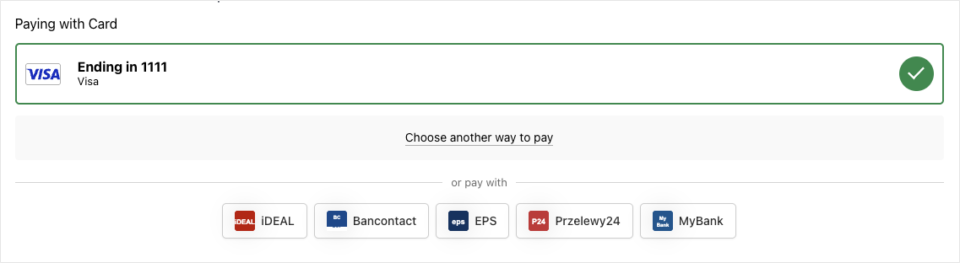
Wenn ein Spender auf einen lokalen Zahlungsbutton klickt, öffnet sich ein Popup-Fenster, in dem er die Zahlung über seine Bank oder seinen Zahlungsanbieter abschließt. Nach der Autorisierung schließt sich das Popup und das Spendenformular wird automatisch abgeschickt.
Wenn der Browser des Spenders das Popup blockiert, leitet Braintree den Spender im selben Fenster zum Zahlungsanbieter weiter. Nach Abschluss der Zahlung wird er zum Spendenformular zurückgeleitet, wo die Einreichung automatisch abgeschlossen wird.
Webhooks einrichten
Lokale Zahlungsmethoden verarbeiten Spenden asynchron. Die Zahlung des Spenders wird nicht sofort bestätigt. Stattdessen sendet Braintree Webhook-Benachrichtigungen an Ihre Website, wenn sich der Zahlungsstatus ändert. Ohne Webhooks werden die Spendenstatus nach der anfänglichen Einreichung nicht aktualisiert.
Scrollen Sie zum Abschnitt Webhook-Einrichtung auf der Braintree-Einstellungsseite.
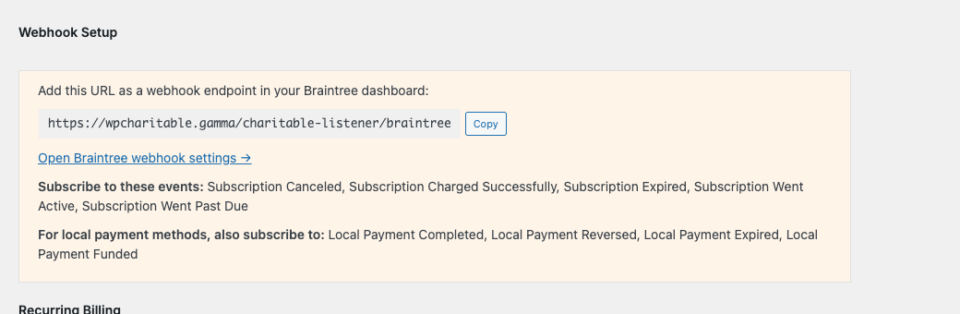
Wenn Sie bereits Webhooks für wiederkehrende Spenden konfiguriert haben, müssen Sie die vier lokalen Zahlungsereignisse zu Ihrem bestehenden Webhook-Abonnement im Braintree-Dashboard hinzufügen:
- Lokale Zahlung abgeschlossen – wird ausgelöst, wenn die Bank des Spenders die Zahlung bestätigt. Aktualisiert den Spendenstatus auf Bezahlt.
- Lokale Zahlung rückgängig gemacht – wird ausgelöst, wenn eine Zahlung von der Bank rückgängig gemacht oder erstattet wird.
- Lokale Zahlung abgelaufen – wird ausgelöst, wenn eine Zahlungsautorisierung abläuft, bevor der Spender sie abschließt.
- Lokale Zahlung eingegangen – wird ausgelöst, wenn die Gelder auf Ihrem Händlerkonto eingegangen sind.
Um diese Ereignisse hinzuzufügen, klicken Sie auf den Link Braintree-Webhook-Einstellungen öffnen, suchen Sie Ihr bestehendes Webhook-Abonnement und fügen Sie die vier lokalen Zahlungsereignistypen hinzu. Wenn Sie noch keinen Webhook konfiguriert haben, kopieren Sie die in den Einstellungen angezeigte Endpunkt-URL und erstellen Sie einen neuen Webhook in Ihrem Braintree-Dashboard mit allen aufgeführten Ereignissen.
Hinweis: Ohne den Webhook „Lokale Zahlung abgeschlossen“ bleiben Spenden, die über lokale Zahlungsmethoden getätigt wurden, im Status „Ausstehend“ und werden nie auf „Bezahlt“ aktualisiert.
Einschränkungen bei wiederkehrenden Spenden
Lokale Zahlungsmethoden unterstützen keine wiederkehrenden Spenden. Dies ist eine Einschränkung der lokalen Zahlungsabwicklung von Braintree, nicht des Charitable-Plugins.
Wenn ein Spender auf einem Kampagnenformular eine wiederkehrende Spendenperiode (z. B. monatlich oder jährlich) auswählt, werden alle lokalen Zahlungsbuttons automatisch ausgeblendet. Sie erscheinen wieder, wenn der Spender zu einer einmaligen Spende zurückwechselt.
Wenn Ihre Kampagnen stark auf wiederkehrende Spenden angewiesen sind, müssen Ihre Spender für diese Spenden weiterhin Karten, PayPal oder eine andere unterstützte Methode verwenden.
Ihre Einrichtung testen
Nachdem Sie Ihre lokalen Zahlungsmethoden aktiviert und Webhooks konfiguriert haben, besuchen Sie eine Ihrer Kampagnenseiten, um zu bestätigen, dass die Schaltflächen korrekt angezeigt werden. Stellen Sie sicher, dass Ihre Website-Währung auf EUR oder PLN eingestellt ist, damit die Schaltflächen sichtbar sind.
Versuchen Sie, auf eine lokale Zahlungs-Schaltfläche zu klicken, um zu überprüfen, ob das Popup geöffnet wird. In der Sandbox-Umgebung (Testumgebung) von Braintree können Sie eine Testspende abschließen, indem Sie eine Testbank aus der Liste auswählen. Überprüfen Sie nach der Testspende unter Charitable » Spenden , ob die Spende erfasst wurde und der Status nach dem Auslösen des Webhooks auf Bezahlt aktualisiert wird.
Das ist alles! Ihre Spender können jetzt ihre bevorzugten lokalen Zahlungsmethoden verwenden, um zu Ihren Kampagnen beizutragen. Weitere Informationen zu den anderen Funktionen des Braintree-Addons finden Sie in der Braintree-Addon-Dokumentation.
FAQ
Was tun, wenn lokale Zahlungs-Schaltflächen auf meinem Spendenformular nicht angezeigt werden?
Es gibt drei häufige Gründe. Überprüfen Sie erstens, ob Ihre Website-Währung unter Charitable » Einstellungen » Allgemein auf EUR oder PLN eingestellt ist. Lokale Zahlungsmethoden werden für USD oder andere nicht unterstützte Währungen nicht angezeigt. Zweitens, bestätigen Sie, dass mindestens eine Methode in den Braintree-Gateway-Einstellungen aktiviert ist. Drittens, vergewissern Sie sich, dass Braintree lokale Zahlungen auf Kontoebene in Ihrem Händlerkonto aktiviert hat.
Spenden bleiben im Status „Ausstehend“ stecken. Wie behebe ich das?
Dies bedeutet normalerweise, dass Ihre Braintree-Webhooks nicht korrekt konfiguriert sind. Spenden mit lokalen Zahlungsmethoden beginnen im Status „Ausstehend“ und werden erst auf „Bezahlt“ aktualisiert, wenn der Webhook „Local Payment Completed“ ausgelöst wird. Gehen Sie zum Abschnitt Einrichten von Webhooks und überprüfen Sie, ob alle vier lokalen Zahlungsereignisse in Ihrem Webhook-Abonnement enthalten sind.
Kann ich lokale Zahlungsmethoden mit USD-Währung verwenden?
Nein. Alle sechs lokalen Zahlungsmethoden erfordern entweder EUR oder PLN als Website-Währung. Wenn Ihre Website auf USD eingestellt ist, werden die Schaltflächen nicht auf den Spendenformularen angezeigt.
Funktionieren lokale Zahlungsmethoden mit den Formularen des Kampagnen-Builders?
Ja. Lokale Zahlungs-Schaltflächen werden sowohl auf älteren als auch auf Kampagnen-Builder-Spendenformularen angezeigt, solange das Braintree-Gateway aktiv ist und die Website-Währung übereinstimmt.
Können Spender eine lokale Zahlungsmethode für zukünftige Spenden speichern?
Nein. Lokale Zahlungsmethoden können nicht in Braintree gespeichert (gewaltet) werden. Spender müssen jedes Mal die Bankautorisierung abschließen, wenn sie mit einer lokalen Zahlungsmethode spenden.
Bleiben Sie verbunden für weitere Ressourcen für gemeinnützige Organisationen
Für weitere Tutorials und Videos, die auf gemeinnützige Organisationen zugeschnitten sind, abonnieren Sie unseren YouTube-Kanal. Wir veröffentlichen regelmäßig Expertentipps, Schritt-für-Schritt-Anleitungen zu Online-Spenden, Fundraising-Strategien und praktische Ressourcen, die Ihrer Organisation zum Erfolg verhelfen.
🗞️ Erhalten Sie wöchentliche Tipps und exklusive Anleitungen in Ihrem Posteingang
Melden Sie sich für unseren Newsletter an →
🎥 Sehen Sie sich Schritt-für-Schritt-Tutorials und Erfolgsgeschichten an
Abonnieren Sie unseren YouTube-Kanal →
👩🏽💻 Vernetzen Sie sich mit unserer Community und erhalten Sie tägliche Einblicke in gemeinnützige Organisationen
Folgen Sie uns auf LinkedIn →
🥳 Lustige Reels und Einblicke in gemeinnützige Organisationen
Folgen Sie uns auf Instagram →
👀 Aufschlussreiche & unterhaltsame Videos, die Ihnen helfen, Ihre Sache voranzubringen
Folgen Sie uns auf TikTok→
🌎 Abonnieren und folgen Sie uns für allgemeine Fundraising-Tipps
Holen Sie sich Fundraising-Tipps auf TikTok →
Leistungsstarke Fundraising-Ressourcen
🤖 Nutzen Sie Charitable mit Ihrem KI-Assistenten
Erfahren Sie mehr über Charitable + KI →
⬇️ Laden Sie bewährte Strategien, Kampagnenideen und Experten-Tools herunter
Holen Sie sich das Fundraising-Kit →
💸 Holen Sie sich kostenlose Fundraising-Ressourcen
Besuchen Sie den Charitable Fundraising Hub →
🤔 Haben Sie Fragen zu Charitable?
Charitable FAQs →
🏎️ Probieren Sie Charitable aus
Erstellen Sie Ihre Charitable Demo →
Verstehen Sie Begriffe und Jargon von gemeinnützigen Organisationen
Glossar für gemeinnützige Organisationen→
% Suchen Sie nach Angeboten und Rabatten für gemeinnützige Organisationen?
Beste Angebote und Rabatte für gemeinnützige Organisationen →


