
Erforderlich: Charitable Pro 1.8.16+ Charitable Ambassadors 3.1.0+
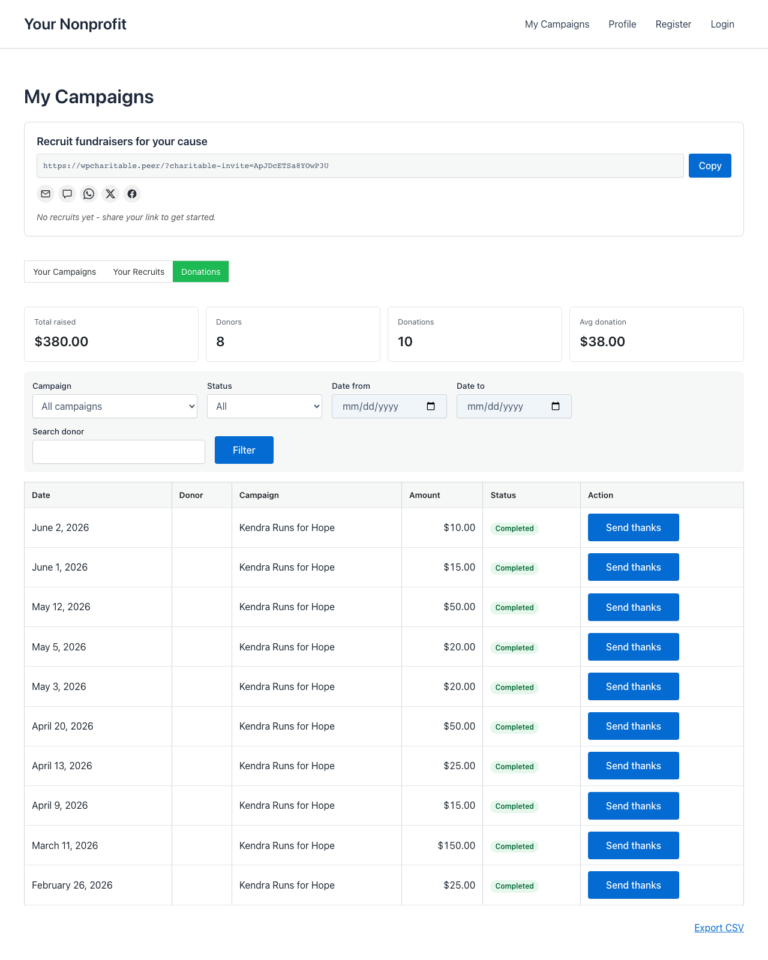
Der Spenden-Tab auf der Seite Meine Kampagnen ermöglicht es jedem Kampagnenersteller, jede Spende für seine eigene Spendenaktion einzusehen, die Liste zu filtern und zu sortieren, eine CSV-Datei zu exportieren und optional jedem Spender eine persönliche Danksagung zu senden. Nichts davon erfordert Administratorzugriff auf WordPress – der gesamte Ablauf findet im Front-End-Dashboard des Botschafters statt.
Für gemeinnützige Organisationen, die Peer-to-Peer-Programme durchführen, ist der Gewinn zweifach. Ersteller erhalten das Anerkennungstool, nach dem sie immer wieder fragen („Kann ich meinen Spendern selbst danken?“), und Administratoren behalten die Master-Spenderbeziehung intakt (Antworten werden an den Ersteller weitergeleitet, nicht an den Admin-Posteingang).
Wann Sie es verwenden würden
- Spenderbeziehungen in die Hände der Ersteller legen. Die meisten Botschafter *möchten* den Menschen danken, die ihre Spendenaktion unterstützt haben – sie brauchen nur ein Werkzeug, das dies mit einem Klick ermöglicht.
- Reduzierung des Verwaltungsaufwands. Wenn Ersteller Spendern selbst danken können, sind Ihre Administratoren nicht mehr der Engpass für jede persönliche Anerkennung.
- Exportieren von Daten pro Spendenaktion ohne Offenlegung der gesamten Spendentabelle der Website. Jeder Ersteller erhält eine CSV-Datei, die nur auf seine eigene Spendenaktion beschränkt ist.
- Durchführung von wiederkehrenden Kampagnen durch Ersteller. Aktive wiederkehrende Spenden werden im KPI-Streifen angezeigt, sodass ein Ersteller sehen kann, wer ihn monatlich unterstützt.
Wie Ersteller profitieren
Eine Spende kommt um 15 Uhr an. Der Botschafter wartete früher darauf, dass Sie (der Administrator) später am Abend eine generische Dankes-E-Mail senden, oder er hat nichts überprüft, weil er keine Einsicht hatte. Jetzt öffnet der Botschafter Meine Kampagnen > Spenden, sieht die neue Spende am Anfang der Liste und klickt auf Danke senden. Der Spender erhält innerhalb von Minuten eine persönliche Nachricht vom Botschafter, wobei die Antwort des Spenders an den Posteingang des Botschafters – nicht an Ihren – weitergeleitet wird.
Die Verhaltensänderung ist wichtig. Spender, die innerhalb von 24 Stunden eine persönliche Danksagung erhalten, geben mit hoher Wahrscheinlichkeit erneut und dann auch höhere Beträge. Indem Sie die Anerkennung näher an das Spendenereignis rücken und sie durch den tatsächlichen Ersteller personalisieren, vervielfachen Sie das Wohlwollen, das die Spende selbst generiert hat.
Finden
Botschafter-Front-End > Meine Kampagnen > Spenden-Tab
Sobald Sie Spenden im Admin-Bereich aktiviert haben (siehe unten), sieht jeder Botschafter einen neuen Tab auf seiner Seite „Meine Kampagnen“ neben „Meine Kampagnen“ selbst. Der Tab-Streifen ist tastaturzugänglich (verwenden Sie die Pfeiltasten, um zwischen den Tabs zu wechseln).

Was Ersteller sehen
Am oberen Rand des Spenden-Tabs befindet sich ein KPI-Streifen – fünf Zahlen, die die Fundraising-Aktivitäten des Erstellers auf einen Blick zusammenfassen:
| KPI | Bedeutung in einfacher Sprache |
|---|---|
| Gesamteinnahmen | Der Gesamtbetrag, den die Spendenaktionen des Erstellers eingebracht haben. Rückerstattete und ausstehende Spenden sind ausgeschlossen. |
| Spender | Anzahl eindeutiger Spender. Ein Spender, der zweimal gespendet hat, zählt immer noch als einer. |
| Spenden | Gesamtzahl abgeschlossener Spenden. |
| Durchschnittliche Spende | Gesamteinnahmen geteilt durch die Anzahl der Spenden. |
| Aktive wiederkehrende | Anzahl der noch aktiven wiederkehrenden Spendenpläne. Wird nur angezeigt, wenn das Add-on Wiederkehrende Spenden aktiviert ist. |
Unterhalb der KPIs die Spendenliste. Jede Zeile zeigt den Spendernamen (oder „Anonym“, wenn der Spender anonym bleiben möchte), den Spendenbetrag, das Spendedatum in der lokalen Zeitzone der Website, die Kampagne, für die die Spende getätigt wurde, und eine Statusanzeige (Abgeschlossen / Ausstehend / Fehlgeschlagen / Zurückerstattet).

Filtern und Sortieren
Die Werkzeugleiste über der Liste enthält zwei Steuerelemente:
| Steuerelement | Optionen |
|---|---|
| Datumsbereich | Gesamt, Letzte 7 Tage, Letzte 30 Tage, Letzte 90 Tage. |
| Status | Abgeschlossen, Ausstehend, Fehlgeschlagen, Zurückerstattet. Standard ist Abgeschlossen. |
Die Paginierung berücksichtigt den aktuellen Filter, sodass ein Ersteller, der nach „Letzte 7 Tage, Abgeschlossen“ filtert, nur diese Zeilen auf allen Seiten sieht.
CSV exportieren
Die Schaltfläche CSV exportieren oben in der Liste streamt eine CSV der aktuell gefilterten Spenden in den Browser des Erstellers. Die Datei enthält dieselben Spalten wie die Liste auf dem Bildschirm, plus die Spendennummer und die E-Mail-Adresse des Spenders, wenn der Spender nicht anonym war.
Der CSV-Export ist sicher vor Formelinjektionen – jede Zelle, die mit =, +, -, @ oder einem Steuerzeichen beginnt, wird mit einem einfachen Anführungszeichen versehen, damit Excel und Google Sheets sie als Text rendern, anstatt sie als Formel auszuwerten.
Danke senden – persönliche Dankes-E-Mails
Wenn Sie (der Administrator) Dankes-E-Mails aktivieren, erhält jede Spaltenzeile eine Schaltfläche Danke senden. Ein Klick darauf öffnet ein Modal mit einer Vorlagen-E-Mail, die der Ersteller überprüfen und senden kann.
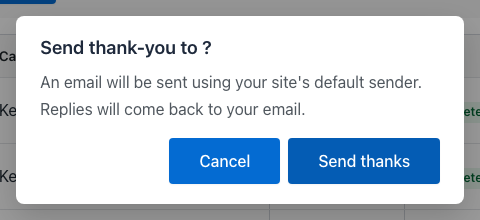
Was der Ersteller im Modal tun kann:
- Betreff und Text der Vorlage überprüfen (vom Administrator konfiguriert – siehe unten).
- Text bearbeiten vor dem Senden. Smart-Tags wie
{donor_name}und{campaign_title}sind zu diesem Zeitpunkt bereits ersetzt – was der Ersteller sieht, ist das, was der Spender sehen wird. - Senden. Die E-Mail wird sofort gesendet. Die Schaltfläche in der Spendenzeile ändert sich zu einer grünen „Bedankt“-Anzeige, damit der Ersteller auf einen Blick sehen kann, welche Spender er bereits kontaktiert hat.
Einige praktische Schutzmaßnahmen sind integriert:
- Race-Guard. Wenn der Ersteller zweimal kurz hintereinander auf „Danke senden“ klickt, wird nur der erste Sendevorgang verarbeitet – der zweite wird stillschweigend ignoriert. Keine doppelten E-Mails.
- Ratenbegrenzung. Ein Ersteller kann höchstens eine Dankes-E-Mail pro Spende und höchstens 60 Dankes-E-Mails pro Stunde senden. Darüber hinaus zeigt die Schaltfläche eine freundliche Nachricht „Bitte langsamer machen“ an.
- Antwort-Routing. Der
Reply-To-Header der E-Mail wird auf die E-Mail-Adresse des Erstellers gesetzt, sodass jede Antwort in der Inbox des Erstellers landet und nicht in der des Administrators. DieFrom-Adresse bleibt die Standard-Absenderadresse Ihrer Website.
Admin-Einrichtung
Die gesamte Funktion ist standardmäßig deaktiviert. Um sie zu aktivieren:
WordPress Admin > Charitable > Botschafter > Einstellungen > Meine Kampagnen
Es gibt zwei Einstellungen, die diese Funktion steuern:
| Einstellung | Was es steuert |
|---|---|
| Spenden-Tab anzeigen | Ob der Spenden-Tab auf der Seite „Meine Kampagnen“ überhaupt angezeigt wird. Standardmäßig deaktiviert; schalten Sie ihn auf „Ein“, um den Tab zu aktivieren. |
| Erstellern das Senden von Dankesnachrichten erlauben | Ob die Schaltfläche „Dank senden“ in jeder Spendenzeile angezeigt wird. Standardmäßig deaktiviert; aktivieren Sie sie erst, nachdem Sie die E-Mail-Vorlage (nächster Abschnitt) überprüft haben. |
Dann die E-Mail-Vorlage:
WordPress Admin > Charitable > Botschafter > Einstellungen > E-Mails
Suchen Sie die Zeile „Dank an den Ersteller“ . Klicken Sie darauf, um Betreff und Text zu bearbeiten. Die Vorlage unterstützt die folgenden Smart-Tags:
| Tag | Ersetzt durch |
|---|---|
{donor_name} | Der Anzeigename des Spenders oder „Anonym“, wenn er dies abgelehnt hat. |
{donor_first_name} | Nur der Vorname des Spenders. |
{donation_amount} | Der Spendenbetrag mit Währungssymbol. |
{campaign_title} | Die Kampagne, für die die Spende getätigt wurde. |
{creator_name} | Der Name des Kampagnenbesitzers. Wird in Grußformeln verwendet. |
{site_name} | Der Name Ihrer Website. |
Eine vernünftige Standardvorlage wird mit dem Plugin geliefert, sodass Sie keine von Grund auf neu schreiben müssen. Überprüfen Sie die Formulierungen, passen Sie den Ton an Ihre Marke an und speichern Sie.

Tipps
- Führen Sie es schrittweise ein. Aktivieren Sie zuerst den Spenden-Tab und lassen Sie die Ersteller ihre Spenderlisten ein bis zwei Wochen lang einsehen. Erst danach aktivieren Sie „Dank senden“. Dies gibt den Erstellern Zeit, die neue Sichtbarkeit zu verdauen, bevor Sie ihnen eine Sendeschaltfläche in die Hand geben.
- Setzen Sie Erwartungen in Ihrer Onboarding-E-Mail. Wenn sich ein neuer Botschafter anmeldet, informieren Sie ihn über den Spenden-Tab. Er wird ihn irgendwann selbst finden, aber ein Hinweis sorgt für eine bessere Erfahrung in der ersten Woche.
- Bearbeiten Sie die Vorlage, ersetzen Sie sie nicht. Der Standardtext verwendet Smart-Tags an Stellen, die dem entsprechen, wie Spender eine Danksagung erwarten. Passen Sie die Formulierungen an, aber behalten Sie die Struktur bei (Begrüßung, Dank, was die Spende ermöglicht, Grußformel).
- Überwachen Sie frühe Danksagungen. Scannen Sie in der ersten Woche nach der Aktivierung von „Dank senden“ einige gesendete E-Mails auf den Ton. Wenn ein Ersteller zu lässig oder nicht markengerecht ist, ist ein kurzer, sanfter Hinweis („Hey, nur damit Sie es wissen – unsere Unterstützer erwarten tendenziell einen etwas formelleren Ton“) viel einfacher, als die Funktion rückgängig zu machen.
Umgang mit Anonymität
Spender können eine Spende an der Kasse als anonym markieren. Wenn sie dies tun:
- Ihr Name erscheint als „Anonym“ in der Spenderliste des Erstellers und im CSV-Export.
- Ihre E-Mail wird aus der CSV-Datei weggelassen.
- Der Dankeschön senden -Button ist für diese Zeile ausgeblendet – es gibt keine Möglichkeit für den Ersteller, einen anonymen Spender über dieses Tool per E-Mail zu kontaktieren.
- Die Identität des Spenders ist auch für die Autovervollständigung der Spendersuche verborgen, die an anderer Stelle im Plugin verwendet wird.
Die Anonymität wird auf der Datenzugriffsebene erzwungen, nicht nur in der Benutzeroberfläche, sodass ein Ersteller sie nicht umgehen kann, indem er den Seitenquelltext inspiziert oder direkt den AJAX-Endpunkt aufruft.
Entwicklerreferenz
Verhalten des Shortcodes
Der Spendentab wird innerhalb des vorhandenen [charitable_my_campaigns] -Shortcodes gerendert – es gibt keinen separaten Shortcode. Die Tab-Leiste wechselt über ein cap_view -Query-Argument zwischen zwei Ansichtsmodi:
?cap_view=campaigns(Standard): die ursprüngliche Liste der eigenen Kampagnen des Erstellers.?cap_view=donations: die neue Spendenansicht.
Der Shortcode liest die Einstellung Show Donations Tab , bevor die Leiste gerendert wird; wenn die Einstellung deaktiviert ist, wird nur die ursprüngliche Ansicht angezeigt.
Filter
| Filter | Standard | Zweck |
|---|---|---|
charitable_ambassadors_creator_donations_enabled | Einstellung lesen | Master-Schalter für die gesamte Funktion. Geben Sie false zurück, um sie auszublenden. |
charitable_ambassadors_creator_donations_send_thanks_enabled | Einstellung lesen | Schalter für den Dankeschön senden-Button. |
charitable_ambassadors_creator_donations_per_page | 20 | Seitengröße für die Spendenliste. |
charitable_ambassadors_creator_donations_rate_limit | 60 | Maximale Anzahl von Dankes-E-Mails, die ein einzelner Ersteller pro Stunde senden kann. |
charitable_ambassadors_creator_donations_date_window_years | 10 | Wie weit zurück Filter reichen können. Erhöhen Sie diesen Wert, wenn Sie historische Exporte über 10 Jahre benötigen. |
charitable_ambassadors_creator_donations_csv_columns | Array | Die CSV-Spaltenliste. Fügen Sie Spalten hinzu oder entfernen Sie sie, indem Sie das Array filtern. |
charitable_ambassadors_creator_thank_you_smart_tags | Array | Benutzerdefinierte Smart-Tags hinzufügen. Geben Sie ein Array zurück, das nach Tag-Namen mit einer callback zur Ersetzung benannt ist. |
Aktionen
| Aktion | Wird ausgelöst, wenn | Argumente |
|---|---|---|
charitable_ambassadors_creator_thank_you_sent | Der Ersteller sendet erfolgreich eine Dankes-E-Mail. | $donation_id, $creator_id, $donor_id |
charitable_ambassadors_creator_donations_csv_exported | Ein Ersteller exportiert eine CSV-Datei seiner Spenden. | $creator_id, $filter_args, $row_count |
Klassen und AJAX-Endpunkte
| Symbol | Rolle |
|---|---|
Charitable_Ambassadors_Creator_Donations_Repo | Datenzugriffsklasse. Besitzt die Methoden query(), aggregates() und owns_donation(). Hier findet die gesamte Anonymisierung statt. |
Charitable_Ambassadors_Email_Creator_Thank_You | AJAX-Router. Verarbeitet Anfragen für Filter, Paginierung, Dankes-E-Mails und CSV-Exporte. |
Charitable_Ambassadors_Email_Creator_Thank_You | Die Charitable_Email-Unterklasse für die Dankesvorlage. Fügt die Smart-Tag-Ebene über die Standard-E-Mail-Infrastruktur von Charitable hinzu. |
wp_ajax_charitable_ambassadors_creator_donations_query | AJAX-Aktion: gefilterte + paginierte Liste. |
wp_ajax_charitable_ambassadors_creator_donations_export | AJAX-Aktion: CSV-Stream. |
wp_ajax_charitable_ambassadors_creator_donations_thank | AJAX-Aktion: Senden einer einzelnen Dankes-E-Mail. |
Alle drei AJAX-Endpunkte prüfen is_user_logged_in() + verifizieren, dass der aktuelle Benutzer die Kampagne(n) besitzt, auf die die Spendenzeilen beschränkt sind. Anonymität wird auf Repository-Ebene durchgesetzt; die AJAX-Endpunkte sind dünne Wrapper.
Vorlagen-Overrides
Der Shortcode wird über Standard-Charitable-Template-Überschreibungen gerendert. Um die Benutzeroberfläche des Spenden-Tabs von Ihrem Theme aus anzupassen:
your-theme/charitable-pro/charitable-ambassadors/shortcodes/my-campaigns/donations-tab.php
your-theme/charitable-pro/charitable-ambassadors/emails/creator-thank-you.php
Beispiele für Anpassungen
Nur verifizierte Botschafter zum Senden von Dankesnachrichten zulassen:
add_filter( 'charitable_ambassadors_creator_donations_send_thanks_enabled', function ( $enabled ) {
    if ( ! $enabled ) {
        return false;
    }
    return (bool) get_user_meta( get_current_user_id(), '_charitable_user_verified', true );
} );
Die Dankes-Rate auf 200 pro Stunde erhöhen:
add_filter( 'charitable_ambassadors_creator_donations_rate_limit', function () {
    return 200;
} );
Einen benutzerdefinierten Smart-Tag für die Stadt des Spenders hinzufügen:
add_filter( 'charitable_ambassadors_creator_thank_you_smart_tags', function ( $tags ) {
    $tags['donor_city'] = array(
        'description' => __( 'The donor city, from billing address.', 'your-theme' ),
        'callback'    => function ( $donation ) {
            return (string) get_post_meta( $donation->ID, 'donor_address_city', true );
        },
    );
    return $tags;
} );
Eine CSV-Spalte für das Spenden-Gateway hinzufügen:
add_filter( 'charitable_ambassadors_creator_donations_csv_columns', function ( $columns ) {
    $columns['gateway'] = array(
        'header'   => __( 'Gateway', 'your-theme' ),
        'callback' => function ( $donation ) {
            return (string) get_post_meta( $donation->ID, 'donation_gateway', true );
        },
    );
    return $columns;
} );
Verwandt
- Meine Kampagnen – Das Botschafter-Dashboard – die übergeordnete Seite, die den Spenden-Tab beherbergt.
- E-Mail-Vorlagen – die vollständige Liste der Transaktions-E-Mails, die Botschafter senden.
- CSV-Exporte – alle CSV-Exporte im gesamten Plugin, einschließlich dieses.
- Berechtigungen – welche Berechtigung was steuert.
Asset-Liste (für den Dokumenten-Editor)
| Dateiname | Was erfasst werden soll | Vorgeschlagener alternativer Text |
|---|---|---|
01-donations-tab.png | Der Spenden-Tab unter Meine Kampagnen, KPI-Leiste + die ersten 4-5 Spendenzeilen sichtbar. | Der Spenden-Tab auf der Seite Meine Kampagnen, mit KPIs oben und einer filterbaren Liste von Spenden darunter |
02-tab-strip.png | Nahaufnahme des Tab-Streifens unter Meine Kampagnen, der Tab „Spenden“ ist hervorgehoben. | Die Seite Meine Kampagnen zeigt nun zwei Tabs: Meine Kampagnen und Spenden |
03-donation-row.png | Eine einzelne Spendenzeile im Nahaufnahme, Schaltfläche „Danke senden“ rechts sichtbar. | Eine Spendenzeile mit Spendername, Betrag, Datum, Kampagne, Status und einer Schaltfläche „Danke senden“ rechts. |
04-send-thanks-modal.png | Das Modal „Danke senden“ wird über der Spendenliste geöffnet, Betreff + Text sichtbar. | Das Modal „Danke senden“ mit vorausgefülltem Spendernamen, Betreffzeile und bearbeitbarem E-Mail-Text. |
05-email-template.png | Der E-Mail-Vorlagen-Editor für Danksagungen des Erstellers in der Administration (Einstellungen > E-Mails). | Der E-Mail-Vorlagen-Editor für Danksagungen des Erstellers in der Administration, der die Felder für Betreff und Text mit Smart-Tag-Referenzen anzeigt. |
Notizen
Alle fünf Screenshots benötigen im Testumgebung:
- Der Tab „Spenden“ + Einstellungen für „Danke senden“ sind beide aktiviert unter Botschafter > Einstellungen > Meine Kampagnen.
- Mindestens ein eingeloggter Botschafter-Account mit 3+ abgeschlossenen Spenden für die eigene Spendenaktion.
- Eine konfigurierte E-Mail-Vorlage für Danksagungen des Erstellers (die Standardeinstellungen funktionieren; wie sie sind übernehmen).
- Mindestens eine anonyme Spende in der Liste, damit das Dokument zeigen kann, wie diese Zeile gerendert wird (optional, aber ideal).
05-email-template.png ist auf der Admin-Seite; die anderen vier werden während des Logins als Botschafter aufgenommen (verwenden Sie Benutzerwechsel, um vom Admin zu einem vorbereiteten Botschafter zu wechseln).


