Charitable Ambassadors: Teams – Fassen Sie Spendenaktionen hinter einem Kapitän zusammen
Erforderlich: Charitable Pro 1.8.16+ Charitable Ambassadors 3.1.0+
Ein Team in Charitable Ambassadors ist eine Gruppe von Spendensammlern, die unter einem einzigen Kapitän auf ein gemeinsames Ziel hinarbeiten. Der Kapitän verwaltet die Teamseite; Mitglieder erstellen ihre eigenen persönlichen Spendenaktionen, die unter den Gesamtsummen des Teams zusammengefasst werden. Spender können direkt an ein Mitglied, an das gesamte Team oder an beides spenden.
Teams sind die natürliche Einheit für Marathonläufe, Walkathons, schulinterne Spendenaktionen, Glaubensgemeinschafts-Pledges und jedes andere Peer-to-Peer-Modell, bei dem sich Unterstützer in Gruppen selbst organisieren. Charitable Ambassadors 3.1 bietet Administratoren eine vollständige Verwaltungsoberfläche für Teams (Liste, Profil-Drilldown, Kapitän-Übertragungen, Mitglieder-E-Mail) und gibt Spendern einen übersichtlichen Abschnitt „Teammitglieder“ auf jeder Team-Kampagnenseite.
Wann Sie Teams verwenden würden
Einen Marathon oder Walkathon laufen, bei dem Unterstützer Teams bilden (nach Unternehmen, nach Schule, nach Freundeskreis) und eine Teamseite teilen möchten.
Einer Schule oder Kirche die Koordination unter einem Dach ermöglichen, wobei jede Klasse oder kleine Gruppe ihre eigene Unter-Spendenaktion durchführt.
Einrichten einer Unternehmens-Matching-Aktion, bei der jede Abteilung ein Team anführt und um die höchste Gesamtsumme konkurriert.
Überall dort, wo Sie eine „Bestenliste von Gruppen, nicht von Einzelpersonen“ benötigen – Teams aggregieren sich natürlich dort, wo individuelle Spendenaktionen dies nicht tun.
Das mentale Modell
Teams sitzen auf der bestehenden Eltern-/Spendenaktionsstruktur von Ambassadors:
Eine Elternkampagne ist der übergeordnete Zweck (z. B. „Frühlingsmarathon 2026“).
Eine Teamkampagne ist ein Team unter diesem Elternteil (z. B. „Team Acme Corp“). Das Team hat einen Kapitän.
Eine Mitglieder-Spendenaktion ist die individuelle Seite einer Person unter dem Team (z. B. „Sarahs Frühlingsmarathon-Seite“). Sarah ist Mitglied von Team Acme Corp.
Spenden für Sarahs Seite zählen für Sarah, für die Gesamtsumme von Team Acme Corp und für die Gesamtsumme des Frühlingsmarathons 2026. Die Berechnung erfolgt automatisch über die bestehende Eltern-/Kind-Aggregation von Charitable – Teams führen keine neue Abrechnungsebene ein.
Admin – die Teamliste
WordPress Admin > Charitable > Ambassadors > Verzeichnis > Teams
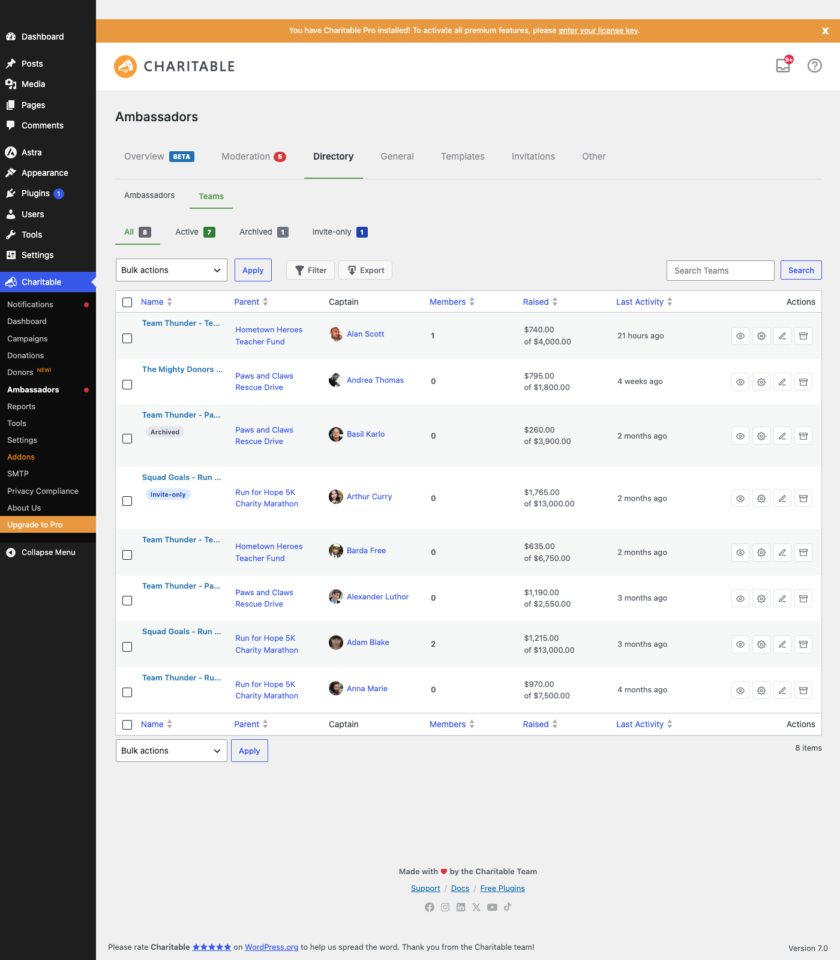
Der Tab „Verzeichnis“ hat jetzt eine Unternavigation mit zwei Ansichten: Botschafter (die bestehende Liste individueller Spendenaktionen) und Teams (diese neue Ansicht). Die Teamansicht ist genau wie die Botschafteransicht strukturiert, sodass die Muskelgedächtnisübertragung erfolgt.
Die Liste zeigt eine Zeile pro Team mit diesen Spalten:
Spalte
Was es anzeigt
Team
Teamname mit einem farbigen „Team“-Chip. Klicken Sie, um zum Teamprofil zu gelangen.
Kapitän
Der Anzeigename des Kapitäns mit einem kleinen Avatar. Wenn kein Kapitän zugewiesen ist, sehen Sie „Kein Kapitän“ kursiv.
Elternkampagne
Die Elternkampagne, zu der dieses Team gehört. Klicken Sie, um die Elternkampagne zu öffnen.
Mitglieder
Die Anzahl der Mitglieder-Spendenaktionen in diesem Team.
Eingenommen
Gesamtbetrag, der im Team gesammelt wurde (Kapitän + alle Mitglieder).
Letzte Aktivität
Datum der letzten Spende an eine Person im Team.
Status
„Aktiv“ oder „Archiviert“.
Filter
Über der Liste vier Ansichts-Shortcuts (Alle / Aktiv / Archiviert / Nur Einladung) und ein Suchfeld. Die Filter-Schaltfläche öffnet ein Modal für eine detailliertere Filterung:
Filter
Optionen
Archiviert
Alle / Ja / Nein
Nur Einladung
Alle / Ja / Nein
Elternkampagne
Aus Ihren Kampagnen auswählen
Kapitän
Freitextsuche nach Teamleitername + E-Mail
Erstellt von / bis
Datumsbereich
Suche und Filter ergänzen sich – wenn Sie einen Filter anwenden und dann suchen, wird die Ergebnismenge weiter eingeschränkt.
Massenaktionen
Zeilen mit der Kontrollkästchenspalte auswählen, dann die Massenauswahl verwenden:
Ausgewählte archivieren – schaltet das Archivierungsflag um. Archivierte Teams werden nicht mehr auf den Listen angezeigt, behalten aber alle ihre Daten; sie bleiben durchsuchbar und können später reaktiviert werden.
Ausgewählte reaktivieren – das Gegenteil.
In den Papierkorb verschieben – verschiebt den Team-Kampagnen-Beitrag in den WP-Papierkorb. Die Spenden der Mitglieder sind davon nicht betroffen.
Ausgewählte als CSV exportieren – streamt eine CSV-Datei nur mit den ausgewählten Zeilen.
Die vollständige Liste kann auch über die Schaltfläche Exportieren in der Symbolleiste exportiert werden. Die CSV-Datei ist sicher vor Formel-Injection.
Admin – das Teamprofil
Klicken Sie auf einen beliebigen Teamnamen in der Liste, um zum Teamprofil zu gelangen. Das Profil ist eine einzelne Seite mit einem Hero-Streifen oben und vier Unter-Tabs darunter: Übersicht, Mitglieder, Spenden, Einstellungen.
Hero-Streifen
Der Hero-Streifen zeigt die Identität des Teams auf einen Blick: Teamname, Teamleiter (verlinkt zum Botschafterprofil, wenn der Teamleiter einem WP-Benutzer entsprach), übergeordnete Kampagne (verlinkt), Erstellungsdatum und Mitgliederanzahl. Ein „Geleitet von [Name]“-Badge wird auch im Botschafterverzeichnisprofil des Teamleiters angezeigt, sodass Sie von einer Person zu allen Teams navigieren können, die sie leitet.
Unter-Tabs
Unter-Tab
Was gibt es
Übersicht
KPIs (eingeworben, Spender, Spenden, Durchschnitt) nur für dieses Team. Eine Grafik, die die Spenden-Geschwindigkeit über die Lebensdauer des Teams zeigt.
Mitglieder
Die Liste der Mitglieds-Spendenaktionen mit den eingeworbenen Gesamtsummen, dem Datum der letzten Spende, dem Datum der letzten Kontaktaufnahme und Aktionen pro Zeile (Mitglied entfernen, Einladung erneut senden).
Spenden
Jede Spende, die diesem Team zugeordnet wurde, filterbar nach Datumsbereich und Status, mit CSV-Export.
Einstellungen
Das gleiche Formular, das Sie im Meta-Feld der Team-Kampagne auf dem Beitragsbearbeitungsbildschirm sehen würden, hier zur Bequemlichkeit eingebettet. Enthält die Umschaltfläche „Nur Einladung“, ein Feld für interne Admin-Notizen und die Steuerung zum Ersetzen des Teamleiters.
Jeder Unter-Tab lädt seinen Inhalt verzögert – die Daten werden erst abgerufen, wenn Sie auf den Tab klicken. Dies hält das anfängliche Rendern des Profils auch bei Teams mit Hunderten von Mitgliedern oder Spenden schnell.
Kapitänswechsel-Workflow
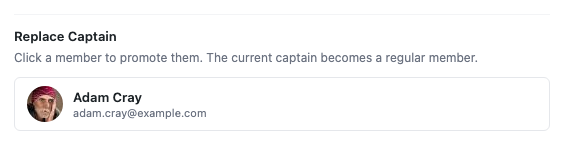
Kapitäne wechseln. Jemand tritt zurück, jemand rückt nach. Die Steuerung „Kapitän ersetzen“ auf der Unterregisterkarte „Einstellungen“ (und innerhalb der Meta-Box „Team-Einstellungen“ nach der Bearbeitung) öffnet eine Auswahl, die berechtigte Teammitglieder anzeigt.
So funktioniert's:
Die Auswahl zeigt jedes aktive Mitglied dieses Teams an. Sie können nach Name oder E-Mail suchen.
Wählen Sie einen neuen Kapitän und bestätigen Sie.
Der bisherige Kapitän wird zum regulären Mitglied herabgestuft (seine Spendenaktion bleibt erhalten).
Der neue Kapitän übernimmt das Eigentum an der Teamseite.
Die Änderung wird im Audit-Trail des Teams protokolliert.
Die Auswahl bietet nur Mitglieder an, die sich *bereits* im Team befinden – sie ist keine Möglichkeit, eine neue Person hinzuzufügen und sie sofort zum Kapitän zu machen. Laden Sie sie dazu zuerst als Mitglied ein und befördern Sie sie dann.
Modal „E-Mail senden“ (Teammitglieder)
Die Unterregisterkarte „Mitglieder“ und die Aktionen pro Zeile zeigen beide eine Schaltfläche „E-Mail senden“. Ein Klick darauf öffnet ein Modal, mit dem der Administrator eine E-Mail mit Vorlage an ein oder mehrere Teammitglieder senden kann, wobei Smart-Tags serverseitig ersetzt werden. Wenn die wp_mail-Funktion Ihrer Website nicht für den ausgehenden Versand konfiguriert ist, greift das Modal auf einen mailto:-Link zurück, der den E-Mail-Client des Administrators mit vorausgefülltem Text öffnet.
Das „Mitglieder“-Panel zeigt außerdem ein Datum „Zuletzt kontaktiert“ in jeder Zeile an, sodass Sie auf einen Blick sehen können, wen Sie bereits kontaktiert haben und wen nicht.
Teamweites „Nur Einladung“-Umschalter
Einige Teams sollten offen zum Beitritt sein (jeder kann sich als Mitglied anmelden); einige sollten nur per Einladung beigetreten werden können (der Kapitän wählt aus, wer beitreten darf). Die Unterregisterkarte „Einstellungen“ verfügt über einen Umschalter „Nur Einladung“, der dies steuert. Wenn „Nur Einladung“ aktiviert ist:
Der Bereich „Teammitglieder“ im Frontend verbirgt den Beitritts-CTA.
Neue Anmeldungen über den „Spenden sammeln“-Ablauf der übergeordneten Kampagne können dieses Team nicht auswählen.
Das Team kann immer noch über direkte Einladungslinks beigetreten werden.
Interne Admin-Notizen
Die Unterregisterkarte „Einstellungen“ verfügt über ein Feld „Interne Admin-Notizen“ – einen Rich-Text-Bereich, der nur für Administratoren sichtbar ist. Nützlich für Kontext wie „Kapitän ist ein Vorstandsmitglied, Antworten priorisieren“ oder „Team hat letztes Jahr 50.000 US-Dollar gesammelt, als VIP behandeln“. Notizen erscheinen niemals im Frontend.
Frontend – der Bereich „Teammitglieder“
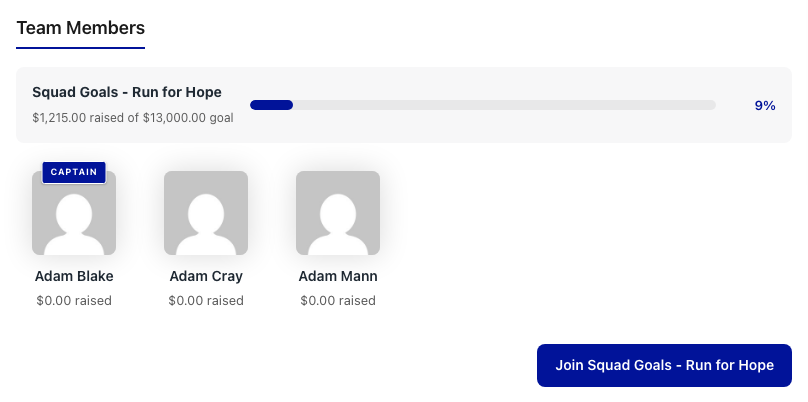
Auf der öffentlichen Seite rendert jede Team-Kampagnenseite jetzt einen Bereich „Teammitglieder“ unterhalb des Hauptkampagnentextes. Dies sehen Spender und potenzielle Mitglieder, wenn sie eine Teamseite besuchen.
Der Bereich besteht aus drei Teilen:
Teil
Was es anzeigt
Teamweiter Fortschrittsbalken
Der kombinierte Gesamtbetrag des Teams im Verhältnis zum Teamziel. Dies umfasst den Kapitän + alle Mitglieder.
Mitglieder-Karten
Eine Karte pro Mitglieder-Spendenaktion – Foto des Mitglieds, Name, gesammelter Betrag, Fortschrittsbalken und ein Link zu seiner individuellen Seite.
Beitreten-CTA
Eine Schaltfläche „Diesem Team beitreten“, die Besucher zum „Spenden sammeln“-Ablauf der übergeordneten Kampagne weiterleitet, wobei dieses Team vorausgewählt ist. Versteckt, wenn das Team nur per Einladung beigetreten werden kann.
Spender können direkt an ein Mitglied spenden, indem sie auf dessen Karte klicken, oder an das gesamte Team über die Hauptspende-Schaltfläche auf der Teamseite selbst. Jeder Weg zählt für die Gesamtsumme des Teams.
Erweiterter vs. visueller Modus
Der Abschnitt „Teammitglieder“ funktioniert sowohl im Erweiterten als auch im Visuellen Vorlagenmodus – er ist nicht an eine bestimmte Layoutvariante gebunden. Die Formatierung passt sich an:
Der Erweiterte Modus verwendet ein Standard-Kartenraster, das der gewählten Layoutvariante entspricht (klassisch, Story-Forward, Rallye usw.).
Der Visuelle Modus übernimmt die Formatierung der konfigurierten Kampagnenvorlage. Kartenabstände, Typografie und Akzentfarben stammen aus derselben Quelle wie der Rest der Spenden-Seite.
Identitätszeile auf Team-Kampagnenseiten
Team-Kampagnenseiten erhalten außerdem eine Identitätszeile über der Spenden-Schaltfläche, die den Kapitän und die übergeordnete Kampagne als Schnelllinks nennt. Dies gibt Besuchern sofortigen Kontext: „Kapitän: Sarah Lee, Teil des Frühlingsmarathons 2026.“
Tipps
Füttern Sie Ihr erstes Team, bevor Sie das Programm starten. Erstellen Sie ein Team, werden Sie selbst Kapitän, laden Sie 2-3 Kollegen als Mitglieder ein und durchlaufen Sie einmal den Spenderfluss. Wenn Sie jetzt die Frage „Ist der Beitritts-CTA sichtbar?“ oder „Rastet die Fortschrittsleiste korrekt?“ klären, sparen Sie später ein Support-Ticket.
Legen Sie „Nur Einladungen“ sorgfältig fest. Offene Beitritte sind die richtige Standardeinstellung für die meisten öffentlichen Marathons. „Nur Einladungen“ eignet sich für Unternehmens-, Schul- oder Freundesgruppenkontexte, in denen der Kapitän die Mitgliedschaft kuratieren soll.
Verwenden Sie das Modal „E-Mail senden“ sparsam. Eine wöchentliche Massen-E-Mail an alle Teammitglieder wirkt wie Spam. Verwenden Sie es für echte Meilensteine (Beginn, Mitte, Endspurt, Dankeschön nach Abschluss).
Archivieren Sie am Ende einer Saison. Werfen Sie Teams nicht weg, sobald der Marathon vorbei ist – archivieren Sie sie. Sie behalten die historischen Daten, der Kapitän und die Mitglieder behalten ihre öffentlichen Seiten, und Sie können sie im nächsten Jahr wieder archivieren, wenn dasselbe Team erneut teilnehmen möchte.
Überprüfen Sie die Spalte „Zuletzt kontaktiert“, bevor Sie senden. Wenn Sie dieses Team diese Woche bereits per E-Mail kontaktiert haben, zeigt Ihnen die Spalte „Zuletzt kontaktiert“ dies an. Vermeiden Sie die doppelte Kontaktaufnahme.
Migration von früheren Versionen
Wenn Sie vor dem Upgrade auf 3.1 eine Ambassadors-Website unter 3.0 betrieben haben, funktionieren Ihre bestehenden Team-Kampagnen weiterhin genau wie zuvor. Die neuen Teams-Admin-Bereiche zeigen lediglich das an, was bereits in der Datenbank vorhanden war, mit einer ordnungsgemäßen Benutzeroberfläche. Es ist keine Datenmigration erforderlich. Wenn Sie nach dem Upgrade zum ersten Mal Verzeichnis > Teams besuchen, wird die Liste aus Ihren vorhandenen Team-Kampagnenbeiträgen gefüllt.
Entwicklerreferenz
Berechtigungsprüfungen
Aktion
Erforderliche Berechtigung
Teamliste und Teamprofil anzeigen
manage_charitable_settings
Ein Team archivieren / dearchivieren / löschen
manage_charitable_settings
Den Kapitän eines Teams ersetzen
manage_charitable_settings
E-Mail an ein Teammitglied senden
manage_charitable_settings
Einstellungen eines Teams bearbeiten
manage_charitable_settings
Dieselbe Berechtigungsprüfung für jede Admin-Teams-Aktion. Es werden keine neuen Berechtigungen eingeführt – wenn ein Benutzer die Charitable-Einstellungen verwalten kann, kann er auch Teams verwalten.
Filter
Filter
Standard
Zweck
charitable_ambassadors_team_section_include_self
wahr
Ob, ob die eigene Karte des Spendenaktion-Veranstalters im Abschnitt „Teammitglieder“ angezeigt wird. Filtern Sie auf false , um die eigene Karte auszublenden, wenn sie auf ihrer eigenen Spendenaktion-Seite landen.
charitable_ambassadors_team_section_show_join_cta
wahr
Ob die Schaltfläche „Beitreten“ (Join CTA) angezeigt wird. Wird auf false erzwungen, wenn das Team nur auf Einladung ist.
Sortierreihenfolge für Mitgliedskarten. Optionen: raised_desc, raised_asc, name_asc, name_desc, recent_first.
charitable_ambassadors_teams_list_per_page
20
Seitengröße für die Team-Admin-Liste.
charitable_ambassadors_teams_export_columns
Array
Spalten, die im CSV-Export für Teams enthalten sind.
Aktionen
Aktion
Wird ausgelöst, wenn
Argumente
charitable_ambassadors_team_captain_replaced
Admin ersetzt den Kapitän eines Teams über die Auswahl.
$team_id, $old_captain_id, $new_captain_id
charitable_ambassadors_team_archived
Team ist archiviert (einzeln oder in der Masse).
$team_id, $archived_by
charitable_ambassadors_team_unarchived
Team ist nicht archiviert.
$team_id, $unarchived_by
charitable_ambassadors_team_member_email_sent
Das Modal „E-Mail senden“ sendet eine E-Mail an ein Teammitglied.
$team_id, $member_id, $subject, $body
Klassen und Datenbank
Symbol
Rolle
Charitable_Ambassadors_Team
Das Team-Domainobjekt. Gespeichert in der benutzerdefinierten Tabelle wp_charitable_teams für Team-spezifische Metadaten (Kapitäns-ID, Nur-Einladung-Flag, Archivierungsflag) und im WordPress-Post des Teams für alles andere.
Charitable_Teams_DB
Zugriff auf die benutzerdefinierte Tabelle wp_charitable_teams. Erstellt bei Plugin-Aktivierung; kann über die Website-Zustandsprüfungen sicher neu erstellt werden.
Charitable_Team_Members_DB
Zugriff auf die benutzerdefinierte Tabelle wp_charitable_team_members. Verfolgt die Beitritts- und Einladungsstatus der Teammitgliedschaft.
Charitable_Ambassadors_Directory_Teams_Data
Read-Modell für die Team-Listenansicht. Verwaltet die Such- und Filter-SQL.
Charitable_Ambassadors_Directory_Teams_List_Table
Die WP_List_Table-Unterklasse, die die Admin-Liste rendert.
Charitable_Ambassadors_Directory_Teams_Profile
Das Team-Profil-Detail. Leitet die vier Unter-Tabs weiter und behandelt das Lazy-AJAX-Laden.
Charitable_Ambassadors_Team_Meta_Box
Rendert die Team-Einstellungen-Metabox auf dem Beitragsbearbeitungsbildschirm, gemeinsam mit dem Einstellungen-Unter-Tab im Profil.
Charitable_Ambassadors_Team_Settings_Ajax
AJAX-Endpunkt für das Speichern der Metabox und den Workflow zum Ersetzen des Kapitäns.
Charitable_Ambassadors_Teams_Export_CSV
Gestreifter CSV-Export für die Teamliste und das Mitglieder-Panel des Teamprofils.
Senden Sie eine einmalige E-Mail an ein Teammitglied über das Modal.
wp_ajax_charitable_ambassadors_team_profile_panel
Laden Sie den Inhalt eines Unter-Tabs (Übersicht / Mitglieder / Spenden / Einstellungen) verzögert.
Alle Endpunkte prüfen current_user_can( 'manage_charitable_settings' ) und eine Nonce pro Aktion verifizieren. Massen- und zeilenweise Änderungen werden auch im Audit-Trail des Teams protokolliert.
Vorlagen-Overrides
Um den Frontend-Bereich „Teammitglieder“ aus Ihrem Theme anzupassen:
Senden Sie eine Slack-Benachrichtigung, wenn ein Kapitän ersetzt wird:
add_action( 'charitable_ambassadors_team_captain_replaced', function ( $team_id, $old_captain_id, $new_captain_id ) {
    $team = get_post( $team_id );
    wp_remote_post( 'https://hooks.slack.com/services/...', array(
        'body' => wp_json_encode( array(
            'text' => sprintf(
                'Captain replaced on team "%s" - was user #%d, now user #%d.',
                $team->post_title,
                $old_captain_id,
                $new_captain_id
            ),
        ) ),
    ) );
}, 10, 3 );
Verwandt
Verzeichnis – die übergeordnete Admin-Oberfläche, die den Unter-Tab „Teams“ enthält.
Spendenkampagnen-Seite – deckt das Frontend-Rendering aller Kampagnentypen ab, einschließlich Teamkampagnen.
Kampagne einreichen – wie Botschafter ihre Spendenkampagnen erstellen; für Teams ist dies der Ort, an dem Mitglieder auswählen, welchem Team sie beitreten möchten.
Berechtigungen – Fähigkeitsanforderungen für jede Admin-Aktion.
Asset-Liste (für den Dokumenten-Editor)
Dateiname
Was erfasst werden soll
Vorgeschlagener alternativer Text
01-teams-list.png
Verzeichnis > Team-Listenansicht, 4-6 Teams sichtbar mit ihren Kapitänen und gesammelten Beträgen.
Der Unter-Tab „Teams“ im Verzeichnis-Admin, der eine Liste von Teams mit Kapitän, Mitgliedern, gesammeltem Betrag und Archivierungsstatus anzeigt
02-directory-subnav.png
Nahaufnahme der Verzeichnis-Unter-Navigation mit den Tabs Botschafter / Teams, Teams aktiv.
Die Verzeichnis-Unter-Navigation mit den Tabs Botschafter und Teams, Teams aktiv
03-team-profile-hero.png
Der Heldenstreifen eines Teamprofils mit Kapitän-Link, Eltern-Link, Mitglieder-Badges.
Der Heldenbereich des Teamprofils mit Kapitän-Link, Link zur übergeordneten Kampagne, Erstellungsdatum und Badges für die Mitgliederanzahl
04-replace-captain.png
Das Modal "Kapitän ersetzen" wird mit der Mitgliederauswahl geöffnet.
Das Modal "Kapitän ersetzen" mit einer durchsuchbaren Liste aktueller Teammitglieder
05-team-mitglieder-bereich-frontend.png
Frontend-Kampagnenseite des Teams, die den Abschnitt "Teammitglieder" mit Karten anzeigt.
Eine Team-Kampagnenseite im Frontend, die den Abschnitt "Teammitglieder" mit Mitglieder-Karten und einem "Beitreten"-CTA anzeigt
Notizen
Diese Erfassungen benötigen:
Mindestens 4-6 gesäte Teams in mindestens 2 verschiedenen übergeordneten Kampagnen.
Jedes Team benötigt einen Kapitän (einen WP-Benutzer, der per E-Mail zugeordnet ist) und 3-5 Mitglieds-Fundraiser.
Ein Team sollte archiviert werden, damit der "archivierte" Zeilenzustand in der Liste angezeigt wird.
Ein Team sollte nur auf Einladung zugänglich sein, damit die Frontend-Erfassung diese Variante bei Bedarf separat anzeigen kann.
Der "P2P parents"-Seeder des data-spawner-Addons erstellt das strukturelle Gerüst; Sie müssen trotzdem ein paar manuell als Teams über die Kampagnen-Typ-Taxonomie markieren.
Haben Sie noch Fragen? Wir helfen Ihnen gerne weiter!
🔔Abonnieren Sie, um unsere neuesten Updates zu erhalten
📧E-Mails abonnieren
E-Mail-Abonnement
VerbesserungZahlungen
💰 Wiederkehrende Spenden mit Windcave und Charitable akzeptieren
Ein Spender richtet seine Spende einmalig auf der sicheren Zahlungsseite von Windcave ein, und Charitable stellt danach pünktlich jede Verlängerung in Rechnung. Warum das wichtig ist:
🏦 In Neuseeland oder Australien ansässige Organisationen: Monatliche Spenden über das Gateway, mit dem Ihre Bank Sie bereits eingerichtet hat, ohne dass ein zweiter Prozessor angebunden werden muss.
⛪ Kirchen, die regelmäßige Zehnten und Opfergaben erhalten: Die Gemeindemitglieder legen einmal ihren eigenen Zeitplan fest, was der einfachste Weg ist, regelmäßige Kirchenspenden ohne eine separate Plattform zu starten.
🌏 Gruppen mit Spendern in verschiedenen Währungen: Windcave unterstützt über 20 Währungen, sodass ein Unterstützer in der Währung spenden kann, die er tatsächlich besitzt.
📅 Betriebsmittel statt einmaliger Kampagnen: Schalten Sie den Nur-wiederkehrenden-Modus ein, und die Einmal-Option verschwindet, sodass jede Spende für diese Kampagne ein Abonnement ist.
🧾 Teams ohne Entwickler im Personal: 3 Anmeldedaten in eine Einstellungsseite eingefügt, und kein Code irgendwo.
⚡ Visueller Automatisierungs-Builder: Drag & Drop ohne Code!
Charitable Automation Connect 2.3.0 führt den visuellen Automatisierungs-Builder ein, eine Vollbild-Leinwand, die jede Automatisierung als Fluss verbundener Karten darstellt: ein Auslöser, optionale Bedingungen und eine Liste von Aktionen, die der Reihe nach ausgeführt werden.
🧩 Viele Aktionen, ein Auslöser: Markieren Sie einen Spender, senden Sie eine E-Mail, fügen Sie eine Notiz hinzu und lösen Sie einen Webhook von einem einzelnen Ereignis aus, das in beliebiger Reihenfolge gezogen wird.
✉️ Innerhalb von Charitable handeln: Neue Aktionen wie „E-Mail senden“, „Spender markieren“ und „Spenderhinweis hinzufügen“ laufen ohne externen Dienst.
🔤 Zusammenführung-Tags: Personalisieren Sie E-Mails und Notizen mit Live-Feldern wie {first_name}, {total} und {campaign_name}.
🔁 Auf bestehende Spender anwenden: Führen Sie „Spender markieren“ und „Spenderhinweis hinzufügen“ für Ihre vorhandenen Spender aus.
🖥️ Leinwand oder Einfach: Wechseln Sie jederzeit die Ansicht, und Automatisierungen, die vor 2.3.0 erstellt wurden, funktionieren weiterhin unverändert.
Lesen Sie hier mehr.
✓
Danke für Ihr Feedback!
Integrationaktualisiert
📬 Brevo für Charitable vorstellen: Spender automatisch zu Abonnenten machen
Der Moment, in dem ein Unterstützer eine Spende tätigt, ist der Moment, in dem er am engagiertesten ist. Mit der neuen Brevo-Integration für Charitable können Sie einmalige Spender automatisch in langfristige Abonnenten verwandeln, ohne eine einzige Tabelle anfassen zu müssen.
Sammeln Sie einfach die Zustimmung der Spender direkt auf Ihrem Spendenformular und starten Sie sofort Ihre Willkommensserie.
Was ist neu:
🔄 Automatischer Abonnenten-Sync: Neue Spender, die zustimmen, werden sofort Ihrer Brevo-Kontaktliste hinzugefügt, sobald ihre Zahlung abgewickelt ist – keine manuellen Exporte oder CSV-Importe erforderlich.
🎯 Detaillierte Zustimmungs- & Opt-In-Kontrolle: Passen Sie die Bezeichnung Ihrer Checkbox an, wählen Sie, ob sie standardmäßig aktiviert oder deaktiviert ist, oder aktivieren Sie die Brevo-Double-Opt-In, um Ihre Liste sauber und konform zu halten.
📋 Listen-Mapping pro Kampagne: Leiten Sie Unterstützer zu Ihrer globalen E-Mail-Liste oder ordnen Sie bestimmte Kampagnen gezielten Brevo-Listen zu, um Ihre Folgekommunikation anzupassen.
⚡ 5-Minuten-Einrichtung: Stellen Sie sofort eine Verbindung her, indem Sie Ihren Brevo-API-Schlüssel in die Newsletter-Einstellungen einfügen, Ihre Kontaktfelder zuordnen und Ihre E-Mail-Liste automatisch aufbauen.
Bereit, Ihre Mailingliste zu erweitern? Brevo ist jetzt im Charitable Plus-Plan verfügbar – verbinden Sie noch heute Ihr Konto!
✓
Danke für Ihr Feedback!
wiederkehrende Spendenaktualisiert
💳 Karten-Updates einführen: Abgelaufene Karten korrigieren, ohne Abos zu verlieren!
Neue abgelaufene oder aktualisierte Kreditkarten sind eines der größten stillen Lecks im wiederkehrenden Fundraising. Mit Card Updates in der Erweiterung Recurring Donations können Spender jetzt ihre Zahlungsdetails direkt aktualisieren – ihre Abonnement-, Zeitplan- und Spendenhistorie bleibt dabei vollständig erhalten.
Keine gekündigten Pläne, keine verlorene Historie und null administrativer Aufwand für Ihr Team.
Was ist neu:
⚡ 30-Sekunden-Self-Service: Spender erhalten in ihrem Dashboard eine spezielle Schaltfläche „Karte aktualisieren“, die das sichere, PCI-konforme Kundenportal von Stripe öffnet, um Kartendetails sofort zu aktualisieren.
🔒 Geltungsbereich & Sicherer Zugriff: Standardmäßig ausschließlich auf Kartenaktualisierungen beschränkt, können Spender ihre Pläne nicht versehentlich aus dem Portal heraus kündigen oder ändern, wodurch Ihre Webhooks und Daten synchron bleiben.
🤝 Unterstützung durch Administratoren: Helfen Sie einem Spender am Telefon? Öffnen Sie sein sicheres Stripe-Portal mit einem Klick von Ihrem Admin-Bildschirm aus oder generieren Sie einen Einmal-Link zur Aktualisierung, den Sie ihm per E-Mail zusenden können.
📋 Automatischer Audit Trail: Jede Aktualisierung der Zahlungsmethode wird automatisch mit einem Zeitstempel sowohl in den systemweiten Protokollen als auch im Profil des einzelnen Spenders aufgezeichnet.
Sind Sie bereit, Ihre wiederkehrenden Einnahmen zu schützen? Holen Sie sich das Plus- oder Pro-Paket, aktualisieren Sie „Wiederkehrende Spenden“ auf Version 2.3.0+ und aktivieren Sie noch heute unter „Einstellungen“ die Option „Zahlungsmethode aktualisieren“!
✓
Danke für Ihr Feedback!
IntegrationSeiten-Ersteller
Divi-Fans jubeln! Natives Divi 5 Kampagnen-Fortschrittsbalken-Modul!
Mit unserem neuen nativen Divi 5-Modul können Sie Ihre Microsites mit Echtzeit-Fundraising-Statistiken direkt auf der visuellen Oberfläche verankern. Hier erfahren Sie, wie es funktioniert und warum es sich lohnt, es noch heute zu aktivieren.
Erstellen Sie Kampagnen-Updates, die VISUELL UND LIVE sind. Sie können auch:
📊 Fortschrittsbalken der Kampagne: Fügen Sie einen Live-Fortschrittsbalken in jedes Divi 5-Layout ein und zeigen Sie den Ziel-Fortschritt in Echtzeit an.
🎨 Tiefgreifende Styling-Steuerelemente: Passen Sie die Farbe, Höhe und den Radius des Balkens und der Anzeige einfach an, um sie perfekt an Ihre Marke anzupassen.
👁️ Visual Builder bereit: Konfigurieren und sehen Sie alles direkt auf der Divi-Oberfläche als erstklassiges Modul.
🔁 Identische Darstellung: Dieselbe exakte Engine treibt dieses Modul an, was ein konsistentes Design ohne Legacy-Workarounds bedeutet.
✅ Schnellere Starts: Verlassen Sie niemals die Divi 5-Oberfläche, um Shortcodes zu konfigurieren oder zu erraten, wie Ihre Ziel-Beschriftungen aussehen werden.
Cloudflare's bot products identify and mitigate automated traffic to protect your site from bad bots. Cloudflare places the __cf_bm cookie on End User devices that access Customer sites that are protected by Bot Management or Bot Fight Mode. The __cf_bm cookie is necessary for the proper functioning of these bot solutions.
session
__cflb
When enabling session affinity with Cloudflare Load Balancer, Cloudflare sets a __cflb cookie with a unique value on the first response to the requesting client. Cloudflare routes future requests to the same origin, optimizing network resource usage. In the event of a failover, Cloudflare sets a new __cflb cookie to direct future requests to the failover pool.
session
_cfuvid
The _cfuvid cookie is only set when a site uses this option in a Rate Limiting Rule, and is only used to allow the Cloudflare WAF to distinguish individual users who share the same IP address.
session
cf_clearance
Whether a CAPTCHA or Javascript challenge has been solved.
session
__cfseq
Sequence rules uses cookies to track the order of requests a user has made and the time between requests and makes them available via Cloudflare Rules. This allows you to write rules that match valid or invalid sequences. The specific cookies used to validate sequences are called sequence cookies.
session
cf_ob_info
The cf_ob_info cookie provides information on: The HTTP Status Code returned by the origin web server. The Ray ID of the original failed request. The data center serving the traffic
session
__cfwaitingroom
The __cfwaitingroom cookie is only used to track visitors that access a waiting room enabled host and path combination for a zone. Visitors using a browser that does not accept cookies cannot visit the host and path combination while the waiting room is active.
session
cf_chl_rc_i
These cookies are for internal use which allows Cloudflare to identify production issues on clients.
session
cf_chl_rc_ni
These cookies are for internal use which allows Cloudflare to identify production issues on clients.
session
cf_chl_rc_m
These cookies are for internal use which allows Cloudflare to identify production issues on clients.
session
__cfruid
Used by the content network, Cloudflare, to identify trusted web traffic.
session
cf_use_ob
The cf_use_ob cookie informs Cloudflare to fetch the requested resource from the Always Online cache on the designated port. Applicable values are: 0, 80, and 443. The cf_ob_info and cf_use_ob cookies are persistent cookies that expire after 30 seconds.
session
These cookies are needed for adding comments on this website.
Name
Description
Duration
comment_author
Used to track the user across multiple sessions.
Session
comment_author_email
Used to track the user across multiple sessions.
Session
comment_author_url
Used to track the user across multiple sessions.
Session
Easy Digital Downloads is a WordPress plugin for selling digital products effortlessly and managing transactions.
Name
Description
Duration
edd_session_
Stores information about the current user session.
Session
edd_items_in_cart
Stores information about the cart contents.
Session
These cookies are used for managing login functionality on this website.
Name
Description
Duration
wordpress_logged_in
Used to store logged-in users.
Persistent
wordpress_sec
Used to track the user across multiple sessions.
15 days
wordpress_test_cookie
Used to determine if cookies are enabled.
Session
WPForms is a user-friendly WordPress plugin for creating custom forms with drag-and-drop functionality.
Name
Description
Duration
wpfuuid
Used to track user interactions with forms.
11 years
Statistics cookies collect information anonymously. This information helps us understand how visitors use our website.
Clarity is a web analytics service that tracks and reports website traffic.