Ambassadeurs Charitable : Équipes – Regroupez les collectes de fonds sous un seul capitaine
Requis : Charitable Pro 1.8.16+ Charitable Ambassadors 3.1.0+
Une équipe dans Charitable Ambassadors est un groupe de collecteurs de fonds travaillant ensemble vers un objectif commun sous un seul capitaine. Le capitaine gère la page de l'équipe ; les membres créent leurs propres collectes de fonds personnelles qui s'additionnent aux totaux de l'équipe. Les donateurs peuvent donner directement à un membre, à l'équipe dans son ensemble, ou aux deux.
Les équipes sont l'unité naturelle pour les marathons, les marche-thons, les collectes de fonds école par école, les promesses de dons de communautés religieuses, et tout autre modèle de pair à pair où les supporters s'auto-organisent en groupes. Charitable Ambassadors 3.1 offre aux administrateurs une surface de gestion complète pour les équipes (liste, profil détaillé, transferts de capitaine, e-mail des membres) et offre aux donateurs une section claire « Membres de l'équipe » sur chaque page de campagne d'équipe.
Quand utiliser les équipes
Participer à un marathon ou un marche-thon où les supporters forment des équipes (par entreprise, par école, par groupe d'amis) et souhaitent une page d'équipe qu'ils peuvent partager.
Permettre à une école ou une église de coordonner sous une seule bannière, chaque classe ou petit groupe organisant sa propre sous-collecte de fonds.
Mettre en place une campagne de dons d'entreprise avec abondement où chaque département dirige une équipe et concourt pour le total le plus élevé.
Partout où vous avez besoin d'un « classement de groupes, pas d'individus » – les équipes s'agrègent naturellement là où les collecteurs de fonds individuels ne le font pas.
Le modèle mental
Les équipes se situent au-dessus de la structure existante de campagnes parent / collecteur de fonds d'Ambassadors :
Une campagne parent est la cause générale (par exemple, « Marathon de Printemps 2026 »).
Une campagne d'équipe est une équipe sous cette campagne parent (par exemple, « Équipe Acme Corp »). L'équipe a un capitaine.
Une collecte de fonds individuelle est la page individuelle d'une personne sous l'équipe (par exemple, « Page Marathon de Printemps de Sarah »). Sarah est membre de l'Équipe Acme Corp.
Les dons sur la page de Sarah comptent pour Sarah, pour le total de l'Équipe Acme Corp, et pour le total général du Marathon de Printemps 2026. Les calculs s'additionnent automatiquement grâce à l'agrégation parent / enfant existante de Charitable – les équipes n'introduisent pas de nouvelle couche comptable.
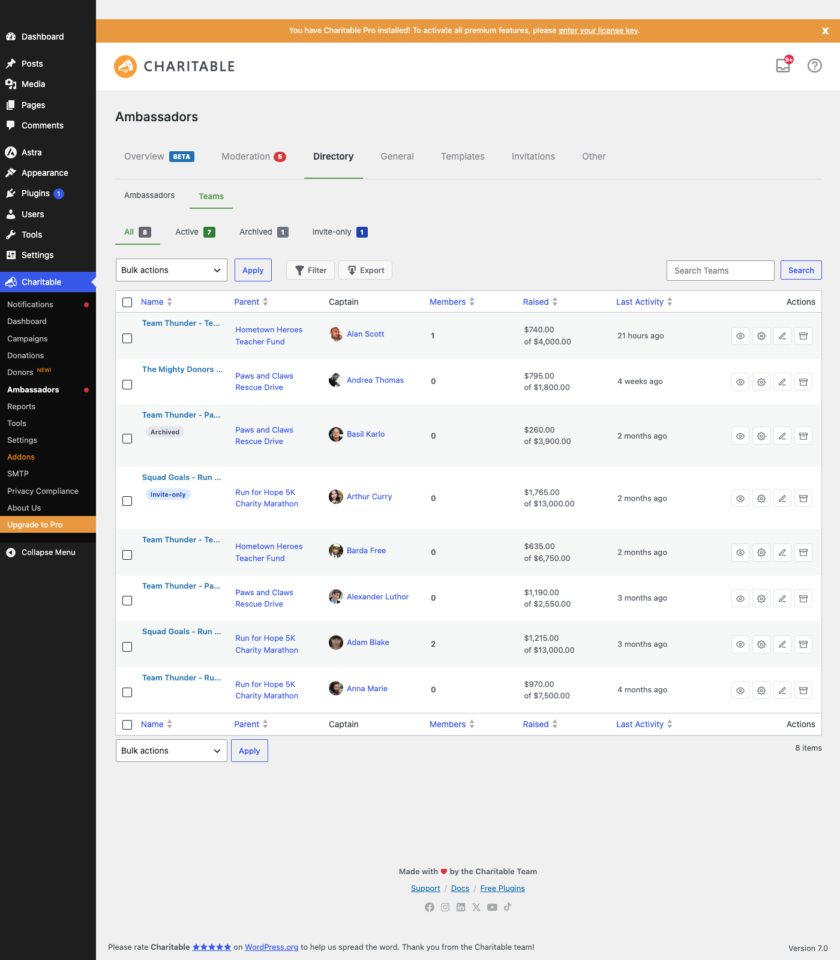
L'onglet Annuaire a maintenant une sous-navigation avec deux vues : Ambassadors (la liste existante des collecteurs de fonds individuels) et Équipes (cette nouvelle vue). La vue Équipes est structurée exactement comme la vue Ambassadors, donc la mémoire musculaire s'applique.
La liste affiche une ligne par équipe avec ces colonnes :
Colonne
Ce qu'il montre
Équipe
Nom de l'équipe, avec une puce colorée « Équipe ». Cliquez pour accéder au profil de l'équipe.
Capitaine
Le nom d'affichage du capitaine avec une petite icône. Si aucun capitaine n'est attribué à l'équipe, vous verrez « Pas de capitaine » en italique.
Campagne parent
La campagne parent à laquelle cette équipe s'agrège. Cliquez pour ouvrir la campagne parent.
Membres
Le nombre de collecteurs de fonds membres dans cette équipe.
Collecté
Total collecté pour l'équipe (capitaine + tous les membres).
Dernière activité
Date du don le plus récent à un membre de l'équipe.
Statut
« Actif » ou « Archivé ».
Filtres
Au-dessus de la liste, quatre raccourcis de vue (Tous / Actifs / Archivés / Sur invitation uniquement) et une zone de recherche. Le bouton Filtrer ouvre une fenêtre modale pour un filtrage plus granulaire :
Filtre
Options
Archivés
Tous / Oui / Non
Sur invitation uniquement
Tous / Oui / Non
Campagne parent
Choisir parmi vos campagnes
Capitaine
Recherche en texte libre sur le nom + e-mail du capitaine
Créé de / à
Plage de dates
La recherche et les filtres se composent – l'application d'un filtre, puis la recherche, réduit davantage l'ensemble des résultats.
Actions groupées
Sélectionnez les lignes avec la colonne de cases à cocher, puis utilisez le menu déroulant groupé :
Archiver la sélection – active le drapeau archivé. Les équipes archivées cessent de s'afficher sur les pages de liste mais conservent toutes leurs données ; elles restent consultables et peuvent être désarchivées plus tard.
Désarchiver la sélection – l'inverse.
Déplacer vers la corbeille – envoie la publication de campagne d'équipe dans la corbeille WP. Les collectes de fonds des membres ne sont pas affectées.
Exporter la sélection en CSV – diffuse un CSV des seules lignes sélectionnées.
La liste complète peut également être exportée via le bouton Exporter dans la barre d'outils. Le CSV est sécurisé contre l'injection de formules.
Admin – le profil de l'équipe
Cliquez sur le nom de n'importe quelle équipe dans la liste pour accéder au profil de l'équipe. Le profil est une page unique avec une bande principale en haut et quatre sous-onglets en dessous : Aperçu, Membres, Dons, Paramètres.
Bande principale
La bande principale présente l'identité de l'équipe en un coup d'œil : nom de l'équipe, capitaine (lié au profil Ambassadeur si le capitaine correspondait à un utilisateur WP), campagne parente (liée), date de création et nombre de membres. Un badge « Capitaine par [nom] » est également affiché sur le profil de l'annuaire des ambassadeurs du capitaine, vous permettant ainsi de naviguer d'une personne à toutes les équipes qu'elle dirige.
Sous-onglets
Sous-onglet
Ce qu'il y a
Aperçu
KPI (montant collecté, donateurs, dons, moyenne) limités à cette équipe uniquement. Un graphique montrant la vélocité des dons sur la durée de vie de l'équipe.
Membres
La liste des collecteurs de fonds membres, avec les totaux collectés, la date du dernier don, la date du dernier contact, et les actions par ligne (supprimer le membre, renvoyer l'invitation).
Dons
Chaque don qui a été reversé à cette équipe, filtrable par plage de dates et statut, avec exportation CSV.
Paramètres
Le même formulaire que celui que vous verriez dans la boîte méta de la campagne d'équipe sur l'écran de modification de publication, intégré ici pour plus de commodité. Comprend le commutateur « sur invitation uniquement », le champ de notes internes de l'administrateur et le contrôle de remplacement du capitaine.
Chaque sous-onglet charge son contenu de manière différée – les données ne sont pas récupérées tant que vous n'avez pas cliqué sur l'onglet. Cela permet de maintenir un rendu rapide du profil initial, même pour les équipes comptant des centaines de membres ou de dons.
Flux de remplacement du capitaine
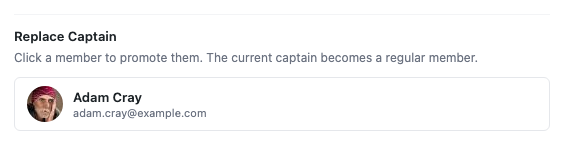
Les capitaines changent. Quelqu'un se retire, quelqu'un prend la relève. Le contrôle Remplacer le capitaine sur le sous-onglet Paramètres (et dans la boîte méta des paramètres d'équipe de l'écran de modification de publication) ouvre un sélecteur qui affiche les membres éligibles de l'équipe.
Comment ça marche :
Le sélecteur affiche tous les membres actifs de cette équipe. Vous pouvez rechercher par nom ou par e-mail.
Choisissez un nouveau capitaine et confirmez.
Le capitaine précédent est rétrogradé au rang de membre ordinaire (sa collecte de fonds reste intacte).
Le nouveau capitaine hérite de la propriété de la page de l'équipe.
La modification est enregistrée dans la piste d'audit de l'équipe.
Le sélecteur ne propose que les membres qui sont déjà dans l'équipe – ce n'est pas un moyen d'ajouter une nouvelle personne et de la désigner immédiatement comme capitaine. Pour ce faire, invitez-la d'abord en tant que membre, puis promouvez-la.
Modale d'envoi d'e-mail (membres de l'équipe)
Le sous-onglet Membres et les actions par ligne exposent tous deux un bouton Envoyer un e-mail. Cliquer dessus ouvre une modale qui permet à l'administrateur d'envoyer un e-mail modèle à un ou plusieurs membres de l'équipe, avec des balises intelligentes substituées côté serveur. Si la fonction wp_mail de votre site n'est pas configurée pour la diffusion sortante, la modale se rabat sur un lien mailto: qui ouvre le propre client de messagerie de l'administrateur avec le corps pré-rempli.
Le panneau Membres affiche également une date Dernier contact sur chaque ligne afin que vous puissiez voir d'un coup d'œil qui vous avez déjà contacté par e-mail et qui vous ne l'avez pas fait.
Basculement « invitation uniquement » par équipe
Certaines équipes doivent être ouvertes à tous (n'importe qui peut s'inscrire en tant que membre) ; d'autres doivent être sur invitation uniquement (le capitaine sélectionne qui peut rejoindre). Le sous-onglet Paramètres contient un basculement Invitation uniquement qui modifie ce comportement. Lorsque l'option invitation uniquement est activée :
La section Membres de l'équipe sur le frontend masque le bouton d'appel à l'action pour rejoindre.
Les nouvelles inscriptions via le flux de soumission de collecte de fonds de la campagne parente ne peuvent pas choisir cette équipe.
L'équipe peut toujours être rejointe via des liens d'invitation directs.
Notes internes de l'administrateur
Le sous-onglet Paramètres contient un champ Notes internes de l'administrateur – une zone de texte enrichi visible uniquement par les administrateurs. Utile pour des contextes tels que « le capitaine est un membre du conseil d'administration, prioriser les réponses » ou « l'équipe a collecté 50 000 $ l'année dernière, traiter comme VIP ». Les notes n'apparaissent jamais sur le frontend.
Frontend – la section Membres de l'équipe
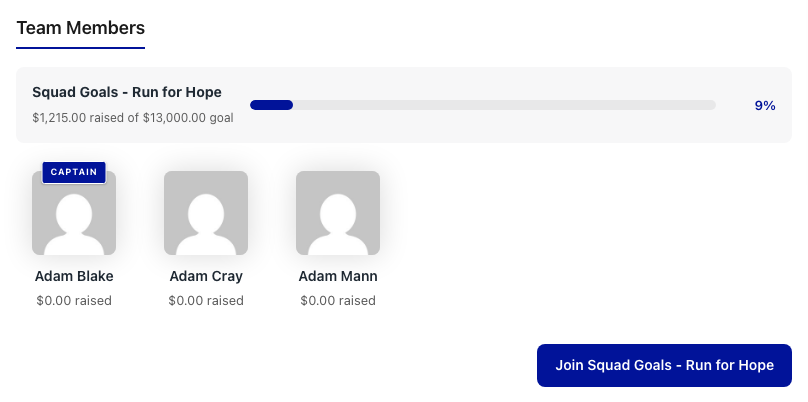
Du côté public, chaque page de campagne d'équipe affiche désormais une section Membres de l'équipe sous le corps principal de la campagne. C'est ce que les donateurs et les futurs membres voient lorsqu'ils visitent une page d'équipe.
La section se compose de trois parties :
Partie
Ce qu'il montre
Barre de progression de l'équipe
Le total combiné collecté par l'équipe par rapport à l'objectif de l'équipe. Cela inclut le capitaine + tous les membres.
Cartes des membres
Une carte par collecte de fonds de membre – photo du membre, nom, total collecté, barre de progression et lien vers sa page individuelle.
Appel à l'action pour rejoindre
Un bouton « Rejoindre cette équipe » qui redirige les visiteurs vers le flux de soumission de collecte de fonds de la campagne parente avec cette équipe pré-sélectionnée. Masqué lorsque l'équipe est sur invitation uniquement.
Les donateurs peuvent donner directement à un membre en cliquant sur sa carte, ou à l'équipe dans son ensemble via le bouton de don principal sur la page de l'équipe elle-même. L'un ou l'autre chemin compte pour le total de l'équipe.
Mode amélioré vs visuel
La section Membres de l'équipe fonctionne dans les deux modes de modèle Amélioré et Visuel – elle n'est pas liée à une variante de mise en page particulière. Le style s'adapte :
Mode amélioré utilise une grille de cartes standard qui correspond à la variante de mise en page choisie (classique, story-forward, rallye, etc.).
Mode visuel hérite du style de la campagne de modèle configurée. L'espacement des cartes, la typographie et les couleurs d'accentuation proviennent de la même source que le reste de la page de collecte de fonds.
Ligne d'identité sur les pages de campagne d'équipe
Les pages de campagne d'équipe obtiennent également une ligne d'identité au-dessus du bouton de don qui nomme le capitaine et la campagne parente comme liens rapides. Cela donne aux visiteurs un contexte immédiat : « Capitaine par Sarah Lee, faisant partie du Marathon de Printemps 2026 ».
Conseils
Amorcez votre première équipe avant de lancer le programme. Créez une équipe, nommez-vous capitaine, invitez 2-3 collègues en tant que membres et parcourez le flux côté donateur une fois. Résoudre la question « le CTA de rejoindre est-il visible ? » ou « la barre de progression se remplit-elle correctement ? » maintenant permet d'éviter un ticket de support plus tard.
Définissez la mise sur invitation avec soin. L'adhésion ouverte est le bon réglage par défaut pour la plupart des marathons publics. La mise sur invitation convient aux contextes d'entreprise, d'école ou de groupe d'amis où vous souhaitez que le capitaine sélectionne les membres.
Utilisez la fenêtre modale Envoyer un e-mail avec parcimonie. Un envoi à tous les membres de l'équipe chaque semaine ressemble à du spam. Utilisez-la pour les étapes importantes réelles (lancement, mi-parcours, dernière ligne droite, merci d'avoir terminé).
Archivez à la fin d'une saison. Ne supprimez pas les équipes une fois le marathon terminé – archivez-les. Vous conservez les données historiques, le capitaine et les membres conservent leurs pages publiques, et vous pouvez les désarchiver l'année prochaine si la même équipe souhaite participer à nouveau.
Vérifiez la colonne Dernier contact avant d'envoyer. Si vous avez déjà envoyé un e-mail à cette équipe cette semaine, la colonne Dernier contact vous le dira. Évitez le double envoi.
Migration depuis les versions antérieures
Si vous avez exécuté un site Ambassadeurs sur la version 3.0 avant de passer à la version 3.1, vos campagnes d'équipe existantes continueront de fonctionner exactement comme avant. Les nouvelles interfaces d'administration des équipes exposent simplement ce qui était déjà dans la base de données avec une interface utilisateur appropriée. Aucune migration de données n'est requise. La première fois que vous accédez à Répertoire > Équipes après la mise à niveau, la liste se remplit à partir de vos publications de campagne d'équipe existantes.
Référence du développeur
Restrictions de capacité
Action
Capacité requise
Afficher la liste des équipes et le profil d'une équipe
gérer les paramètres de Charitable
Archiver / désarchiver / supprimer une équipe
gérer les paramètres de Charitable
Remplacer le capitaine d'une équipe
gérer les paramètres de Charitable
Envoyer un e-mail à un membre de l'équipe
gérer les paramètres de Charitable
Modifier les paramètres d'une équipe
gérer les paramètres de Charitable
Les mêmes restrictions de capacité s'appliquent à chaque action d'administration des équipes. Aucune nouvelle capacité n'est introduite – si un utilisateur peut gérer les paramètres de Charitable, il peut gérer les équipes.
Filtres
Filtre
Défaut
Objectif
charitable_ambassadors_team_section_include_self
vrai
Indique si la carte de l'organisateur de la collecte de fonds apparaît dans la section Membres de l'équipe. Filtrez sur false pour masquer sa propre carte lorsqu'il accède à sa propre page de collecte de fonds.
charitable_ambassadors_team_section_show_join_cta
vrai
Indique si le bouton CTA Rejoindre s'affiche. Forcé à false lorsque l'équipe est sur invitation uniquement.
Nombre de cartes de membre par ligne dans la grille.
charitable_ambassadors_team_section_member_order
'raised_desc'
Ordre de tri des cartes de membre. Options : raised_desc, raised_asc, name_asc, name_desc, recent_first.
charitable_ambassadors_teams_list_per_page
20
Taille de la page pour la liste des équipes dans l'administration.
charitable_ambassadors_teams_export_columns
tableau
Colonnes incluses dans l'export CSV des équipes.
Actions
Action
Se déclenche lorsque
Args
charitable_ambassadors_team_captain_replaced
L'administrateur remplace le capitaine d'une équipe via le sélecteur.
$team_id, $old_captain_id, $new_captain_id
charitable_ambassadors_team_archived
L'équipe est archivée (individuellement ou en masse).
$team_id, $archived_by
charitable_ambassadors_team_unarchived
L'équipe est désarchivée.
$team_id, $unarchived_by
charitable_ambassadors_team_member_email_sent
La fenêtre modale Envoyer un e-mail envoie un e-mail à un membre de l'équipe.
$team_id, $member_id, $subject, $body
Classes et base de données
Symbole
Rôle
Équipe d'ambassadeurs caritatifs
L'objet de domaine de l'équipe. Soutenu par la table personnalisée wp_charitable_teams pour les métadonnées spécifiques à l'équipe (ID du capitaine, indicateur d'invitation uniquement, indicateur d'archivage) et par la publication WordPress de l'équipe pour tout le reste.
Base de données des équipes caritatives
Accesseur de table personnalisée pour wp_charitable_teams. Créé lors de l'activation du plugin ; peut être reconstruit en toute sécurité via les vérifications d'état du site.
Base de données des membres d'équipes caritatives
Accesseur de table personnalisée pour wp_charitable_team_members. Suit l'état de la jointure et de l'invitation aux membres de l'équipe.
Données des équipes du répertoire des ambassadeurs caritatifs
Modèle de lecture pour la vue de la liste des équipes. Possède la recherche et le filtrage SQL.
Envoyer un e-mail unique à un membre de l'équipe via la fenêtre modale.
wp_ajax_charitable_ambassadors_team_profile_panel
Charger paresseusement le contenu d'un sous-onglet (Aperçu / Membres / Dons / Paramètres).
Tous les points d'accès vérifient current_user_can( 'manage_charitable_settings' ) et valident un nonce par action. Les mutations en masse et par ligne sont également enregistrées dans la piste d'audit de l'équipe.
Substitutions de modèles
Pour personnaliser la section des membres de l'équipe sur le frontend depuis votre thème :
La variante compacte (team-members-section-compact.php) est utilisée dans les variantes de mise en page étroites ; la variante standard remplit la largeur de la page.
Exemples de personnalisation
Masquer le CTA de participation sur toutes les équipes :
Envoyer une notification Slack lorsqu'un capitaine est remplacé :
add_action( 'charitable_ambassadors_team_captain_replaced', function ( $team_id, $old_captain_id, $new_captain_id ) {
    $team = get_post( $team_id );
    wp_remote_post( 'https://hooks.slack.com/services/...', array(
        'body' => wp_json_encode( array(
            'text' => sprintf(
                'Captain replaced on team "%s" - was user #%d, now user #%d.',
                $team->post_title,
                $old_captain_id,
                $new_captain_id
            ),
        ) ),
    ) );
}, 10, 3 );
Connexes
Annuaire – la surface d'administration parente qui héberge l'onglet Équipes.
Page de collecte de fonds – couvre le rendu frontal de tous les types de campagnes, y compris les campagnes d'équipe.
Soumettre une campagne – comment les ambassadeurs créent leurs collectes de fonds ; pour les équipes, c'est là que les membres choisissent l'équipe à rejoindre.
Permissions – exigences de capacité pour chaque action d'administration.
Liste des ressources (pour l'éditeur de documentation)
Nom de fichier
Ce qu'il faut capturer
Texte alternatif suggéré
01-teams-list.png
Annuaire > Vue de la liste des équipes, 4 à 6 équipes visibles avec leurs capitaines et les montants collectés.
L'onglet Équipes de l'Annuaire en administration, montrant une liste d'équipes avec capitaine, membres, montant collecté et statut d'archivage
02-directory-subnav.png
Gros plan de la sous-navigation de l'Annuaire montrant les onglets Ambassadeurs / Équipes, Équipes actif.
La sous-navigation de l'Annuaire avec les onglets Ambassadeurs et Équipes, Équipes actif
03-team-profile-hero.png
La bande héroïque du profil d'une équipe avec le lien du capitaine, le lien parent, les badges des membres.
Le héros du profil d'équipe avec le lien du capitaine, le lien de la campagne parente, la date de création et les badges du nombre de membres
04-replace-captain.png
La modale Remplacer le capitaine ouverte avec le sélecteur de membre.
La modale Remplacer le capitaine avec une liste consultable des membres actuels de l'équipe
05-team-members-section-frontend.png
Page de campagne d'équipe frontale montrant la section Membres de l'équipe avec des cartes.
Une page de campagne d'équipe sur le frontal, montrant la section Membres de l'équipe avec des cartes de membres et un CTA pour rejoindre
Remarques
Ces captures nécessitent :
Au moins 4 à 6 équipes semées dans au moins 2 campagnes parentes différentes.
Chaque équipe a besoin d'un capitaine (un utilisateur WP correspondant à l'e-mail) et de 3 à 5 collecteurs de fonds membres.
Une équipe doit être archivée afin que l'état de la ligne « archivé » s'affiche dans la liste.
Une équipe doit être sur invitation uniquement afin que la capture frontale puisse montrer cette variante séparément si nécessaire.
Le générateur « P2P parents » du module data-spawner crée le squelette structurel ; vous devrez toujours marquer manuellement quelques-unes comme équipes via la taxonomie de type de campagne.
Vous avez encore des questions ? Nous sommes là pour vous aider !
🔔Abonnez-vous pour recevoir nos dernières mises à jour
📧Abonnez-vous aux e-mails
Abonnement par e-mail
AméliorationPaiements
💰 Acceptez les dons récurrents avec Windcave et Charitable
Un donateur configure son don une seule fois sur la page de paiement sécurisée de Windcave, et Charitable facture chaque renouvellement par la suite selon le calendrier établi. Pourquoi c'est important :
🏦 Organisations basées en Nouvelle-Zélande ou en Australie : dons mensuels sur la passerelle avec laquelle votre banque vous a déjà configuré, sans second processeur à intégrer.
⛪ Églises acceptant les dîmes et offrandes régulières : les membres de la congrégation définissent leur propre calendrier une fois, ce qui est le moyen le plus simple de lancer des dons d'église récurrents sans plateforme distincte.
🌏 Groupes avec des donateurs dans plusieurs devises : Windcave en gère plus de 20, ainsi un sympathisant peut donner dans la devise qu'il détient réellement.
📅 Fonds de fonctionnement plutôt que des campagnes ponctuelles : activez le mode « Récurrent uniquement » et l'option ponctuelle disparaît, de sorte que chaque don à cette campagne est un abonnement.
🧾 Équipes sans développeur attitré : 3 jeux d'identifiants collés sur une page de paramètres, et aucun code nulle part.
⚡ Générateur d'automatisation visuelle : Glisser-déposer sans code !
Charitable Automation Connect 2.3.0 introduit le Générateur d'automatisation visuelle, une zone d'édition plein écran qui présente chaque automatisation sous forme de flux de cartes connectées : un déclencheur, des conditions facultatives et une liste d'actions exécutées dans l'ordre.
🧩 De nombreuses actions, un seul déclencheur : Taguez un donateur, envoyez un e-mail, ajoutez une note et déclenchez un webhook à partir d'un seul événement, disposés dans n'importe quel ordre.
✉️ Agissez à l'intérieur de Charitable : Les nouvelles actions Envoyer un e-mail, Taguez un donateur et Ajoutez une note de donateur s'exécutent sans service externe requis.
🔤 Étiquettes de fusion : Personnalisez les e-mails et les notes avec des champs dynamiques tels que {first_name}, {total} et {campaign_name}.
🔁 Appliquer aux donateurs existants : Exécutez Taguez un donateur et Ajoutez une note de donateur sur les donateurs que vous avez déjà.
🖥️ Zone d'édition ou Simple : Changez de vue à tout moment, et les automatisations créées avant la version 2.3.0 continueront de fonctionner sans modification.
En savoir plus ici.
✓
Merci pour votre avis !
Intégrationmis à jour
📬 Présentation de Brevo pour Charitable : Transformez automatiquement les donateurs en abonnés
Le moment où un donateur fait un don est le moment où il est le plus engagé. Avec la nouvelle intégration Brevo pour Charitable, vous pouvez transformer automatiquement ces donateurs ponctuels en abonnés à long terme sans toucher à une seule feuille de calcul.
Collectez simplement le consentement du donateur directement sur votre formulaire de don et lancez votre série de bienvenue immédiatement.
Quoi de neuf :
🔄 Synchronisation automatisée des abonnés : Les nouveaux donateurs qui donnent leur accord sont ajoutés directement à votre liste de contacts Brevo dès que leur paiement est traité, sans aucune exportation manuelle ni importation de CSV.
🎯 Contrôle granulaire du consentement et de l'opt-in : Personnalisez le libellé de votre case à cocher, choisissez si elle est cochée par défaut ou non, ou activez le double opt-in de Brevo pour maintenir votre liste propre et conforme.
📋 Mappage de liste par campagne : Dirigez les sympathisants vers votre liste d'e-mails globale ou mappez des campagnes spécifiques à des listes Brevo ciblées pour adapter vos messages de suivi.
⚡ Configuration en 5 minutes : Connectez-vous instantanément en collant votre clé API Brevo dans les paramètres de Newsletter, mappez vos champs de contact et commencez à construire votre liste d'e-mails en mode pilote automatique.
Prêt à développer votre liste de diffusion ? Brevo est disponible dès maintenant à partir du plan Charitable Plus — connectez votre compte dès aujourd'hui !
✓
Merci pour votre avis !
dons récurrentsmis à jour
💳 Mises à jour de carte : Corrigez les cartes expirées sans perdre vos abonnements !
Les cartes de crédit expirées ou mises à jour sont l’une des plus grandes fuites silencieuses dans les collectes de fonds récurrentes. Avec les mises à jour de carte dans l’extension Dons récurrents, les donateurs peuvent désormais actualiser leurs informations de paiement directement, en conservant leur abonnement, leur calendrier et leur historique de dons complètement intacts.
Aucun plan annulé, aucun historique perdu et zéro casse-tête administratif pour votre équipe.
Quoi de neuf :
⚡ Assistance en 30 secondes : les donateurs obtiennent un bouton « Mettre à jour la carte » dédié dans leur tableau de bord qui ouvre le portail client sécurisé et conforme PCI de Stripe pour mettre à jour instantanément les détails de la carte.
🔒 Accès sécurisé et limité : limité exclusivement aux mises à jour de carte par défaut, les donateurs ne peuvent pas annuler ou modifier accidentellement leurs plans depuis le portail, en gardant vos webhooks et vos données synchronisés.
🤝 Assistance administrative : vous aidez un donateur par téléphone ? Ouvrez son portail Stripe sécurisé en un clic depuis votre écran d’administration ou générez un lien de mise à jour à usage unique à lui envoyer par e-mail.
📋 Piste d’audit automatique : chaque mise à jour de méthode de paiement est enregistrée automatiquement avec un horodatage dans les journaux système et le profil du donateur individuel.
Prêt à protéger vos revenus récurrents ? Obtenez le forfait Plus ou Pro et mettez à jour Dons récurrents vers la version 2.3.0+ et activez « Mettre à jour la méthode de paiement » dans vos Paramètres dès aujourd’hui !
✓
Merci pour votre avis !
Intégrationconstructeur de pages
Les fans de Divi se réjouissent ! Module natif de barre de progression de campagne Divi 5 !
Avec notre nouveau module natif Divi 5, vous pouvez ancrer vos microsites avec des statistiques de collecte de fonds en temps réel directement sur la toile visuelle. Voici comment cela fonctionne et pourquoi il est intéressant de l'activer dès aujourd'hui.
Créez des mises à jour de campagne VISUELLES ET EN DIRECT. Vous pouvez également :
📊 Barre de progression de campagne : Insérez une barre de progression en direct dans n'importe quelle mise en page Divi 5 et affichez la progression de l'objectif en temps réel.
🎨 Contrôles de style approfondis : Personnalisez facilement la couleur de la barre et de la piste, la hauteur et le rayon pour qu'ils correspondent parfaitement à votre marque.
👁️ Prêt pour le Visual Builder : Configurez et prévisualisez tout directement sur la toile Divi en tant que module de première classe.
🔁 Rendu identique : Le même moteur exact alimente ce module, ce qui signifie une conception cohérente sans correctifs hérités.
✅ Lancements plus rapides : Ne quittez jamais l'interface Divi 5 pour configurer des shortcodes ou deviner à quoi ressembleront vos étiquettes d'objectif.
Cloudflare's bot products identify and mitigate automated traffic to protect your site from bad bots. Cloudflare places the __cf_bm cookie on End User devices that access Customer sites that are protected by Bot Management or Bot Fight Mode. The __cf_bm cookie is necessary for the proper functioning of these bot solutions.
session
__cflb
When enabling session affinity with Cloudflare Load Balancer, Cloudflare sets a __cflb cookie with a unique value on the first response to the requesting client. Cloudflare routes future requests to the same origin, optimizing network resource usage. In the event of a failover, Cloudflare sets a new __cflb cookie to direct future requests to the failover pool.
session
_cfuvid
The _cfuvid cookie is only set when a site uses this option in a Rate Limiting Rule, and is only used to allow the Cloudflare WAF to distinguish individual users who share the same IP address.
session
cf_clearance
Whether a CAPTCHA or Javascript challenge has been solved.
session
__cfseq
Sequence rules uses cookies to track the order of requests a user has made and the time between requests and makes them available via Cloudflare Rules. This allows you to write rules that match valid or invalid sequences. The specific cookies used to validate sequences are called sequence cookies.
session
cf_ob_info
The cf_ob_info cookie provides information on: The HTTP Status Code returned by the origin web server. The Ray ID of the original failed request. The data center serving the traffic
session
__cfwaitingroom
The __cfwaitingroom cookie is only used to track visitors that access a waiting room enabled host and path combination for a zone. Visitors using a browser that does not accept cookies cannot visit the host and path combination while the waiting room is active.
session
cf_chl_rc_i
These cookies are for internal use which allows Cloudflare to identify production issues on clients.
session
cf_chl_rc_ni
These cookies are for internal use which allows Cloudflare to identify production issues on clients.
session
cf_chl_rc_m
These cookies are for internal use which allows Cloudflare to identify production issues on clients.
session
__cfruid
Used by the content network, Cloudflare, to identify trusted web traffic.
session
cf_use_ob
The cf_use_ob cookie informs Cloudflare to fetch the requested resource from the Always Online cache on the designated port. Applicable values are: 0, 80, and 443. The cf_ob_info and cf_use_ob cookies are persistent cookies that expire after 30 seconds.
session
These cookies are needed for adding comments on this website.
Name
Description
Duration
comment_author
Used to track the user across multiple sessions.
Session
comment_author_email
Used to track the user across multiple sessions.
Session
comment_author_url
Used to track the user across multiple sessions.
Session
Easy Digital Downloads is a WordPress plugin for selling digital products effortlessly and managing transactions.
Name
Description
Duration
edd_session_
Stores information about the current user session.
Session
edd_items_in_cart
Stores information about the cart contents.
Session
These cookies are used for managing login functionality on this website.
Name
Description
Duration
wordpress_logged_in
Used to store logged-in users.
Persistent
wordpress_sec
Used to track the user across multiple sessions.
15 days
wordpress_test_cookie
Used to determine if cookies are enabled.
Session
WPForms is a user-friendly WordPress plugin for creating custom forms with drag-and-drop functionality.
Name
Description
Duration
wpfuuid
Used to track user interactions with forms.
11 years
Statistics cookies collect information anonymously. This information helps us understand how visitors use our website.
Clarity is a web analytics service that tracks and reports website traffic.