
Configuraste Google Analytics, lo conectaste a Charitable y te sentiste bien por tener datos.
- Luego, un donante completó una transacción de PayPal Standard.
- O un administrador marcó un cheque offline como Pagado tres días después de haberlo recibido.
- O un webhook de Stripe confirmó la renovación de una suscripción durante la noche sin que el navegador estuviera involucrado.
Esas donaciones nunca llegaron a Google Analytics.
Has estado tomando decisiones de recaudación de fondos basándote en datos incompletos, y es posible que no lo supieras.
La brecha no es un problema de configuración.
El seguimiento del lado del navegador tiene una limitación importante: solo puede ver lo que sucede en un navegador.
Para cualquier donación que se confirme fuera del sitio o de servidor a servidor, no hay nada que un fragmento de seguimiento pueda capturar.
Presentamos el Complemento Actualizado de Google Analytics
El complemento de Google Analytics para Charitable ha sido reconstruido desde cero. A partir de Charitable Pro 1.8.13, añade seguimiento del lado del servidor, soporte completo para el Modo de Consentimiento v2 de Google, atribución UTM y un modelo de eventos reconstruido que coincide con lo que GA4 fue diseñado para recibir.
Datos completos de donaciones. Cada pasarela. Cada método de confirmación.
Esto es lo que cambia en la práctica.
Cómo funciona
El complemento actualizado dispara un evento purchase del lado del servidor directamente a GA4 utilizando el Protocolo de Medición en el momento en que el estado de una donación cambia a Pagado.
No se requiere navegador.
- Si un donante completa una transacción de PayPal Standard fuera del sitio, lo verás en GA4.
- Si un donante envía un cheque por correo y un administrador lo marca como Pagado desde el panel de WordPress, lo verás.
- Si un webhook de Stripe confirma una renovación a las 2 a.m., lo verás.
El complemento también evita el doble conteo.
Si una donación se completa en el sitio (el navegador dispara el evento) y un webhook la confirma más tarde (el servidor dispara de nuevo), solo un evento purchase llega a GA4. La deduplicación está integrada.
Esto es lo que significa para una organización real.
Una escuela organiza una campaña de becas de primavera. El 40% de las donaciones provienen de PayPal Standard.
Con el complemento anterior, esos donantes simplemente desaparecían de Google Analytics.
La directora de desarrollo no podía saber si su boletín por correo electrónico o sus publicaciones en redes sociales impulsaban más confirmaciones de PayPal, por lo que siguió financiando ambas, sin estar segura de qué funcionaba.
Con el seguimiento del lado del servidor, cada confirmación de PayPal llega a GA4 con la fuente UTM del donante adjunta.
Ahora puede ver que el correo electrónico impulsa tres veces más donaciones completadas que las redes sociales. Cambia su enfoque y la campaña de otoño recauda significativamente más.
En el lado de la privacidad, el complemento viene con soporte completo para el Modo de Consentimiento v2 de Google. Google comenzó a aplicarlo para el tráfico del EEE en marzo de 2024.
Las señales de consentimiento se disparan en el encabezado de la página antes de que se cargue gtag.js, y el complemento se integra con Cookiebot, CookieYes, Complianz, Iubenda y OneTrust a través de la API de Consentimiento de WP.
Las direcciones IP de los donantes siempre se anonimizan antes de que se envíe nada a Google. Nada de esto requiere configuración adicional; está integrado en cómo funciona el complemento por defecto.
Lo que puede hacer el Complemento de Google Analytics
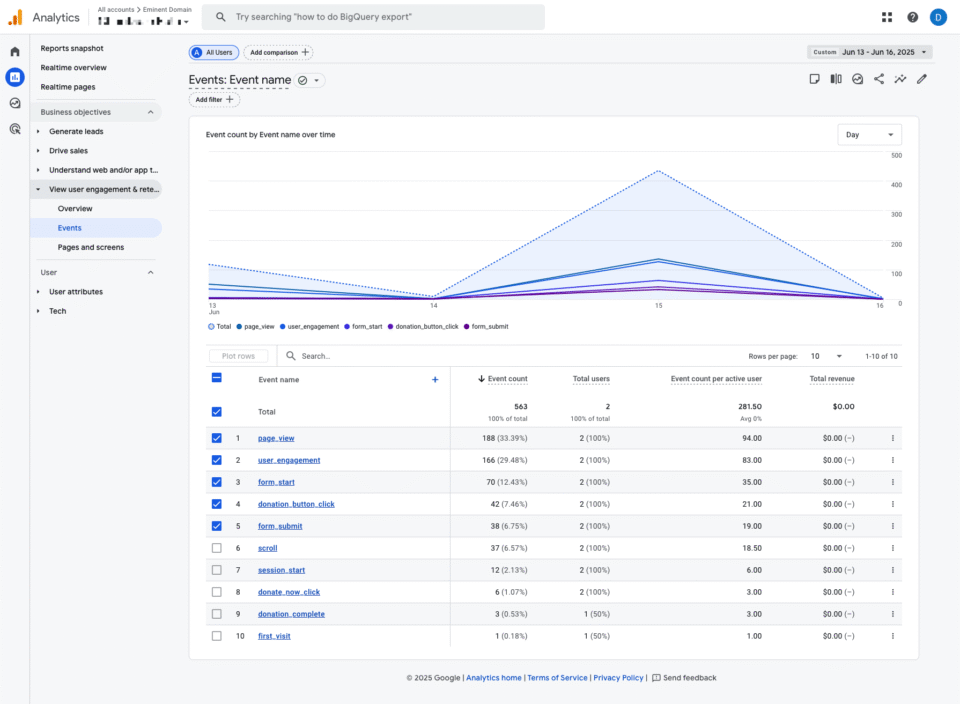
Aquí tienes un resumen de todo lo que el complemento actualizado aporta a tu sitio, la mayor parte activo en el momento en que guardas tu configuración.
- Seguimiento de donaciones en el lado del servidor: Envía un evento
purchaseconfirmado a GA4 en el momento en que una donación alcanza el estado Pagado, independientemente de la pasarela de pago o de si el navegador del donante sigue abierto. PayPal Standard, webhooks de Stripe y donaciones sin conexión confirmadas por el administrador cuentan. - Atribución UTM en cada donación: Captura parámetros UTM de la URL de llegada del donante en una cookie de origen de 30 días, los adjunta al registro de donaciones y los reenvía a GA4. Ve exactamente qué correo electrónico, publicación social o anuncio impulsó cada donación completada, no solo cada visita a la página.
- Formato de evento de comercio electrónico de GA4: Rastrea las donaciones como eventos
purchasecon ID de transacción, valor, divisa y la campaña como línea de artículo. Los reembolsos activan un eventorefundcoincidente, manteniendo tus totales de ingresos de GA4 precisos automáticamente. - Modo de consentimiento de Google v2: Dispara las cuatro señales de consentimiento requeridas antes de que se cargue gtag.js. Sin él, los usuarios del EEE denegados desaparecen por completo de GA4. Con él, GA4 aún recibe conversiones modeladas y pings sin cookies. Funciona con Cookiebot, CookieYes, Complianz, Iubenda y OneTrust a través de la API de consentimiento de WP.
- Panel de Google Analytics en cada donación: Cada registro de donación en tu administrador de WordPress muestra un panel de Google Analytics colapsable con los datos de origen UTM del donante, el ID de cliente y el ID de sesión de GA4, el estado de consentimiento en el momento de la donación y una marca de tiempo para cada evento activado.
- Identidad de donante cifrada: Los correos electrónicos de los donantes se normalizan y se cifran con SHA-256 antes de convertirse en el ID de usuario de GA4, lo que permite la vinculación de sesiones entre dispositivos sin exponer PII en tus informes.
- Exclusión de seguimiento basada en roles: Omite el seguimiento para Administradores, Editores o cualquier rol de WordPress que elijas. Tus propias pruebas no inflarán tus informes.
- Botón de prueba de conexión: Envía un evento de prueba directamente desde la configuración de Charitable y confirma tu configuración en DebugView de GA4 en segundos. Si algo está mal configurado, verás un mensaje de error específico en lugar de solo silencio.
- Compatibilidad con Site Kit y MonsterInsights: El complemento detecta automáticamente ambos plugins y pospone la carga de gtag.js a ellos, evitando la doble carga sin ninguna configuración manual.
Configuración
Esto es todo lo que necesitas para empezar. No necesitas un desarrollador.
Ve a Plugins » Plugins Instalados en tu administrador de WordPress y actualiza si es necesario. (Actualiza a Charitable Pro 1.8.13 o superior)
Ve a Charitable » Complementos, busca Google Analytics y haz clic en Instalar y Activar.
Inicia sesión en Google Analytics y ve a Administrador » Flujos de datos. Selecciona tu flujo web y Busca tu ID de medición de GA4. El ID de medición comienza con G- y aparece en la esquina superior derecha de los detalles del flujo.
Ve a Benéfico » Ajustes » Avanzado y pega el ID en el campo Google Analytics. Haz clic en Guardar cambios.

De vuelta en GA4, ve a Administrar » Flujos de datos » Secretos de la API del protocolo de medición y haz clic en Crear.
Copia el valor del secreto y pégalo en el campo Secreto de la API del protocolo de medición de GA4 en los ajustes de Benéfico. Guarda de nuevo. Esto habilita el seguimiento del lado del servidor (recomendado).
Ahora, es hora de probar tu conexión. En la misma pantalla de ajustes, haz clic en Enviar evento de prueba a GA4. Abre GA4 » Administrar » DebugView y observa que aparezca el evento de prueba. Normalmente aparece en unos 30 segundos. Una marca de verificación verde en Benéfico confirma el éxito.
Esa es la configuración completa. Los informes estándar en GA4 (como Compras de comercio electrónico y Adquisición de tráfico) comienzan a poblarse en 24 a 48 horas. Realtime y DebugView se actualizan en unos 30 segundos.
Por qué le encantará esto
La configuración lleva menos de cinco minutos. Lo que obtienes a cambio no deja de dar frutos.
- 📊 Ve qué está impulsando realmente las donaciones: la atribución UTM conecta tus campañas de correo electrónico, publicaciones sociales y anuncios directamente a las donaciones completadas, no solo a las visitas a páginas.
- 🔒 Cumplimiento de la privacidad listo para usar: el Modo de consentimiento v2, la anonimización de IP y la integración con la API de consentimiento de WP funcionan sin configuración adicional, cubriéndote para los requisitos del EEE por defecto.
- 🔄 Totales de ingresos precisos, automáticamente: los reembolsos envían un evento coincidente a GA4, por lo que tus ingresos reportados se mantienen correctos sin correcciones manuales.
- 🧪 Verifica antes de lanzar: el botón de conexión de prueba te da una confirmación real de que los datos fluyen, no solo una suposición basada en ajustes guardados.
- 👤 Datos limpios desde el primer día: las exclusiones de roles mantienen la actividad de administradores y editores fuera de tus informes de donantes, por lo que los números que lees reflejan realmente el comportamiento de los donantes.
Disponible en Charitable Pro
El complemento de Google Analytics está incluido en el plan Charitable Pro, a partir de 199 $/año para un solo sitio. Eso incluye soporte prioritario, recaudación de fondos de persona a persona, automatizaciones y todo lo de los niveles Básico y Plus. Si necesitas ejecutarlo en hasta cinco sitios, el plan Élite cuesta 299 $/año.
Cada plan viene con una garantía de devolución de dinero de 14 días. Sin preguntas.
Empieza a rastrear cada donación
El seguimiento de donaciones que tiene en cuenta cada pasarela de pago, cada método de confirmación y cada ventana de atribución te proporciona el tipo de datos que hace que todas las demás decisiones de marketing sean más agudas.
Si ya tienes Charitable Pro 1.8.13 o superior, instala el complemento actualizado y sigue los pasos de configuración anteriores, o lee la documentación completa para opciones avanzadas que incluyen filtros para desarrolladores, atribución de primer toque UTM y parámetros de eventos personalizados.
¿Preguntas? El equipo de soporte está disponible desde tu panel de cuenta.
Mantente conectado para más recursos para organizaciones sin fines de lucro
Para más tutoriales y vídeos adaptados a organizaciones sin fines de lucro, suscríbete a nuestro canal de YouTube. Publicamos regularmente consejos de expertos, guías paso a paso sobre donaciones en línea, estrategias de recaudación de fondos y recursos prácticos para ayudar a tu organización a tener éxito.
🗞️ Recibe consejos semanales y guías exclusivas en tu bandeja de entrada
Únete a nuestro boletín →
🎥 Mira tutoriales paso a paso e historias de éxito
Suscríbete a nuestro canal de YouTube →
👩🏽💻 Conecta con nuestra comunidad y obtén información diaria sobre organizaciones sin fines de lucro
Síguenos en LinkedIn →
🥳 Reels divertidos e información sobre organizaciones sin fines de lucro
Síguenos en Instagram →
👀 Vídeos interesantes y divertidos para ayudarte a hacer crecer tu causa
Síguenos en TikTok→
🌎 Suscríbete y sigue para recibir consejos generales de recaudación de fondos
Obtén consejos de recaudación de fondos en TikTok →
Potentes recursos de recaudación de fondos
⬇️ Descarga estrategias probadas, ideas de campañas y herramientas de expertos
Obtén el Kit de Recaudación de Fondos →
💸 Obtén recursos gratuitos de recaudación de fondos
Ve al Centro de Recaudación de Fondos de Charitable →
¿Tienes preguntas sobre Charitable?
Preguntas frecuentes de Charitable →
🏎️ Prueba Charitable
Crea tu demostración de Charitable →
Comprende la terminología y la jerga de las organizaciones sin fines de lucro
Glosario de organizaciones sin fines de lucro→
% ¿Buscas ofertas y descuentos para organizaciones sin fines de lucro?
Las mejores ofertas y descuentos para organizaciones sin fines de lucro →



Deja una respuesta