Charitable ermöglicht es Ihnen, Ihre Spendenkampagnen mit Google Analytics zu verbinden, sodass Sie die Leistung von Spenden verfolgen und wertvolle Einblicke in Ihre Fundraising-Bemühungen gewinnen können. Durch die Integration von Google Analytics können Sie wichtige Kennzahlen überwachen, das Spenderverhalten verstehen und Ihre Kampagnen für eine höhere Wirkung optimieren.
Voraussetzungen
- Sie haben ein aktives Charitable-Spenden-Plugin auf Ihrer WordPress-Website
- Sie haben Zugriff auf ein Google Analytics-Konto mit Administratorberechtigungen.
- Sie benötigen das Google Analytics-Addon, das Charitable Pro 1.8.6+ erfordert.
Wenn Sie Google Analytics noch nicht eingerichtet und mit Ihrer Website verbunden haben, müssen Sie dies jetzt tun. Es dauert 5 Minuten. Folgen Sie dieser Anleitung: So installieren Sie Google Analytics in WordPress für Anfänger
Schritt 1: Finden Ihrer Google Analytics Measurement ID
Um Charitable mit Google Analytics zu verbinden, benötigen Sie Ihre Google Analytics Measurement ID. Diese eindeutige Kennung ermöglicht es Charitable, Spenden-Daten an Ihre Google Analytics-Property zu senden.
Navigieren Sie zur Google Analytics-Website und melden Sie sich bei dem Google-Konto an, das mit Ihrer Google Analytics-Property verknüpft ist.
- Wenn Sie mehrere Google Analytics-Konten haben, stellen Sie sicher, dass Sie das richtige auswählen.
- Wählen Sie innerhalb des Kontos die richtige Property aus, für die Sie Charitable-Spenden-Daten verfolgen möchten.
Klicken Sie im linken Navigationsmenü auf Admin. Klicken Sie dann in der Spalte Property auf Datenströme.
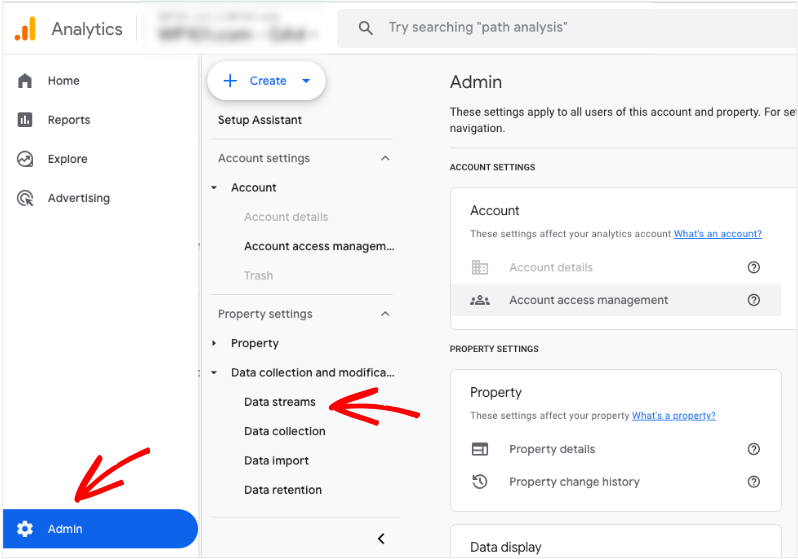
Sie sehen eine Liste von Datenströmen. Im rechten Abschnitt (Stream-Details) finden Sie Ihre Measurement ID. Sie beginnt normalerweise mit „G-“ gefolgt von einer Reihe von Buchstaben und Zahlen (z. B. G-XXXXXXXXXX).
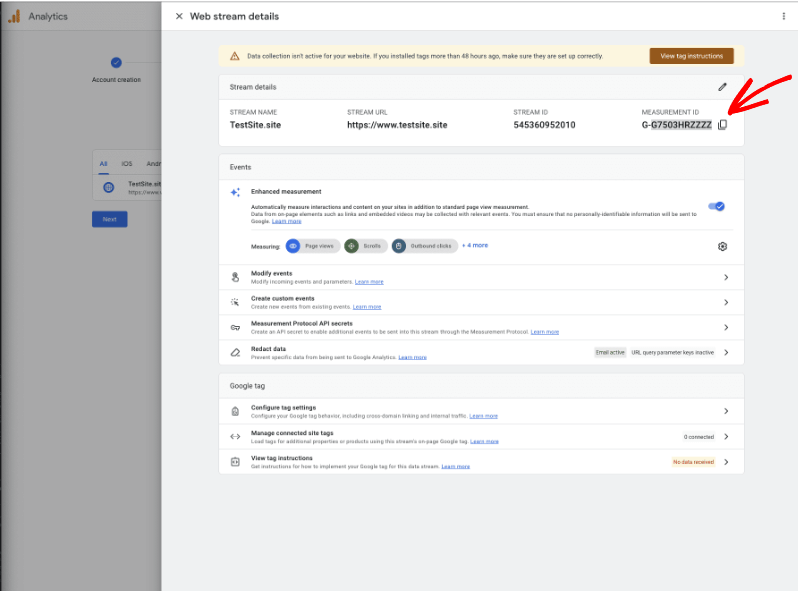
Wenn Sie noch keinen Datenstrom für Ihre Website eingerichtet haben, klicken Sie auf „+ Stream hinzufügen“. Klicken Sie auf den Website-Datenstrom, der mit Ihrer Spenden-Website verknüpft ist.
Hinweis: Ihre Measurement ID ist Groß- und Kleinschreibung zu beachten. Kopieren Sie sie genau, um Fehler zu vermeiden. Stellen Sie außerdem sicher, dass Sie die Measurement ID und nicht die ältere Tracking ID verwenden.
Schritt 2: Hinzufügen der Google Analytics Measurement ID in Charitable
Sobald Sie Ihre Google Analytics Measurement ID gefunden haben, können Sie sie mit Ihrer Charitable-Spendensplattform verbinden.
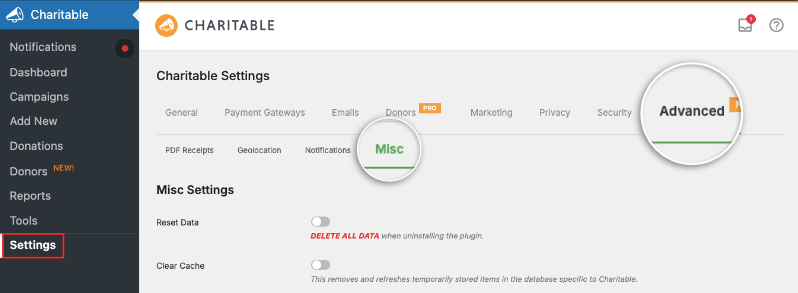
Gehen Sie in Ihrem WordPress-Admin-Dashboard zu Charitable » Einstellungen. Klicken Sie im Einstellungsmenü auf die Registerkarte Erweitert » Diverses.
Scrollen Sie nach unten, um ein Feld mit der Bezeichnung Google Analytics zu finden. Fügen Sie hier Ihre Google Analytics Measurement ID in das Feld Google Analytics ein.
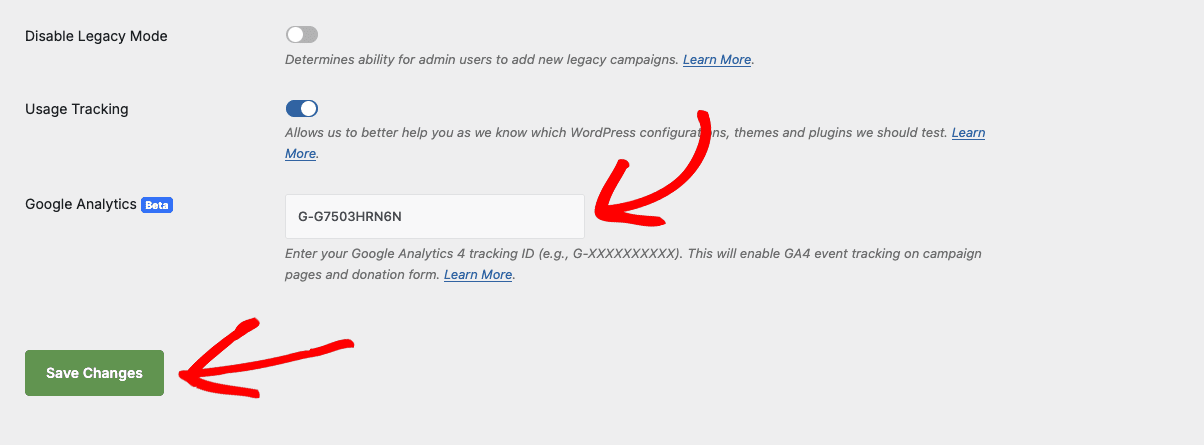
Klicken Sie auf die Schaltfläche Änderungen speichern unten auf der Seite.
Das ist es! Ihre Charitable-Plattform ist nun konfiguriert, um Spendedaten an Ihre Google Analytics-Property zu senden. Bitte erlauben Sie bis zu 24 Stunden, bis die Daten in Ihren Google Analytics-Berichten erscheinen.
Schritt 3: Anzeigen von Daten in Google Analytics
Sobald die Verbindung hergestellt ist, werden Spendedaten an Ihre Google Analytics-Property gesendet. Hier erfahren Sie, wie Sie auf diese Berichte zugreifen können.
Navigieren Sie in Ihrer Google Analytics-Property zu Berichte » Ereignisse.
Sie sehen eine Liste der von Charitable verfolgten Ereignisse.
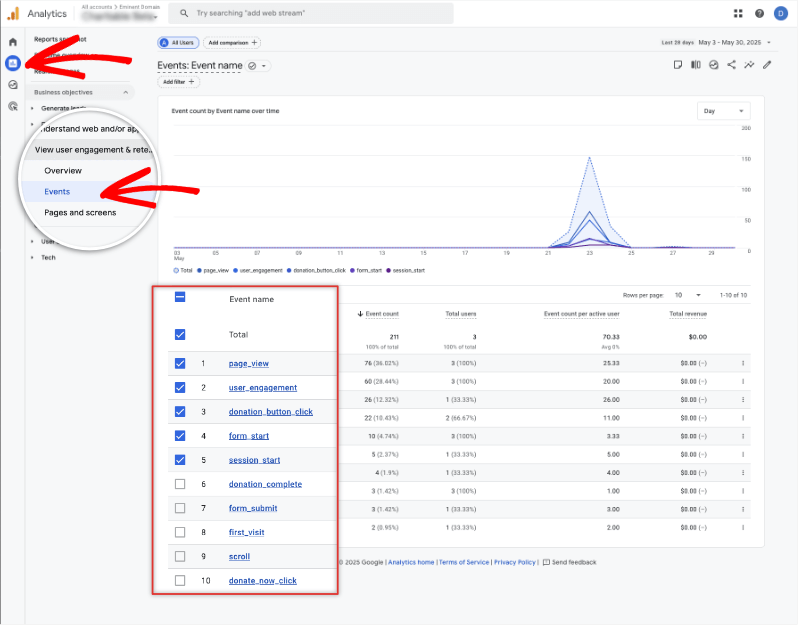
Klicken Sie auf das gewünschte Ereignis (z. B. Donation_Complete), um detaillierte Berichte anzuzeigen. Dies kann Daten wie folgt umfassen:
- Ereignisanzahl: Gesamtzahl der Spenden
- Ereigniswert: Gesamteinnahmen aus Spenden
- Nach Land: Spenden aus bestimmten Orten
- Gerätekategorie: Verwendetes Gerät.
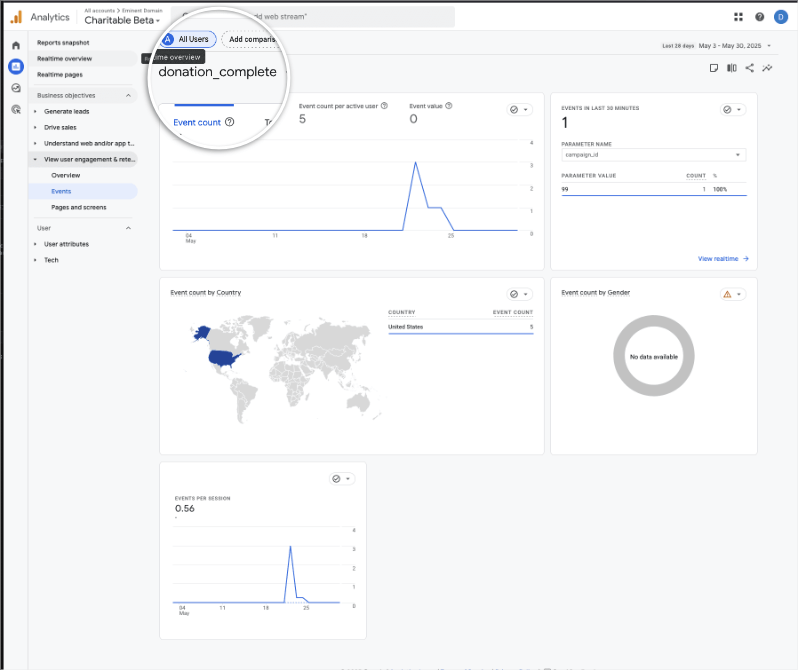
Auf diese Weise können Sie detaillierte Berichte für jede verfolgte Ereigniskategorie anzeigen.
Welche Charitable-Daten werden erfasst?
Charitable bietet eine Reihe von Ereignisparametern, die an GA4 gesendet werden, um mehr Kontext zu Spendenaktivitäten zu liefern. Diese Parameter helfen beim Filtern und Analysieren von Daten. Es ist wichtig zu beachten, dass einige Informationen aufgrund der Anpassungsmöglichkeiten von Kampagnen und Spendenseiten möglicherweise nicht immer verfügbar sind.
Wenn ein Parameter nicht erfasst werden kann (z. B. Kampagneninformationen oder Spendenbetrag), wird der entsprechende Datenzeichenfolgenwert standardmäßig auf „unbekannt“ gesetzt. Dies dient dazu, die Verfolgung unvollständiger oder ungültiger Daten zu vermeiden.
Hier ist eine Aufschlüsselung der mit jedem Ereignis gesendeten Informationen.
1. Donation_button_click – Kampagnen-Spenden-Buttons
Dieses Ereignis wird ausgelöst, wenn ein Benutzer auf einen Kampagnen-Spenden-Button klickt.
campaign_id: Die ID der mit dem Button verknüpften Kampagne.campaign_name: Der Name der Kampagne.donation_amount: Der dem Spenden-Button zugeordnete Betrag.event_category: Immer auf „Donation“ gesetzt.event_label: Immer auf „Donation Button Click“ gesetzt.
2. Donate_now_click – Klicken auf den Spenden-Button im Formular
Dieses Ereignis wird ausgelöst, wenn ein Benutzer auf den Spenden-Button im Spendenformular klickt.
campaign_id: Die ID der mit dem Spendenformular verknüpften Kampagne.campaign_name: Der Name der Kampagne.donation_amount: Der dem Spendenformular zugeordnete Betrag.event_category: Immer auf „Donation“ gesetzt.event_label: Immer auf „Donation Button Now Click“ gesetzt.
3. Donation_complete – Formularverarbeitung abgeschlossen
Dieses Ereignis wird ausgelöst, wenn die Verarbeitung eines Spendenformulars abgeschlossen ist.
campaign_id: Die ID der Kampagne.campaign_name: Der Name der Kampagne.donation_amount: Der Betrag der Spende.donation_id: Eindeutige Charitable-Spenden-ID.event_category: Immer auf „Donation“ gesetzt.event_label:‚Formularverarbeitung abgeschlossen‘
Erstellen und Ändern von Ereignissen in Google Analytics
Google Analytics 4 (GA4) erfasst automatisch eine Reihe von Ereignissen von Ihrer Website.
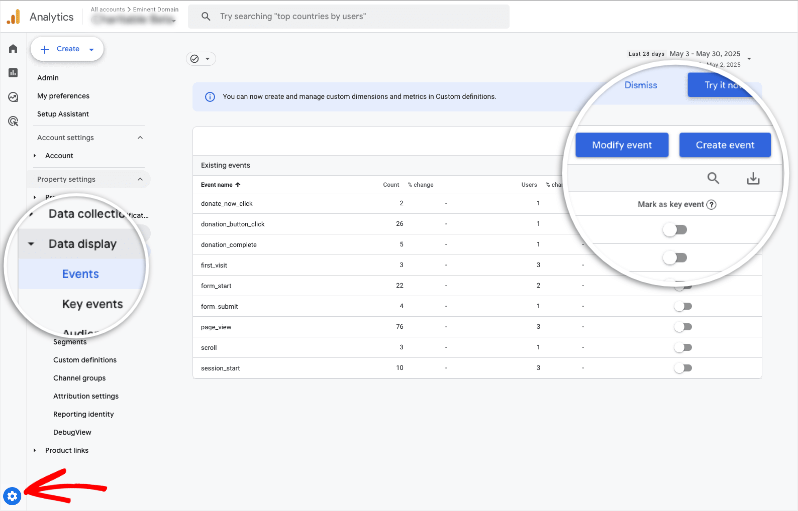
In Ihrer GA4-Property sehen Sie im linken Menü ein Zahnradsymbol für Einstellungen. Gehen Sie zu dieser Seite mit den Admin-Einstellungen. Öffnen Sie im neuen linken Menü den Tab Ereignisse unter „Property-Einstellungen“.
Hier können Sie sehen, welche Ereignisse verfolgt werden.
Sie haben „Charitable“ erfolgreich mit Google Analytics 4 (GA4) verbunden und ermöglichen so die leistungsstarke Verfolgung Ihrer Spendenkampagnen. Durch die Implementierung dieser Schritte und das Verständnis der von „Charitable“ gesendeten Datenparameter können Sie wertvolle Einblicke in das Spenderverhalten gewinnen, Fundraising-Strategien optimieren und die Wirkung maximieren.
Als Nächstes behandeln wir häufig gestellte Fragen zu Google Analytics und „Charitable“.
FAQs zum Verbinden von Google Analytics und Charitable
1. Wie kann Google Analytics meine Fundraising-Bemühungen unterstützen?
Google Analytics kann wertvolle Einblicke in die Interaktion von Besuchern mit Ihren Spendenseiten liefern und Daten über Nutzerverhalten, Traffic-Quellen und Konversionsraten bieten. Durch die Verfolgung von Metriken wie Seitenaufrufen, Absprungraten und Verweisquellen können Sie die Effektivität Ihrer Fundraising-Kampagnen besser verstehen und für eine bessere Leistung optimieren.
2. Welche wichtigen Metriken sollte ich mit Google Analytics verfolgen?
Einige wichtige Metriken, die Sie verfolgen sollten, sind:
- Konversionsrate: Der Prozentsatz der Besucher, die eine Spende abschließen.
- Absprungrate: Der Prozentsatz der Besucher, die die Website nach dem Aufrufen nur einer Seite verlassen.
- Durchschnittliche Sitzungsdauer: Wie lange sich Nutzer im Durchschnitt auf Ihrer Website aufhalten.
- Quelle/Medium: Die Kanäle, über die Besucher auf Ihre Website gelangen (z. B. organische Suche, bezahlte Anzeigen, soziale Medien).
3. Wie richte ich Google Analytics zur Verfolgung von Spenden ein?
Um Spenden zu verfolgen, können Sie die Ereignisverfolgung verwenden und Ziele in Google Analytics einrichten. Die Ereignisverfolgung ermöglicht es Ihnen, bestimmte Aktionen zu verfolgen, wie z. B. Klicks auf eine „Spenden“-Schaltfläche, während Ziele Ihnen helfen können, den Abschluss von Spendenformularen zu messen. Die Einrichtung beider erfordert das Hinzufügen von Tracking-Code zu Ihrer Website und die entsprechende Konfiguration von Google Analytics.
4. Was ist Ereignisverfolgung und wie kann sie zur Verfolgung von Spenden verwendet werden?
Ereignisverfolgung ist eine Funktion in Google Analytics, mit der Sie Interaktionen auf Ihrer Website überwachen können, die keinen Seitenaufruf auslösen, wie z. B. Klicks auf Schaltflächen oder Formularübermittlungen. Um Spenden zu verfolgen, konfigurieren Sie Ereignisse, wenn ein Nutzer auf Ihre „Spenden“-Schaltfläche klickt oder ein Spendenformular erfolgreich ausfüllt.
5. Wie richte ich Ziele in Google Analytics für Spendenabschlüsse ein?
Um ein Ziel einzurichten, gehen Sie zum Admin-Bereich Ihres Google Analytics-Kontos, wählen Sie „Ziele“ und erstellen Sie ein neues Ziel. Sie können den Zieltyp „Ziel“ verwenden, wenn Ihr Spendenprozess nach Abschluss zu einer „Vielen Dank“-Seite weiterleitet. Geben Sie die URL dieser Seite als Ziel an, um erfolgreiche Spenden zu verfolgen.
6. Was sind einige häufige Herausforderungen bei der Verfolgung von Spenden mit Google Analytics?
Einige Herausforderungen sind die genaue Verfolgung von Spenderwegen, der Umgang mit Datenschutzbedenken von Spendern, die Sicherstellung der korrekten Implementierung von Tracking-Codes und die Zuordnung über mehrere Kanäle hinweg, um zu verstehen, woher Spenden stammen.
7. Wie kann ich Google Analytics-Daten zur Verbesserung meiner Spendenformulare verwenden?
Sie können Google Analytics-Daten verwenden, um Seiten mit hohen Absprungraten oder niedrigen Konversionsraten zu identifizieren, die auf Abbrüche hinweisen. Durch A/B-Tests und die Analyse verschiedener Nutzersegmente können Sie das Formular-Design verfeinern, den Spendenprozess vereinfachen und die Botschaften anpassen, um die Konversionen zu erhöhen.
8. Welche Datenschutzaspekte sind bei der Verwendung von Google Analytics für Fundraising zu berücksichtigen?
Es ist wichtig, Datenschutzbestimmungen wie die DSGVO einzuhalten. Dazu gehört die Sicherstellung der Nutzereinwilligung für das Tracking, die Anonymisierung von IP-Adressen und die Information der Besucher darüber, wie ihre Daten verwendet werden. Stellen Sie immer sicher, dass Ihre Datenschutzerklärung aktuell und transparent ist.
9. Was passiert, wenn ich mein Google Analytics-Konto nach der Verbindung mit Charitable ändere?
Wenn Sie Ihr Google Analytics-Konto ändern, müssen Sie Charitable vom ursprünglichen Konto trennen und es wieder mit dem neuen verbinden. Dies stellt sicher, dass Spenderdaten an die richtige Property gesendet werden. Stellen Sie sicher, dass Sie die korrekte Google Analytics Measurement ID in den Charitable-Einstellungen erneut eingeben.
10. Warum werden Spenderdaten nicht in den Google Analytics-Berichten angezeigt?
- Verbindung prüfen: Stellen Sie sicher, dass Sie die korrekte Google Analytics ID in Charitable eingegeben haben.
- Datenverzögerung: Warten Sie bis zu 24-48 Stunden, bis Daten in Google Analytics angezeigt werden.
- Ereigniseinstellungen überprüfen: Bestätigen Sie, dass die richtigen Ereignisse eingerichtet sind. Zum Beispiel, dass der richtige Name eingerichtet ist.
- Stichproben: Hohes Spendenaufkommen kann zu Datenstichproben in Google Analytics führen.
- Echtzeitberichte: Überprüfen Sie die Berichte in GA4.
11. Warum wird für die Kampagneninformationen „unbekannt“ angezeigt?
Wenn die Informationen als unbekannt angegeben sind, deutet dies darauf hin, dass die Kampagne nicht an GA4 gesendet wird. Bitte überprüfen Sie die Kampagneneinrichtung oder die Formulareinstellungen, wie die Kampagneninformationen gesendet werden.
12. Kann ich neben Spenden auch andere Ereignisse verfolgen?
Ja, es ist möglich, Ereignisse in Google Analytics anzupassen.
13. Wie gehe ich bei der Fehlerbehebung vor, wenn ein bestimmtes Ereignis nicht angezeigt wird?
- Stellen Sie sicher, dass Sie die erforderlichen Tracking-Ereignisse aktiviert haben.
- Leeren Sie Ihren Browser-Cache und Ihre Cookies, um sicherzustellen, dass Sie die neuesten Daten laden.
- Kontaktieren Sie den Support.
Sie sind nun gerüstet, um wertvolle Einblicke zu gewinnen, Ihre Fundraising-Bemühungen zu optimieren und Ihre Wirkung zu verstärken.
Wussten Sie, dass Charitable auch Fundraising-Berichte direkt in Ihrem WordPress-Dashboard bereitstellt? Erfahren Sie hier mehr über integrierte Berichte »