In Charitable, you can choose between two premade donation form templates. These templates are designed to have all the required fields you need in your donation form.
You can choose to display a standard template or a minimal view. This guide will show you how to find and switch your donation form templates.
आवश्यक शर्तें
You need to have Charitable 1.8.3.6 version (or above) installed and activated on your WordPress site.
Switching Donation Form Templates
In your WordPress dashboard, open Charitable » Settings tab. Under the General tab, open the Donation Form page.
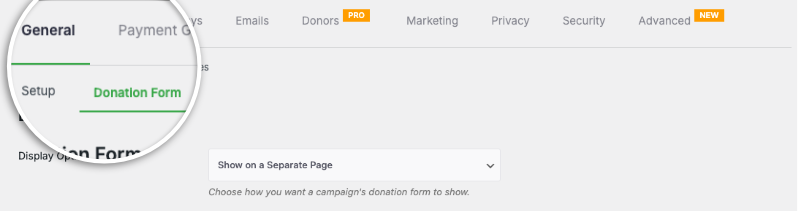
Here, you’ll see the Form Template field where you can switch templates using the drop down menu.
By default, Charitable displays the Standard form template.
The Minimal view attempts to reduce the space taken up by the donation form. It is designed to give you a donation form that is more compact.

The minimal look is best suited for when the donation form is on a separate page.
Once you’ve made your selection, scroll down and click on the Save Changes button.
How to Make The Donation Form Shorter
If you find the donation form longer than you’d like on your website, in the same settings page, right below the Donation Form template options, there is a field “Only show required fields”.
Set this to “Yes”.
This will make Charitable’s donation form a “short form”.
Not sure how to create a donation form?
Watch our tutorial here:
Fundraising Tips and Advice
हम नियमित रूप से व्यावहारिक गाइड, सिद्ध रणनीतियाँ और अंदरूनी युक्तियाँ साझा करते हैं ताकि आप अधिक धन जुटा सकें और मजबूत डोनर संबंध बना सकें। हजारों गैर-लाभकारी संस्थाओं से जुड़ें जिन्हें हमारी सर्वोत्तम सामग्री सीधे उन तक पहुँचाई जाती है:
- हमारे न्यूज़लेटर में शामिल हों – अपने इनबॉक्स में साप्ताहिक युक्तियाँ और विशेष गाइड प्राप्त करें
- हमारे यूट्यूब चैनल को सब्सक्राइब करें – चरण-दर-चरण ट्यूटोरियल और सफलता की कहानियाँ देखें
- लिंक्डइन पर हमें फॉलो करें – हमारे समुदाय से जुड़ें और दैनिक गैर-लाभकारी अंतर्दृष्टि प्राप्त करें
- टिकटॉक पर हमें फॉलो करें – अपने कारण को बढ़ाने में मदद करने के लिए जानकारीपूर्ण और मजेदार वीडियो
FAQs for Charitable Donation Form Templates
What are the available donation form templates in Charitable?
In Charitable, you can choose between two premade donation form templates: the Standard template and the Minimal view template.
How can I switch between donation form templates in Charitable?
To switch templates, navigate to the WordPress dashboard and go to Charitable » Settings. Under the General tab, open the Donation Form page, and use the Form Template dropdown menu to select your desired template.
What is the difference between the Standard and Minimal templates?
The Standard template includes all the required fields in a more expansive layout. The Minimal view is a more compact design, reducing space and is ideal for donation forms placed on separate pages.
What version of Charitable do I need to use these templates?
You need to have Charitable version 1.8.3.6 or above installed and activated on your WordPress site.
How can I make the donation form shorter?
In the same settings page where you choose the template, there is a “Only show required fields” option below the Donation Form template options. Set this option to “Yes” to convert Charitable’s donation form into a shorter version.
Can I customize the appearance of my donation forms?
Yes. You can customize colors, form templates (standard or minimal), and field display options. You can also use custom CSS and code snippets.
I made changes to settings but they’re not showing up. What should I do?
Always click “Save Changes” after making any modifications. If changes still don’t appear, try clearing your website cache if you’re using a caching plugin.
What’s the difference between displaying donation forms “on the same page” vs “on a separate page”?
- Same page: The donation form appears directly on your campaign page
- Separate page: Donors are redirected to a dedicated donation page
- Modal: The form appears in a popup overlay
Choose based on your preference for user experience and page design.
मैं चैरिटेबल के लिए बिल्कुल नया हूँ। मुझे कहाँ से शुरू करना चाहिए?
Follow this Getting Started guide here and start with the Setup Wizard that appears when you first install Charitable. It takes about 5 minutes and will guide you through the essential configuration steps including payment setup and creating your first campaign. If you missed the wizard, you can access all these settings manually through Charitable » Settings.
यदि मुझे समस्याएँ आती हैं तो मैं सहायता कहाँ से प्राप्त कर सकता हूँ?
- मुफ़्त उपयोगकर्ता: वर्डप्रेस.org सहायता फ़ोरम का उपयोग करें
- प्रो उपयोगकर्ता: प्राथमिकता सहायता के लिए सीधे सहायता से संपर्क करें
- दस्तावेज़ीकरण: व्यापक दस्तावेज़ीकरण पुस्तकालय देखें
- समुदाय: न्यूज़लेटर की सदस्यता लें और युक्तियों और अपडेट के लिए सोशल चैनलों को फॉलो करें
क्या वीडियो ट्यूटोरियल उपलब्ध हैं?
हाँ! Charitable YouTube चैनल की सदस्यता लें स्टेप-बाय-स्टेप ट्यूटोरियल और सफलता की कहानियों के लिए।
We hope these FAQs help!
Need support? Have a question? If you are a lite/free user of Charitable, you can reach out to our team on the WordPress.org support forums and our team will respond in a timely fashion. If you have an active license, feel free to reach out us directly for priority support.