Would you like to use your own WordPress page as the donation receipt instead of Charitable’s built-in receipt? The donation receipt page is what donors see immediately after completing a donation, and Charitable lets you swap the default receipt for any page on your site. This is useful if you want to match a specific page template, add custom branding, or include extra content alongside the receipt details.
This guide will walk you through the steps to set up a custom donation receipt page in Charitable.
Before you get started, make sure Charitable is installed and activated on your site. If you’d like a refresher on the default receipt experience, see How Charitable Detects the Receipt Page.
How the Default Receipt Page Works
Out of the box, Charitable uses an automatic receipt page. You don’t have to create or pick a page – when a donor completes a donation, Charitable generates the receipt on the fly using a built-in virtual page. This is the default behavior for every new install.
The automatic receipt works well for most sites, but there are a few reasons you might want to use your own page instead:
- You want a specific page template – Choose a layout from your theme that matches the rest of your site.
- You want to add extra content – Include a thank-you video, social sharing buttons, or a follow-up call to action above or below the receipt.
- You want full control over the URL – Pick the exact slug donors land on after donating.
If you don’t need any of the above, the automatic receipt page is the recommended option and no setup is required.
Locating the Donation Receipt Page Setting
To find the Donation Receipt Page setting, head to Charitable » Settings in your WordPress admin. From there, open the General tab, then scroll to the Pages section.
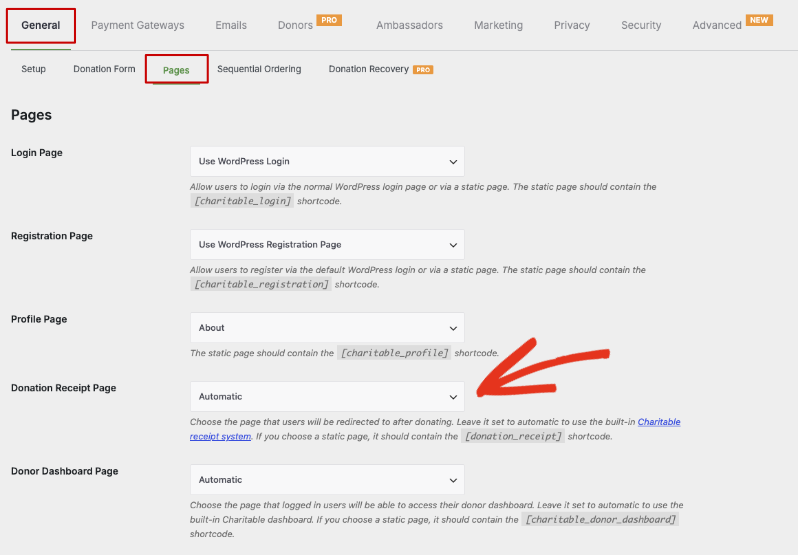
The Donation Receipt Page dropdown has two types of options:
- Automatic – The default. Charitable generates the receipt page on the fly. Choose this if you don’t need a custom layout or any extra content on the receipt.
- A static page from your site – Any published WordPress page can be selected from the list. Choose this if you’ve created (or want to create) a dedicated receipt page with custom styling or content.
Note: If you choose a static page, that page must contain the [donation_receipt] shortcode for Charitable to display the donor’s receipt details. Without the shortcode, donors will see your page content but no receipt information.
Creating Your Custom Receipt Page
If you don’t already have a page you’d like to use, start by creating one. From your WordPress admin, go to Pages » Add New.
Give the page a clear title – something like Donation Receipt or Thank You for Your Donation. This title may appear in browser tabs and search results, so pick something donors will recognize.
Note: Don’t link to this page from your site’s main navigation or footer. The receipt page should only be reached after a donor completes a donation – visiting it directly without a donation in progress will show an empty or generic message.
Adding the Donation Receipt Shortcode
For your custom page to actually display the donor’s receipt – the donation amount, donor name, campaign details, and confirmation message – you need to add the [donation_receipt] shortcode to the page content.
While editing your page, add a Shortcode block (or paste it directly into a Paragraph block if you’re using the Classic Editor):
[donation_receipt]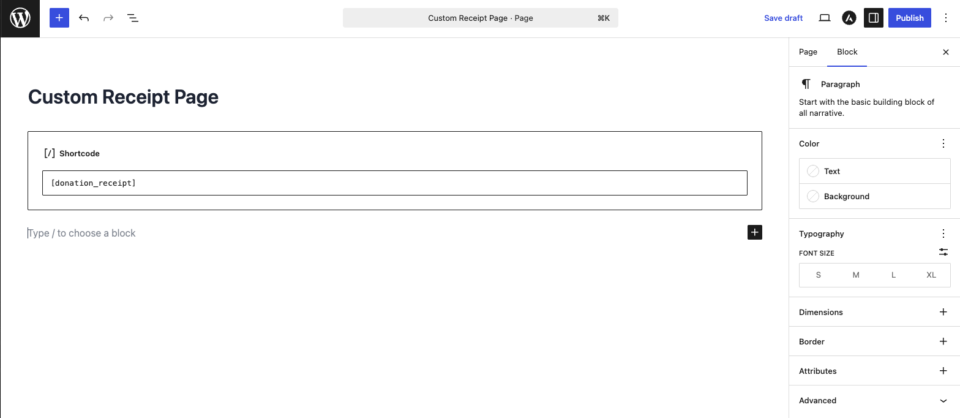
You can place the shortcode anywhere on the page. Any content you add above or below the shortcode – a header, a thank-you message, social share buttons – will appear around the receipt details when donors view the page.
When you’re happy with the layout, click Publish (or Update if the page already exists).
Note: The [donation_receipt] shortcode has no attributes. It automatically pulls the correct donation for the donor viewing the page and displays the receipt details using Charitable’s standard template.
Selecting Your Custom Page in Charitable
Once your custom receipt page is published, return to Charitable » Settings » General and scroll to the Pages section.
From the Donation Receipt Page dropdown, select the page you just created. The list shows every published page on your site, so look for the title you used.
When you’ve selected your page, scroll to the bottom and click Save Changes.
Testing Your Custom Receipt Page
Before pointing real donors at the new receipt page, run a test donation to make sure everything displays correctly. We recommend using a test mode payment gateway (such as Stripe’s test mode) or the Offline Donations gateway so you can complete the donation without a real charge.
Complete a donation from start to finish. After the donation goes through, you should land on your custom page and see the receipt details rendered where you placed the [donation_receipt] shortcode. Check that the donor name, donation amount, campaign title, and confirmation message all appear correctly.
A Note About Stripe Checkout
If you’re using Stripe Checkout (the hosted Stripe payment page), your custom receipt page works exactly like any other gateway. Stripe redirects donors back to the page you’ve selected in Donation Receipt Page, and the [donation_receipt] shortcode renders the receipt details normally.
One thing to be aware of: Stripe Checkout confirms donations through a background webhook, not the redirect itself. In rare cases, a donor may land on the receipt page a moment before Stripe sends the confirmation webhook, so the donation status may briefly show as pending. The status updates automatically once the webhook arrives, usually within a second or two.
Note: If donations stay stuck on pending rather than briefly showing it, your Stripe webhook may not be configured correctly. See Setting Up Stripe Webhooks to confirm webhooks are reaching your site.
Troubleshooting
The custom page loads, but no receipt details appear
This almost always means the [donation_receipt] shortcode is missing from the page. Edit the page, confirm the shortcode is present, and make sure it’s not wrapped in any block that escapes shortcode output. The shortcode must appear exactly as [donation_receipt] with no extra attributes.
Donors are redirected somewhere else after donating
Charitable redirects donors to whichever page is selected in the Donation Receipt Page dropdown. If donors are landing elsewhere, double-check that your custom page is the one selected in Charitable » Settings » General » Pages and that you’ve clicked Save Changes.
If you’re using a caching or optimization plugin, clear your site cache after saving the settings change so the new redirect takes effect.
The receipt shows the wrong donation
The [donation_receipt] shortcode displays the donation tied to the current session or the donation ID passed in the URL. If a donor visits the receipt page directly (outside the donation flow), there’s no donation to display. This is expected behavior – the receipt page is only meant to be reached at the end of a donation.
That’s it! Donors who complete a donation will now land on your custom receipt page, and the [donation_receipt] shortcode will fill in the receipt details automatically. Next, see Customizing the Donation Receipt Template to learn how to change the receipt’s layout or fields, or Customizing the Donation Receipt Email if you’d like to update the email donors receive.
अक्सर पूछे जाने वाले प्रश्न
Do I have to create a custom receipt page?
No. Charitable’s default Automatic setting generates a receipt page for you without any setup. A custom page is only needed if you want to control the layout, URL, or surrounding content.
What does the [donation_receipt] shortcode do?
It tells Charitable where on your custom page to render the donor’s receipt – the donation amount, donor name, campaign, payment status, and any other receipt fields. Without it, your custom page will load but won’t display any receipt details.
Can I add other content to my custom receipt page?
Yes. Anything you place above or below the [donation_receipt] shortcode – text, images, videos, blocks – will appear around the receipt on the page.
Why does the receipt page look empty when I visit it directly?
The receipt page is designed to be reached at the end of a donation, not visited directly. When there’s no active donation, the [donation_receipt] shortcode has nothing to display. This is expected – don’t link to the receipt page from your menus or footer.
Can I switch back to the automatic receipt page later?
Yes. Go to Charitable » Settings » General » Pages, change the Donation Receipt Page dropdown back to Automatic, and click Save Changes.
Where can I change what’s shown inside the receipt itself?
The fields and layout of the receipt are controlled by Charitable’s receipt template, not the page that contains the shortcode. See Customizing the Donation Receipt Template for the full walkthrough.